

Your Prescription PIN
As an Independent Prescriber, you must enter your 6-digit Prescription PIN to authorise every IP Bridge prescription. The PIN acts as your signature. It is the same PIN used in Prescribe, and it is now switched on for every Independent Prescriber, including those in groups that don't use Prescribe.
What has changed
Section titled “What has changed”- Authorising an IP Bridge request now requires your Prescription PIN.
- Rejecting a request does not require your PIN.
- Self-prescribe requests go through the same Authorise step, so they need your PIN too.
- If you don’t have a PIN yet, you can’t authorise. Follow the setup steps below first.
- Once a prescription has been authorised, it is locked and can’t be edited. See Issued prescriptions are final.
The process for pharmacists who request IP Bridge prescriptions is unchanged.
Before you start: setup checklist
Section titled “Before you start: setup checklist”Before you can authorise your first IP Bridge prescription, make sure that:
- You have signed at least one PGD. When you authorise a prescription, the system keeps a permanent copy of your signature, taken from your most recent PGD sign-off. See PGD training & signature.
- Head Office has reset your PIN. You can’t choose your own PIN. The system generates a random 6-digit PIN when Head Office resets it. Ask your Head Office to do this if you don’t have one. They can follow Reset a Prescribe pin.
- You have revealed and memorised your PIN in My Profile (see below).
How to view your PIN
Section titled “How to view your PIN”- Log in and click the Profile icon in the top-right corner, then select My Profile.
- Find the section Your 6-Digit Prescription PIN.
- Read the Critical Security Notice. Your PIN is unique to you and must never be shared with or used by anyone else. Misuse may have professional and legal consequences.
- Under Get a secure PIN reminder, click Reveal Pin.
- Complete the Two-Factor Authentication (2FA) step:
- Email: a 6-digit code is sent to your email address. Enter it. Use Resend code if it doesn’t arrive.
- Authenticator app: enter the current code from your app.
- You are returned to My Profile, with your PIN shown in six boxes.
- Memorise your PIN securely, then click Hide PIN.
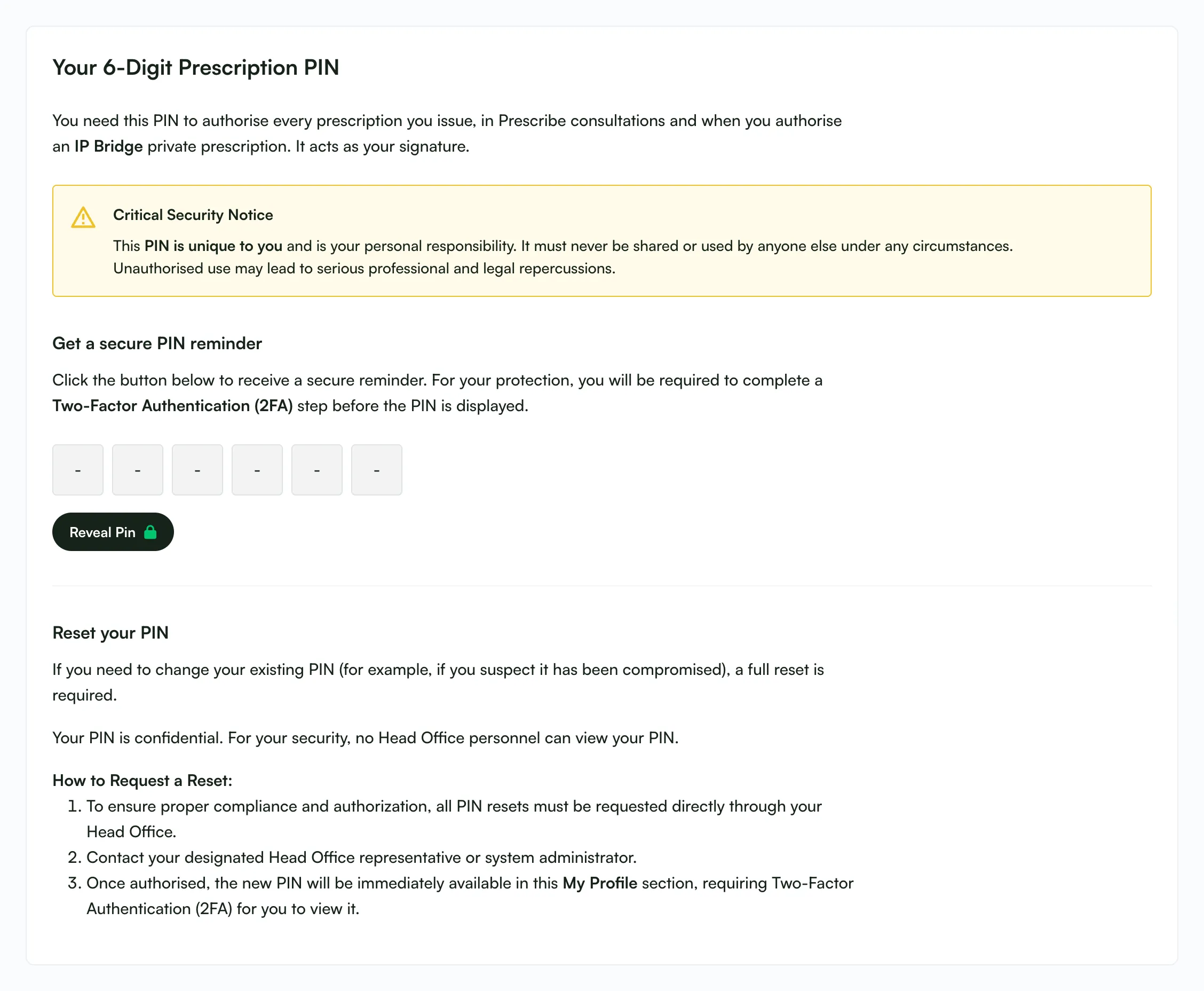
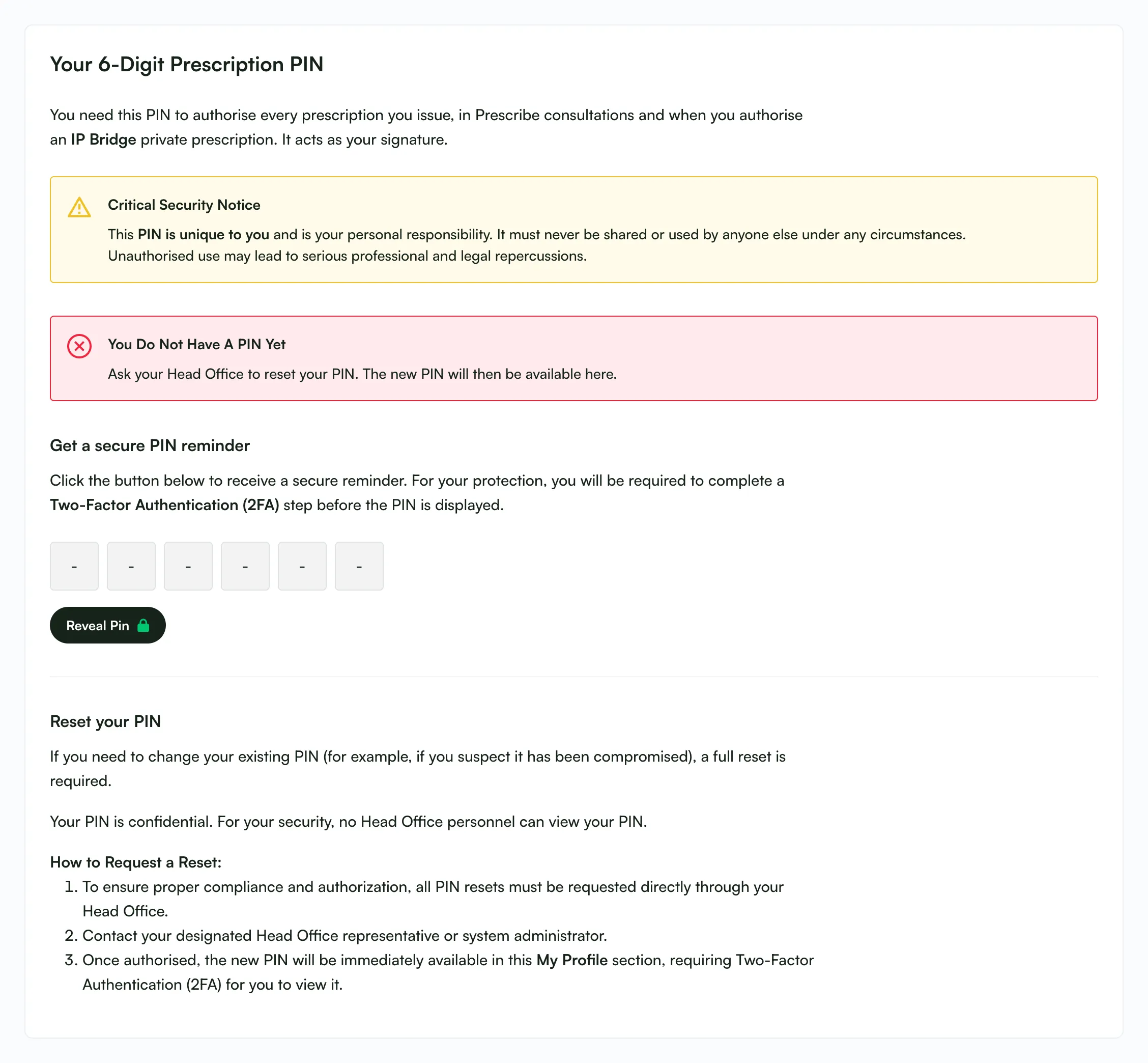
Reveal Pin can be used at most 3 times a minute.
Authorising an IP Bridge prescription
Section titled “Authorising an IP Bridge prescription”- Go to Prescribing > Patient List and click View next to the patient.
- Review the consultation as normal.
- At the bottom of the decision form, complete the treatment, quantity and Prescriber feedback or reason for rejection fields.
- In the Authorise and submit box, enter your 6-digit PIN:
- There are six masked boxes, one per digit. The cursor moves on automatically after each digit and Backspace goes back.
- You can paste all six digits at once to fill every box.
- When all six digits are entered, a green PIN provided label appears.
- Click Authorise Patient. If fewer than six digits are entered, the boxes turn red and the form isn’t submitted.
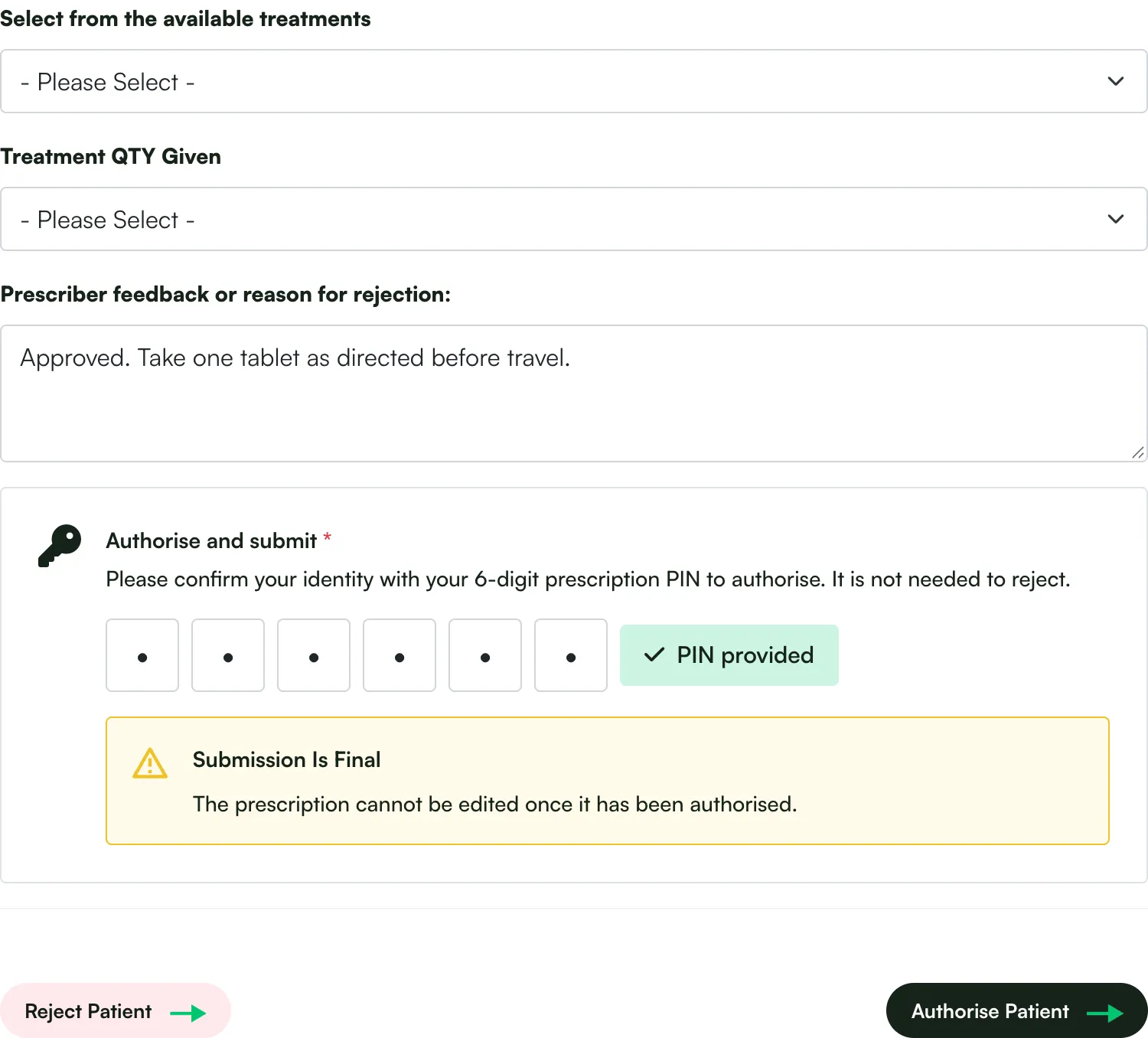
To reject the request instead, click Reject Patient. You don’t need to enter your PIN.
Messages you may see
Section titled “Messages you may see”| Situation | Message |
|---|---|
| Success | “OK, the patient records have been updated.” |
| Wrong PIN | “The PIN you entered is incorrect. Use your 6-digit prescription PIN from My Profile.” Nothing is saved. |
| No PIN set up | “You do not have a prescription PIN yet. Ask your Head Office to reset your PIN, then view it in My Profile.” |
| Too many attempts | The decision form accepts at most 5 submissions a minute. Wait a moment before trying again. |
| Decision already made | “A prescribing decision (Approved/Rejected) has already been made for this patient and cannot be changed.” |
| Another IP is reviewing | “Another prescriber is reviewing this patient. Please try again once their review lock has expired.” The review lock lasts 15 minutes. |
| Signature missing | “This prescription could not be authorised because your signature could not be recorded. Please sign a PGD again so your signature is on file, then try again.” |
| Unexpected error | “Your decision could not be saved, so nothing has changed. Please try again, and contact Deltera support if it keeps happening.” |
If you see the signature message, sign a PGD again, then try again.
Issued prescriptions are final
Section titled “Issued prescriptions are final”An IP Bridge prescription is issued the moment you click Authorise Patient with your PIN. At that point, its full contents are saved as a permanent, sealed record, including:
- the medicine, quantity and directions;
- your name, registration number and signature;
- the patient’s details;
- the pharmacy and group details, including the logo.
What this means in practice:
-
Issued prescriptions never change. Later changes, such as renaming the group, changing the logo, editing your details, uploading a new signature or editing the formulary, don’t affect prescriptions already issued. The only thing that still updates is the dispense / completed status.
-
Decisions are final. Once a patient has been authorised or rejected, the decision can’t be changed, and a new request can’t overwrite it.
-
Mistakes can’t be edited. The law doesn’t allow a prescription to be altered once issued. A “cancel and reissue” feature is planned but isn’t available yet. Until then, contact Deltera support about any genuine errors.
-
Tampering is detected. If an issued prescription’s stored record has been altered, it is never printed as a valid prescription. Instead:
- the prescription PDF prints a NOT A VALID PRESCRIPTION page;
- the prescriber panel shows a red alert and no Print Rx button;
- the GP letter and consultation form show a warning in place of the treatment and prescriber section.
If you see any of these, contact Deltera support.
-
Signatures are better protected. Signature images can no longer be opened from a direct web link. They are built into the documents that show them. As a result, your signature now also appears on PGD PDFs.
-
Older prescriptions. Prescriptions issued before this change have been converted to the same locked record, using the signature and logo on file at the time of conversion. These may look slightly different from what was originally printed if the signature or logo has changed since.
Can I choose my own PIN? No. The system generates a random 6-digit PIN when Head Office resets it.
Can Head Office see my PIN? No. Only you can view it, after completing 2FA.
Do I need my PIN to reject a request? No. The PIN is only needed to authorise.
Is it the same PIN as Prescribe? Yes. If you already use Prescribe, use the same PIN. See Accessing your Prescribe pin.
I’ve forgotten my PIN. Go to My Profile, click Reveal Pin and complete 2FA. You don’t need a reset.
I think someone else knows my PIN. Ask your Head Office to reset it straight away. Your old PIN stops working immediately, and you can then reveal the new one in My Profile.