Administering Treatment / Vaccines
Review patient pre-screen data and record the treatment administered.
Step 1: Start the Consultation
Prerequisite: The patient must complete the pre-screen before the consultation can begin. If they haven't, you can learn how to complete it.
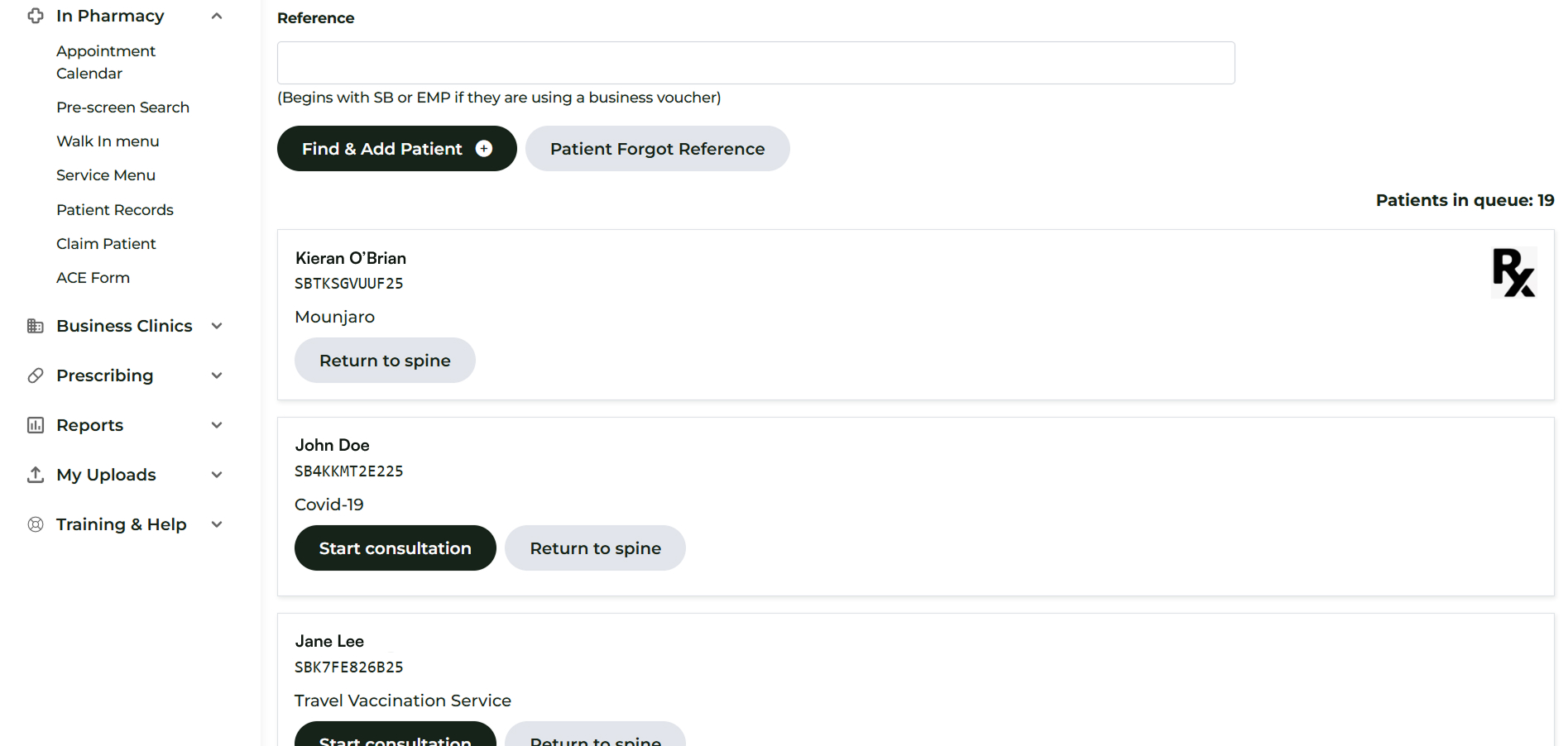
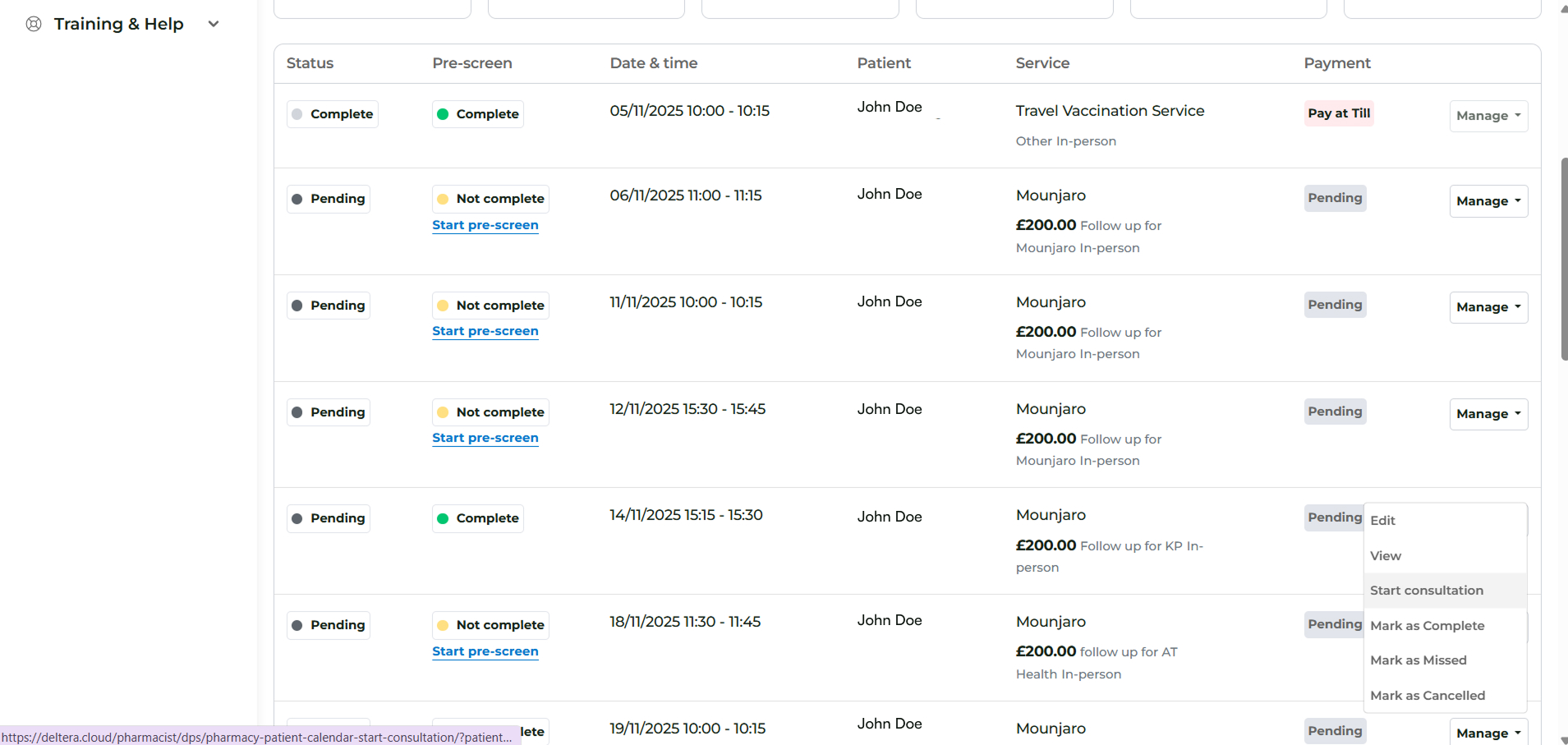
You have several ways to start the consultation and get to the treatment administration screen:
- From Pre-screen Search (Walk-ins): Go to In Pharmacy > Pre-screen Search, then click Start consultation for the specific patient record.
- From Deltera Appointments (Services Diary users): Go to Dashboard > Appointments > Manage, then select Start Consultation.
- From the Calendar: Go to In Pharmacy > Calendar, select the relevant Calendar entry, and then choose Start Consultation.
Step 2: Complete the Consultation and Record Treatment Details
The treatment administration screen is organised into sections, guiding you through the necessary checks and actions.
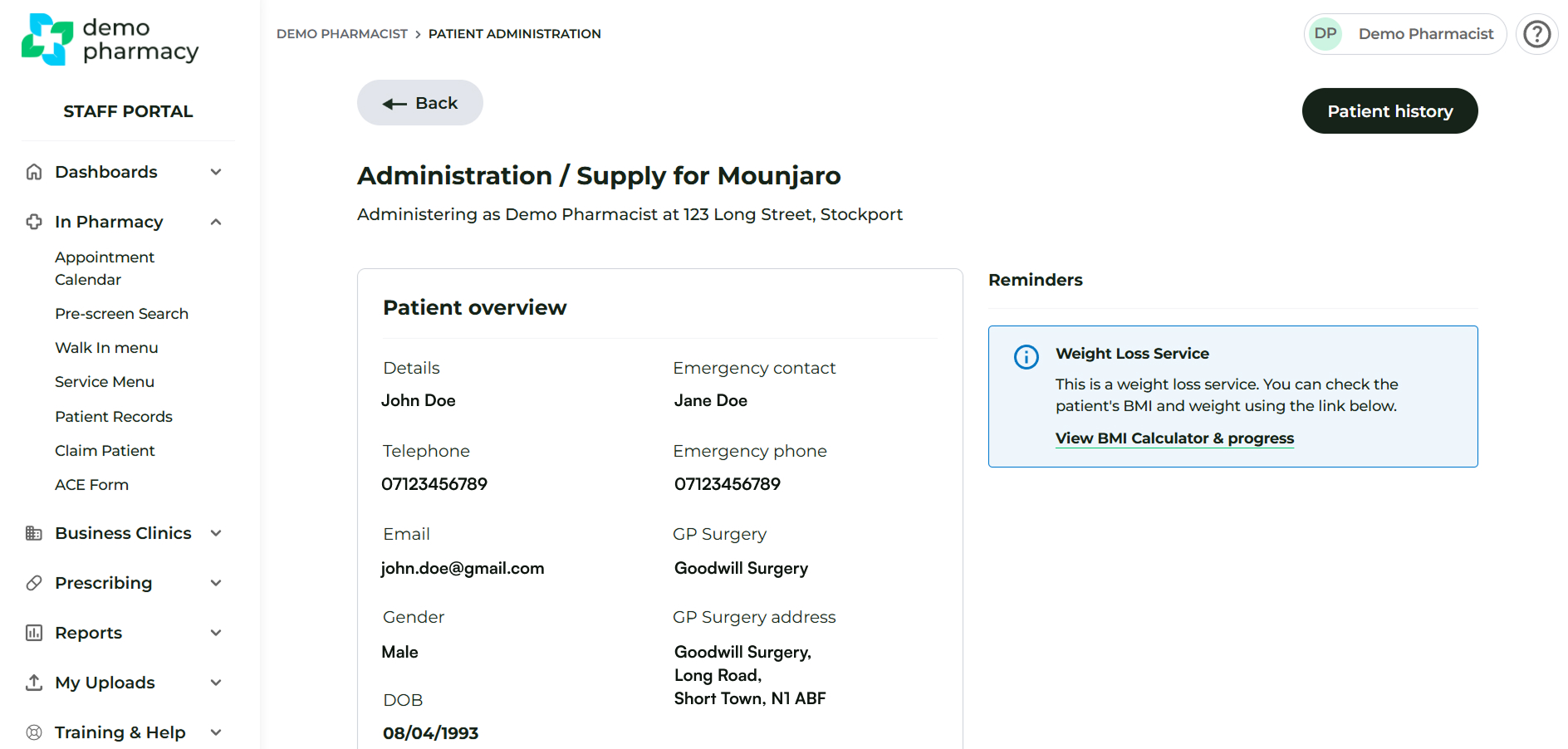
Review Patient Overview and Reminders
The top of the page displays an overview of key patient information and any critical reminders related to the service. These reminders may include prompts to declare your competence or to track specific health information (e.g., blood pressure reading).
Work Through the Consultation
The core consultation area requires you to work through the following sections:
- Medical Review: Thoroughly review the patient's medical pre-screen information.
- Pre-administrative Checks: Complete these checks if they are applicable to the service you are providing.
- PGD Review: If the patient's responses indicate they fall outside of the Patient Group Direction (PGD), you must click the designated button in this section to request a private script.
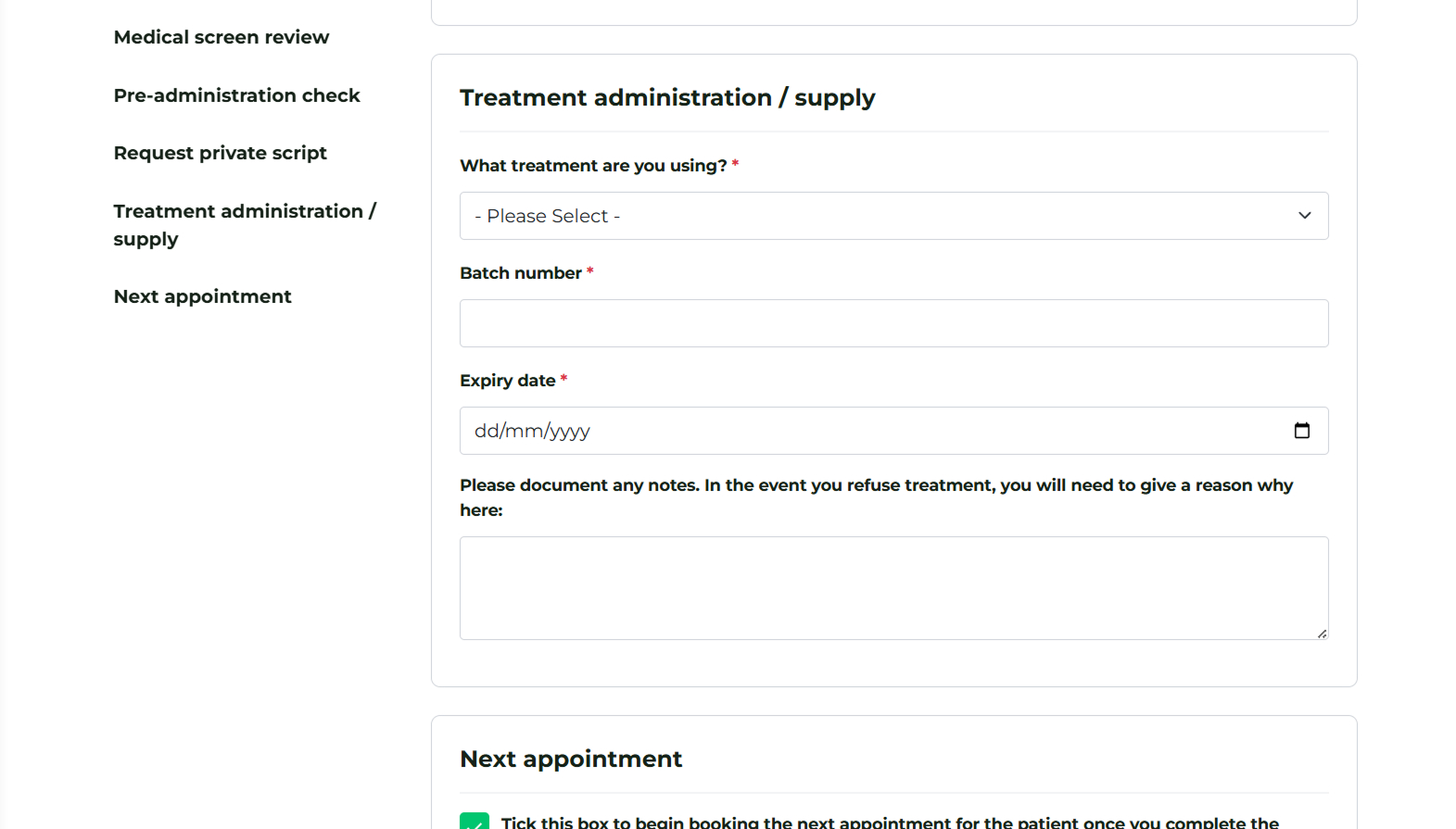
Treatment / Administration
In the Treatment / Administration area, you must finalize the patient's record:
- Specify the Treatment: Choose the exact treatment you are giving.
- Add Required Details: Enter all necessary information (e.g., batch number, expiry date, dose).
- No Treatment Given: You have the option to select No Treatment Given if the consultation does not result in administration.
Step 3: Post-Consultation Record Handling
Upon successfully completing and closing the consultation:
- The patient's details will disappear from the Pre-screen Search and will be marked as complete in the Appointments Dashboard and Calendar.
- The record will appear in the Patient Records section.
- The patient will automatically receive a copy of the consultation record via the email address they provided during the pre-screen.
Step 4: Managing GP Notifications
In the Patient Data > Consultation Data area, you can download a copy of the consultation and and download the GP note.
Note: GP Notification is automated but dependent on two conditions.
- The patient has opted in during completion of the pre-screen
- An NHS mailbox account is known and on the database for the GP surgery the patient has selected. If the status in Patient Records is ‘Send manually’ then the pharmacy should ask its Head Office to provide Deltera with the NHS email address for the surgery. Our team will then update the database, and future consultations for patients at this surgery will have a ‘Sent’ status - assuming condition 1 is true.
