Accessing your Prescribe pin
To issue and authorise digital prescriptions securely, you will need your unique 6-digit Prescription Pin. This pin acts as your electronic signature, ensuring that only you can finalise clinical decisions.
How to View Your Pin
Follow these steps to locate and reveal your pin within your staff account:
- Click the Profile Icon: You will find this in the top-right corner of the screen.
- Select 'My Profile': This will open your personal staff settings and configuration page.
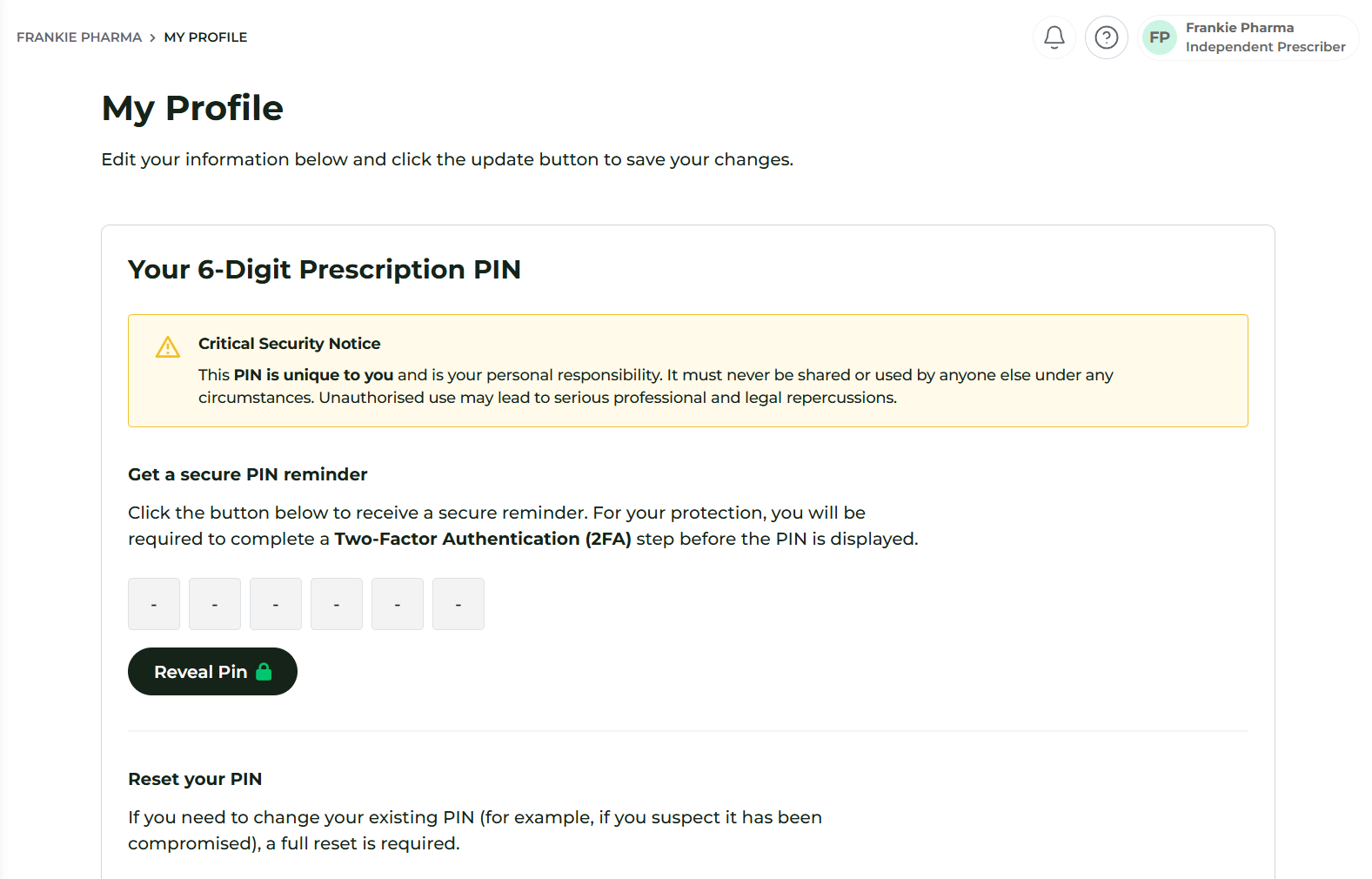
- Locate the Pin Section: The top section of your profile page displays the 6-digit Prescription Pin area.
- Click ‘Reveal Pin’: For security reasons, the pin is masked by default.
- Complete 2FA: Once you click reveal, you will be required to complete Multi-Factor Authentication (2FA). This ensures that only you, the account holder, can view the code.
Security & Confidentiality
Your Prescription Pin is strictly confidential. It is encrypted within the system to ensure the highest level of security.
- Private to You: Not even Head Office personnel or Deltera administrators can view your pin.
- Protection: Never share your pin with colleagues or locums. It is tied specifically to your clinical accountability.
Resetting Your Pin
If you have forgotten your pin or believe it has been compromised, you must follow the reset procedure:
- Contact Head Office: You cannot reset the pin yourself. You must ask your Head Office administrator to trigger a pin reset for your account.
- View the New Pin: Once Head Office has reset it, a new 6-digit pin will be generated.
- Reveal and Verify: You can then view the new pin in the same way as before: navigate to My Profile, click 'Reveal Pin', and complete the 2FA challenge again.
