Starting a Walk-In Service
Walk-in services allow patients to receive immediate clinical care without a prior booking, processed either directly by pharmacy staff at the counter or independently by the patient via a self-service QR code.
Method 1: Staff-Assisted Walk-In
Staff-assisted walk-ins can be initiated from two areas on your dashboard:
- From the Dashboard: Click Start a walk-in service from your main dashboard. You will select the required service during the setup steps.
- From the Walk-in Menu: Go to Walk-in in the left navigation, search for the service, and click Offer Service Now. The service will be pre-selected automatically.
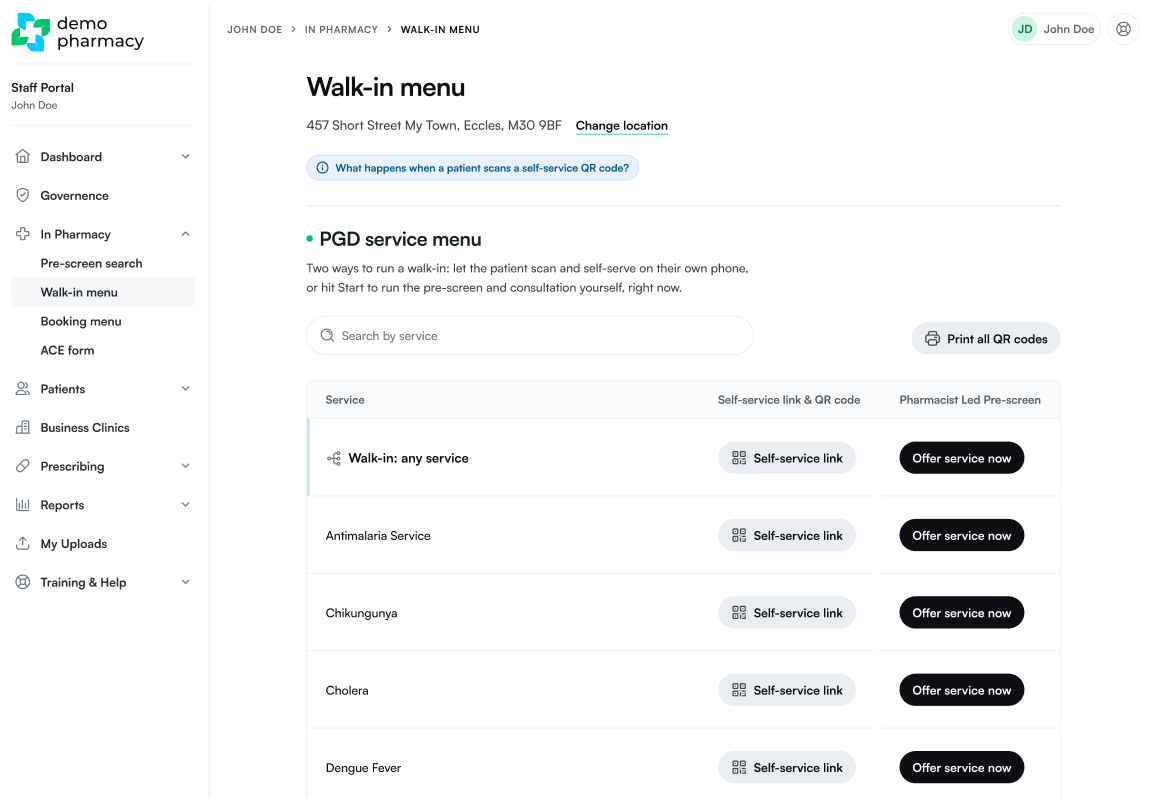
Step-by-Step Staff Setup:
- Patient Selection:
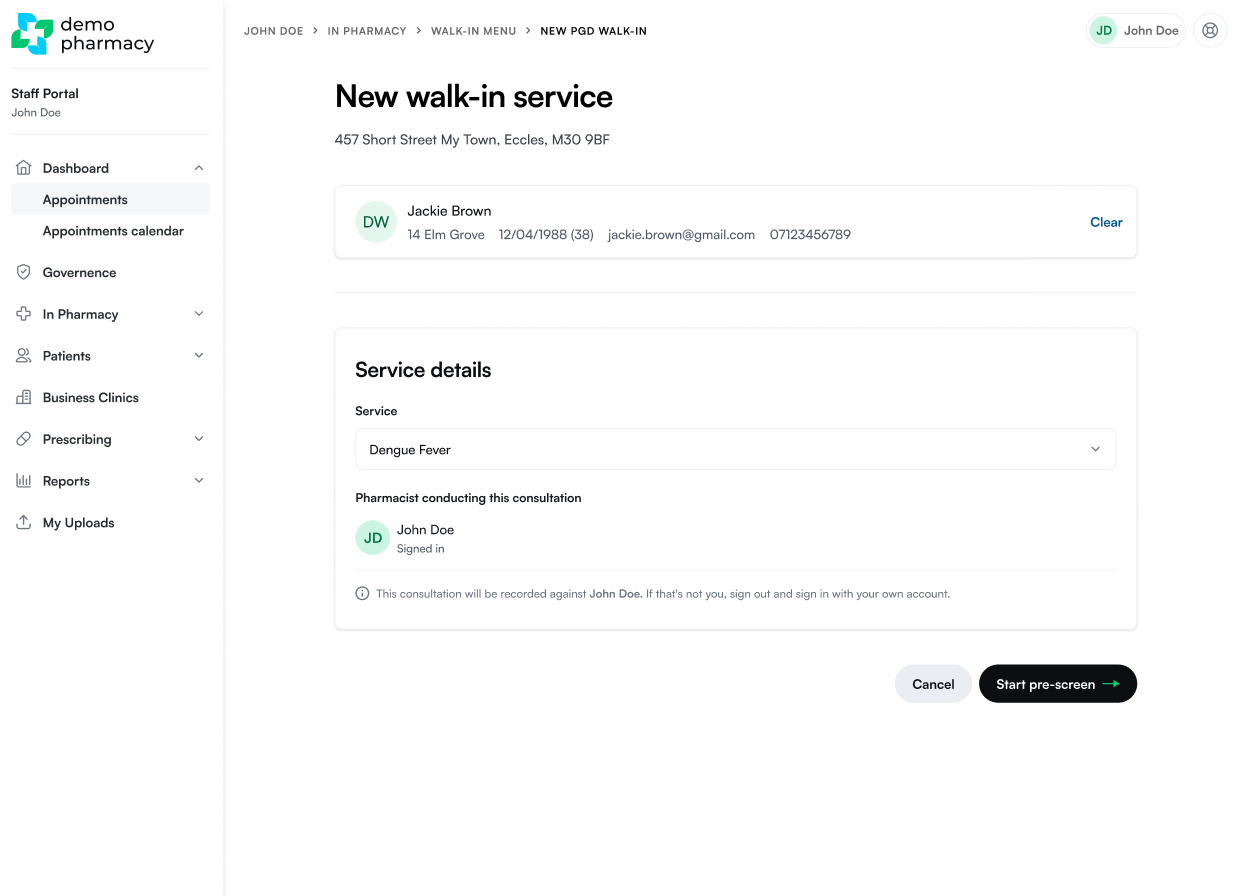
- Returning Patients (Recommended): Search for the patient by name to select their existing profile. This automatically transfers their historical clinical data, significantly shortening the pre-screen questionnaire.
- New Patients: Input their full personal details (Name, Date of Birth, Phone Number, and Email).
- Pharmacist Verification: Check the on-screen pharmacist name. Ensure the correct clinician is logged in, as the consultation record and legal declarations will be logged directly against this account.
- Complete Pre-screen: Click Start pre-screen. Run through the questionnaire with the patient at the counter.
- Launch Consultation: Once the pre-screen is completed, click the on-screen prompt to start the clinical consultation immediately.
Method 2: Patient Self-Service via QR Code
To reduce counter waiting times, patients can complete their medical pre-screen on their own smartphone while waiting. This is most effecient for new patients. For returning patients, we recommend searching for them, to skip completing much of the pre-screen again.
1. Displaying the QR Code
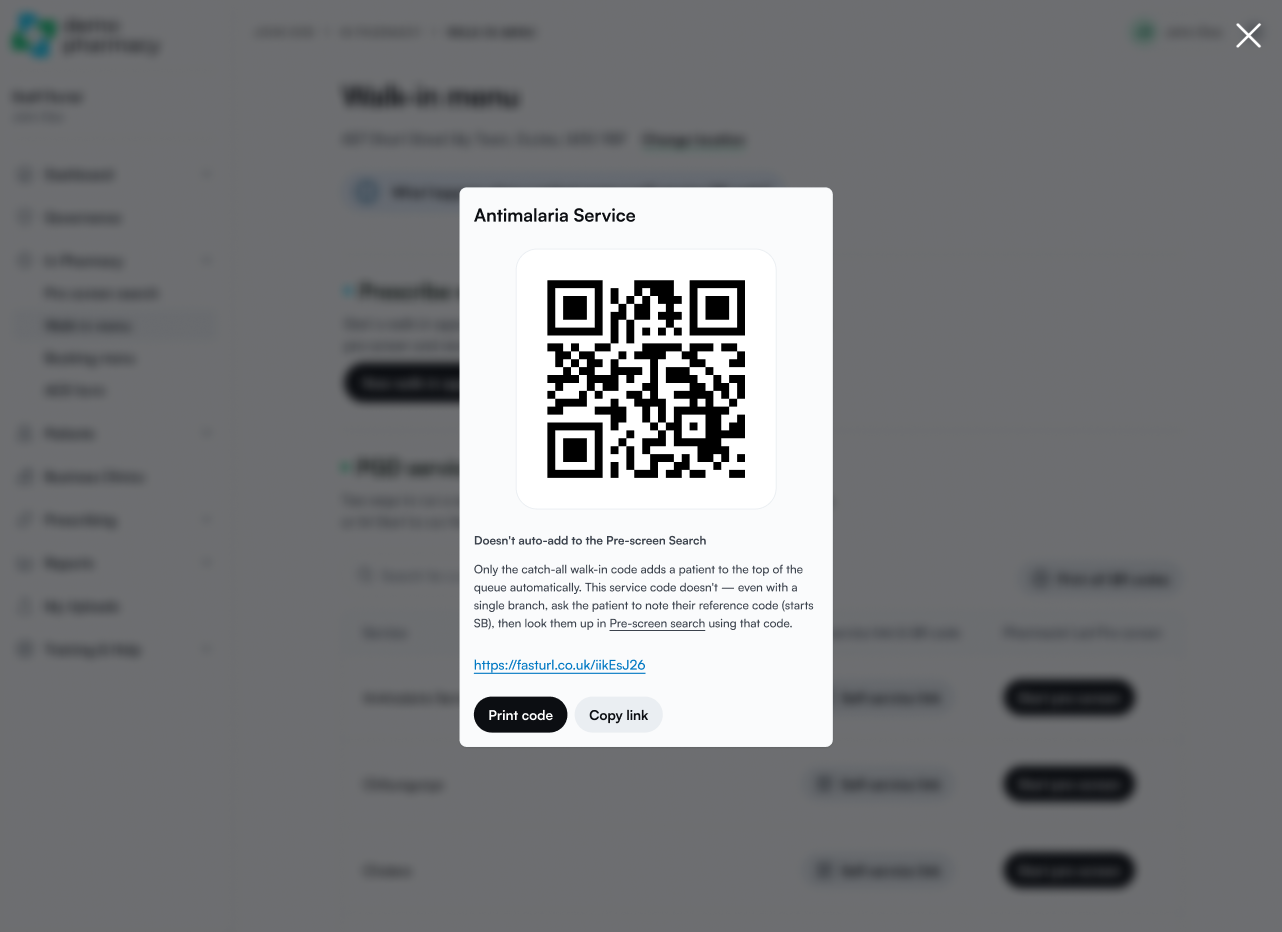
Navigate to the Walk-in menu and click Show QR Code for the requested service to display it on screen to the patient.
💡 Staff Tip: Print out the QR codes for your most popular services and keep them at the pharmacy counter. Patients can scan the physical codes directly while standing in line.
2. Patient Onboarding & SB Code Generation
- The patient scans the QR code using their smartphone camera.
- They complete the digital medical pre-screen independently on their phone.
- Upon submitting their answers, the patient's phone screen displays a unique SB Code.
3. Retrieving the Pre-screen & Starting the Consultation
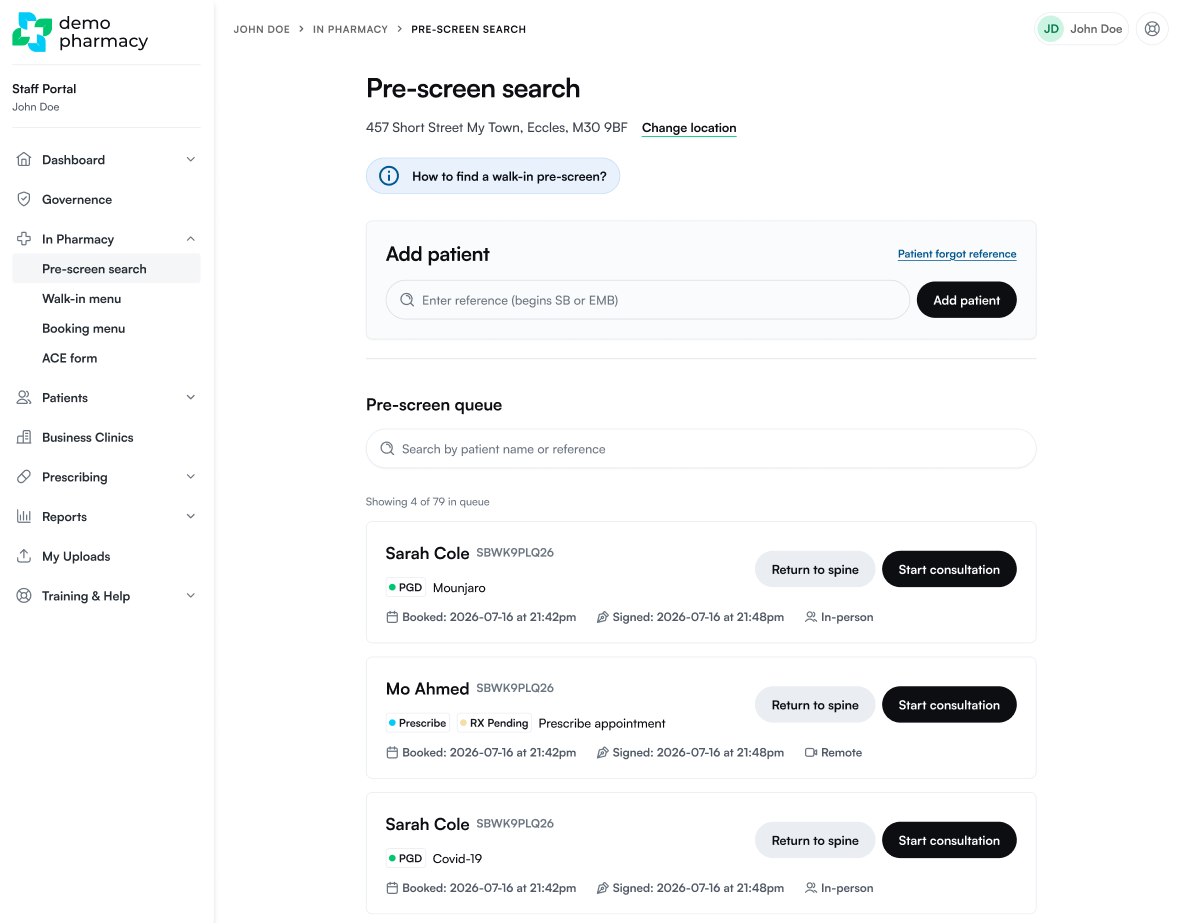
- On your pharmacist dashboard, navigate to In Pharmacy > Pre-screen Search.
- Input the SB Code provided by the patient to pull up their completed questionnaire.
- Review their answers and click Start Consultation.
Forgot Reference Code? If the patient accidentally closes their phone browser tab before noting down their SB Code, click Patient Forgot Reference within the search window to locate their submitted pre-screen using their name and date of birth.