Ordering & Assigning Business Vouchers
The Voucher workflow allows corporate clients to subsidise vaccinations for employees who prefer to visit a local pharmacy branch on their own schedule.
Ordering Vouchers (Head Office Portal Preview)
Voucher orders are managed via the Business Portal. Head Office can place orders on behalf of a client using the Portal Preview feature.
Head Office > Business > Business & Contacts
- Navigate to Business & Contacts.
- Find the relevant client profile and click Manage > View Portal
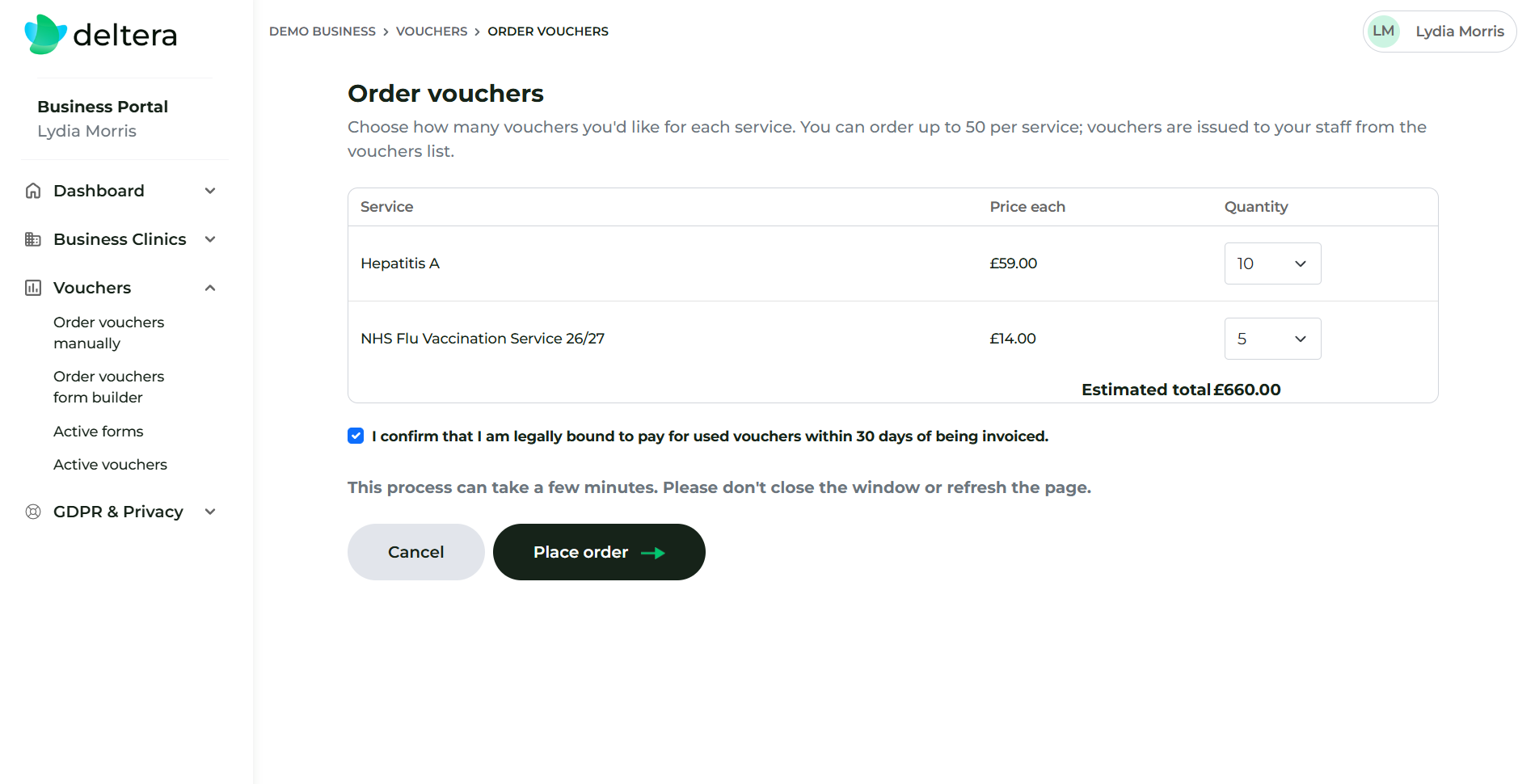
- Go to Order Vouchers Manually.
- Select the vaccination service and quantity required. The system displays the per-unit price and total order cost.
- Click Confirm Order.
Assigning Vouchers to Employees
Once ordered, vouchers must be allocated to individual recipients:
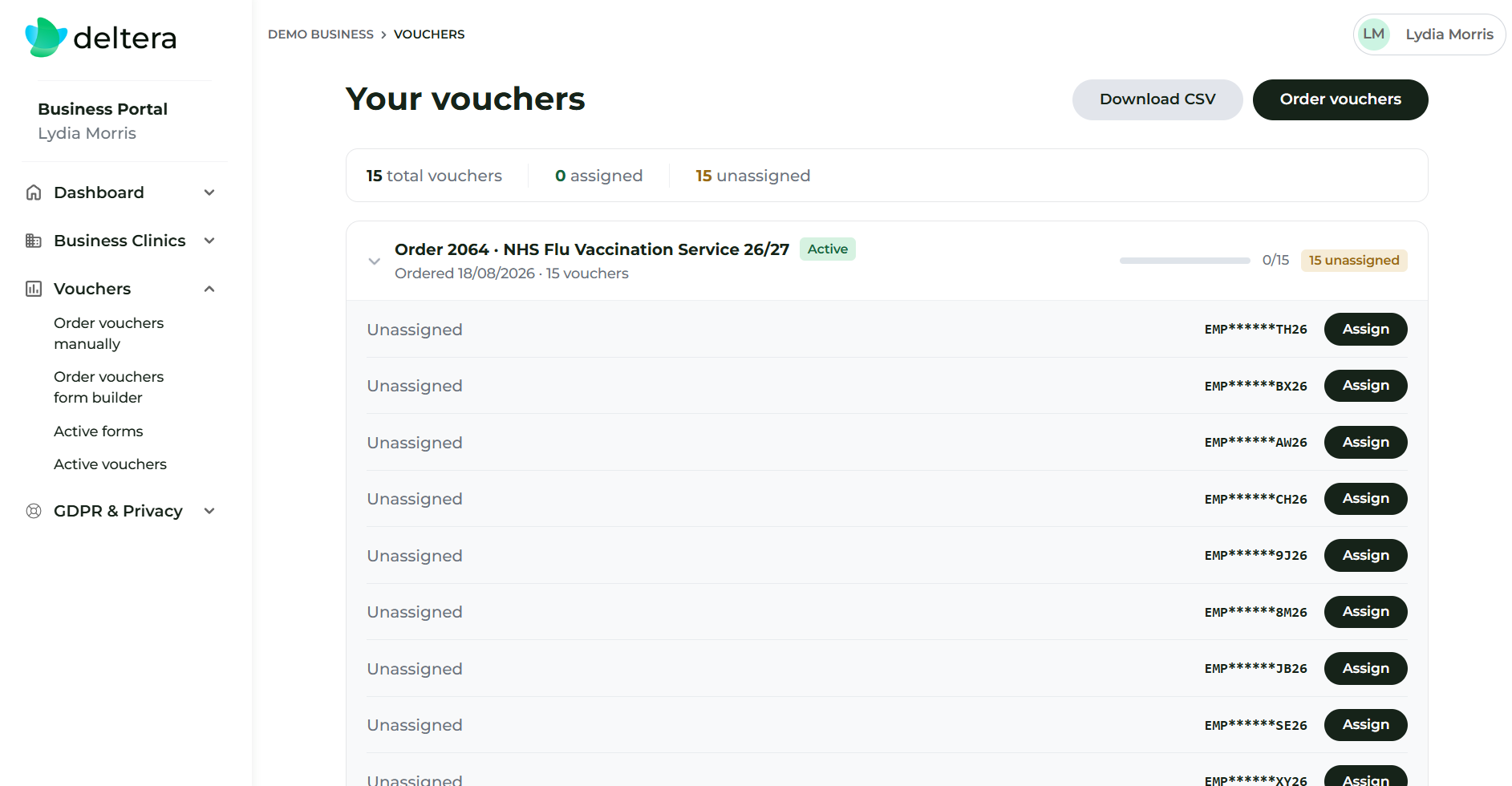
- In the portal voucher overview, click Assign next to an unassigned voucher.
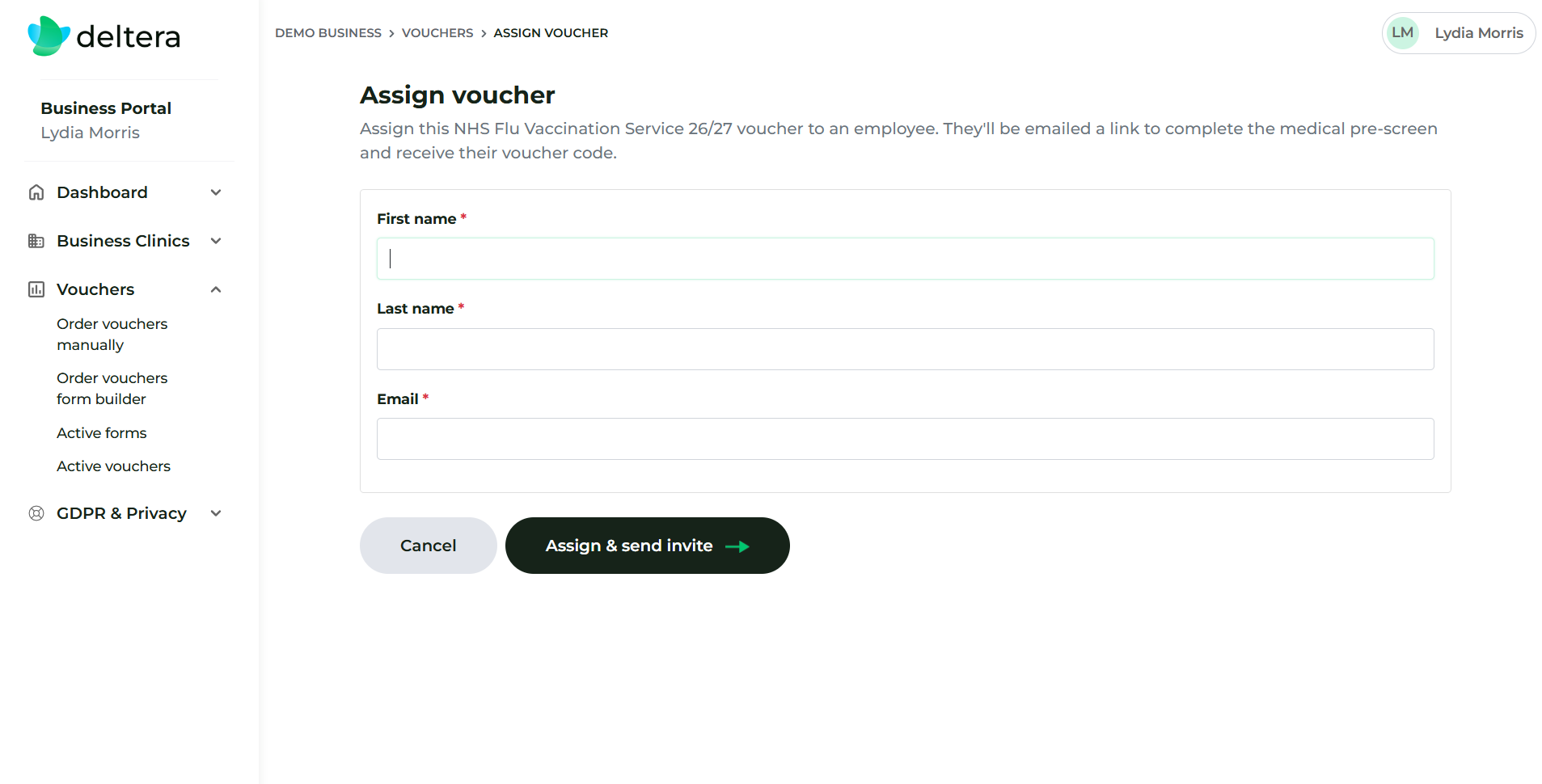
- Enter the employee’s Full Name and Email Address.
- Click Send Voucher.
The Employee Journey & Tracking
- Email Notification: The employee receives an email containing a secure pre-screen link.
- Pre-screen Completion: The employee completes their medical questionnaire online.
- Voucher Code Issued: Upon passing the pre-screen, the system generates a unique Voucher Code on-screen and emails it to the employee.
- Status Tracking: Within the Business Portal, client admins can monitor progress via real-time timestamps:
- Pre-screen Completed Date
- Consultation Completed Date