Signing PGDs and Managing Staff (Superintendent/Manager Guide)
As a Superintendent Pharmacist or Authorising Manager, your role involves two primary responsibilities: formally authorizing service protocols (PGDs) and managing the staff members who will deliver them.
Step 1: Set Up Your Professional Signature
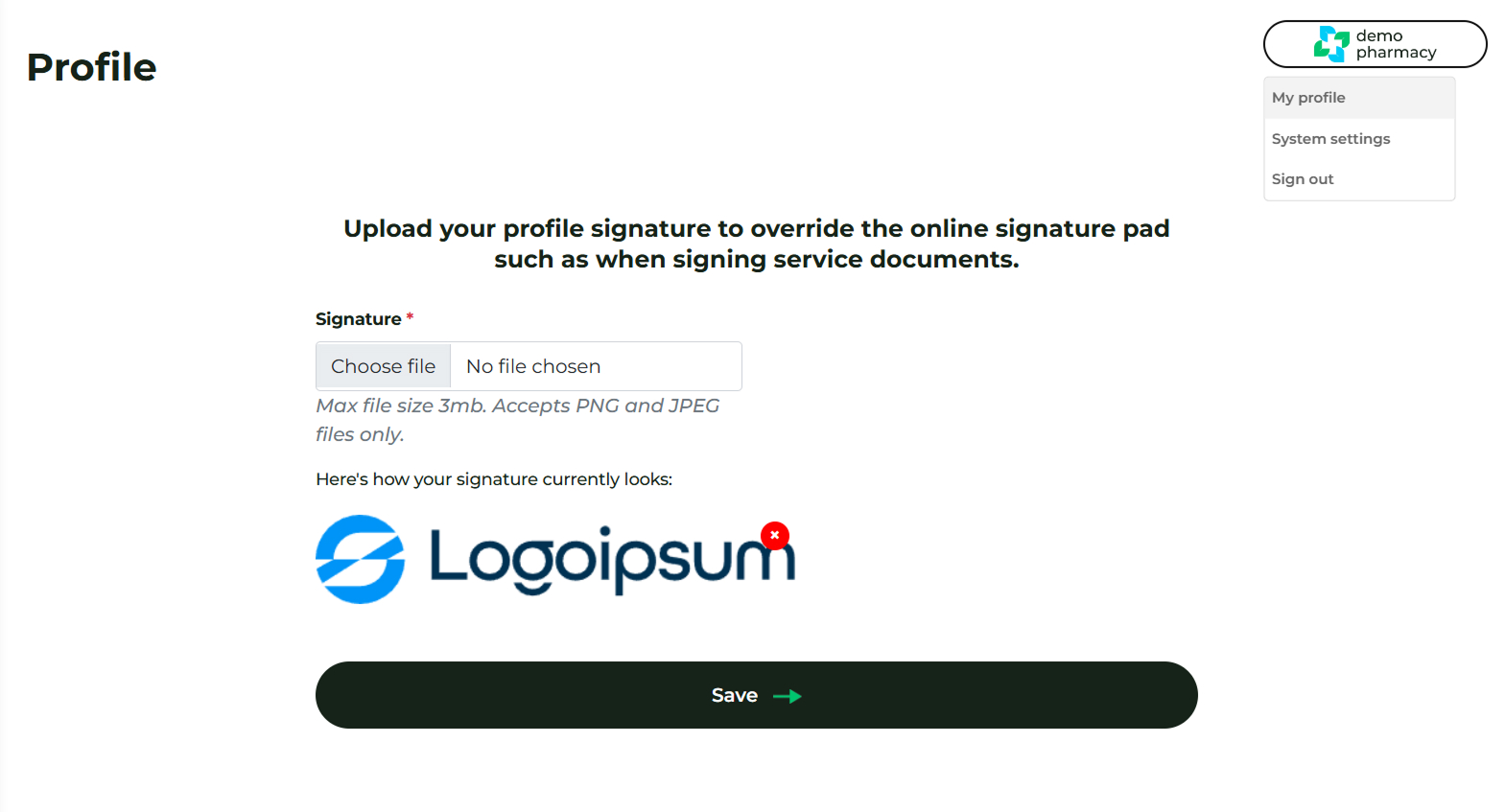
Before signing documents, you should upload your digital signature to your profile.
- Log in to your Head Office account at deltera.cloud/manager.
- Click on your Logo/Icon in the top-right corner and select My Profile.
- Upload your signature as a PNG or JPG file.
- Pro Tip: Once your image is uploaded, you don't need to redraw it every time. You can simply mark a simple "X" in the signature box on any PGD; the system will automatically overlay your uploaded image alongside a secure date and time stamp.
Step 2: Review and Sign PGD (or SOPs)
Authorisations are handled within your Superintendent Dashboard.
- Location: Navigate to the Superintendent Dashboard within your Head Office account (Dashboard > Superintendent).
- Action: Formally review and sign the required PGD documents.
- Assigning PGDs to Services (Optional): As soon as you sign a PGD, our team receives an automated notification. Depending on your account setup, our team can assign these signed PGDs to their respective services for you, or you can assign them yourself:
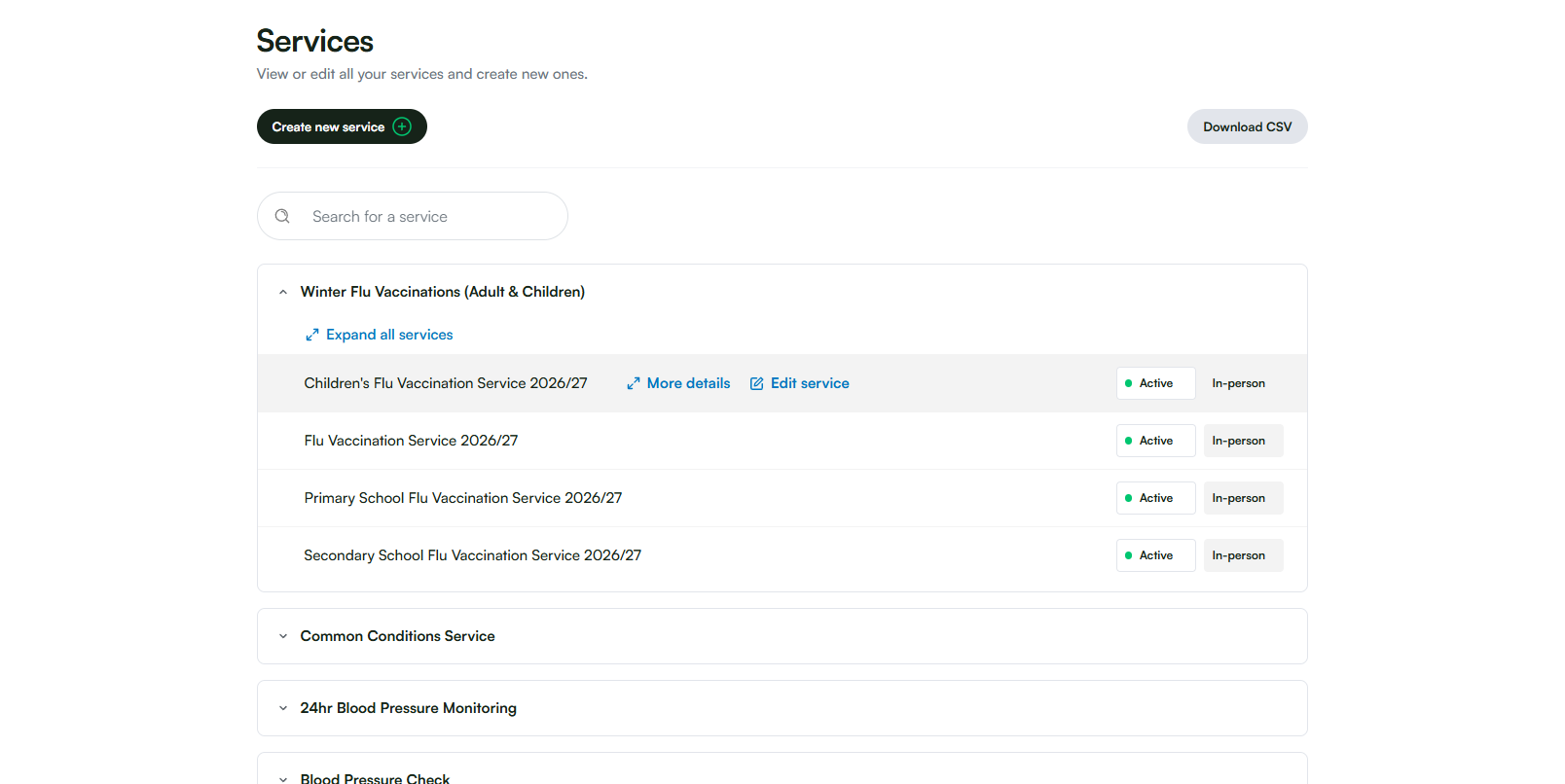
- Navigate to Service Builder > Services.
- Search for your specific service (you may need to open the relevant service category first).
- Hover over the service and click Edit service.
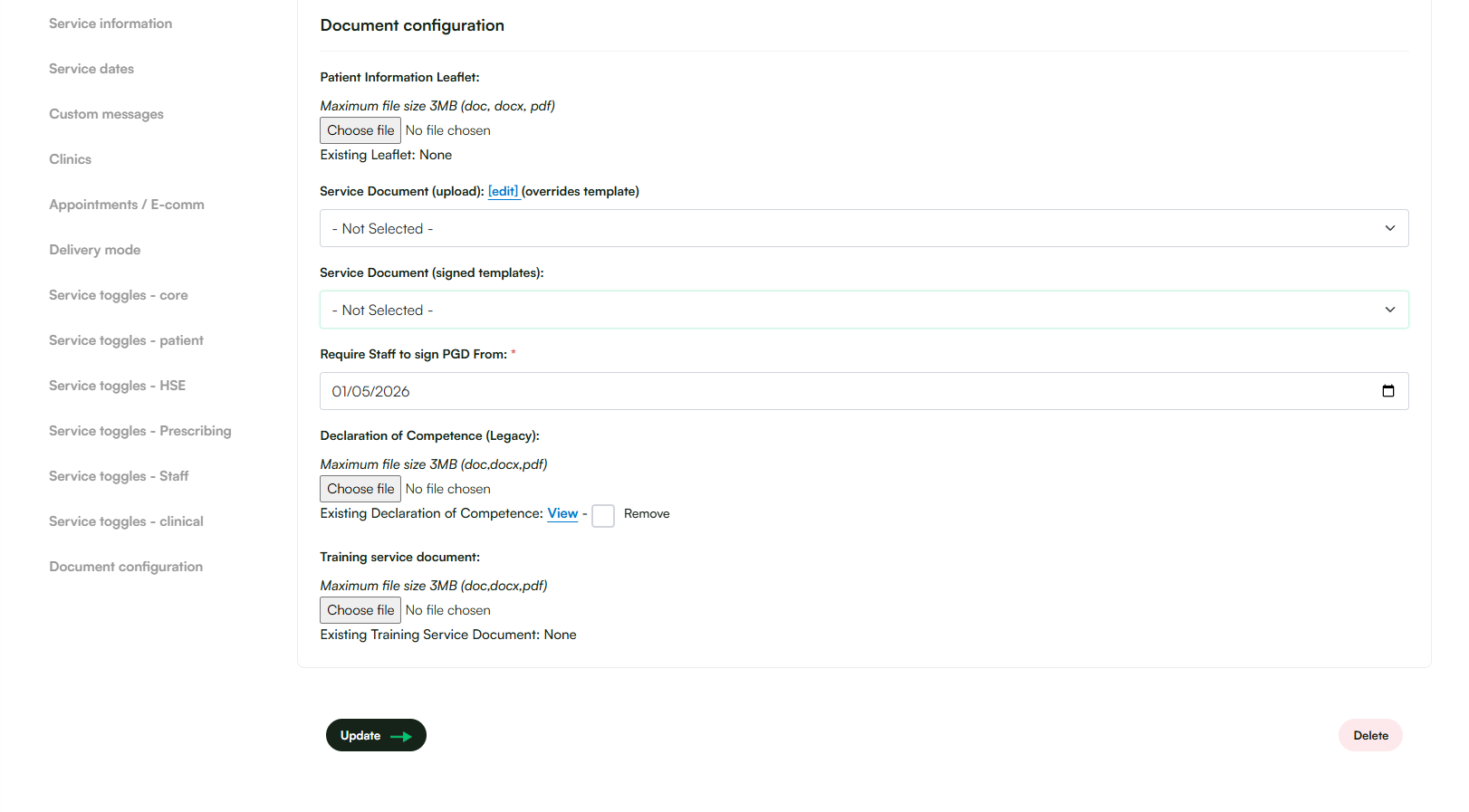
- Scroll down to the last section, Document configuration (or use the left-hand menu to jump straight there).
- Click the Service Document (signed templates) dropdown and select the correct PGD. Under Require staff to sign PGD from, select today's date.
- Click Update at the bottom of the page to save your changes.
Providers on a previous PGD version must sign the updated document via their Staff Governance dashboard to resume service.
⚠️ Critical Governance Notice
If you choose to assign PGDs yourself, please take your time and proceed with extreme care. You are directly controlling the legal PGD frameworks that underpin your services and govern the clinical practice of your mapped pharmacists and technicians. You must click Update at the bottom of the page, otherwise your configuration will not save. This action must only be completed by Superintendents or Authorising Managers.
Step 3: Onboarding Staff & Technicians
To allow pharmacists, technicians, or locums to provide services, they must be registered and activated under your organization.
- Distribute the Registration Link: *
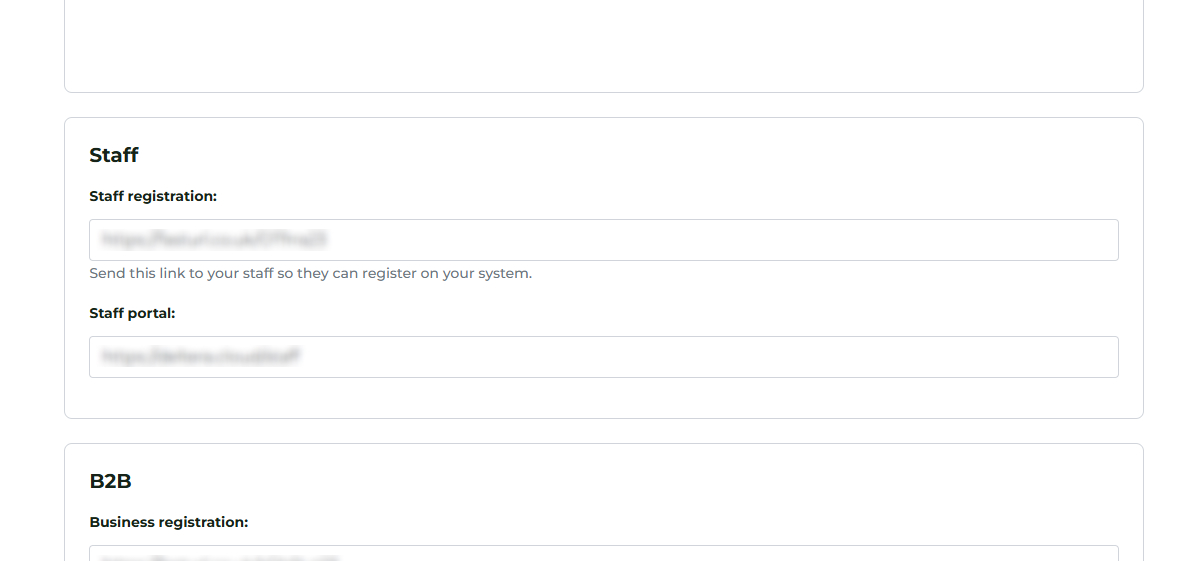
- Find your unique registration URL under Head Office > [Pharmacy Logo Top Right] > System Settings > Scroll to Staff Registration.
- Share this link with any staff members (including yourself if you also provide services).
- Security Requirement: Instruct all staff to use their personal NHS email addresses during registration for cybersecurity and compliance.
- Activation: New registrations will appear in your Head Office dashboard. You must manually activate these accounts before staff can log in.
- Staff Access: Once activated, staff members log in via deltera.cloud/staff.
Step 4: Managing Future Services and Updates
As your organisation grows, you will need to manage ongoing compliance:
- New Services: Any new service subscriptions will require a fresh PGD signing process via your dashboard.
- Version Control: If a PGD is updated (e.g., due to legislative changes), the system will notify you. You must review and sign the latest version to maintain service continuity.
Get in touch

Are you a Well pharmacist?

Need to speak with someone?
