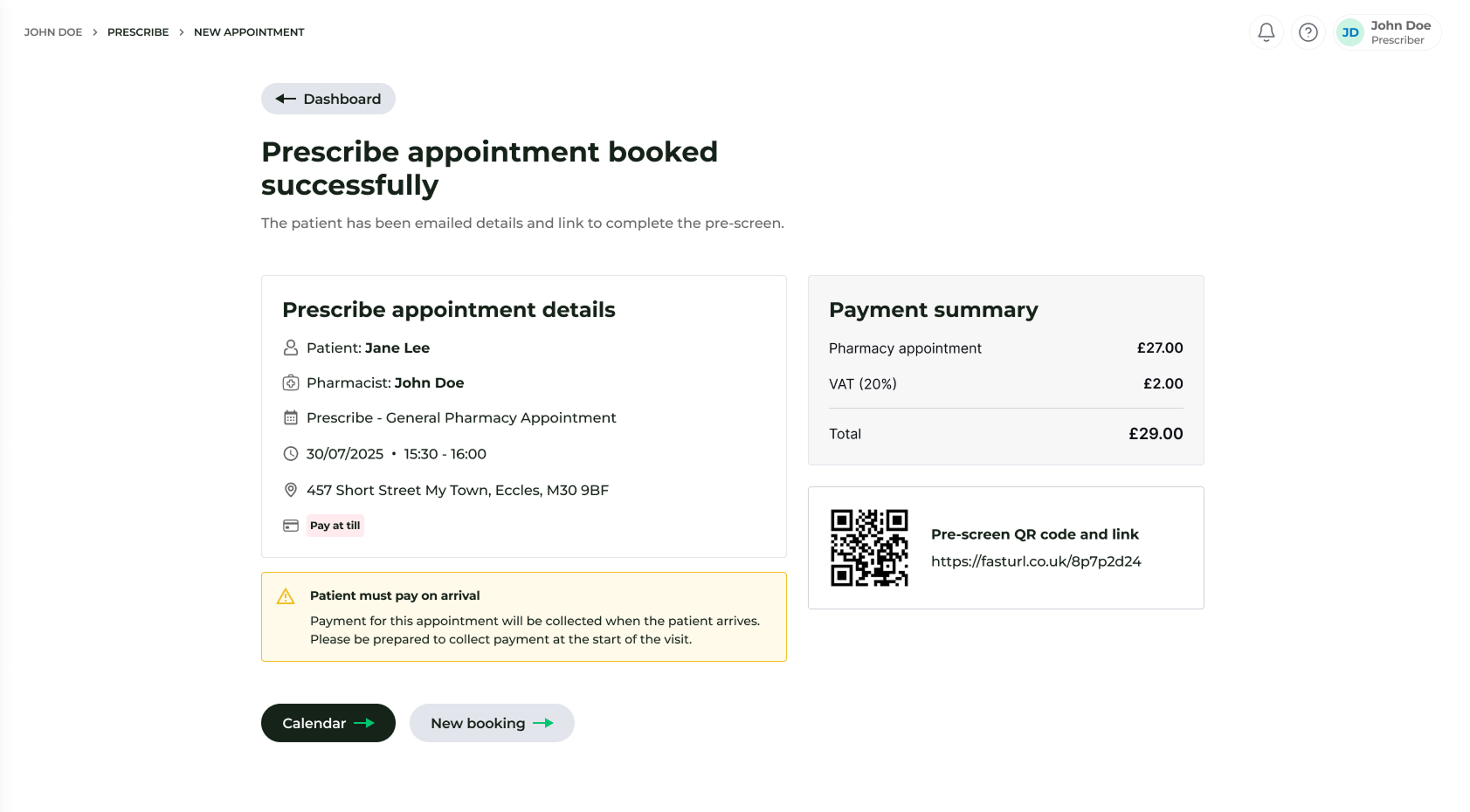
Book a new appointment
Schedule a future Deltera Prescribe consultation and provide patients with the necessary pre-screening links.
If a patient is not ready for an immediate walk-in, you can schedule a future Deltera Prescribe appointment through the Dashboard or the Calendar. This ensures the patient receives all the necessary information and pre-screening documents before they arrive for their consultation.
Method 1: From the Main Dashboard
This is a quick way to book a slot without needing to view your full weekly schedule.
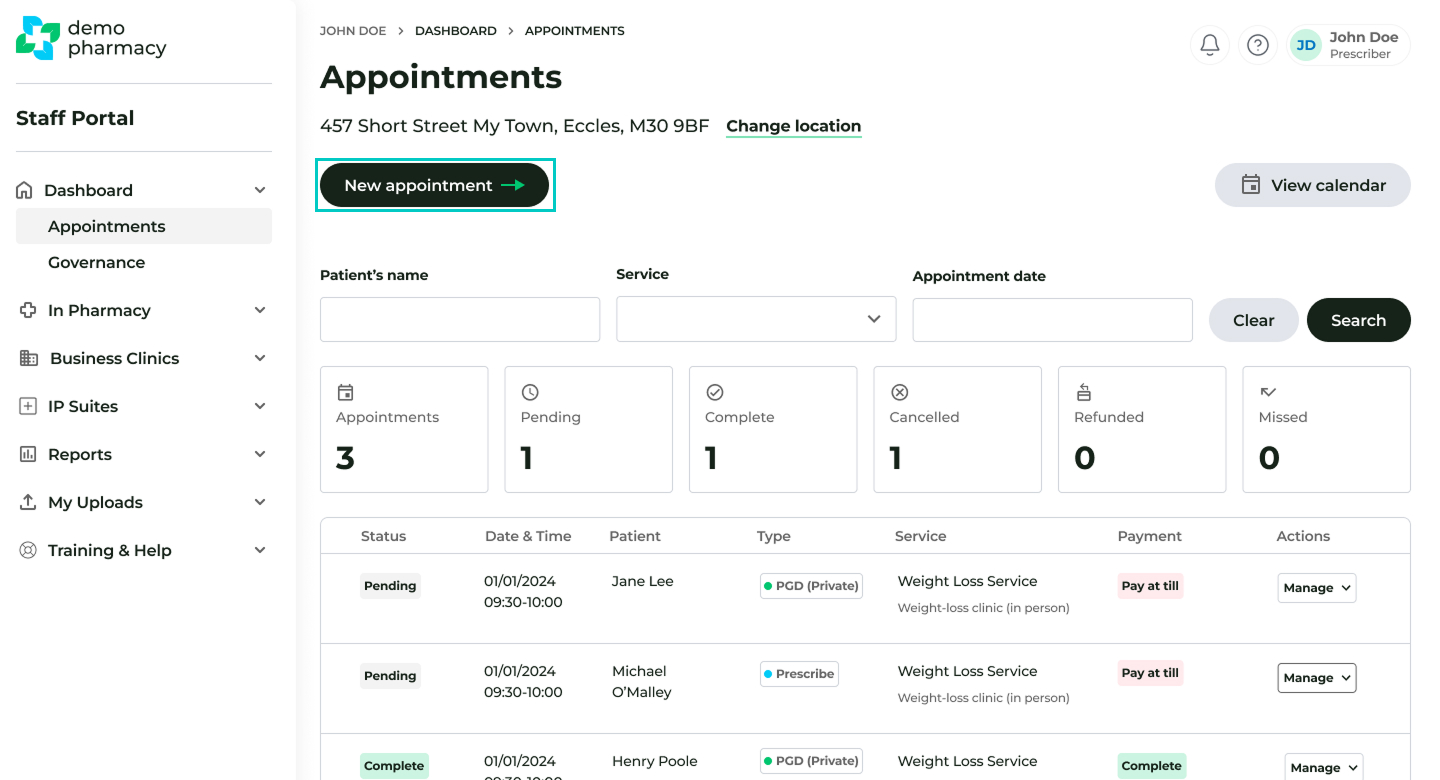
- Navigate to the main Dashboard.
- Click the 'New Appointment' button.
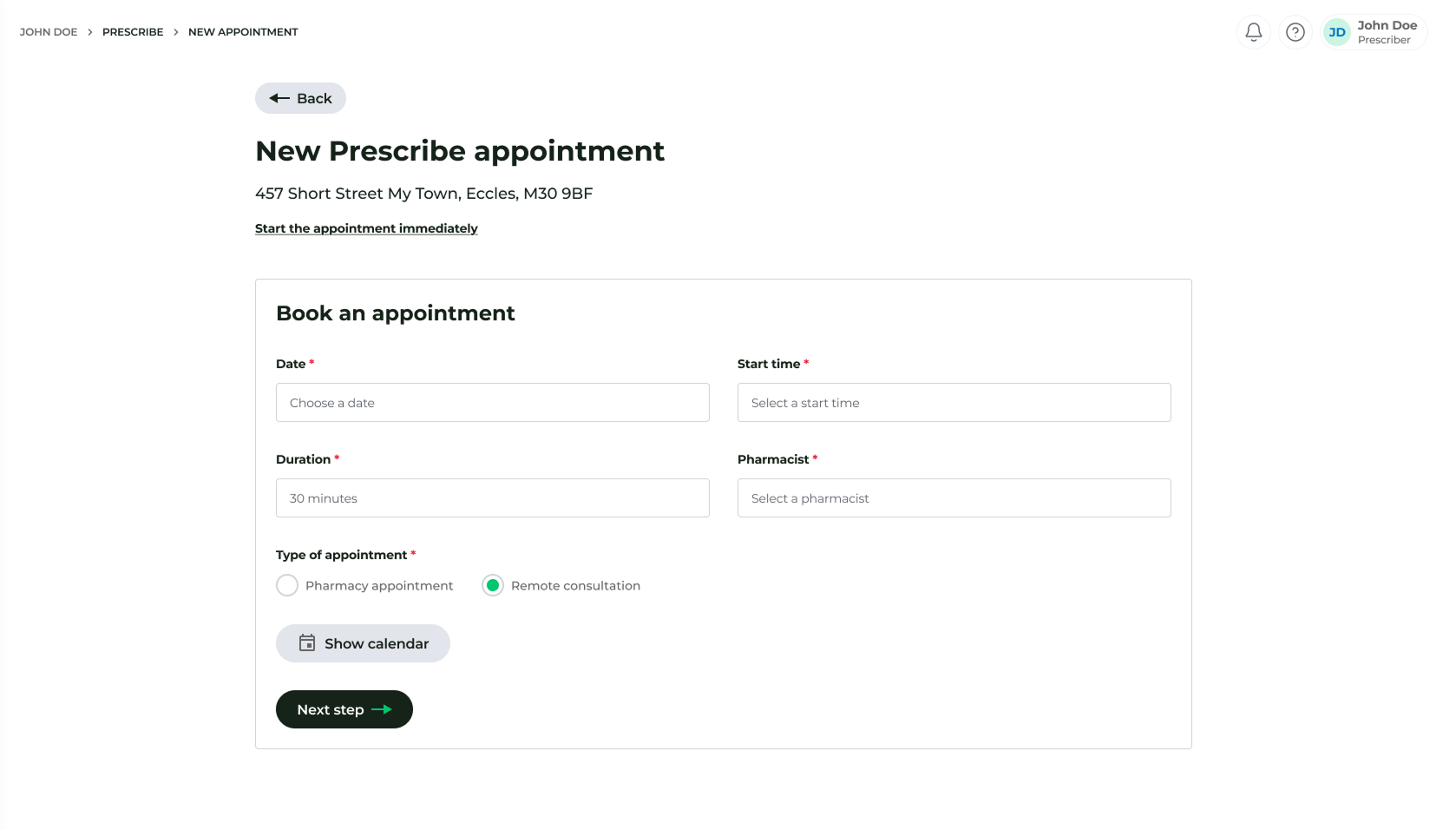
- Choose Prescribe as the service type.
- Select the Date, Time, and Duration for the consultation.
- Select the Pharmacist (the system will only display staff members configured as Prescribe pharmacists).
Method 2: Using the Appointment Calendar
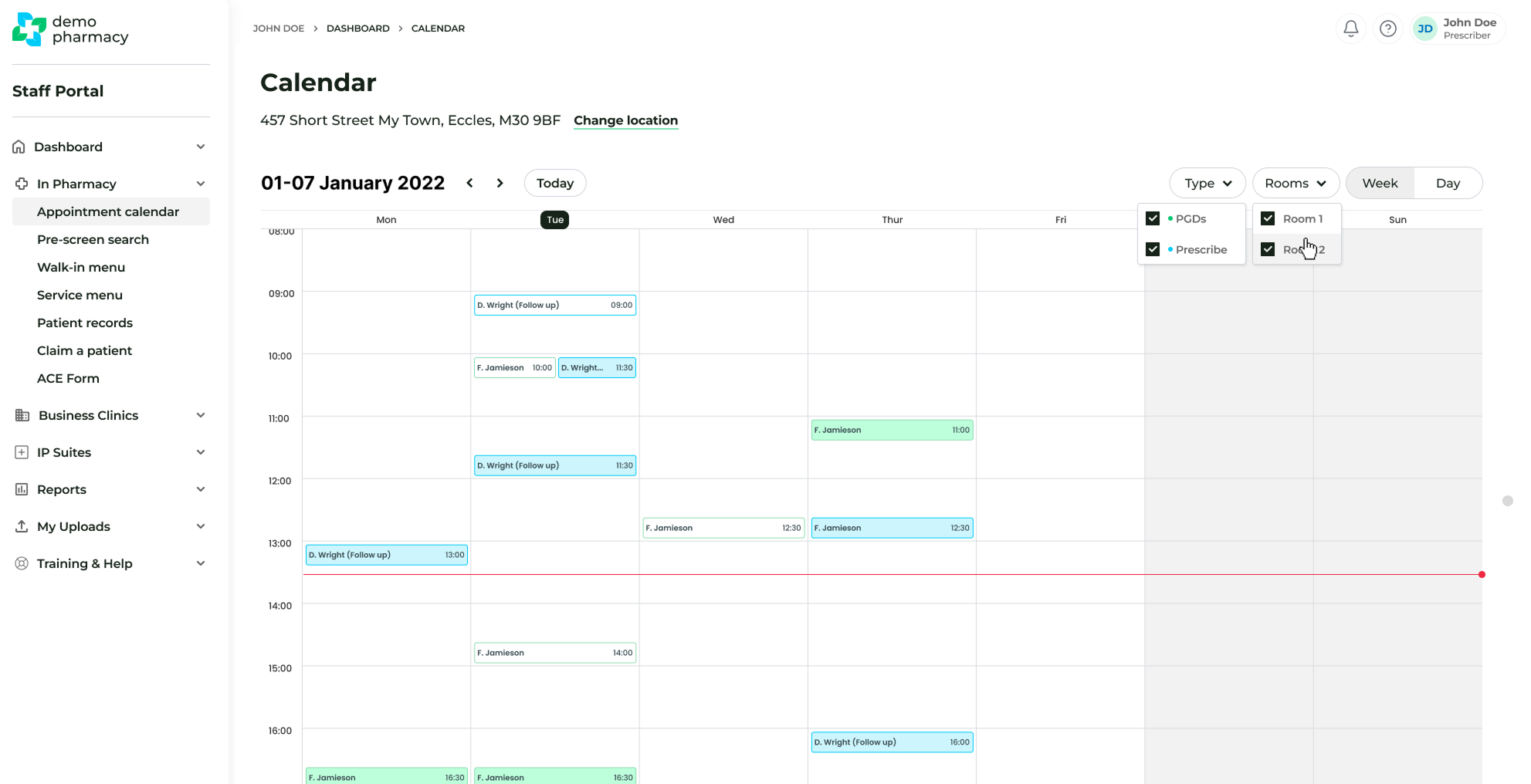
Use this method if you need to see a visual representation of your current availability.
- Navigate to In Pharmacy > Appointment Calendar.
- Locate your desired time slot and click on it.
- Follow the prompts to select the Prescribe service and enter the patient's details.
Appointment Confirmation & Pre-Screening
Once the appointment is saved, the system facilitates the following:
- Patient Notification: An automated summary of the appointment is generated and sent to the patient via email.
- Payment: For these manually booked appointments, payment must be processed locally at the pharmacy till.
- Pre-Screening: The system generates a unique QR code and web link for the pre-screen questionnaire. This allows the patient to complete their clinical history in advance. These links are also included in the patient's confirmation email for their convenience.