Getting Help: Deltera Assistant & Help Guides
Integrated help tools are built directly into every page of the platform across the Head Office Portal, Pharmacist Portal, and Pharmacy Staff Portal. You can access self-service answers via AI chat (in beta), browse step-by-step documentation, or submit a request directly to the support team without leaving your workflow.
Overview of Help Channels
- Deltera Assistant Beta (Chat): Best for quick "How-to" questions, feature locations, and form field explanations. Answer Time: Instant.
- User Guides: Best for detailed step-by-step documentation and articles (
docs.deltera.cloud). Answer Time: Instant. - Contact Support: Best for account issues, specific booking errors, or complex system investigations needing a team member. Answer Time: First reply in 1–2 business days.
1. Accessing the Help & Guides Center
- Locate Help & guides pinned to the bottom of the left-hand navigation menu on any page. (On mobile devices, open the main menu to find it at the bottom).
- Click Help & guides to open the main help hub.
[Screenshot: Main Help & Guides hub displaying the search bar and cards for Chat, User Guides, and Contact Support]
The How can we help? page provides three main options:
- Chat: Launches the interactive Deltera Assistant window.
- User Guides: Opens the complete documentation library (
docs.deltera.cloud) in a new browser tab. - Contact Support: Opens the formal support ticket request form.
- Search Bar: Type any keyword or topic and click Search to search the user guide library directly.
💡 Staff Tip: You do not need to navigate to the Help & guides page to open the AI assistant—the chat button is permanently anchored in the bottom-right corner of every screen.
2. Using the Deltera Assistant (AI Chat in beta)
[Screenshot: Deltera Assistant chat widget active in the bottom-right corner showing a sample response]
- Click the round blue ? button in the bottom-right corner of any screen.
- Type your question into the Ask Deltera Assistant field and press Enter (or click the arrow button).
What the Assistant Handles Well:
- Navigation & Location: "Where do I change branch opening hours?"
- Platform Workflows: "How do I cancel a booking?" or "How do I add a new service?"
- On-Screen Form Help: The assistant reads the labels and help text on your active screen, allowing you to ask "What does this toggle do?" while viewing a configuration page.
Key Assistant Capabilities & Behaviors:
- Role Awareness: Tailors answers to your active account type (Head Office vs. Pharmacist) so you are only given steps relevant to your permission level.
- Context Retention: Keeps your conversation active as you navigate between pages during your session. Minimize the chat using the − button or click the ? icon to toggle the window.
- Resetting Chat: Click the + (New chat) button in the chat header to clear the conversation and start fresh. Closing your browser tab automatically ends the session.
⚠️ Critical Safety & Privacy Warning
- No Patient Data: Never type patient identifiable information into the chat (no names, dates of birth, addresses, or NHS numbers).
- No Clinical Advice: The assistant only provides guidance on using the software platform. It will automatically reject clinical queries with the message: "This looks like a clinical question - I can't give clinical advice."
3. Providing Answer Feedback
Below every response from the assistant, a Helpful? prompt displays with 👍 (Thumbs Up) and 👎 (Thumbs Down) icons.
- Clicking 👎 automatically flags the response for review by the Deltera documentation team.
- Articles are continuously updated based on flagged queries to ensure future answers are accurate.
4. Human Support Escalation
The assistant will automatically prompt a handover card with a Continue to Contact Support button if:
- It cannot locate a relevant answer in the user guides.
- You ask a clinical or safeguarding question.
[Screenshot: Deltera Assistant handover card offering 'Continue to Contact Support']
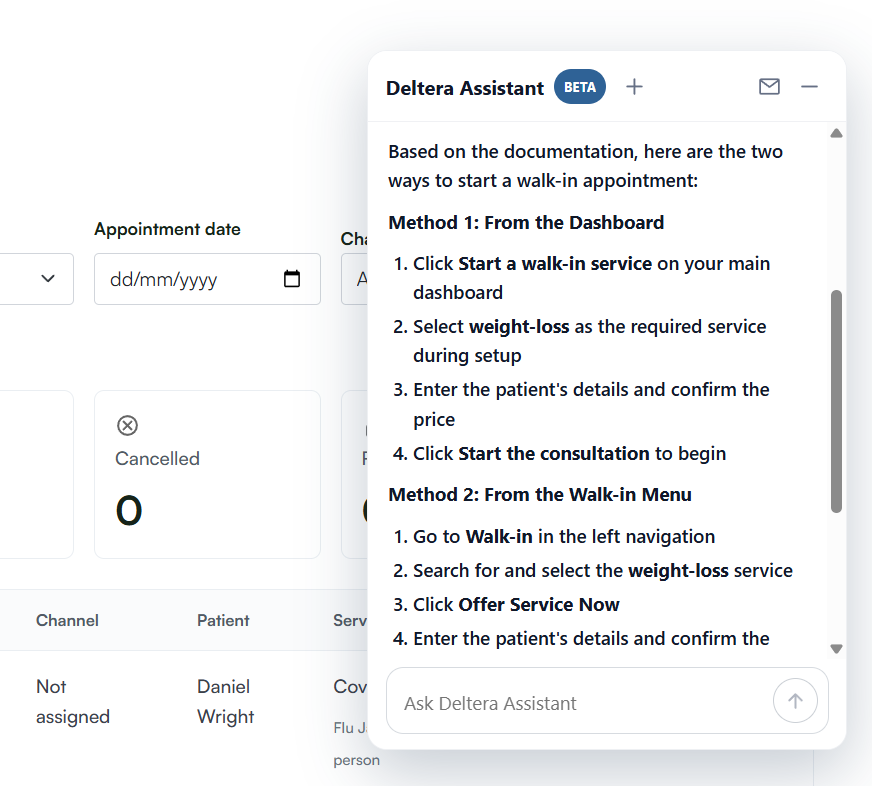
You can also request a human support agent at any time by clicking the Envelope Icon in the top header of the chat window. Your chat history will attach automatically so you do not have to re-type your query.
5. Submitting a Support Ticket
If your issue requires direct assistance from a support team member, submit a formal request via the Contact Support form.
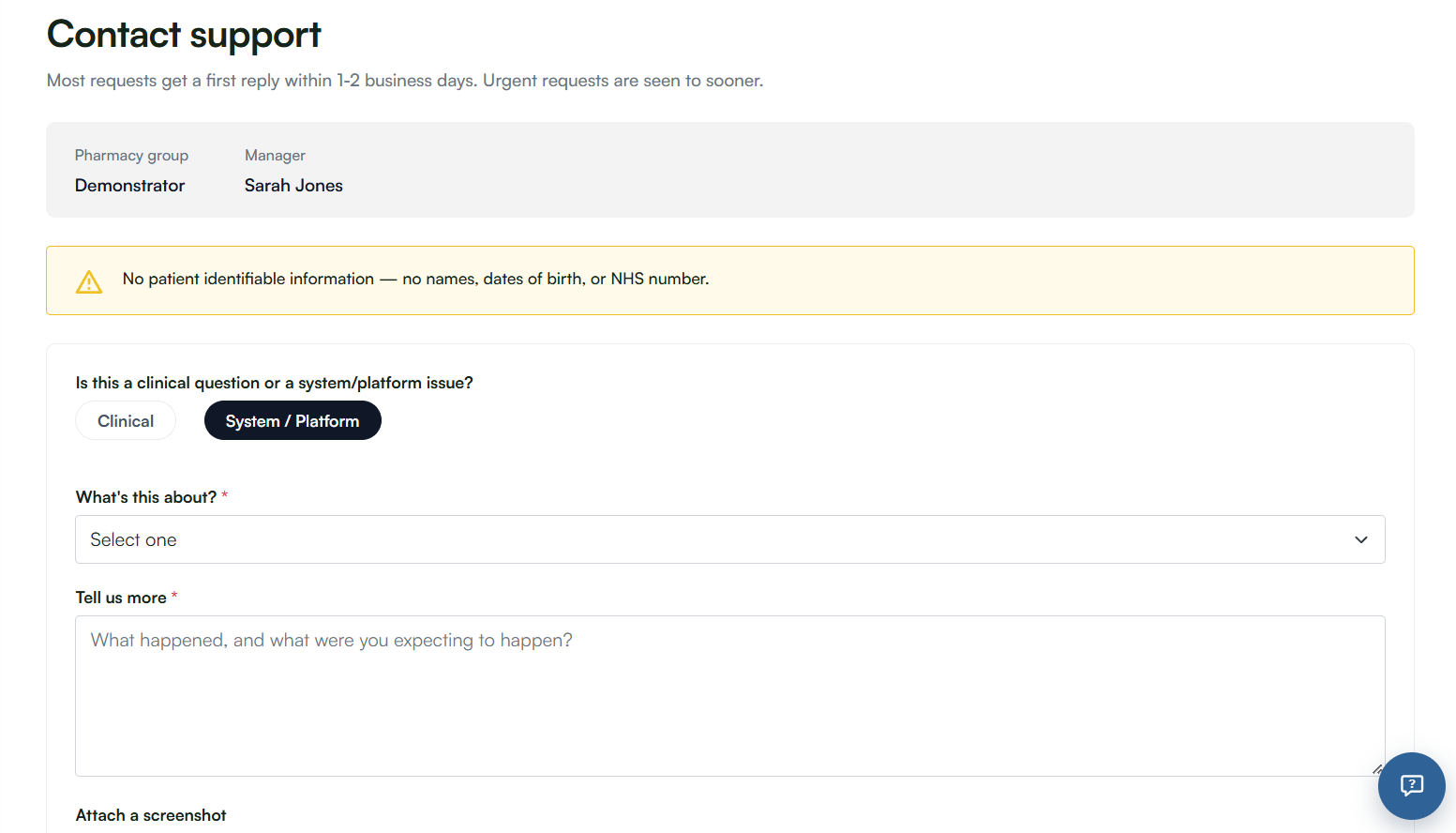
- Navigate to Help & guides > Contact Support (or follow the chat handover prompt). Your name, group, and branch details will pre-fill automatically.
- Select the issue type: Clinical or System / Platform.
- Choose a specific sub-category under What's this about? (e.g., Appointments and calendar, Consultations and pre-screen, Accounts and access, or PGD / Protocol).
- Complete any service-specific follow-up fields that display.
- Under Tell us more, provide a detailed description of what occurred and what outcome you expected.
- Attach a Screenshot (Optional): Drag and drop an image file (PNG/JPG, max 2MB) to illustrate the issue.
- Set the priority under How urgent is this? (Standard or Urgent).
- Verify your email address in the Best email to reach you on field.
- Click Submit support ticket.
Upon submission, a confirmation screen will generate a unique reference number formatted as SUB-00123. Use this reference in all future correspondence.
⚠️ Privacy Reminder for Support Tickets: Never include raw patient data (names, DOBs, or NHS numbers) in ticket descriptions or uploaded screenshots. Refer to bookings generically using dates, times, and branch locations (e.g., "The 10:40 appointment on Tuesday at the Camden branch").
💡 Staff Tip: If you are locked out of a specific branch account, you can still submit a support request—the form allows submission without a selected branch.
Assistant Privacy & Data Visibility
To maintain system security and data compliance, the Deltera Assistant operates under strict visibility boundaries:
What the Assistant CAN See:
- Your active chat question and conversation history.
- The name and title of your current page.
- On-screen field labels and help tooltips on your active page.
- Published Deltera platform user guides for your portal.
What the Assistant CANNOT See:
- Raw text entered into form fields on your page.
- The full browser URL (including specific record ID numbers).
- Specific input values, dropdown choices, or table data on your screen.
- Patient medical histories, bookings, or personal records.
Troubleshooting
- Chat Button Is Missing: The AI assistant may be disabled at the group administration level. If colleagues in other organizations have access, submit a ticket via Contact Support.
- Chat History Cleared: Closing your browser tab ends the active session. Navigating between pages within the same tab retains your conversation history.
- Error Message ("Sorry, something went wrong..."): Retry the prompt. If the error persists, click Contact Support to submit your query directly to the team.
- No Response to Support Ticket: Initial responses are delivered within 1–2 business days (faster for Urgent requests). If you have not received a reply after 2 business days, reply to your confirmation email or contact
pharmacysupport@deltera.ukquoting your SUB- reference number.