Signed-In Mode: The Streamlined Patient Journey
When a patient books an appointment while logged into their Patient Portal account, they enter Signed-In Mode. This is the fastest, most efficient booking workflow available on the platform, designed to eliminate repetitive data entry and reward returning regulars with a frictionless checkout experience.
Because the system securely stores their personal history, the entire demographic phase is bypassed.
The Active Booking Steps (What the Patient Does)
In Signed-In Mode, the patient journey is cut in half, focusing only on the logistics of the specific appointment and the necessary clinical screening:
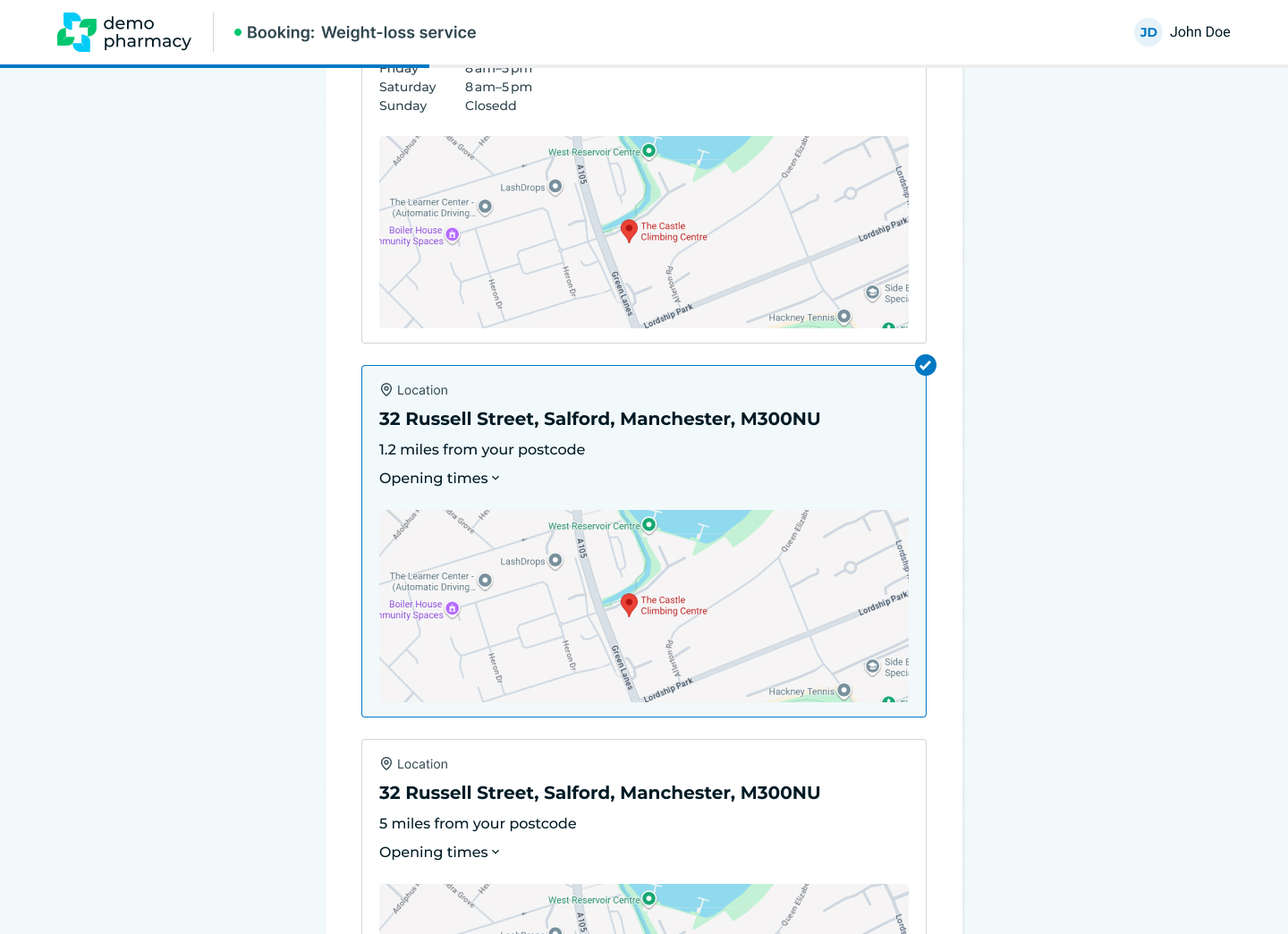
1. Pharmacy Branch Selector
The journey begins identically to Guest Mode. The patient enters their postcode or selects "Find my location" to see the three closest pharmacies within your group that offer the service.
2. Date, Timeslot, & Channel Selection
The patient selects their preferred date and time from the live availability grid. If your pharmacy uses Multi-channels for that service, they can also choose their preferred consultation room or clinic stream at this stage.
3. Medical Screen (Service-Specific Pre-screen)
The patient skips straight past the personal details forms and lands directly on the clinical pre-screen questionnaire. They answer the questions tailored to the specific service to evaluate their eligibility under the PGD criteria.
4. Signature, Consent, & Confirmation
The patient provides their digital signature, reviews their GP notification consent, and submits the booking. They immediately land on the confirmation screen, and the system schedules their automated email confirmation and day-before reminder.
The Skipped Steps (What the Portal Automates)
By being signed into the Patient Portal, the platform automatically retrieves and applies the following information behind the scenes:
- Core Demographics: First Name, Last Name, Date of Birth, and Gender.
- Contact & Address Details: Full residential address, mobile number, and email.
- Emergency Contact: Next of kin details.
- GP Information: Their registered primary care practice details.
Managing Medical Profiles On the Go
While the booking flow skips the data-entry screens, patients retain full control over their clinical background. If a patient needs to update long-term medical data—most commonly adding or removing repeat medications or flagging a new allergy—they can do so at any time directly within the My Profile section of their Patient Portal.
Once saved in their profile, these updated medical details will automatically pre-populate into the clinical screen for all future bookings, ensuring the pharmacist always has access to an accurate, up-to-date patient record.
💡 Staff Tip: If a regular patient mentions they are tired of typing in their address or GP details every time they book a seasonal service (like an annual Flu jab or travel booster), remind them to log in to the Patient Portal next time. Showing them how much time they save builds immense loyalty to your digital branch.
