Staff Self-Registration and Access Management
As a Head Office user, you control the registration, activation, and service permissions for all staff members accessing the Deltera system.
Step 1: Locate the Staff Self-Registration Link
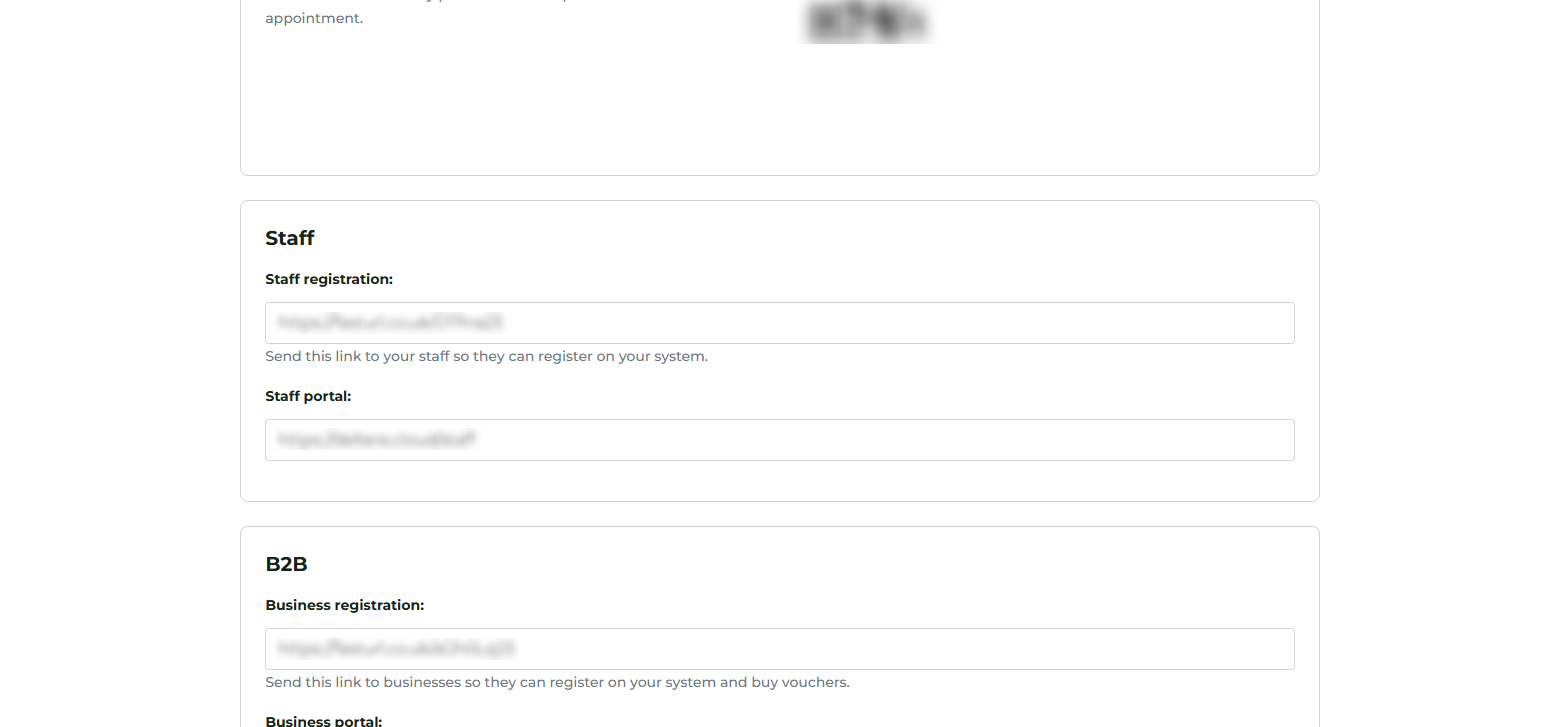
The exclusive registration link for staff within your organisation is located in your Head Office settings:
- Click the logo/user icon in the top-right corner of the screen.
- Go to System Settings.
- Scroll down to the Staff area.
- The Staff Self Registration link is located here. Staff can use this link to sign up for the pharmacy system.
Security Requirement for Registration
When sharing the registration link, stress the importance of using a secure email address.
Cyber Security Note: Although the system is protected by Multi-Factor Authentication (MFA) and reCAPTCHA, we strongly recommend that all clinical staff use their NHS email address for registration. This is a critical best practice that strengthens the cyber security posture for accessing sensitive patient data.
Step 2: Managing Staff Accounts (Activation and Deactivation)
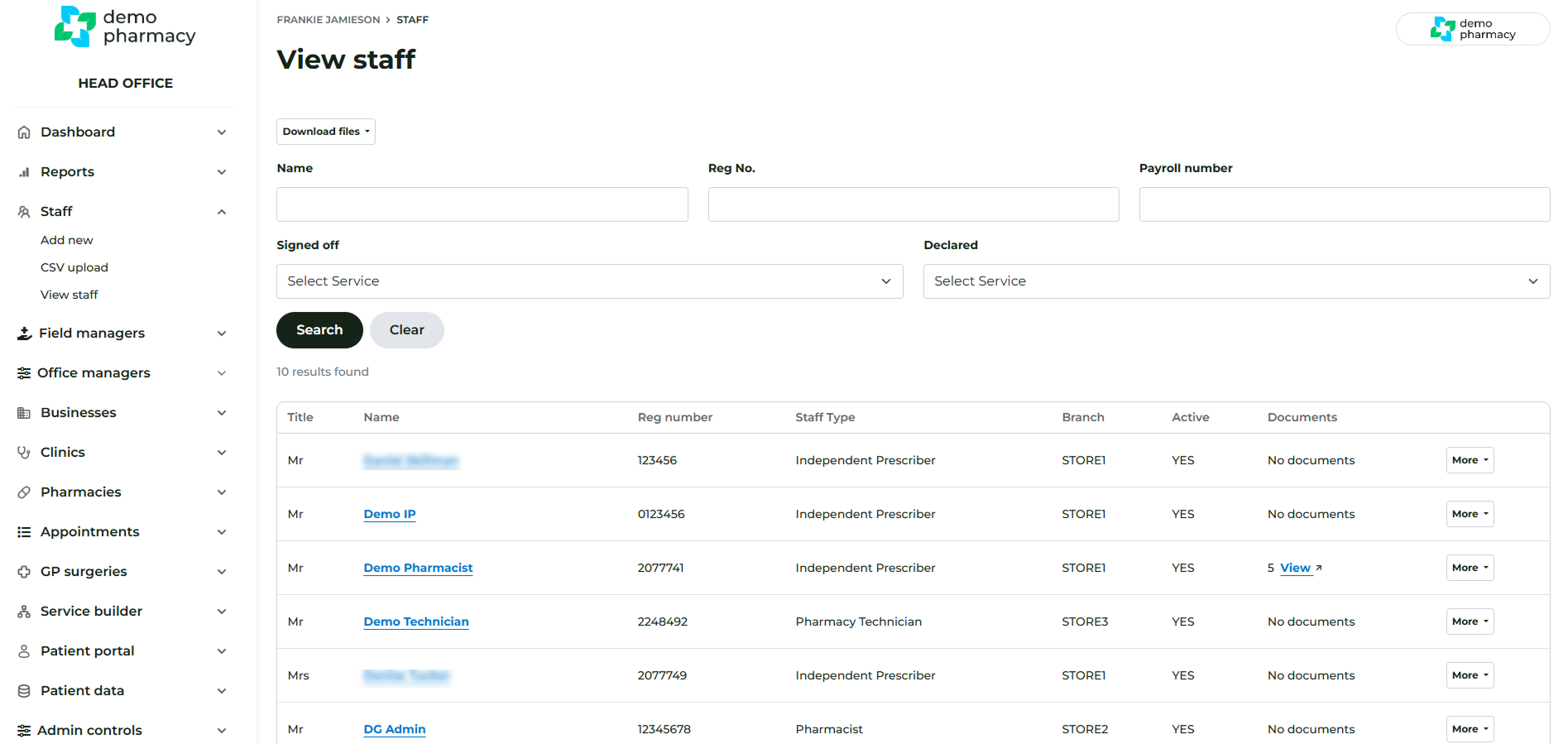
All staff management functions are accessed via the Staff area in the main navigation.
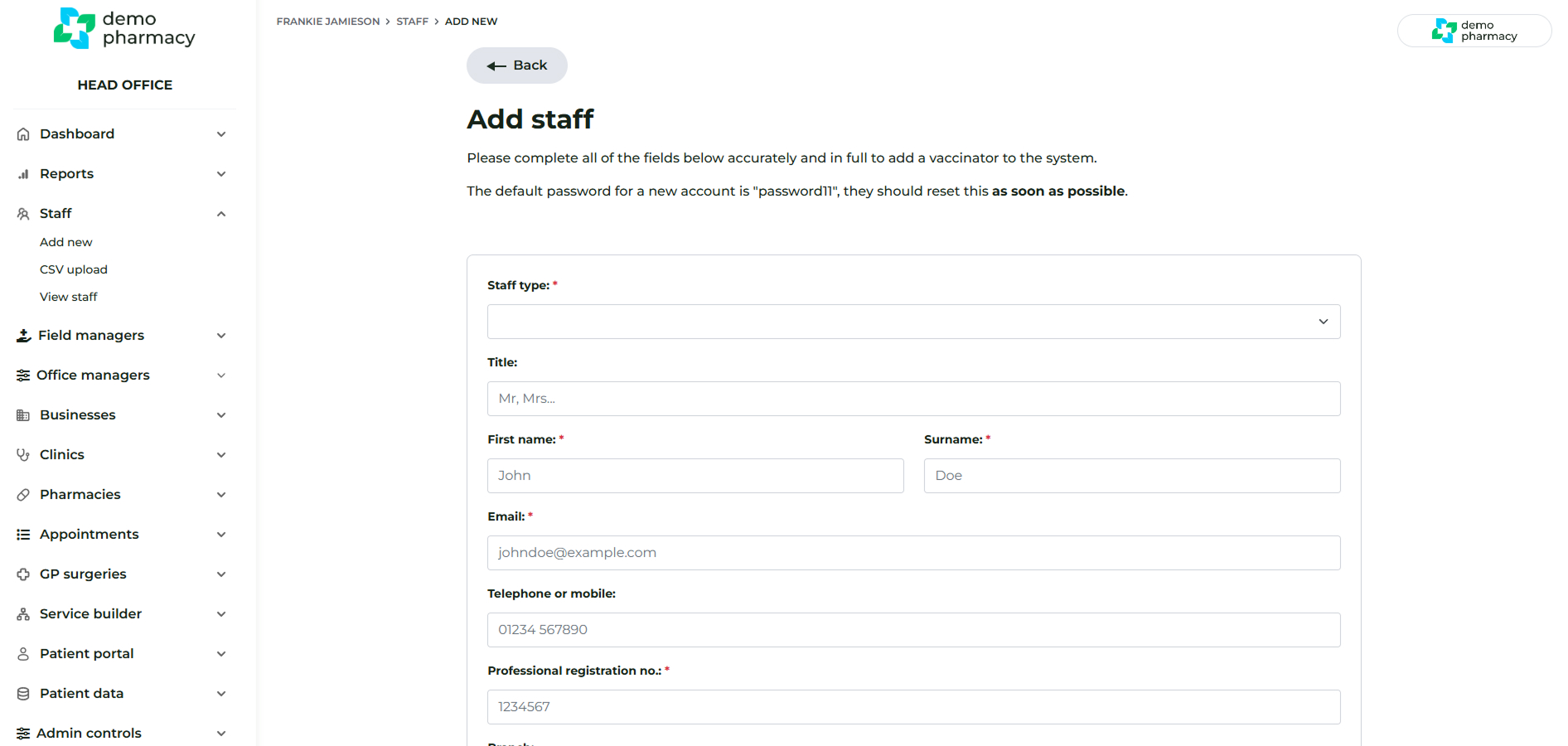
- Activation/Onboarding: Use 'Add New' for single entries or 'CSV Upload' for batch onboarding.
- Editing/Deactivation: Go to 'View Staff', click 'More', and select 'Edit'. From here, you can update staff details or delete/deactivate the account.
Step 3: Mapping New Staff to Services
After an account is created, you must map the staff member to the services they are authorized to administer.
- To add a new staff account, go to 'Add New' and fill in the required personal details.
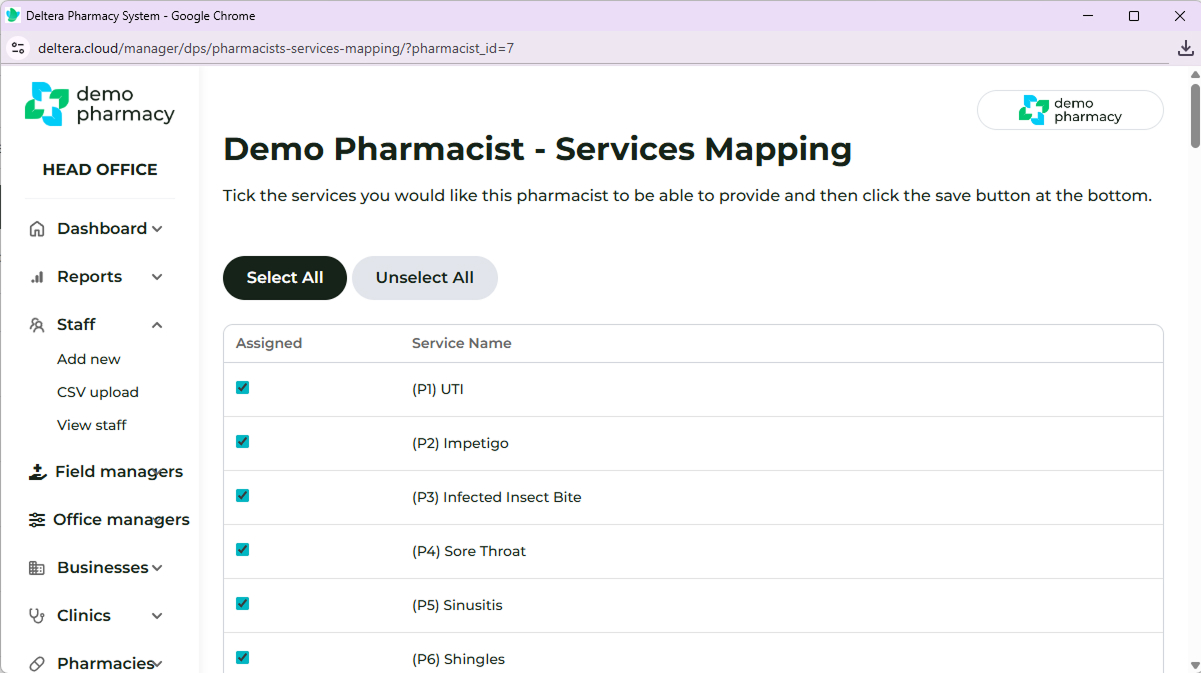
- To set permissions, go to 'View Staff' > 'More' > 'Services'.
- Select the specific services you would like that staff member to be able to administer or offer.