Managing Prescribe Users
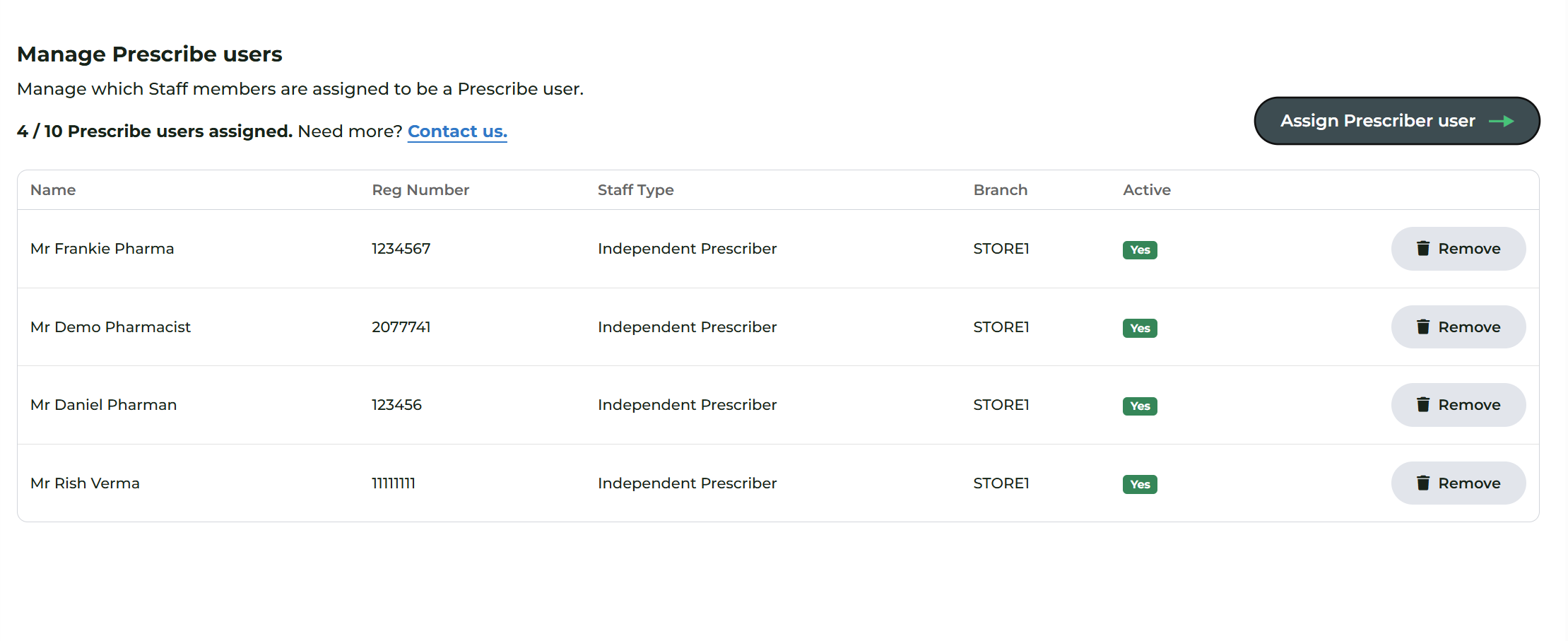
This section, located in Prescribe > Overview, allows Head Office administrators to manage which members of their team have access to the Prescribe module.
Understanding the 'Seat' Model
It is important to distinguish between how the standard Deltera Platform is billed versus the Prescribe add-on:
- The Deltera Platform: Charges are based on the number of premises (branches) you operate.
- The Prescribe Add-on: Charges are based on seats. A 'seat' is required for every individual staff member who needs to perform or manage Prescribe consultations.
Note: Prescribe users are not "new" accounts. They are existing staff members within your organisation who have been granted specific permission to use the Prescribe tools.
The Prescribe Overview Dashboard
Within the Prescribe > Overview area, you will find:
- Seat Allocation: A clear summary showing how many of your purchased seats are currently assigned and how many remain available.
- Assigned Staff Table: A list of all staff members currently occupying a Prescribe seat. From this table, you can review active users or Remove a user to free up a seat for someone else.
How to Add a New Prescribe User
To assign an available seat to a member of your team, follow these steps:
- Navigate to Staff > View Staff.
- Find the specific user you wish to authorise and select Manage > Edit.
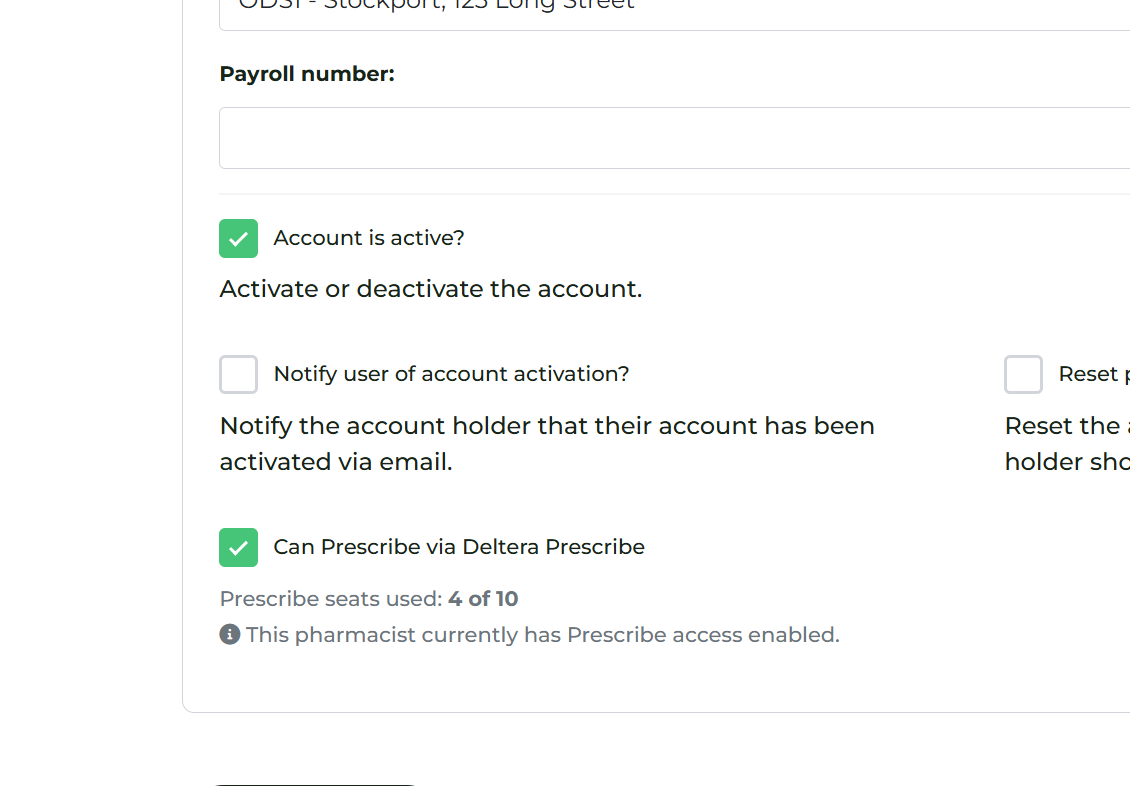
- In the user profile settings, locate and check the box labelled 'Can Prescribe via Deltera Prescribe'.
- Save the changes.
Once this box is checked, a seat is automatically assigned to that user. They will immediately see the clinical Prescribe tools the next time they log in to their account.
Need More Seats?
Your ability to add users is limited by the number of seats in your current subscription. If you have reached your limit and wish to add more prescribers to your team, please get in touch with our Sales Team to upgrade your plan.
