Multi-channel Management
The Multi-channel feature is designed to maximise your pharmacy's capacity by allowing multiple simultaneous bookings at a single location. This is particularly effective for pharmacies with multiple consultation rooms or dedicated clinics operating alongside standard services.
What is a Channel?
In the Deltera platform, a Channel represents a specific "stream" or "lane" of availability within a pharmacy.
- Global Appointments: By default, all appointments are considered "Global." These occupy the general availability of the branch.
- Channel-Specific: Once a channel is created, you can silo specific services or physical rooms. This allows for parallel bookings that do not conflict with your main diary.
Setting Up a New Channel
Head Office administrators can create and manage channels across the entire estate from a central dashboard. To create a channel:
- Navigate to Pharmacies in the Head Office dashboard.
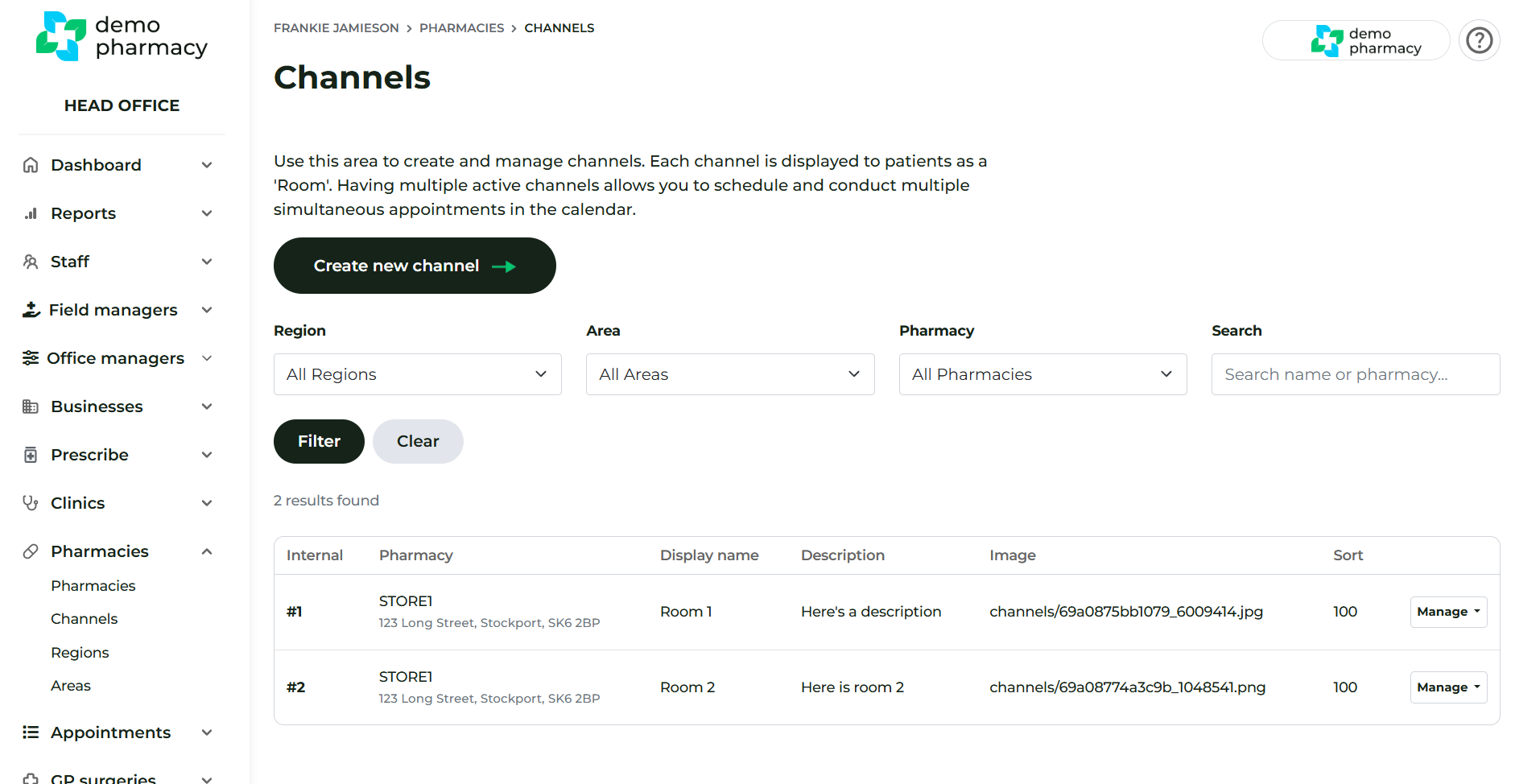
- Select the Channels tab to see all existing channels across your pharmacy group.
- Click the Create new channel button.
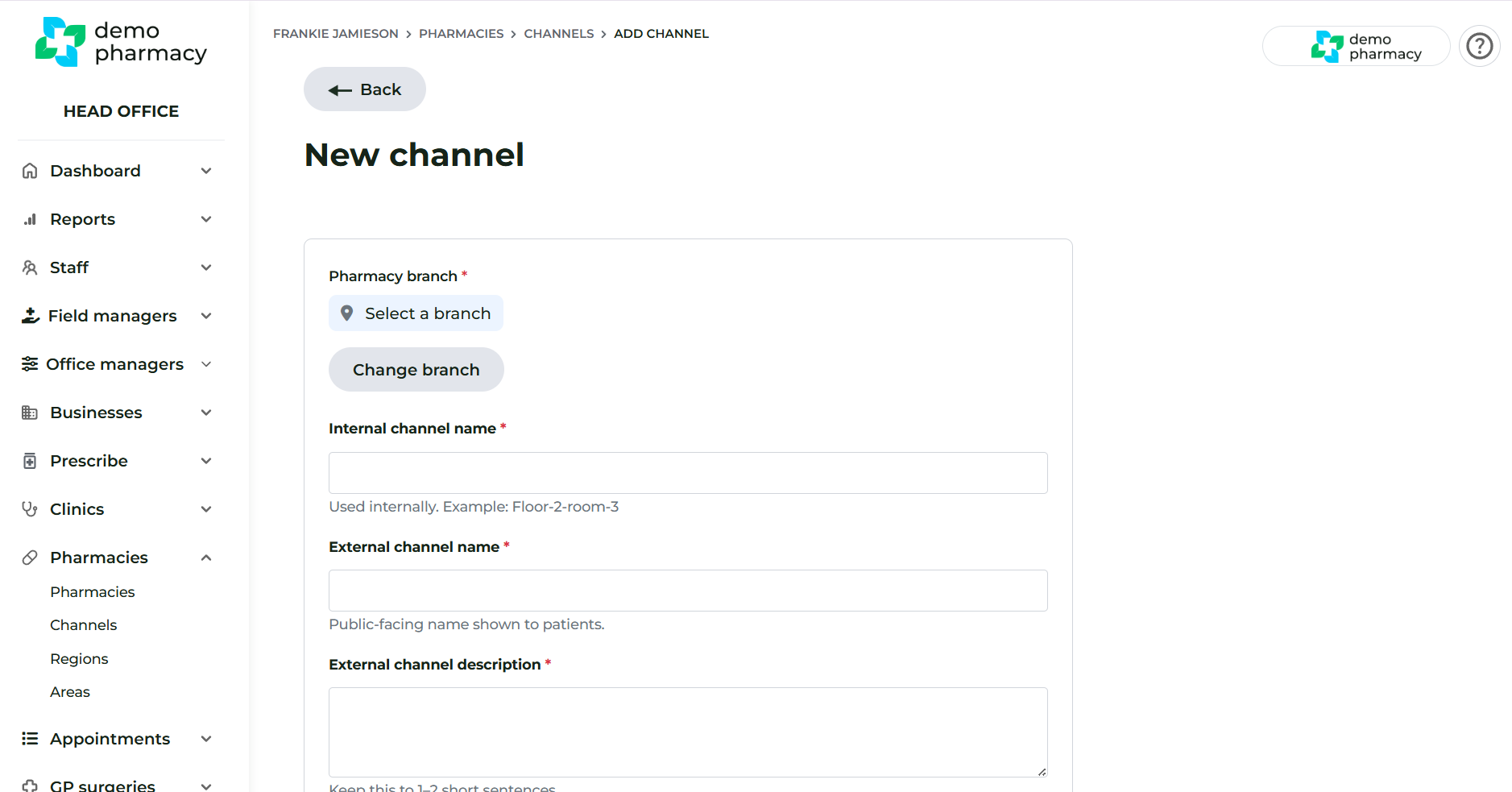
- Complete the following details:
- Branch: Select the specific pharmacy location where this channel will operate.
- Internal Name: The name seen by staff (e.g. "Consultation Room 2" or "Travel Clinic").
- External Name: The name the patient sees during the booking journey.
- Description: A brief explanation of the channel's purpose.
- Image: Upload an icon or photo to help patients identify the service during booking.
Mapping Services to a Channel
Once a channel is created, you can map specific services to it. This ensures that only bookings for those selected services can be made into that specific channel, preventing scheduling conflicts with unrelated services.
To map services:
- Go to Pharmacies > Channels.
- Find the specific channel you wish to configure and click Manage > Services.
- In the window that appears, tick the boxes for the services you want to assign to this channel.
- Click Update to save your changes.
When a service is mapped to a channel, the booking logic ensures that the capacity for that service is managed exclusively within that "lane".
Use Case: The Dedicated Travel Room
If your pharmacy has a high-volume travel business, you can create a channel named "Travel Vaccination Clinic" and map only travel-related services to it.
By doing this, you ensure that travel patients are booked into a dedicated stream that doesn't "clog up" the standard clinical room. This allows a travel specialist and a pharmacist performing standard PGD consultations to work simultaneously without overlapping their schedules.
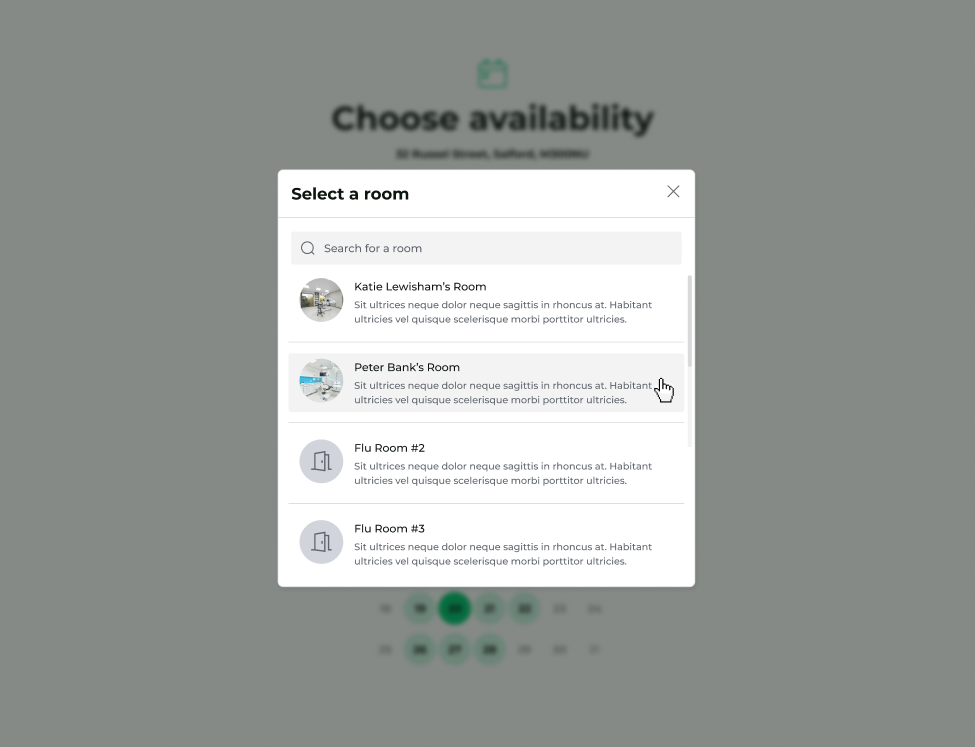
Using multi-channels in pharmacy
