

Pre-screen sections
Head Office can turn off the pre-screen questions for online bookings, service by service, or make individual pre-screen sections skippable. Anything the patient skips is completed by staff during the consultation.
Head Office > Service Builder > Services > Edit > Pre-screen sections
Where to find the settings
Section titled “Where to find the settings”- Navigate to Service Builder > Services in your Head Office account.
- Click Edit on the service.
- Select Pre-screen sections in the left-hand section nav (after Appointments / E-comm).
- Make your changes and click Update at the bottom of the page.
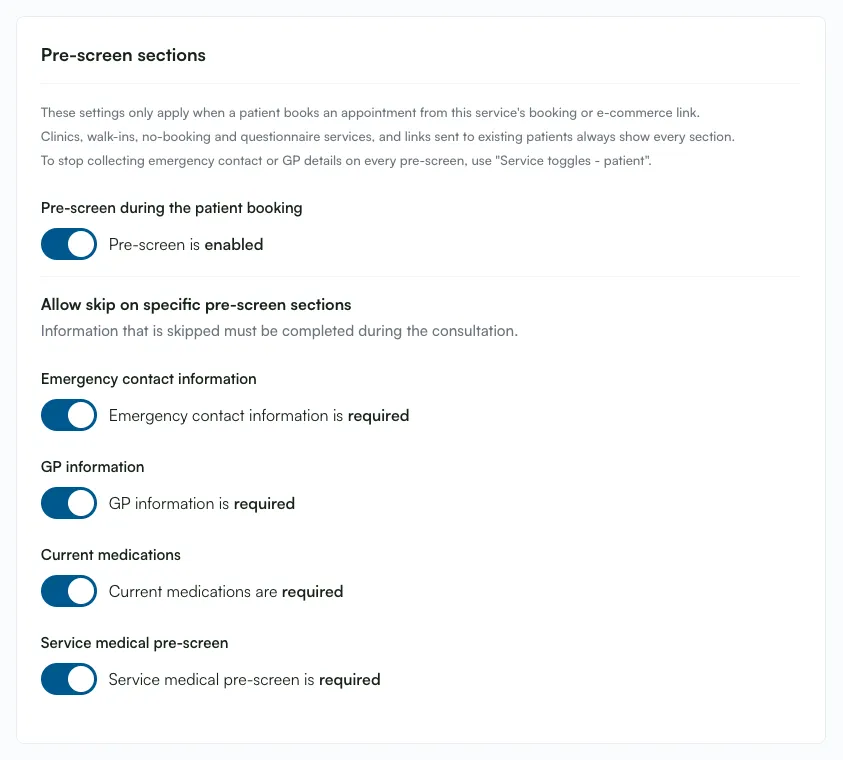
Every existing and new service has the pre-screen switched on, with every section required. Nothing changes for your patients until you change these settings.
Turning off the pre-screen for online bookings
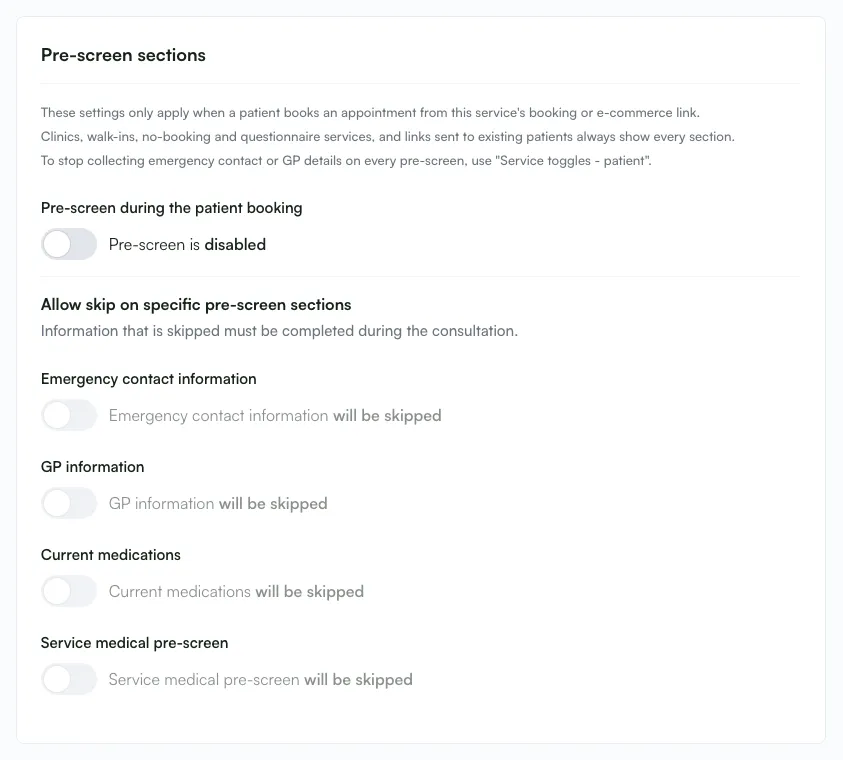
Section titled “Turning off the pre-screen for online bookings”The “Pre-screen during the patient booking” switch controls the whole pre-screen for this service. It reads “Pre-screen is enabled” when on and “Pre-screen is disabled” when off.
When it is off, a patient booking online skips every optional pre-screen section:
- Emergency contact
- GP information
- Current medications
- The service medical pre-screen
Staff complete the skipped information during the consultation. See Administering treatment / vaccines.
Making individual sections skippable
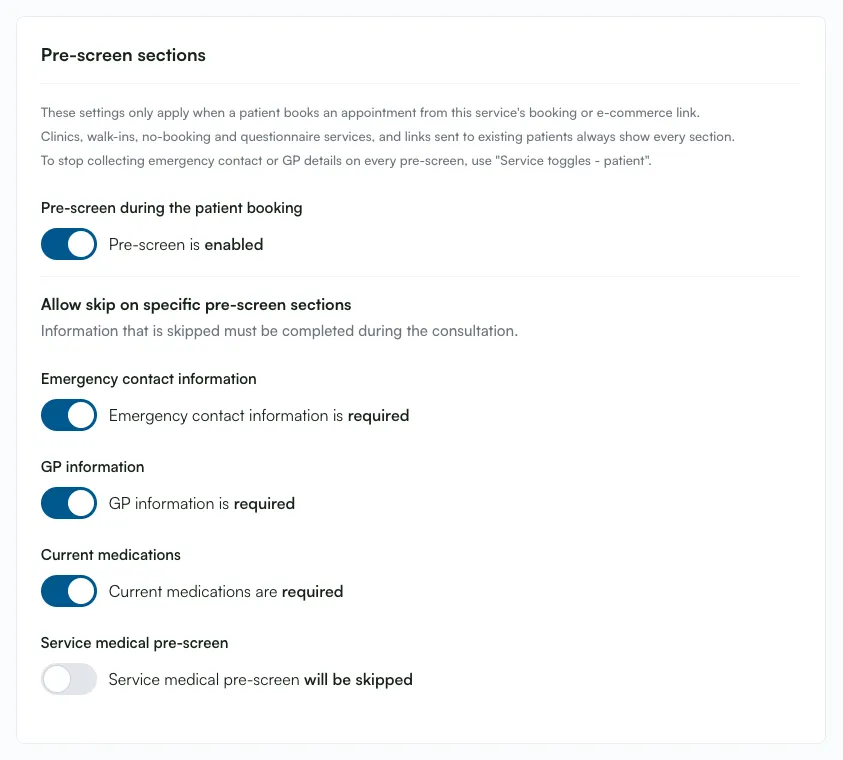
Section titled “Making individual sections skippable”Under the heading “Allow skip on specific pre-screen sections” (“Information that is skipped must be completed during the consultation.”), each of the four sections has its own switch:
| Section | Switch reads when on | Switch reads when off |
|---|---|---|
| Emergency contact information | “…is required” | “…will be skipped” |
| GP information | “…is required” | “…will be skipped” |
| Current medications | “…are required” | “…will be skipped” |
| Service medical pre-screen | “…is required” | “…will be skipped” |
A skipped page is never shown to a patient booking online.
- When the main switch is off, the four section switches are greyed out and off.
- Turning the main switch back on unlocks them but leaves them off. Turn each section you want back on.
When the settings apply
Section titled “When the settings apply”These settings only apply when a patient books an appointment from the service’s booking link or e-commerce link. These journeys always show every section, whatever the settings:
- Clinics
- Walk-ins
- Business vouchers
- Services set to “No booking flow (can’t select pharmacy)”
- Services using Questionnaire delivery mode
- Links sent to an existing patient
Services that must keep the pre-screen
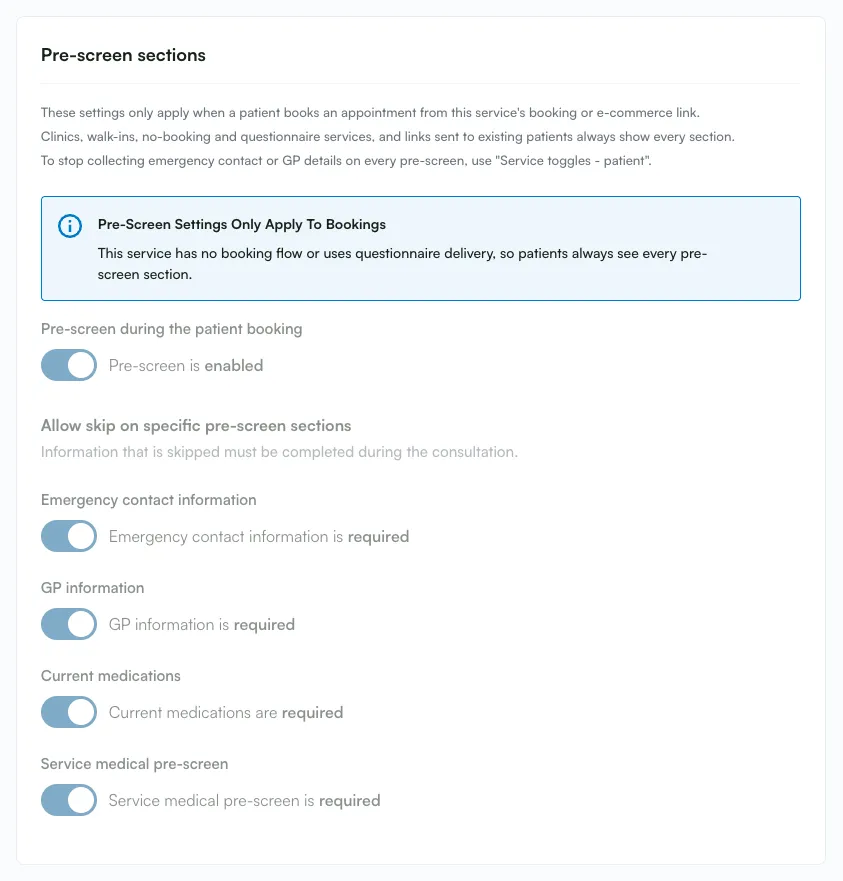
Section titled “Services that must keep the pre-screen”The pre-screen can’t be switched off for a service set to “No booking flow” or Questionnaire delivery, because for those services the pre-screen is the whole journey.
- Ticking either option on the edit page greys out the Pre-screen sections card and shows the note “Pre-Screen Settings Only Apply To Bookings”: “This service has no booking flow or uses questionnaire delivery, so patients always see every pre-screen section.”
- If the service is saved with the switch off anyway, the rest of the settings save and this warning appears: “The settings were saved, but: Pre-screen can’t be turned off for a service with no booking flow or questionnaire delivery, so the pre-screen settings were left as they were.”


Skipping the medical pre-screen
Section titled “Skipping the medical pre-screen”Skipping the Service medical pre-screen has two knock-on effects.
Declaration wording
Section titled “Declaration wording”When the medical pre-screen is skipped, the first sentence of the default declaration on the signature page becomes:
“I understand the pharmacist will go through my medical history with me during my consultation.”
Hard stops move to the consultation
Section titled “Hard stops move to the consultation”A patient who skips the medical pre-screen answers no questions online, so they can’t be hard-stopped at booking. The same hard stop applies when the pharmacist completes the medical screen during the consultation instead.
Cloned services
Section titled “Cloned services”A service copied with the power cloner or config cloner does not copy these settings. The copy starts with the pre-screen on and every section required. Set them again on the new service.
How this differs from the older service toggles
Section titled “How this differs from the older service toggles”Two older settings in “Service toggles - patient” still exist and do something different. Pick the one that matches what you need:
| Setting | Effect |
|---|---|
| “Collect emergency contact (every pre-screen)” (off) | Emergency contact is never collected on any journey, including bookings, clinics, walk-ins and patient links, and the row is removed from the paper consultation form. |
| “No GP details, consent or reminders (ROI)” (on) | No pre-screen asks for GP details. It also drops GP consent, GP notifications and the staff “GP information missing” reminder. |
| “Emergency contact fields required” | Only has an effect when the emergency contact page is shown. |
| Pre-screen sections (new) | Skips the page on online bookings only, and the information is collected by staff at the consultation. |