Running an On-Site Clinic (Pharmacist Guide)
This guide details how assigned pharmacists access, run, and complete an on-site corporate clinic using the Deltera Platform.
1. Launching the Clinic
A pharmacist must be assigned to a clinic to launch it.
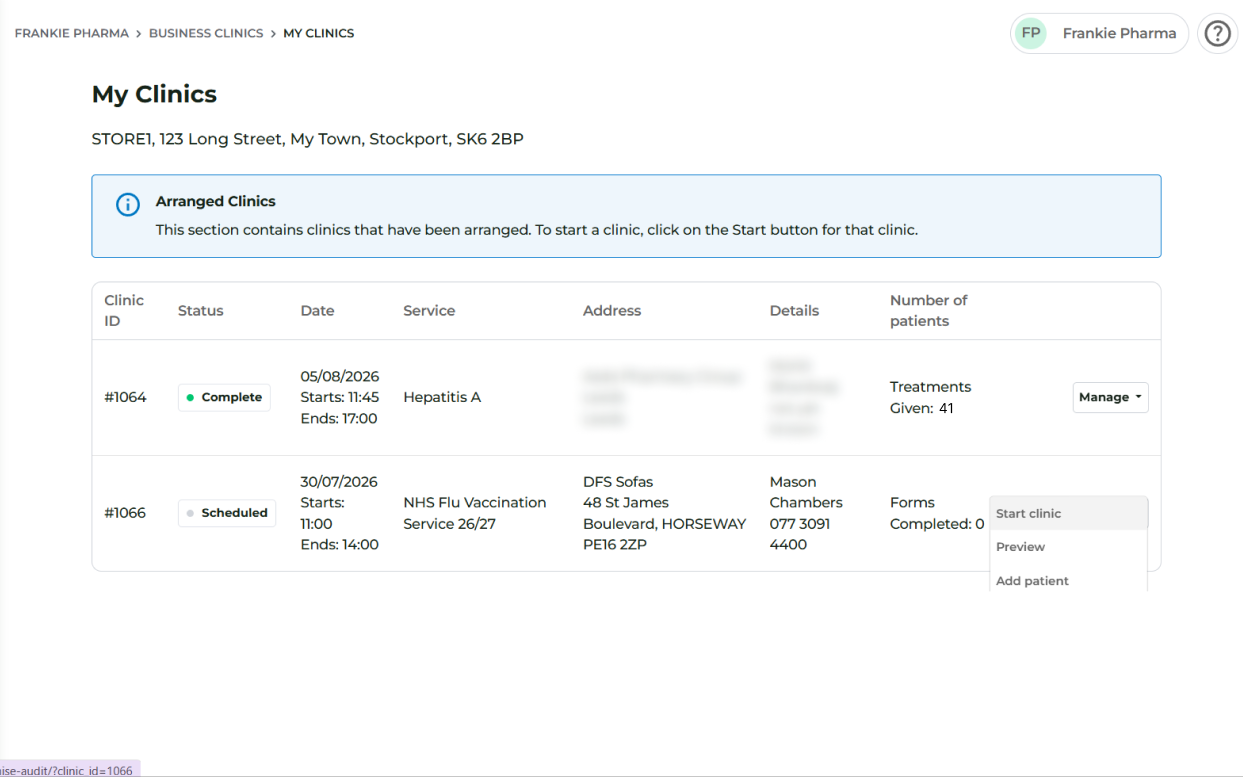
[In the Pharmacist Portal: Business Clinics > My Clinics]
- Open your clinical interface and navigate to My Clinics.
- Locate the scheduled clinic and click Manage > Start Clinic.
Multi-Pharmacist Support: If multiple pharmacists are assigned to the clinic, all clinicians can click Start Clinic on their respective devices and process patients concurrently from the same live queue.
2. Selecting Stock & Treatment Options
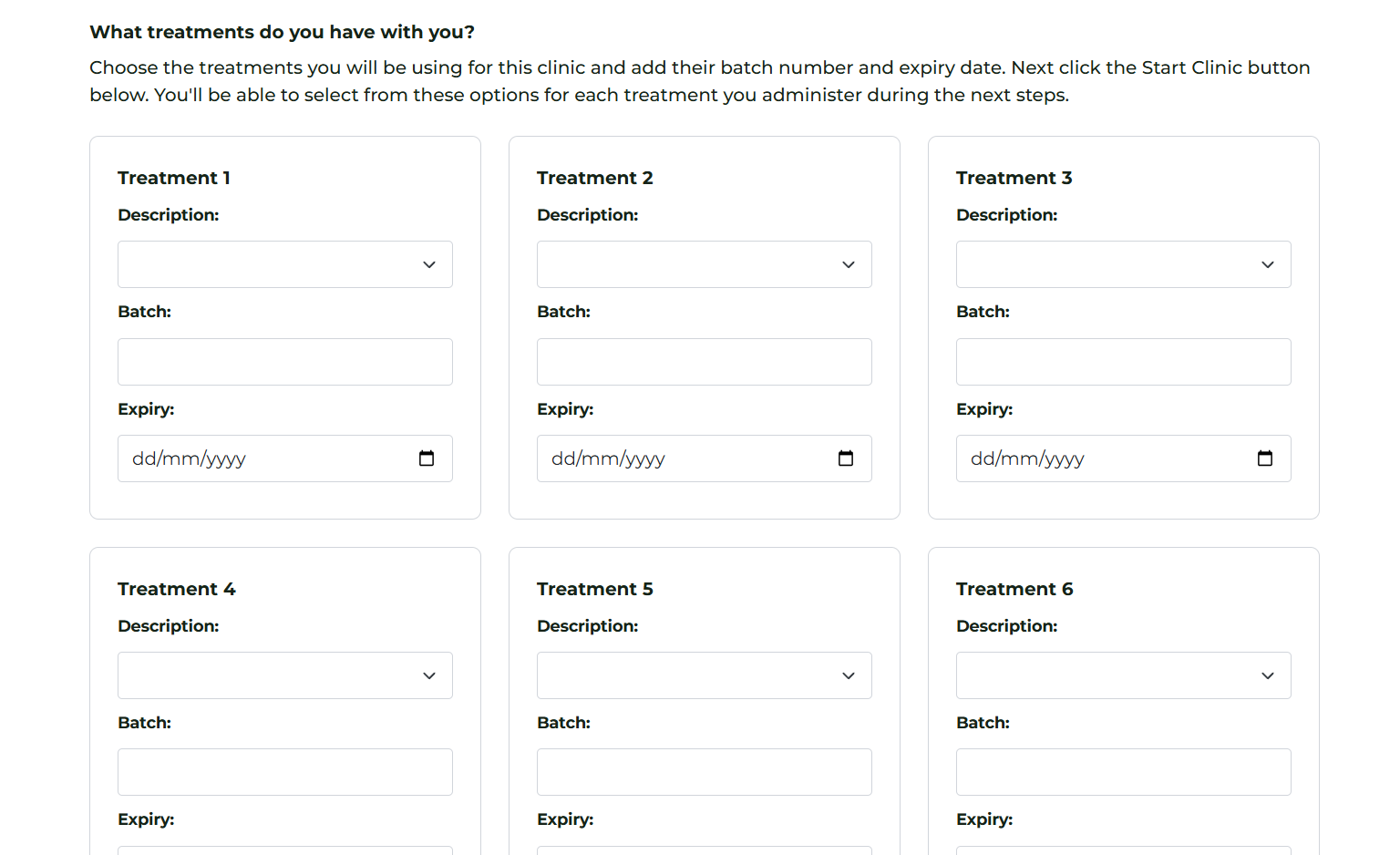
Before calling the first patient, select the specific vaccine batches/products brought on-site.
- You can select up to 6 treatment/batch options simultaneously.
- These pre-selected options will appear as quick-select buttons during consultations, speeding up administration time.
3. Patient Check-In & Administration
As employees arrive at the on-site station:
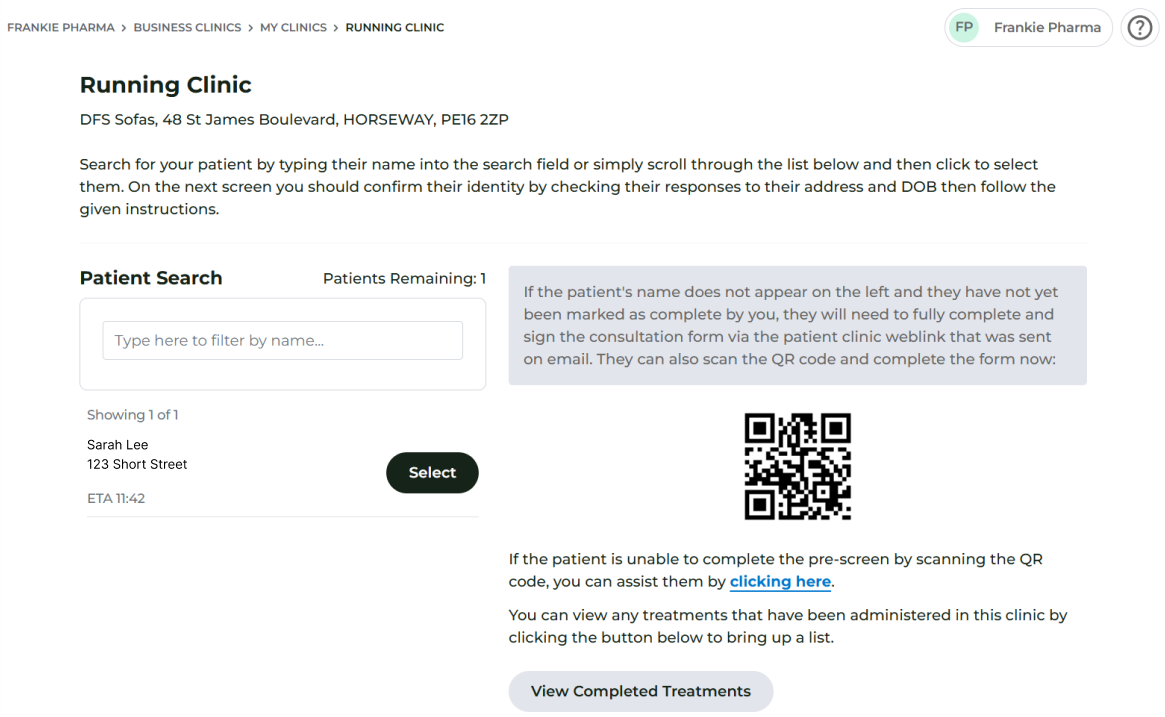
- Find Patient: Search for the employee by name or date of birth in the live clinic queue.
- Review Pre-screen: Open their record and review their pre-completed medical screen for eligibility or contraindications.
- Administer Treatment: Select the administered treatment from your quick-select stock list and confirm administration (or record a clinical decision to decline treatment).
- Complete Record: Click Mark as Completed.
Handling Walk-in Patients
If an employee arrives without having pre-booked online, display the Clinic Poster QR code (accessible via your screen header). The employee scans the code on their mobile phone, completes the pre-screen on the spot, and instantly appears in your live queue.

4. Finalising the Clinic Session
Once all scheduled patients have been seen:
- Click Complete Clinic at the top of the interface.
- Reconcile Costs: Enter any final session expenses or adjustments (e.g. additional consumables or travel fees) if applicable.
- Click Finish Clinic.
The clinic status is updated to Completed, locking the records for head-office audit and billing generation.