Managing Prescribe Services
When your organisation adopts the Prescribe add-on, the initial configuration is handled by the Deltera engineering team. This ensures the foundational clinical logic is correctly mapped to your group account.
However, as a Head Office administrator, you maintain control over which locations and clinicians are authorised to provide these advanced prescribing services.
Automatic Configuration
During your Prescribe onboarding, the Deltera team will establish two core components for you:
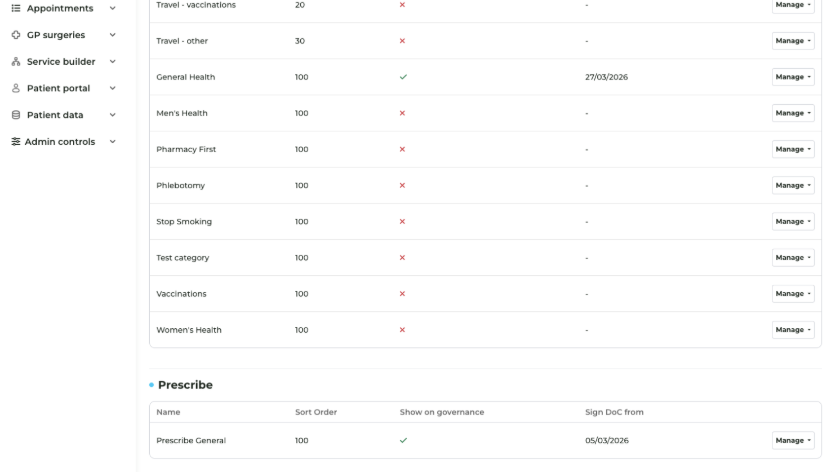
- Service Category: A specific category dedicated to independent prescribing.
- Mandatory Prescribe Service: A pre-configured appointment service specifically designed for IP-led consultations.
While these core elements have more limited controls compared to standard PGD services—to ensure clinical safety and legal compliance—you still have essential administrative duties to perform.
Pharmacy & Staff Association
To make the Prescribe service functional, you must tell the system which branches and which individuals are part of the prescribing workflow.
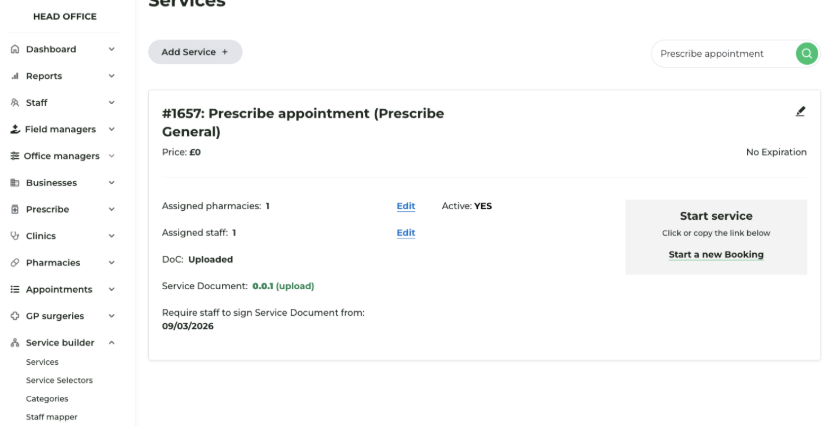
- Pharmacy Access: You can edit which branches within your group are authorised to deliver the Prescribe service.
- Staff Allocation: You can manage which staff members are mapped to the service.
- Note: The staff members available for selection are strictly limited to those who have been assigned a Prescribe Seat. If a staff member does not appear in the list, you must first ensure they have been granted a seat within your staff management settings.
⚠️ Critical: Self-Booking Visibility
It is vital to ensure that the Prescribe Service is correctly associated with your chosen pharmacies.
Important: If the Prescribe Service is not set up and associated with a specific pharmacy branch, that pharmacy will not appear as an option in the patient self-booking flow.
If a patient is trying to book an independent prescribing appointment and cannot see your branch, the first thing to check is that the branch is correctly mapped to the Prescribe Service in your Head Office dashboard.
How to Update Prescribe Associations
- Navigate to Service Builder > Services.
- Find the Mandatory Prescribe Service (usually titled "Prescribe Appointment").
- Click Edit.
- Scroll to the Pharmacies section to tick the branches where you want this service to be available.
- Scroll to the Staff section to select your authorised prescribers.
- Click Update.
Staff Competence & Governance
Before a staff member can begin administering the Prescribe service, they must formally declare their clinical competence. Assigning a staff member to the service at Head Office level is the first step; however, the individual clinician must also complete their personal governance requirements before the system will allow them to consult.
Steps for Staff Members:
- Log in to the Staff Portal.
- Navigate to Dashboard > Governance.
- Complete any Prescribe training modules associated with the service.
- Formally declare competence by ticking the relevant declaration.
Once these governance steps are fulfilled, the staff member is fully authorised to begin administering Prescribe services.
