Mapping: Pharmacies, Staff & IPs (IP Bridge)
Mapping connects specific services to the pharmacies authorized to offer them and the staff authorized to administer them. This ensures compliance and controls access.
I. Mapping Services to Pharmacies
You have two primary ways to map services to your pharmacy branches:
Method 1: Map from the Pharmacy Management Screen
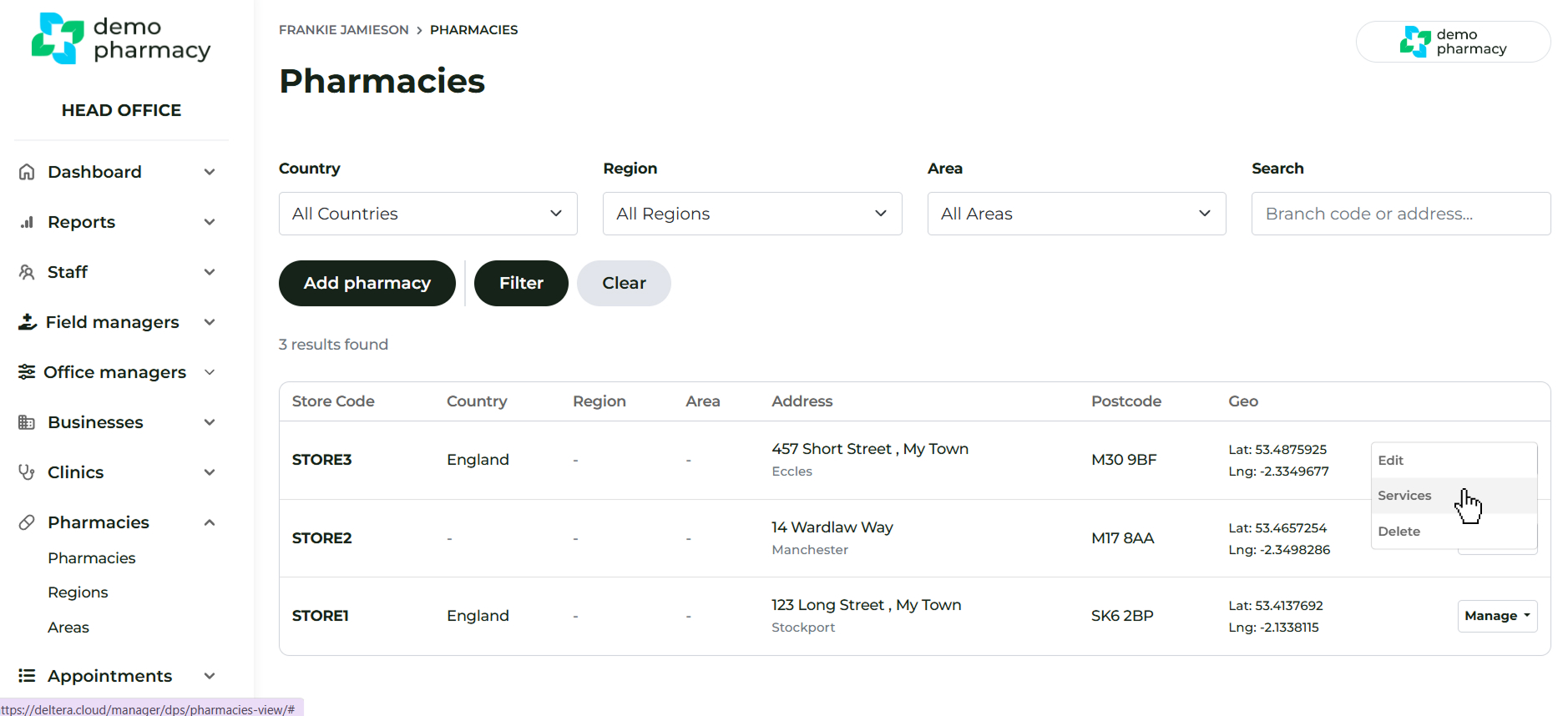
- Navigate to Pharmacies in the main navigation.
- Click ‘Manage’ next to the specific pharmacy you wish to configure.
- Select ‘Services’.
- Here, you can map the required services to that individual pharmacy.
Method 2: Map from Service Builder
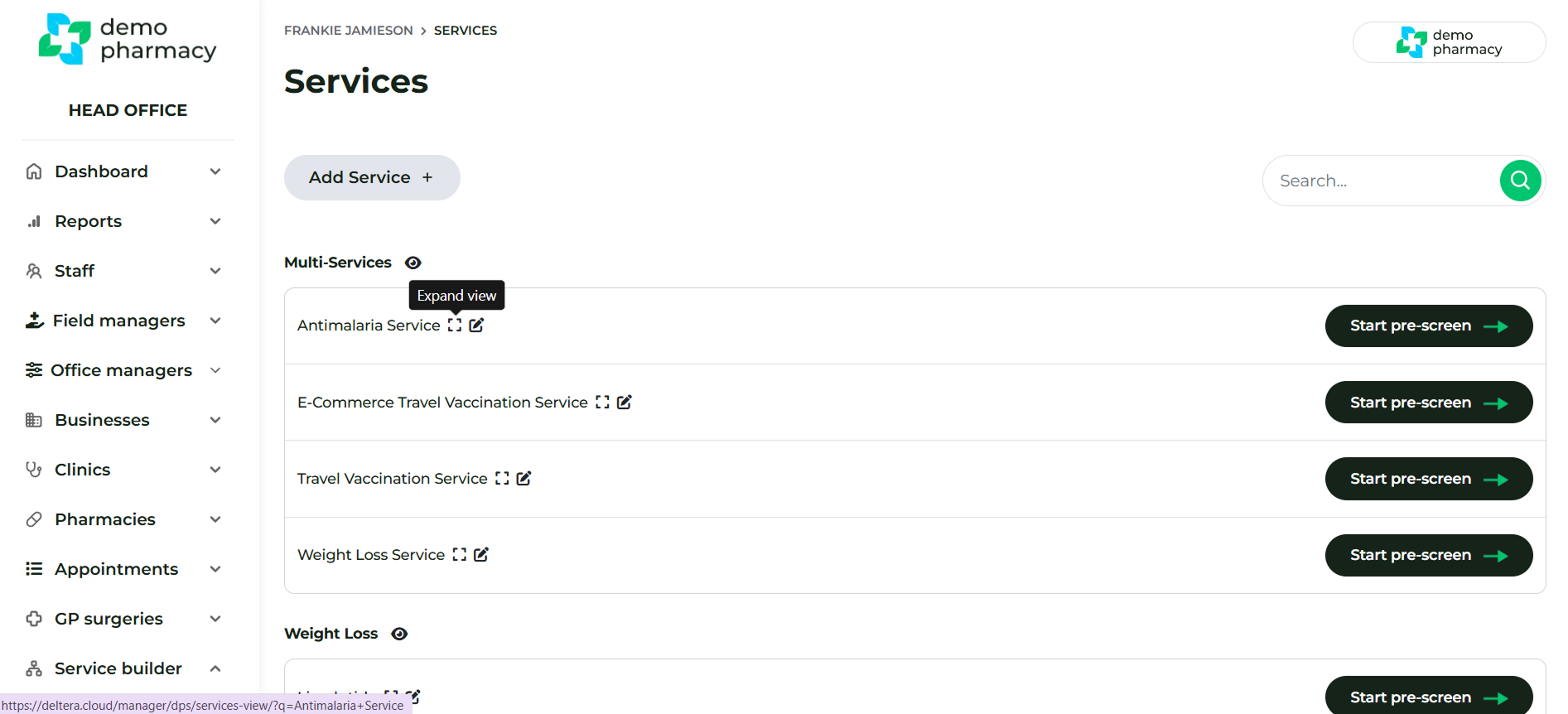
- Go to Service Builder > Services.
- Find the relevant service and click ‘Expand View’.
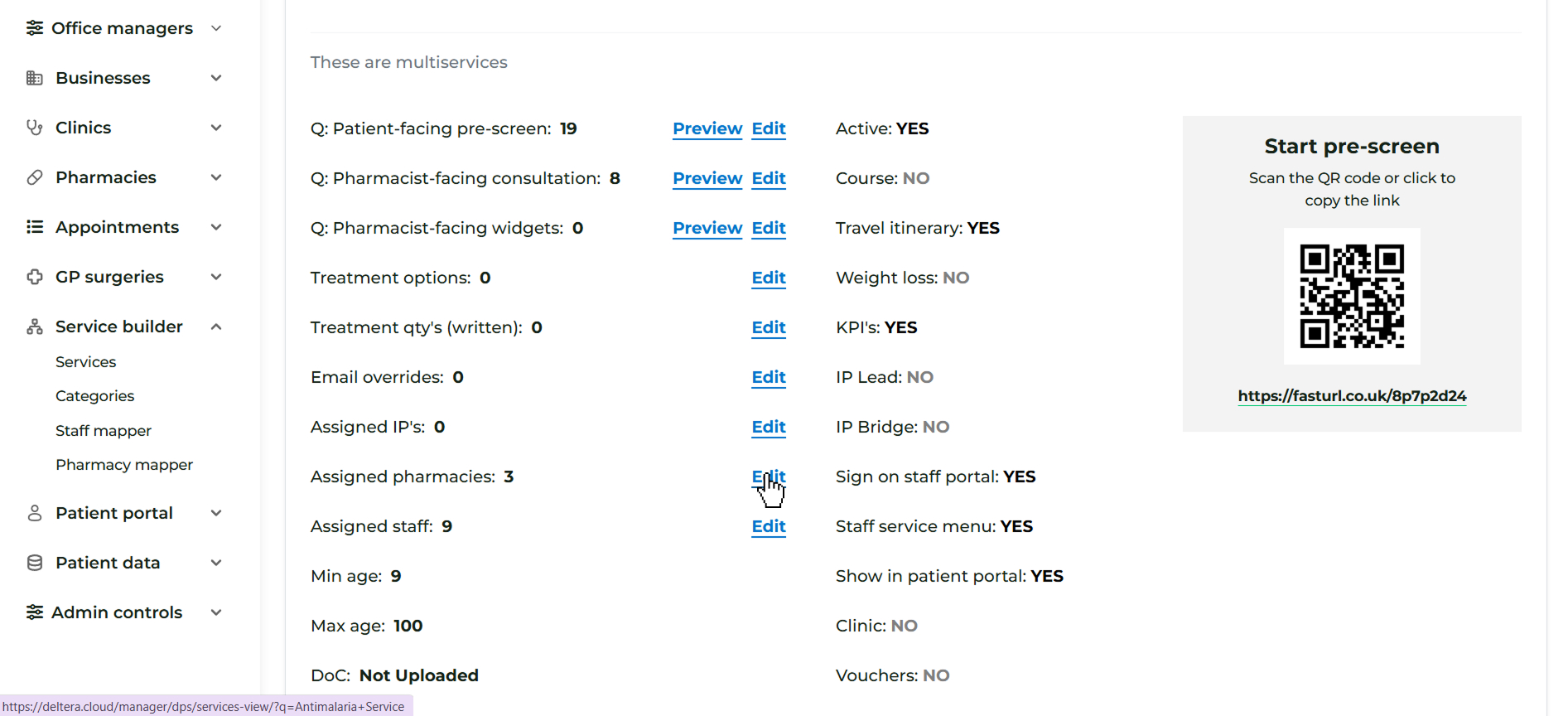
- Click the edit button to configure the following mappings:
- Assigned Pharmacies
- Assigned Pharmacists
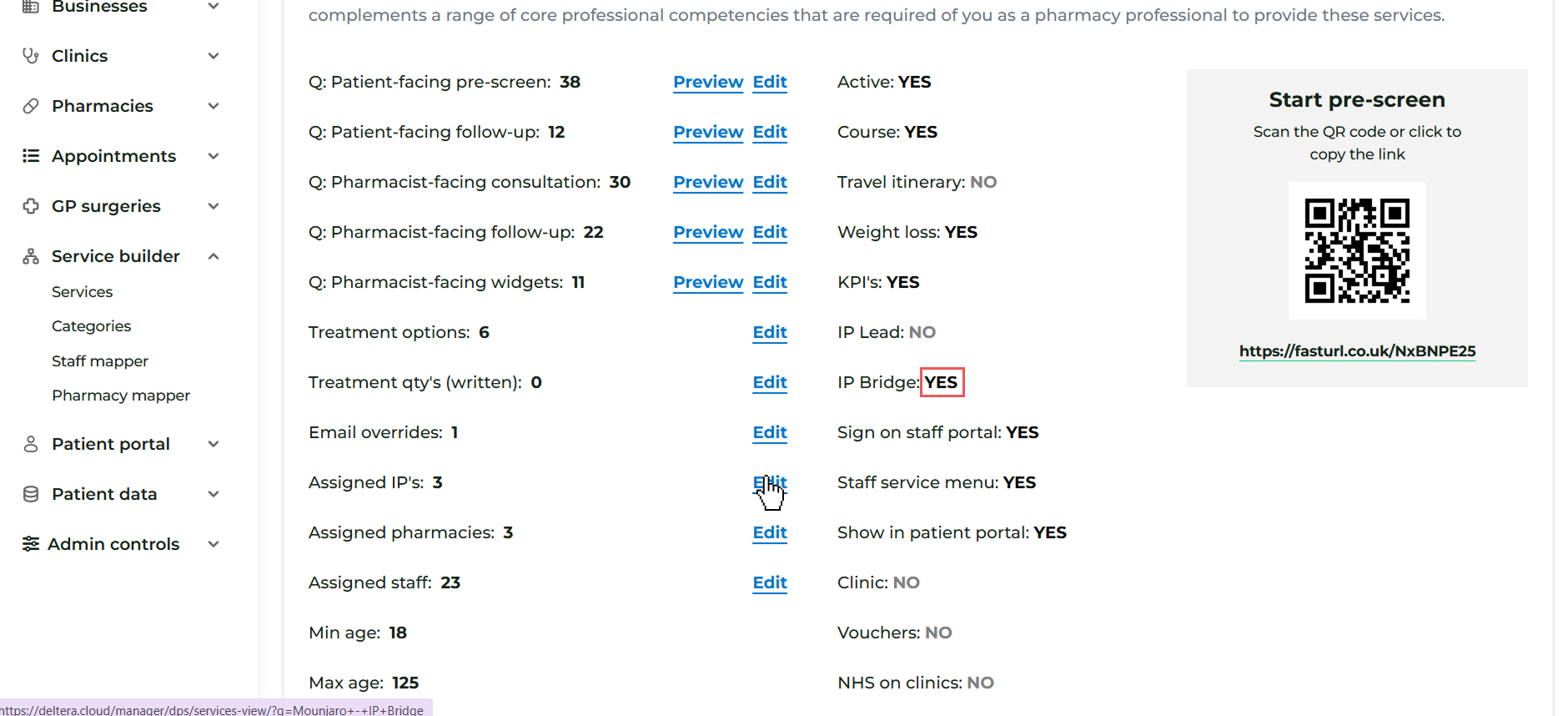
- Assigned IPs (Required for the IP Bridge functionality).
II. Mapping Services to Staff
After an account is created, you must map the staff member to the services they are authorized to administer.
- To add a new staff account, go to 'Add New' and fill in the required personal details.
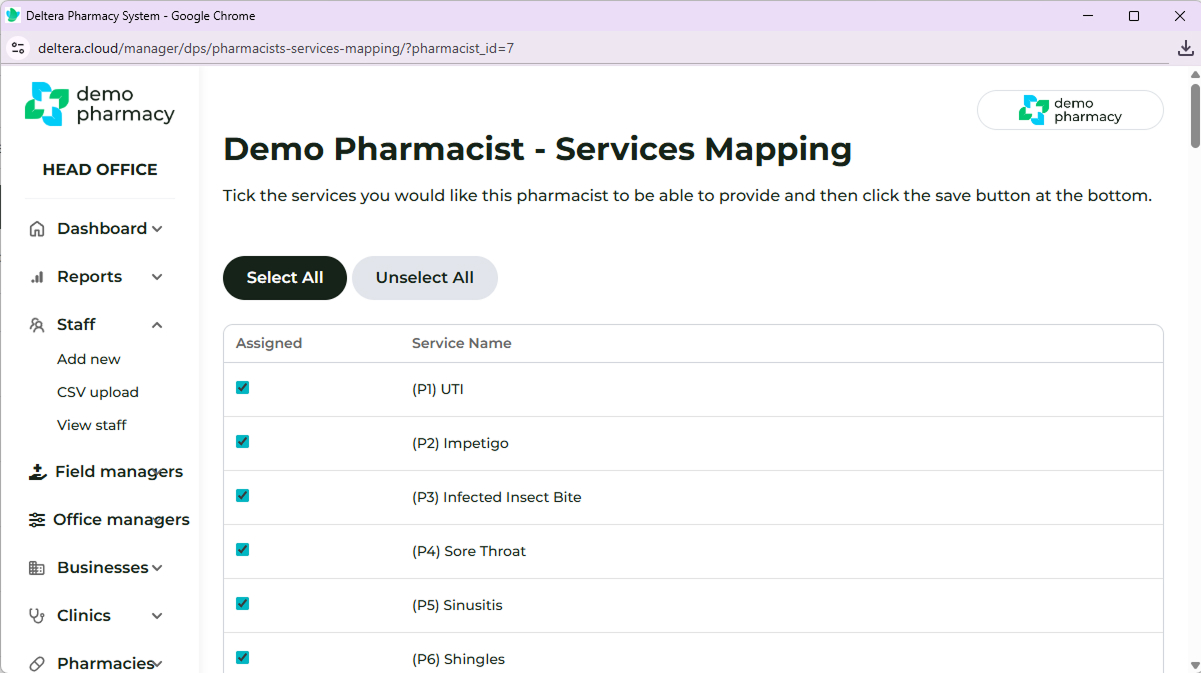
- To set permissions, go to 'View Staff' > 'More' > 'Services'.
- Select the specific services you would like that staff member to be able to administer or offer.
III. Mapping in Bulk (Quick Solutions)
Use the bulk mapping tools for initial setup or when mapping a large number of staff or locations to multiple services at once. Note: This method is faster but lacks the specificity of the individual mapping options above.
Bulk Staff Mapping
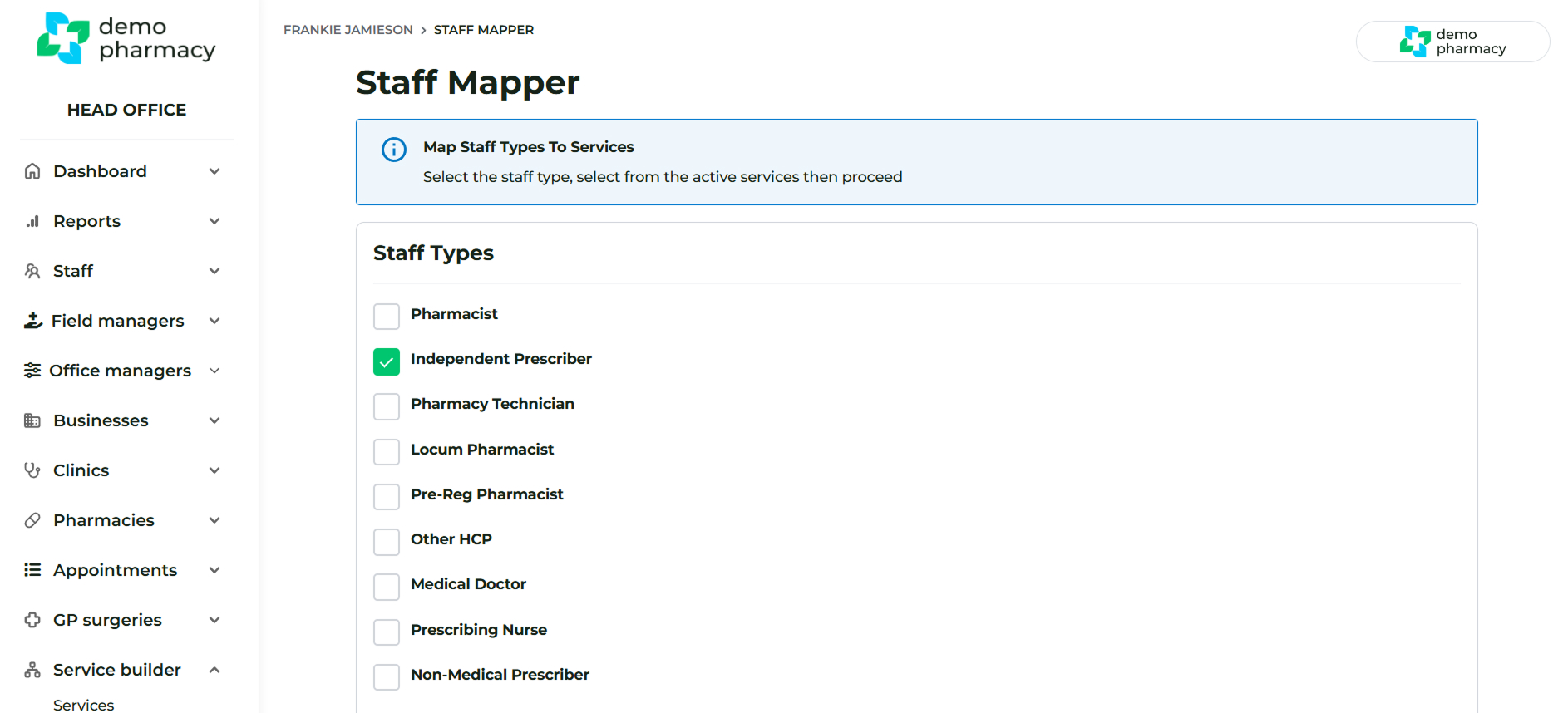
- Navigate to Service Builder > Staff Mapper.
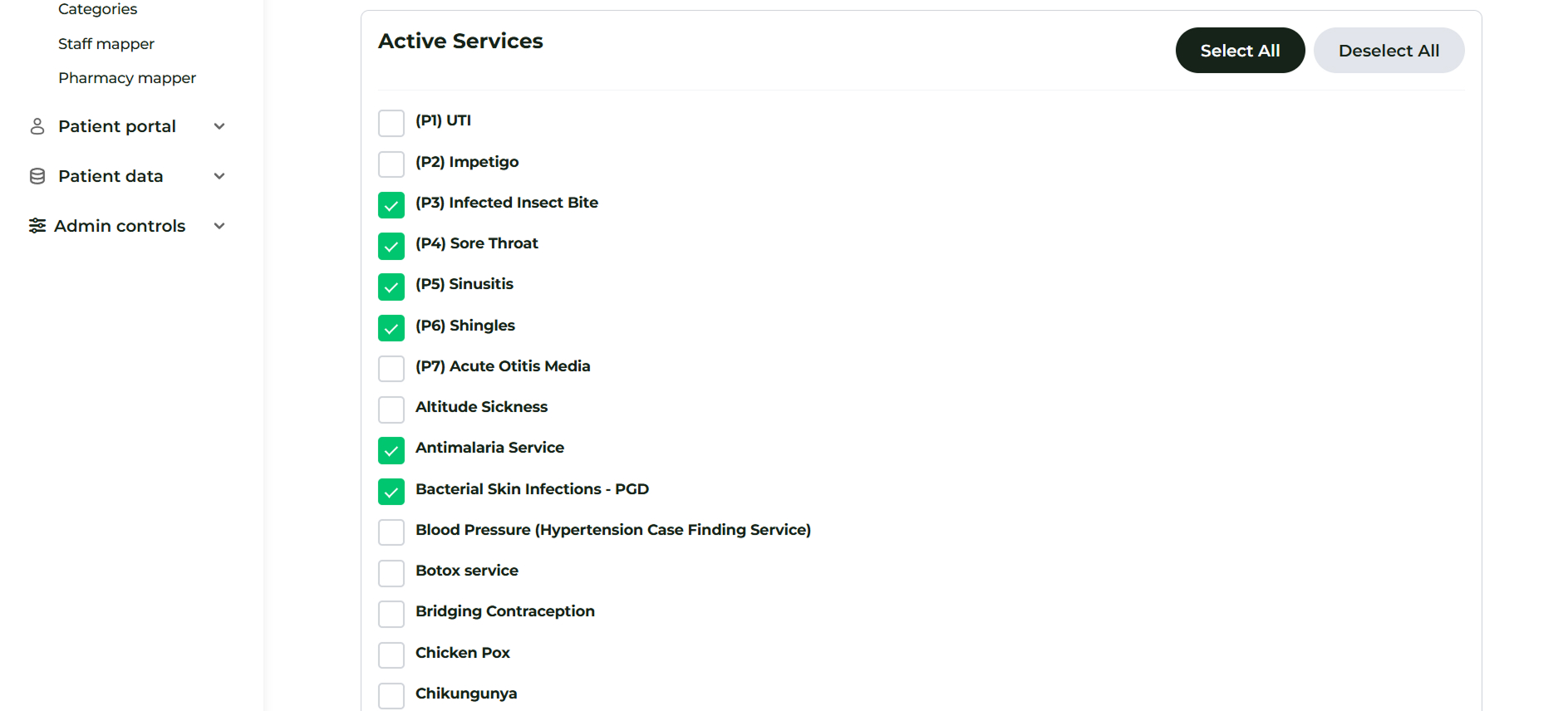
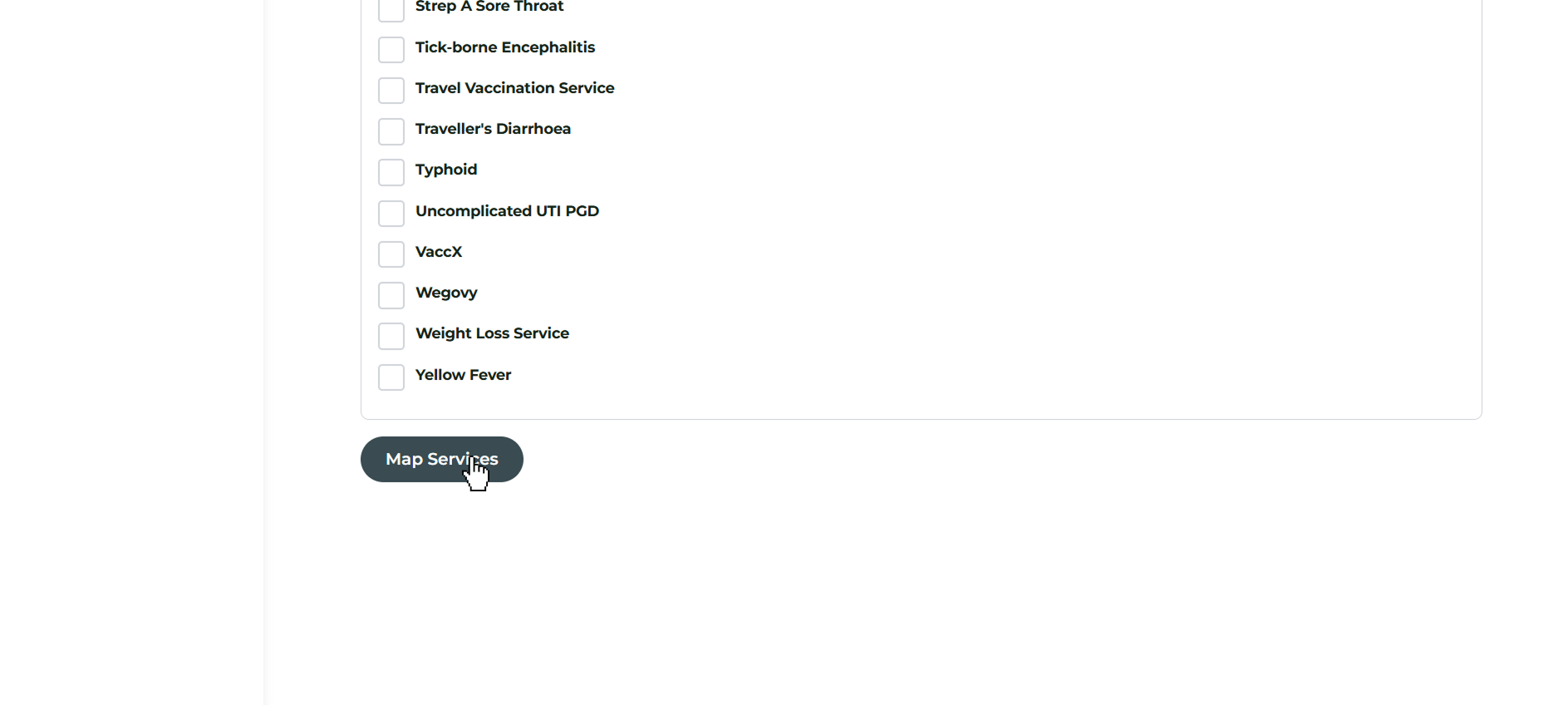
- Select the staff types and all services you wish to map them to.
- Ensure you click ‘Map Services’ at the bottom of the page to apply changes.
Bulk Pharmacy Mapping
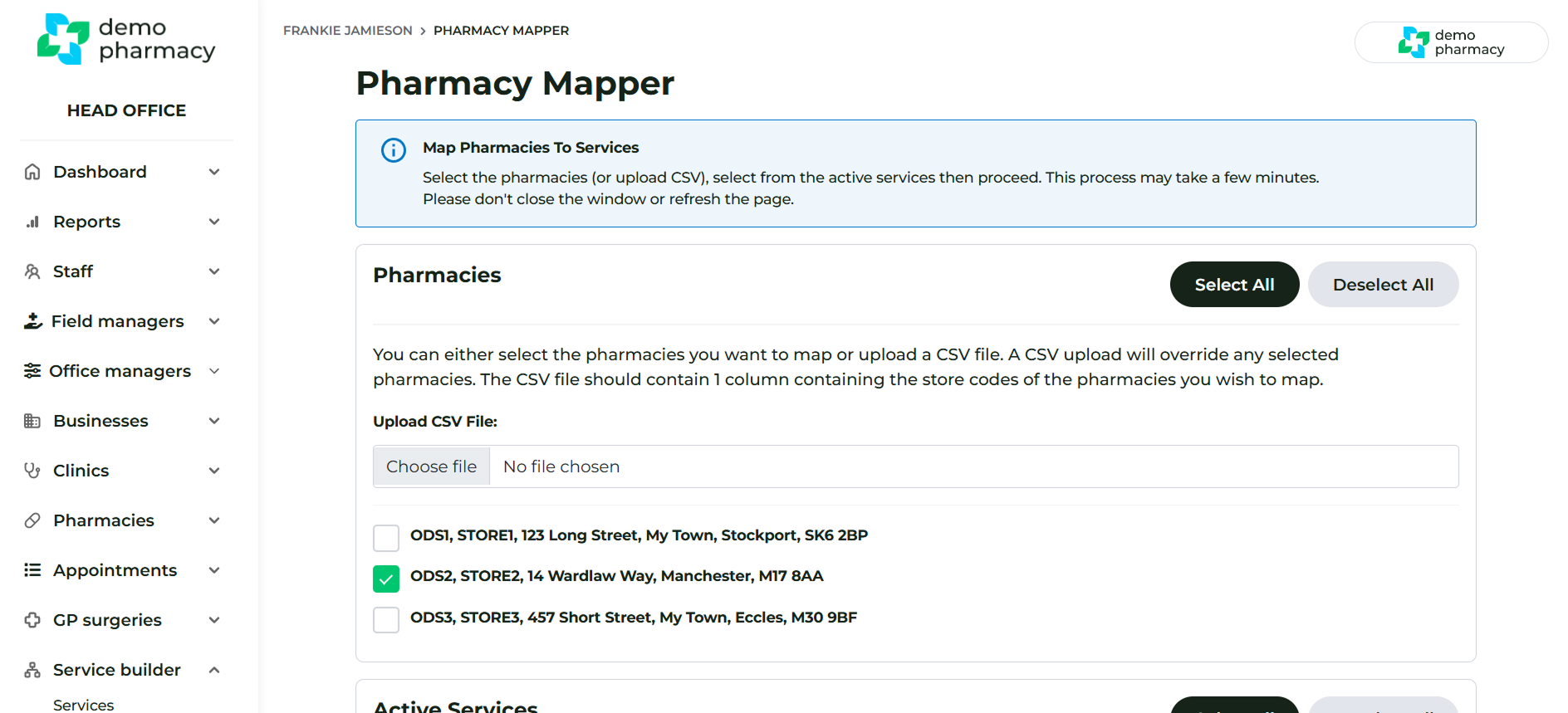
- Navigate to Service Builder > Pharmacy Mapper.
- Select the pharmacies and the services you wish to map to these locations.
- Ensure you click ‘Map Services’ at the bottom of the page to apply changes.
IV. Mapping Independent Prescribers (IPs) to the IP Bridge
If a service is configured to use the IP Bridge functionality, you must specifically assign the authorised Independent Prescribers to that service.
- Go to Service Builder > Services.
- Find the service where the IP Bridge is active, and click ‘Expand View’.
- Click the Edit button next to Assigned IPs to manage and update the list of assigned Independent Prescribers.
Get in touch
For all technical enquiries and system support, please email us at:

Are you a Well pharmacist?
For technical enquiries and system support specific to Well Pharmacy locations, please email Central Support at:

Need to speak with someone?
For technical enquiries and system support specific to Uniphar Pharmacy locations, please email Central Support at:
