

Pharmacy Portal
The Pharmacy Portal is a shared login for each branch, used by counter staff to run the branch's bookings. Head Office creates the login details, passes them to the branch and controls access from then on.
What counter staff can do in the Portal
Section titled “What counter staff can do in the Portal”The Portal gives the counter team everything they need to manage bookings, without a pharmacist having to sign in:
- View the calendar of the branch’s upcoming appointments.
- Book appointments for patients at the counter or on the phone.
- Change or cancel appointments, including ones patients booked online.
- Check in walk-in patients.
Who uses it
Section titled “Who uses it”- Each branch has one Portal login: a username and a password. The whole counter team shares it, so it isn’t a personal login.
- Pharmacists and other clinical staff sign in with their own staff accounts instead. The Portal login page has a Staff login link that takes them there.
Create a branch’s login details
Section titled “Create a branch’s login details”Branch staff can’t sign themselves up, and Deltera doesn’t email login details to the branch. You set the details and pass them on.
- In Head Office, go to Pharmacies, open the branch’s Manage menu and choose Edit.
- Find the Pharmacy portal card.
- Enter a Username and Password.
- Click Update to save.
- Give the username and password to the branch yourself.
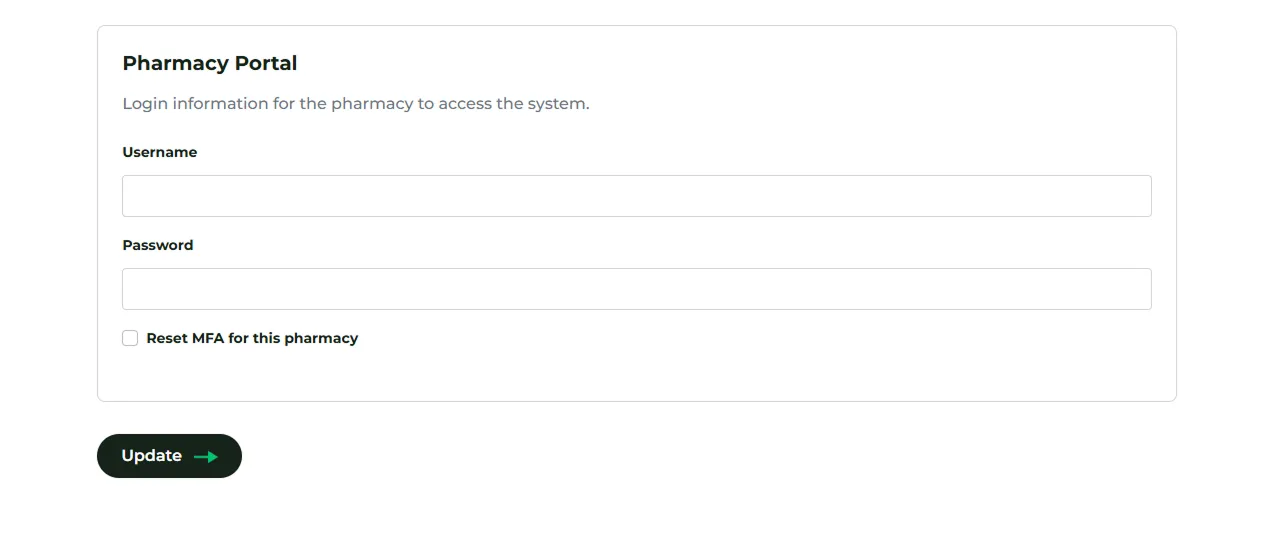
- Usernames are unique: each username can belong to only one pharmacy across the whole platform. If the username is already taken, a warning appears as you type and you can’t save until you change it.
- No username, no login: leave the username blank if the branch shouldn’t have a Portal login.
How branch staff sign in
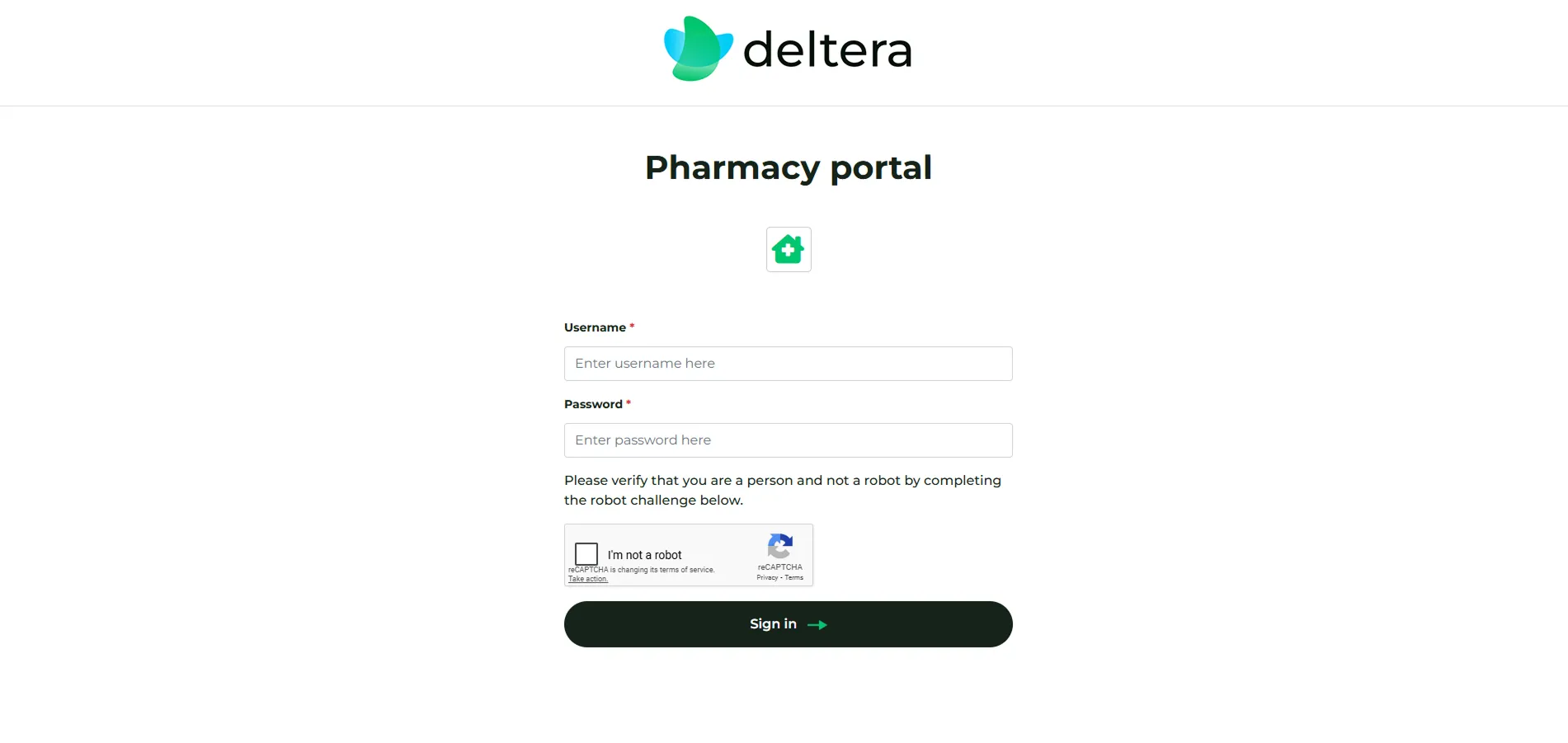
Section titled “How branch staff sign in”- Go to https://deltera.cloud/pharmacy/
- Enter the username and password you gave them.
- What happens next depends on the device:
- First sign-in, or after an MFA reset: staff set up an authenticator app (see below).
- New device or browser: staff enter the 6-digit code from the authenticator app.
- Trusted device: staff go straight to the dashboard.
Two-factor authentication (MFA)
Section titled “Two-factor authentication (MFA)”Every Pharmacy Portal login must use two-factor authentication. The only method is an authenticator app, such as Google Authenticator or Microsoft Authenticator. Email codes aren’t available for the Portal.
- Setup: staff scan the QR code (or type in the text key) with the app, then enter the 6-digit code it shows. The entry in the app is labelled Deltera-pharmacy with the branch username.
- It belongs to the branch, not a person: codes appear only on the device used at setup. Agree with the branch who keeps that device. We recommend a branch phone rather than someone’s personal phone, so codes are still available when staff change.
- Trusted devices: after a correct code, the browser is remembered for 12 months and won’t ask for a code again. Clearing cookies, or using a different browser or device, brings the code prompt back.
Reset MFA (lost phone or staff change)
Section titled “Reset MFA (lost phone or staff change)”If the branch loses the device that holds the codes, or the person who keeps it leaves:
- Go to Pharmacies, open the branch’s Manage menu and choose Edit.
- Tick Reset MFA for this pharmacy and click Update.
At the next sign-in, the branch sets up the authenticator app again from scratch, on any device.
Change or remove access
Section titled “Change or remove access”- Change the password: enter a new password on the Pharmacy portal card and click Update. The old password stops working straight away.
- Deactivate the branch: deleting a pharmacy deactivates it. Staff who try to sign in see: “This account has been deactivated. Please contact your Head Office if this is a mistake.”
Sign-in problems staff may report
Section titled “Sign-in problems staff may report”| What staff see | Why | What to do |
|---|---|---|
| Can’t sign in after several attempts | 5 failed sign-ins within 10 minutes locks the username for 10 minutes. | Wait 10 minutes and try again. If they’ve forgotten the password, set a new one. |
| Signed out during the day | A session lasts up to 12 hours. | Sign in again. |
| “Unauthorised IP address” | Your group only allows sign-ins from the store network. | Sign in from a computer on the store network. |
| No access to the authenticator app | The device that holds the codes is lost or unavailable. | Reset MFA. |
| “This account has been deactivated” | The pharmacy has been deleted. | Contact your Deltera account contact if this is a mistake. |
View a branch’s Portal yourself
Section titled “View a branch’s Portal yourself”Managers with clearance level 3 or higher can open any branch’s Portal without its password or an MFA code:
- Go to Pharmacies and open the branch’s Manage menu.
- Choose View portal.
This is a one-off view. It doesn’t make your browser a trusted device for later sign-ins, and the store network restriction doesn’t apply. Each view is recorded against your account in the login audit.