Review & comment
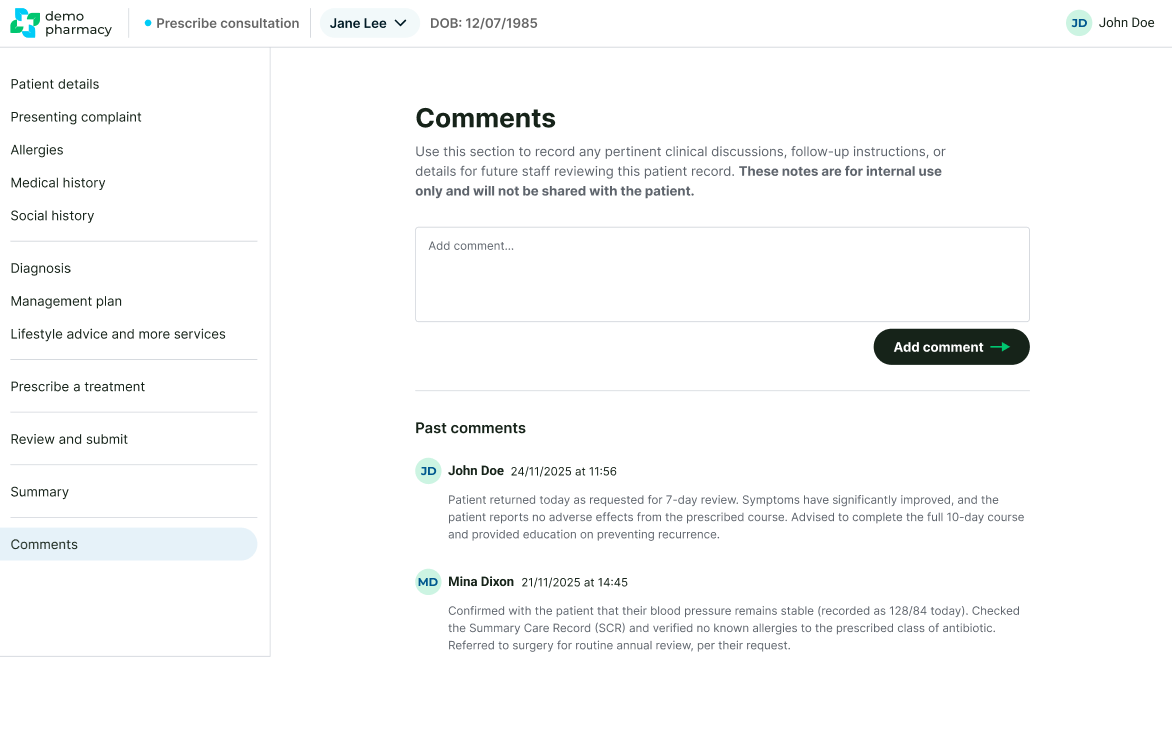
Once a consultation has been submitted and locked, it remains accessible for audit, follow-up, and clinical review. While the original record cannot be altered, the platform allows you to add ongoing notes to a patient's journey via the Comments feature.
How to Open a Past Consultation
There are several ways to access historical records, depending on where you are in the platform:
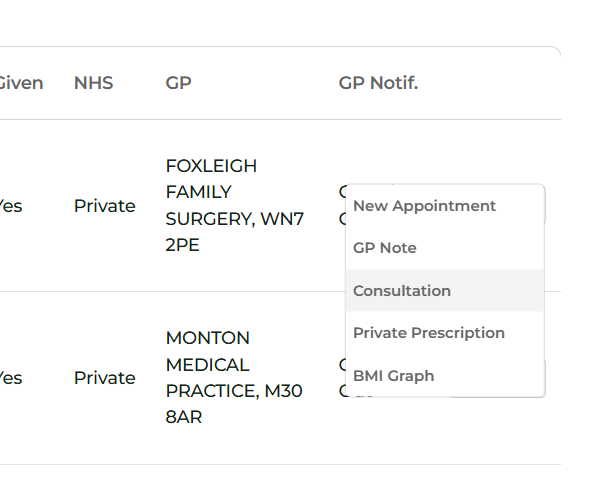
- Via Patient Records (Most Common): Go to In Pharmacy > Patient Records and search for the patient. Click Manage > Consultation next to the relevant entry.
- Via Prescribe History: For Independent Prescribers, go to Prescribing > Prescribe History to see a list of your previous clinical decisions.
- Via the Dashboard: Navigate to your main dashboard, find the completed appointment, and select Manage > View Consultation.
- Via the Calendar: Click on a completed appointment slot in your calendar and select View Consultation.
Navigating a Locked Record
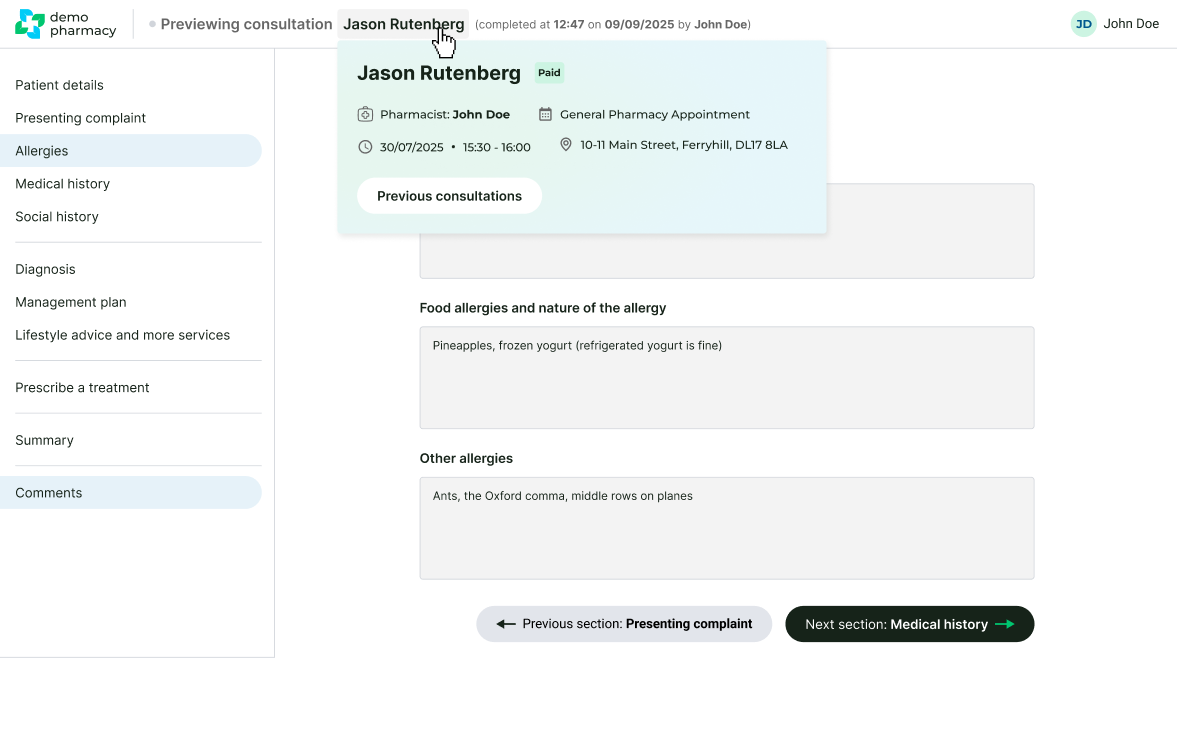
When you open a past consultation, it will appear in the same familiar layout as the live session:
- Read-Only: You can navigate between the different stages (Pre-screen, Clinical Questions, etc.) to review what was captured.
- Integrity: All checkboxes, text fields, and prescription details are locked to ensure the audit trail remains intact.
Adding Internal Comments
While the core consultation cannot be edited, you can add Comments to the record at any time. This is useful for capturing post-consultation information or feedback.
- Internal Only: These comments are for pharmacy and Head Office use only. They are not shared with the patient and do not appear on any patient-facing documentation.
- Clinical Examples:
- "Patient phoned 7 days later to confirm symptoms have fully resolved."
- "Follow-up call conducted; patient advised to continue current course as prescribed."
- "Patient returned to the pharmacy to report they 'feel great' after three days of treatment."