Manage upcoming appointments
Track, start, and modify your scheduled consultations through the Dashboard or the Calendar view.
Managing your daily clinic is straightforward within Deltera Prescribe. Whether you prefer a list-based overview or a visual calendar, you have full control over starting consultations and adjusting appointment details as needed.
Method 1: The Appointments Dashboard (List View)
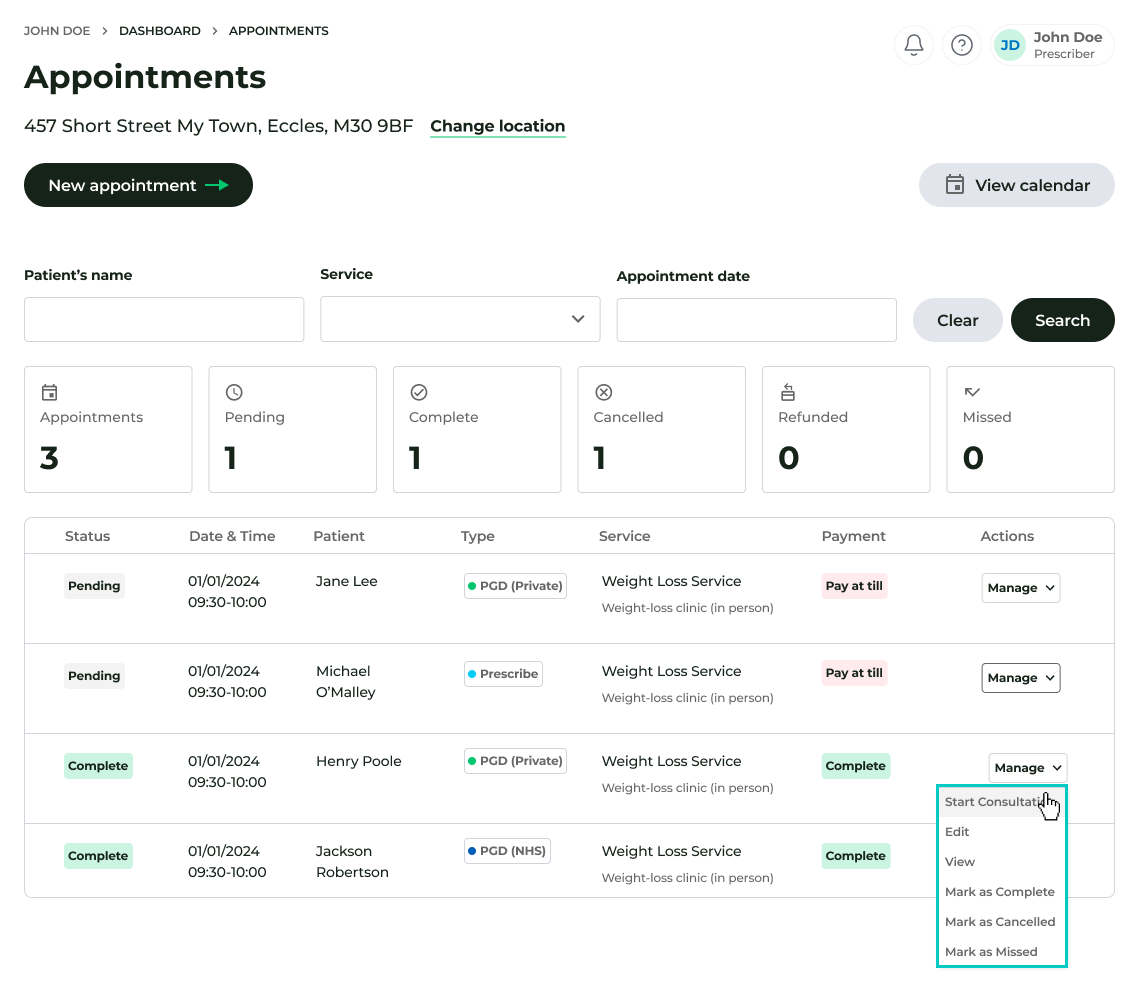
The Dashboard provides a comprehensive list of all historical and upcoming appointments.
- Navigate to the main Dashboard.
- Review the appointment list: Each row displays key information, including the Appointment Type, Patient Name, Payment Status, and the scheduled Date and Time.
- To Begin: When the patient is ready, click Manage > Start Consultation.
Method 2: The Appointment Calendar (Visual View)
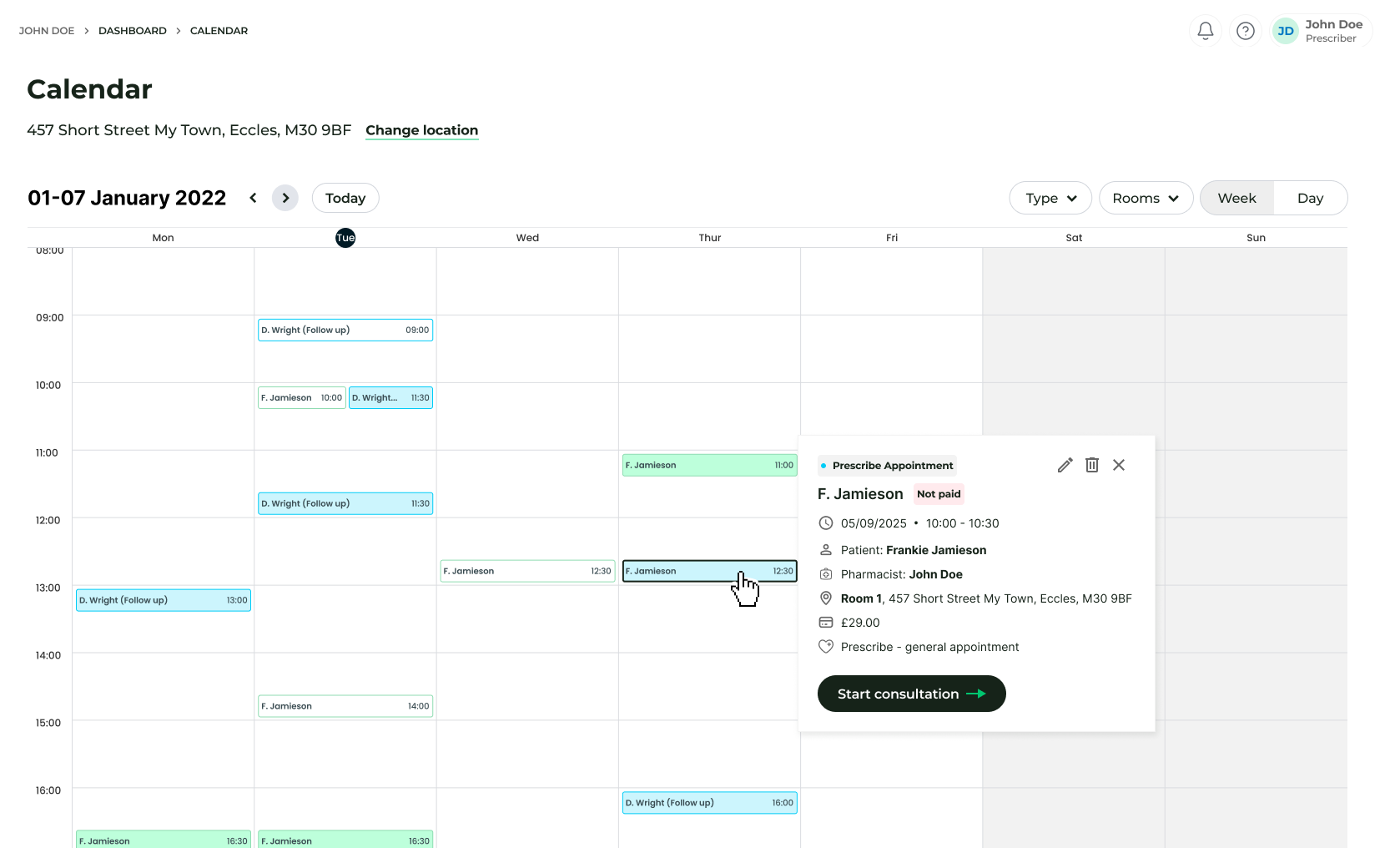
The Calendar is ideal for seeing your daily and weekly workflow at a glance.
- Navigate to In Pharmacy > Appointment Calendar.
- Click on a specific appointment block to view its full details.
- To Begin: Click the Start Consultation button within the appointment pop-up.
Editing Appointments
If a patient needs to reschedule or if details change, you can modify the booking in either the Dashboard or the Calendar.
- How to Edit: Select the appointment and choose the Edit option.
- What you can change: You can update the Date, Time, Duration, or any other key information associated with the booking.
- Automatic Updates: Once you click Save, the system automatically sends a revised confirmation email to the patient with their updated appointment details.
