Patient Records & Past Consultations
Review clinical history, add follow-up notes, and book repeat appointments from your pharmacy’s patient database.
The Patient Records area serves as your branch's clinical archive. It provides a centralised view of every completed consultation, allowing you to maintain continuity of care and easily manage returning patients.
Accessing Your Records
To view the clinical history for your branch:
- Navigate to In Pharmacy > Patient Records.
- Overview: The dashboard lists all completed consultations, ordered from newest to oldest.
- Scope: This list includes both PGD and Prescribe appointments.
- Note: If you are part of a pharmacy group, this view is restricted to consultations completed at your specific pharmacy branch only.
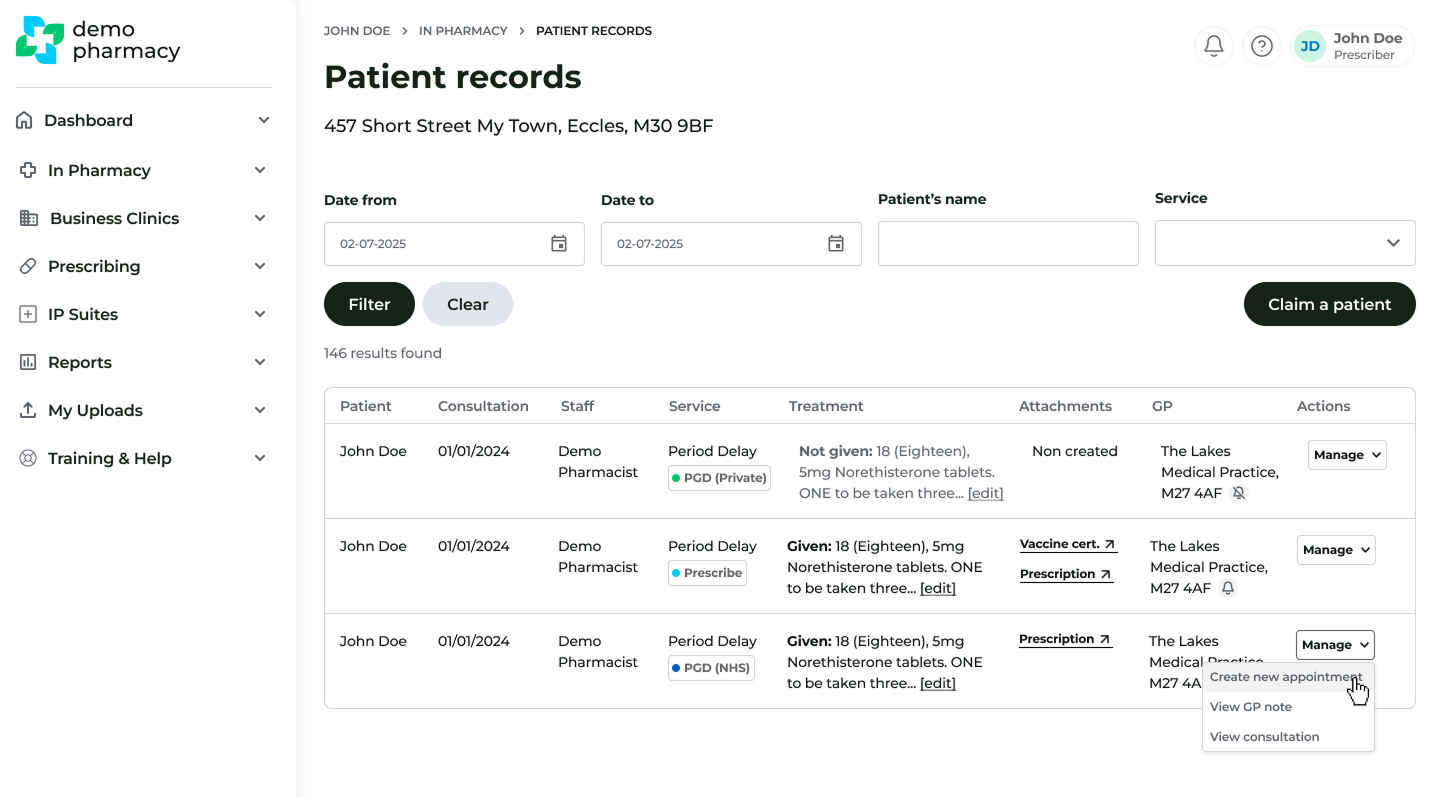
Key Actions
By clicking the 'Manage' button on any patient record, you can perform two essential clinical tasks:
1. View the Consultation
This allows you to review a "Locked" version of the historical consultation. While the original clinical data cannot be altered, you can:
- Review all patient responses and clinical decisions.
- Add Comments: Use the section at the end of the record to add any follow-up notes or internal observations.
2. Create New Appointment
If a patient requires a follow-up or a new service, you can initiate a booking directly from their historical record. This saves time as the patient's core details are already populated.
- Start Immediately: For patients currently in the pharmacy.
- Schedule for Later: Choose a future date and time to add the booking to your calendar.
