Consultation overview
Once a patient’s pre-screen is successfully submitted, you are ready to begin the clinical consultation. The Deltera platform ensures that this transition is smooth and that all previously captured data is available at your fingertips.
Starting a Consultation
You can initiate a consultation through three primary routes:
- From a Walk-in: If you have just completed a pre-screen for a walk-in patient, a button will appear allowing you to Start Consultation immediately.
- From the Dashboard: Navigate to your main dashboard, find the patient’s appointment, and select Manage > Start Consultation.
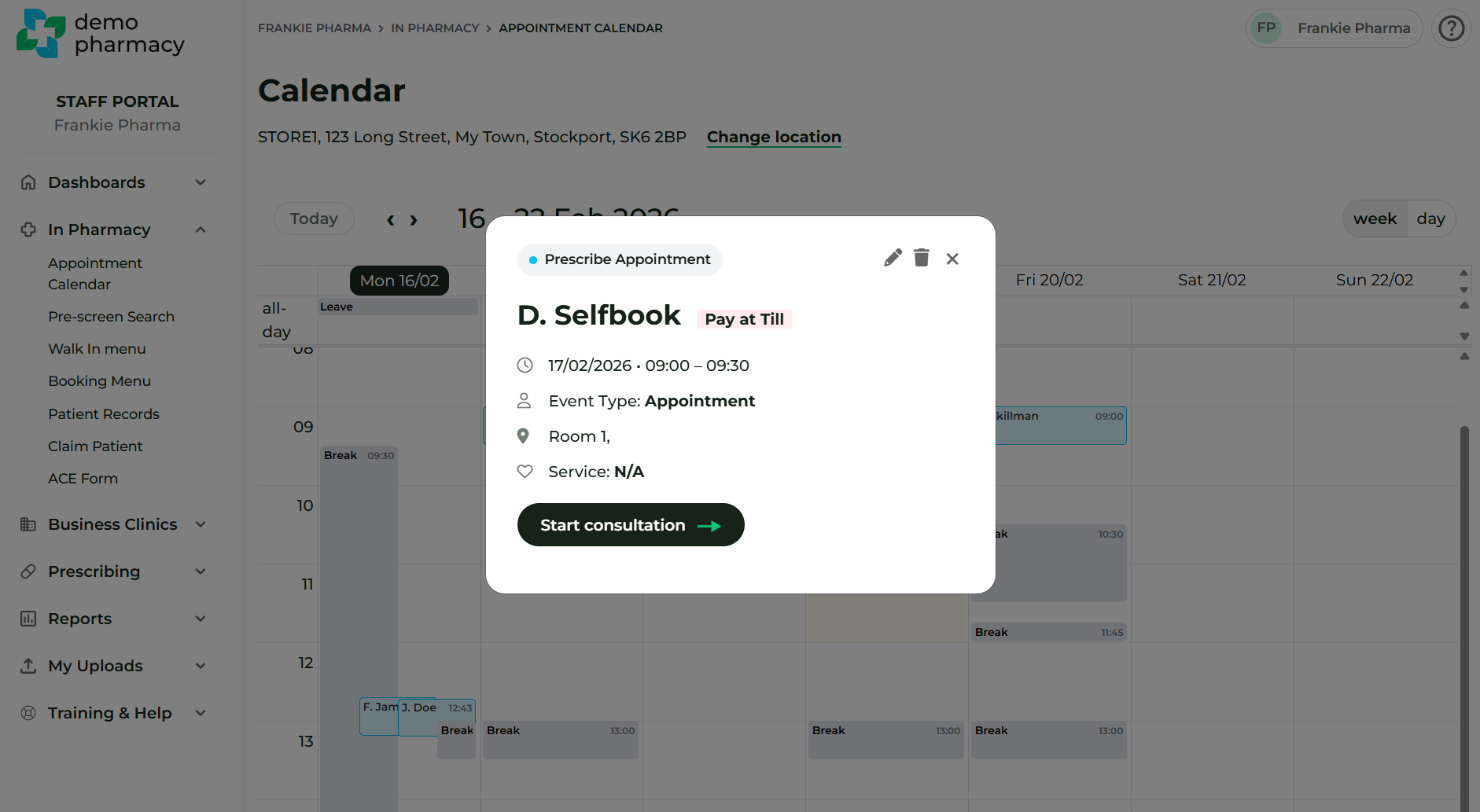
- From the Calendar: Click on the specific appointment slot in your calendar and select the 'Start Consultation' option.
First Steps: Verification & History
The very first screen you will land on displays the Patient's Details.
- Safety Check: It is vital that you review this information with the patient to ensure you are treating the correct person before proceeding.
- Clinical Context: On this initial screen, you can also access the patient's past consultations. Reviewing these can provide valuable context or follow-up information from previous visits to the pharmacy.
The Consultation Interface
When the session begins, it opens in a new browser tab for security and focus.
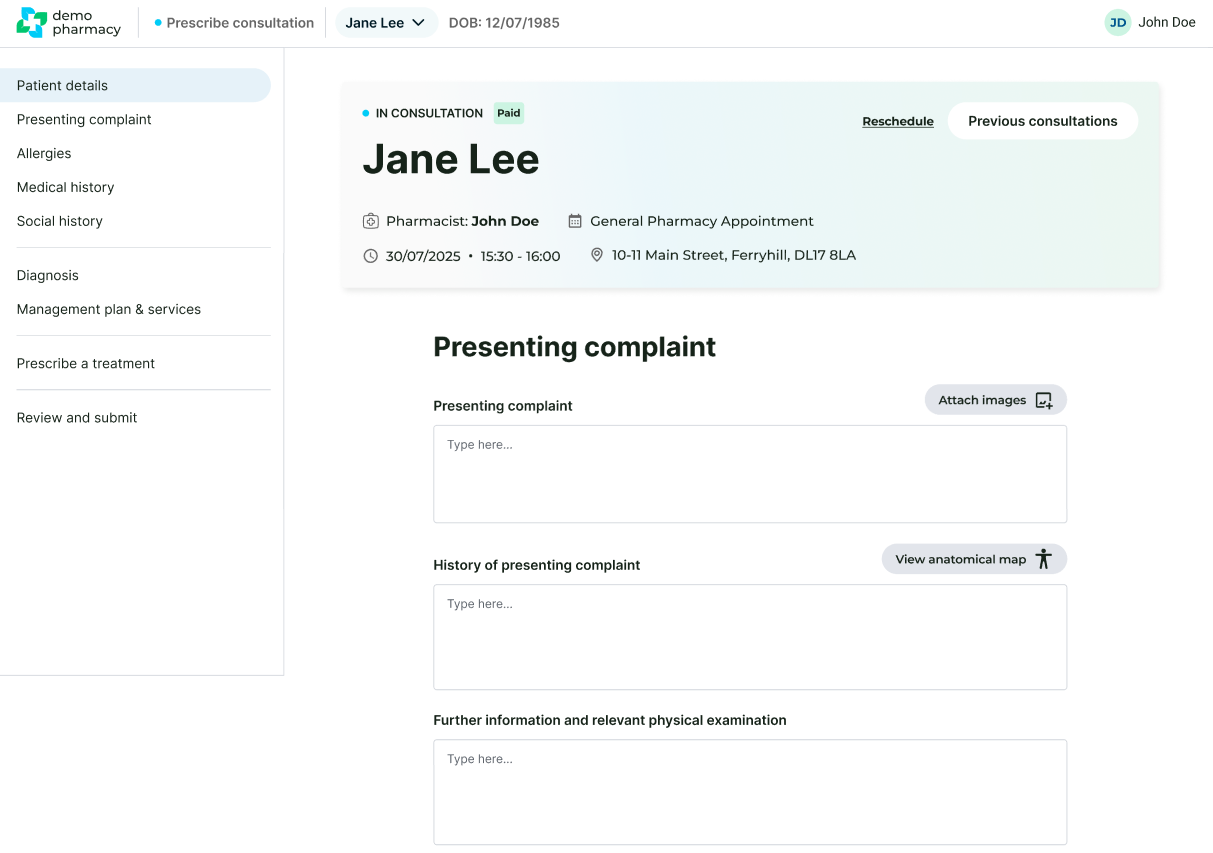
- Header Information: The patient’s Name and Date of Birth (DOB) are pinned to the top of the screen at all times. Clicking the name expands a panel showing their home address and appointment specifics.
- Smart Pre-filling: To save you time, the information captured during the pre-screen automatically pre-fills the relevant answers within the consultation. This allows you to perform a quick review with the patient rather than re-entering data from scratch.
- Step-by-Step Navigation: The left-hand panel displays the stages of the consultation. You can click between these at will, allowing you to jump back to earlier sections if a patient remembers a key detail later in the conversation.
Submission and Locking
Accuracy is paramount in clinical record-keeping. Therefore, once you hit Submit, the consultation is finalised:
- Locked for Editing: Once submitted, the record becomes a legal clinical document and cannot be edited or altered.
- Preview Only: You will still be able to preview the record for audit or referral purposes (this is covered in detail in the 'Viewing Past Consultations' section), but the data itself remains fixed.
