

Uploading Competencies
Maintaining up-to-date records of your clinical training and professional certifications is essential for compliance. The Deltera platform allows you to upload and manage these documents directly from your staff account.
How to Upload Your Documentation
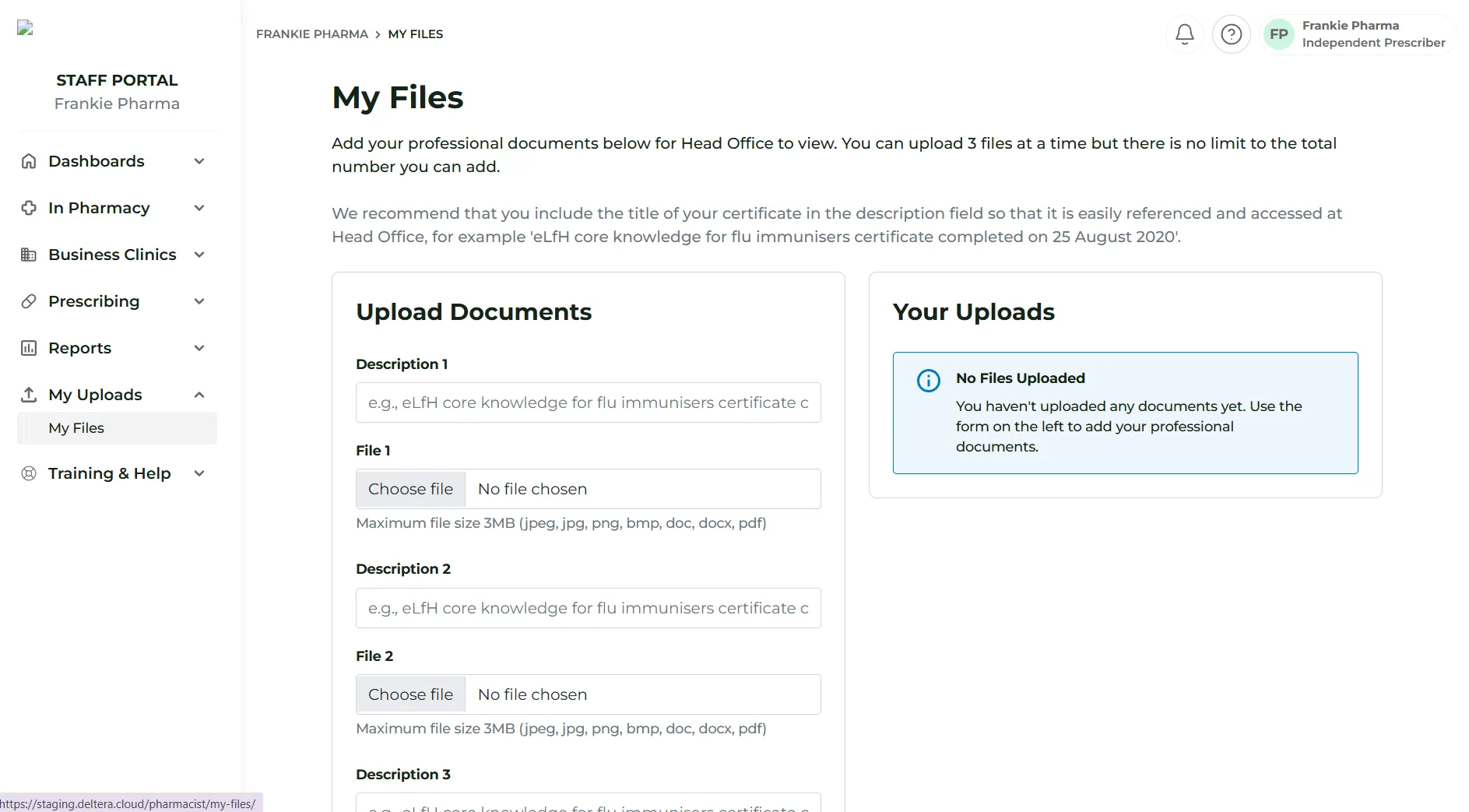
Section titled “How to Upload Your Documentation”To add new certificates or training records, follow these steps:
- Navigate to Uploads: Go to My Uploads > My Files in the main menu.
- Select Your Files: You can upload up to three files at once.
- Add Descriptions: For each file, provide a clear description (e.g., “Travel Health Training 2024” or “Anaphylaxis Certification”). This helps Head Office quickly identify the nature of the document.
- Review and Submit: Once you have selected your files and added descriptions, click the upload button.
Managing Your Records
Section titled “Managing Your Records”Once uploaded, your documentation is stored securely and made available for Head Office review:
- Centralised View: You can view all your previously uploaded files and competencies on the same My Files screen.
- Head Office Access: Your Head Office manager can view these files within your staff profile to ensure your clinical mapping and PGD authorisations remain valid.
- Updates: We recommend reviewing this section regularly to ensure your mandatory training has not expired.