Pharmacy walk-in - the patient has completed the pre-screen
How to start a consultation with a walk-in patient who has already completed the pre-screen.
If the patient has a booking
Note: this is for organisations using Deltera Appointments / Services Diary only.
Method 1: Using the Appointments Dashboard
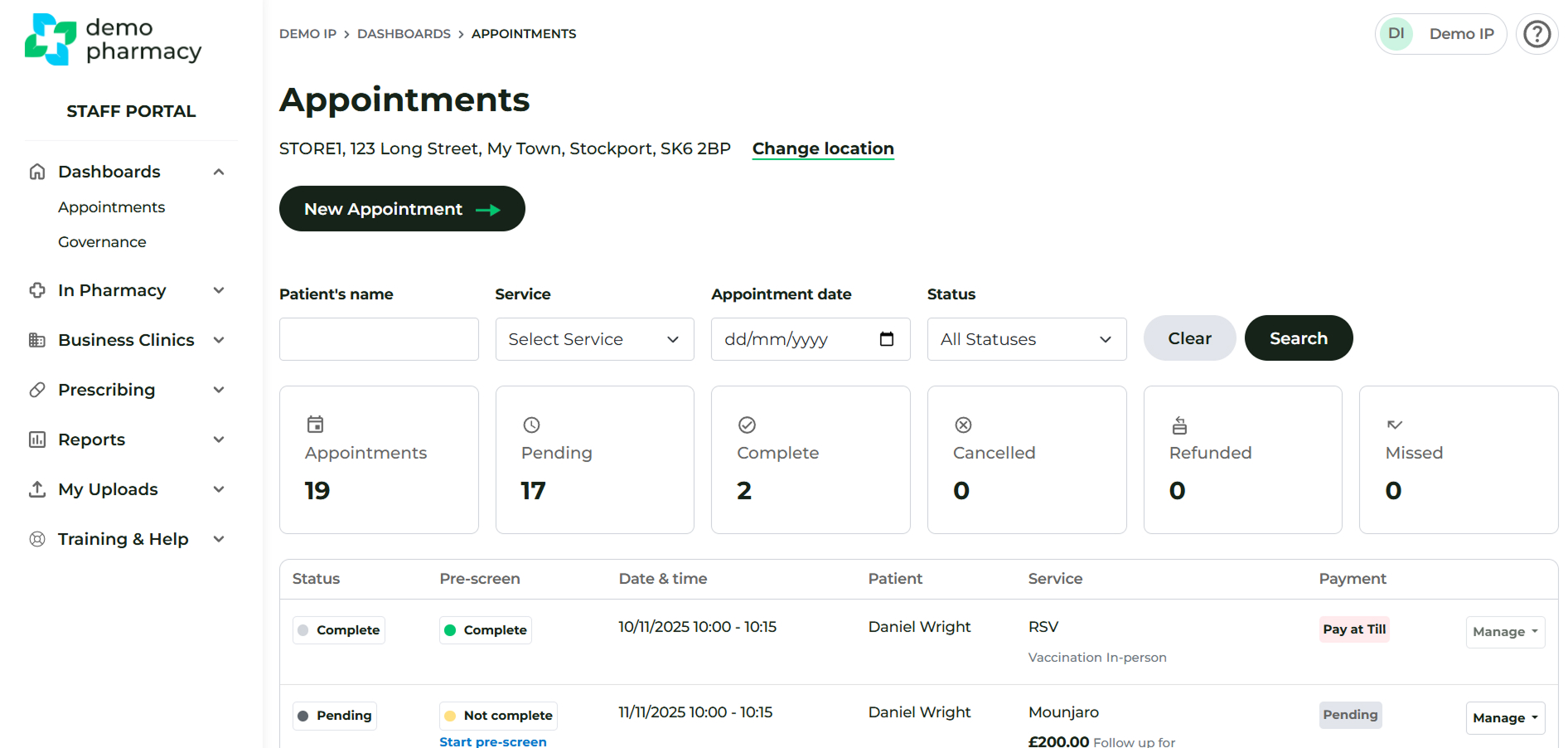
This view provides a quick list of all upcoming appointments, sorted chronologically.
- Navigate to Dashboard > Appointments.
- Check the Pre-screen column. If the patient has completed their form, the status will show as 'Complete'.
- To begin the consultation, go to Manage > Start Consultation.
Method 2: Using the Appointment Calendar
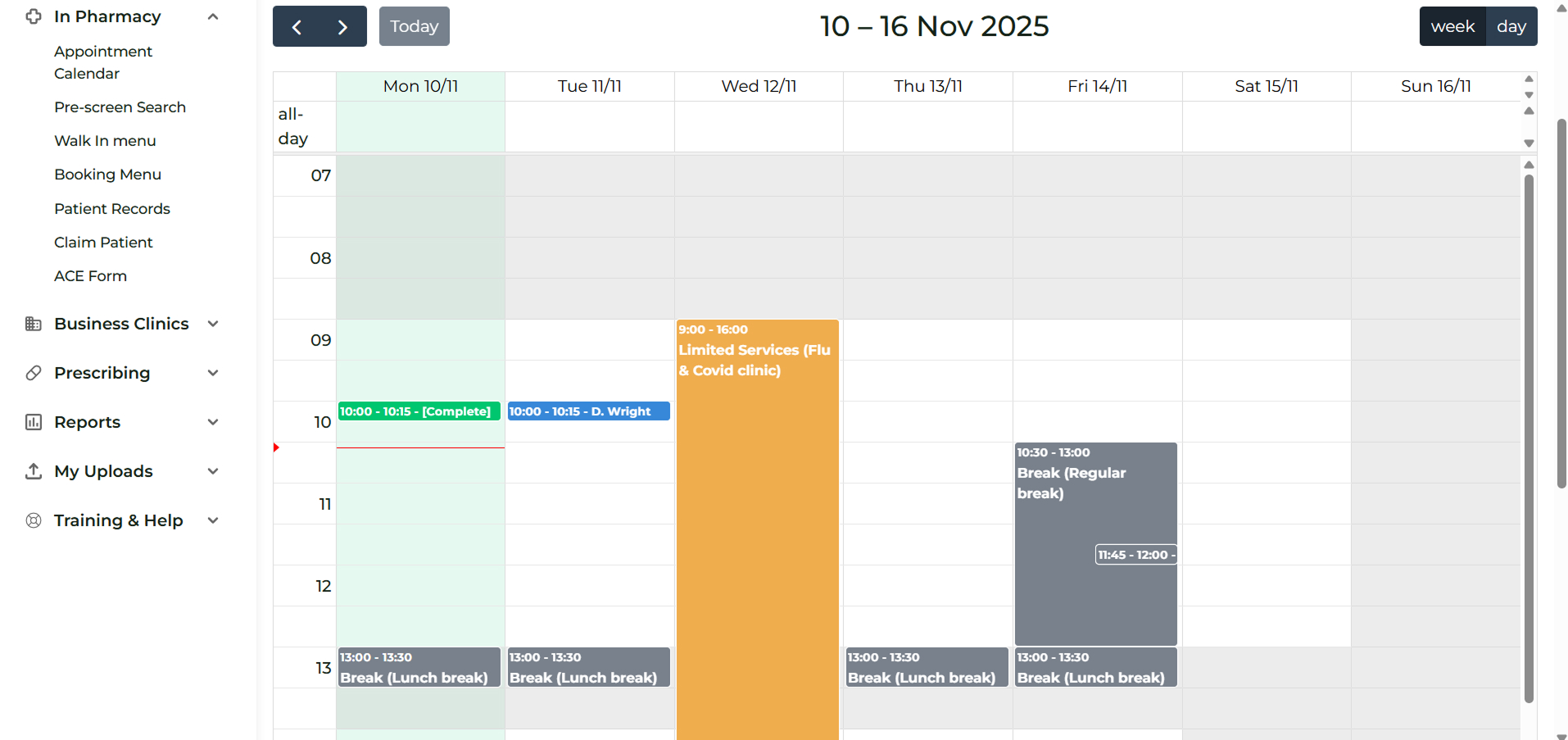
This view allows you to locate the appointment within a calendar context.
- Navigate to In Pharmacy > Appointment Calendar.
- Find the appointment on the calendar and click it.
- If the pre-screen is complete, the appointment details window will contain the "Start consultation" action.
The patient does not have a booking
This applies to all organisations using Deltera.
Step 1: Locate and Understand the Reference Code
If the patient has completed a pre-screen, they must provide their Reference Code. This code will start with one of two prefixes:
- SB...
- EMP... (This indicates a business voucher, meaning a billing agreement is in place between your organisation and the patient's company.)
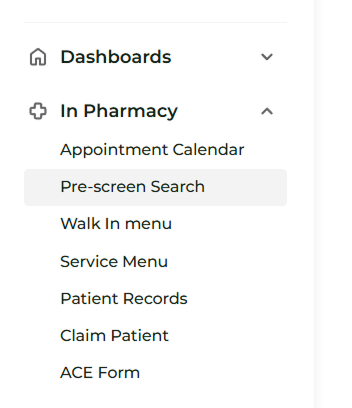
Step 2: Access Pre-screen Search
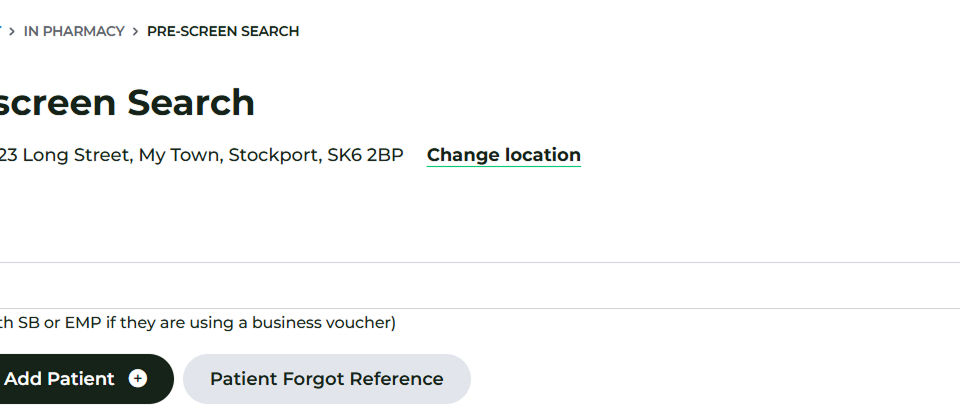
To recall the patient's pre-screen information, navigate to the In Pharmacy > Pre-screen Search
Step 3: Verify Your Pharmacy Location
Before proceeding, check that your user profile is assigned to the correct location:
- Correcting the Location: If the location shown is incorrect, click the Change location link provided to select the correct pharmacy from the list.
- First-Time Users: If this is your first time using the system, the location selection list will appear by default.
- Location Change Disabled: If you cannot see the change location link, this function has been disabled by your organisation. You will need to contact Head Office to have your location changed.
Step 4: Find and Add the Patient
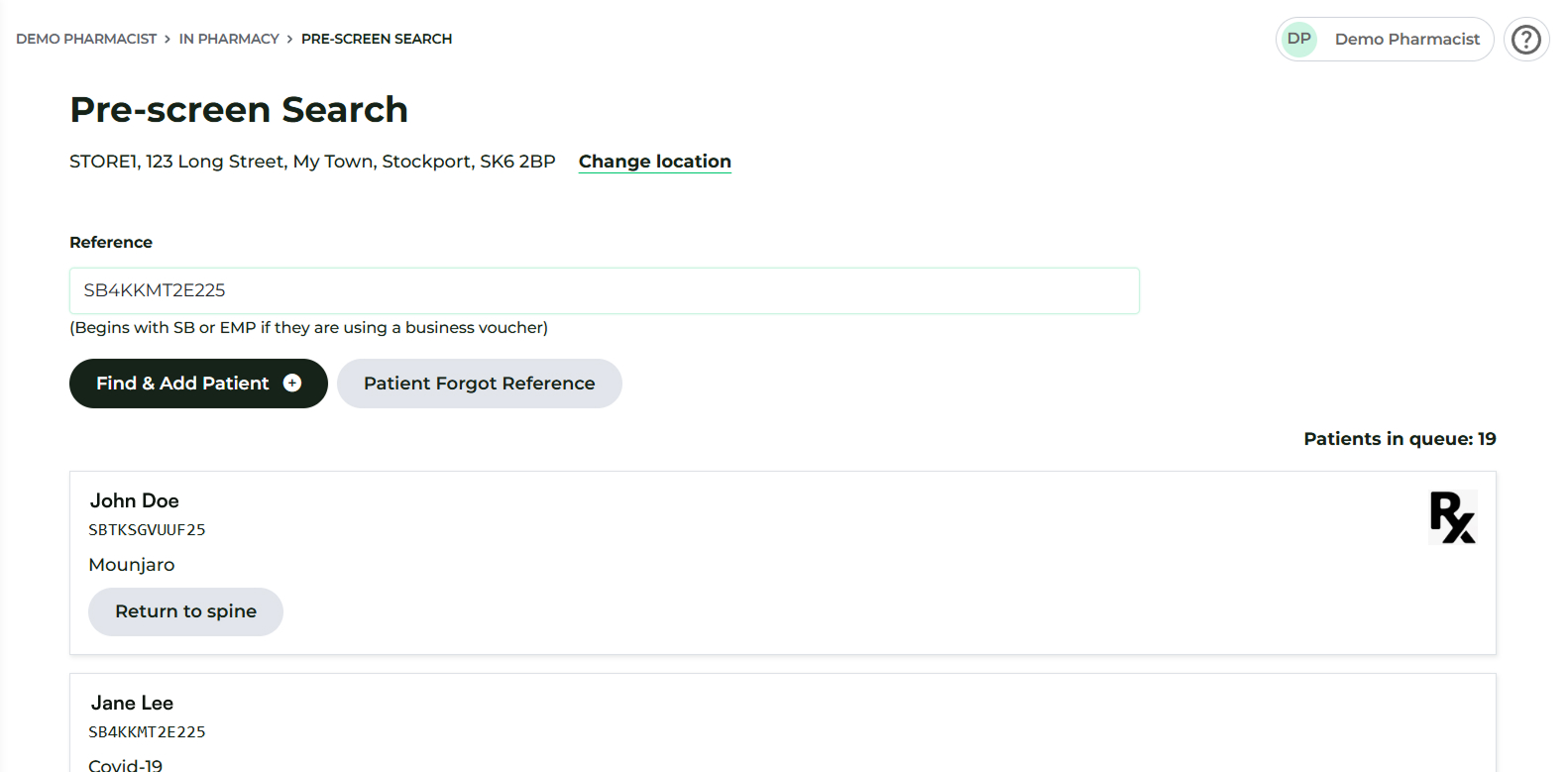
Enter the patient's Reference Code into the designated box and click the Find & Add Patient button.
Step 5: Begin the Consultation
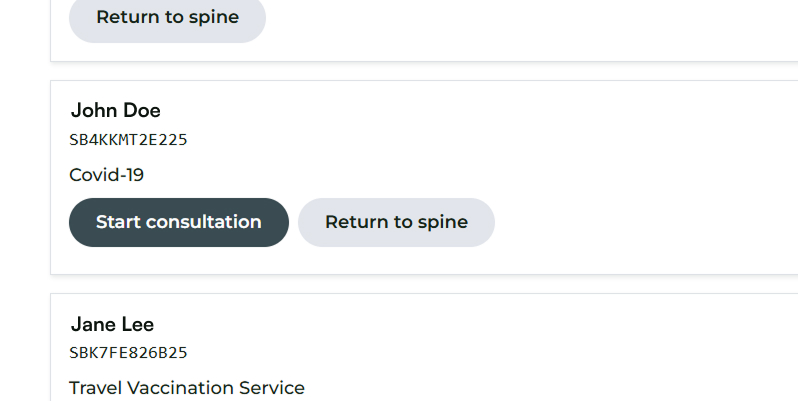
If the code is valid and has not been previously used, the patient will be added to the queue below the input box.
You can now click on Start consultation next to the patient's name to begin the consultation.