Launching a Consultation
Launching a clinical consultation in Deltera depends on how the appointment was booked and whether the patient's medical pre-screen has already been completed.
1. Launching when the Pre-Screen is Completed
Online Bookings
When a patient completes an online booking and submits their pre-screen, their appointment automatically populates on your main dashboard and calendar view.
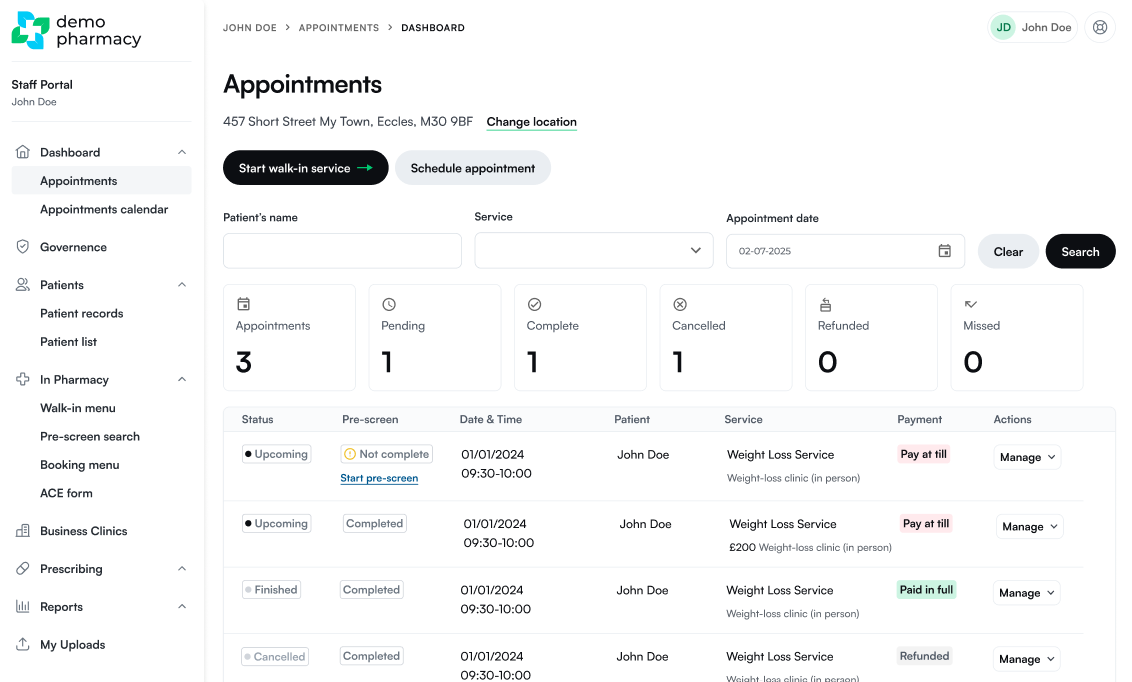
- Locate the patient on your Appointments Dashboard or calendar.
- Click Manage next to their entry.
- Select Start Consultation.
In-Person Walk-Ins (Staff-Assisted)
When you run through a pre-screen directly with a walk-in patient at the counter, the system automatically prompts you at the final step to launch the consultation immediately.
Self-Service QR Walk-Ins (SB Codes)
Patients who complete a self-service QR pre-screen on their own mobile device will not automatically appear on your main appointments dashboard. Instead, their phone displays a unique SB Code.
- Navigate to In Pharmacy > Pre-screen Search.
- Enter the patient's code into the Add Reference input box and click Add Patient.
- The patient will immediately populate into your local pre-screen queue.
- Click Start Consultation.
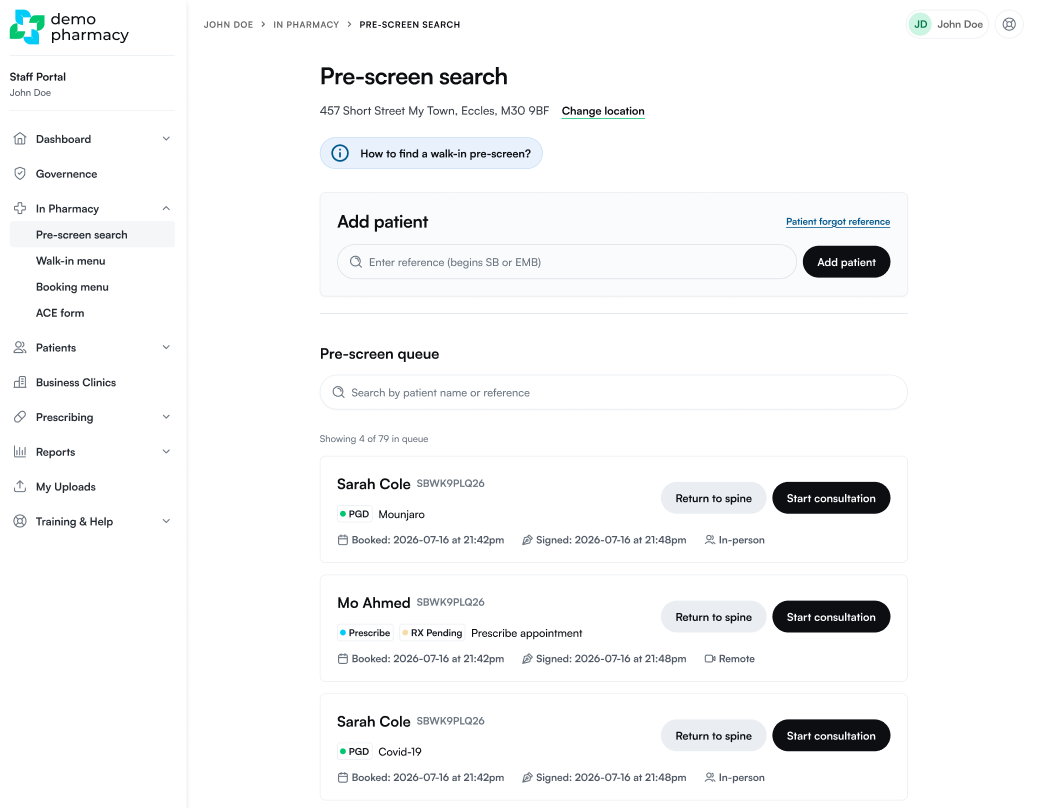
💡 Releasing Records ("Return to Spine"): If you accidentally add the wrong patient reference, or if the patient decides to receive their service at another pharmacy location, click Return to Spine on their queue record. This releases the pre-screen back into the central system so it can be retrieved elsewhere.
2. Launching when the Pre-Screen is NOT Completed
If an appointment was scheduled in-branch or over the phone, an automated pre-screen link is emailed to the patient. If the patient arrives for their appointment without having filled it out online, you have two ways to proceed:
- Option A (Patient Device): Ask the patient to locate the confirmation email on their mobile phone, tap the pre-screen link, and complete the questions while waiting.
- Option B (Counter Completion): On your Appointments Dashboard, locate the patient's booking and click Start pre-screen. Run through the questions on screen with the patient at the counter.
Once the pre-screen is submitted using either option, the system updates the record and allows you to click Start Consultation.
3. Patient Forgot Reference Code (SB Code Workflow)
If a patient arrives having completed a self-service pre-screen, but closed their browser tab or forgot their SB Code:
- Navigate to In Pharmacy > Pre-screen Search.
- Click Patient Forgot Reference.
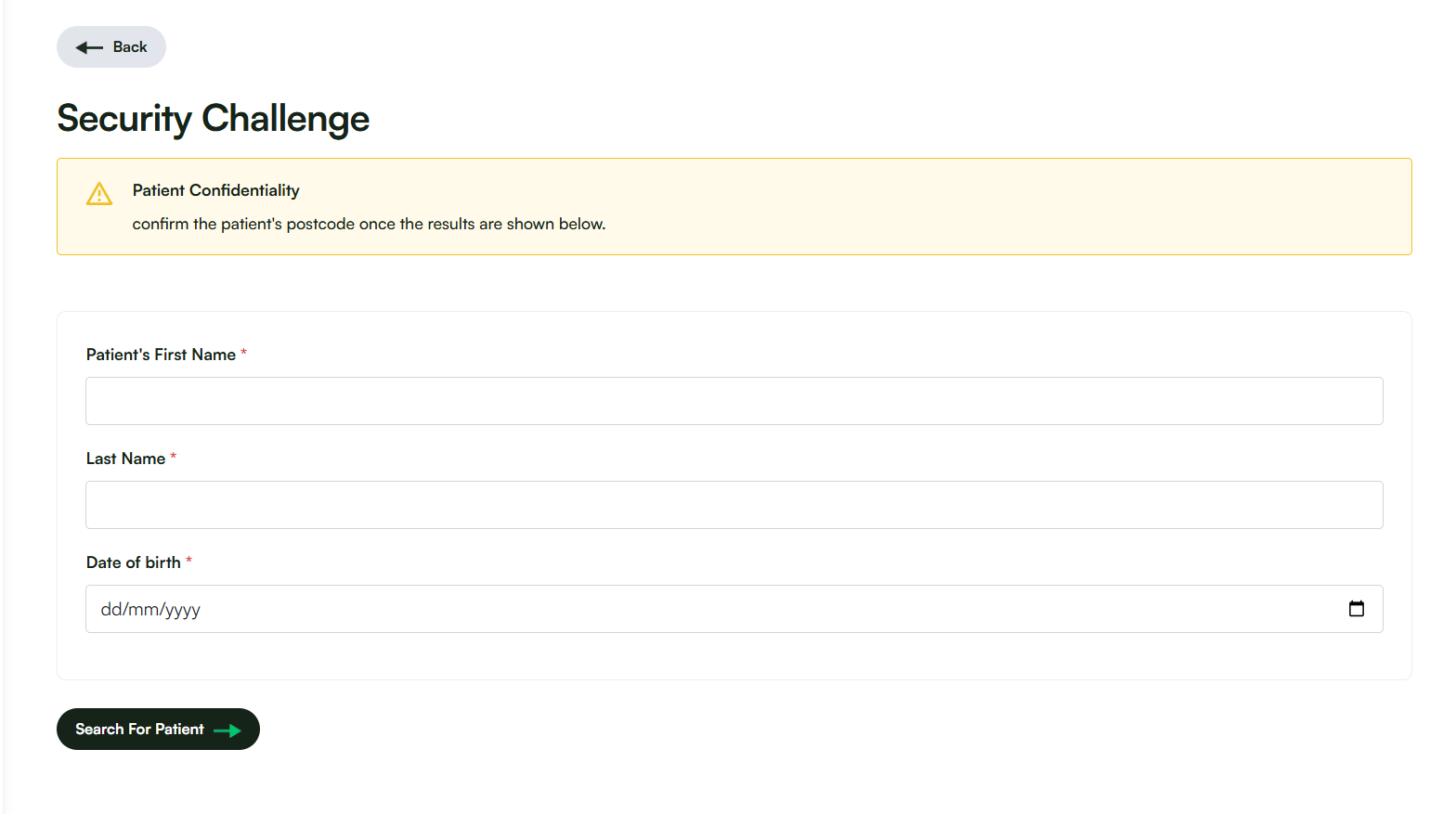
- Input the patient's core demographic details (such as Name and Date of Birth) to locate their submitted record.
- Select the matching patient profile from the search results and click Start Consultation.