

Reset Prescribe Pin
For security and clinical safety, the system ensures that sensitive authentication data like Prescription Pins are protected. As a Head Office administrator, you have the authority to reset a pin if a staff member believes their account has been compromised.
⚠️ Security Note: Visibility
Section titled “⚠️ Security Note: Visibility”To maintain the highest level of encryption and confidentiality, Head Office personnel can never view a staff member’s pin. You can only trigger a reset that generates a new one.
Who Needs a Pin
Section titled “Who Needs a Pin”The Prescription Pin is now required for every Independent Prescriber, not only those using Prescribe. IPs must enter it to authorise IP Bridge private prescriptions, so each IP needs a pin before they can authorise. Prescribers cannot choose their own pin: a random 6-digit pin is generated when you reset it. For a new IP, a reset is how their first pin is created.
If a Staff Member has Forgotten Their Pin
Section titled “If a Staff Member has Forgotten Their Pin”Before performing a reset, check if the staff member simply needs a reminder. They do not necessarily need a new pin if they have forgotten the current one.
- Self-Service: Staff can view their own pin by going to My Profile and selecting ‘Reveal Pin’.
- Security: They will be required to complete Multi-Factor Authentication (2FA) before the pin is shown.
- User Guide: You can direct them to the Accessing Your Prescribe Pin guide for step-by-step instructions.
How to Reset a Pin
Section titled “How to Reset a Pin”If a pin is compromised (e.g., someone else has seen it) or if a reset is requested for security reasons, follow these steps:
-
Navigate to Staff > View Staff.
-
Find the specific staff member and select Manage > Edit.
-
Scroll to the bottom to the Reset Prescribing PIN section and click the ‘Reset Pin’ button. This section appears for every Independent Prescriber, whether or not your group uses Prescribe.
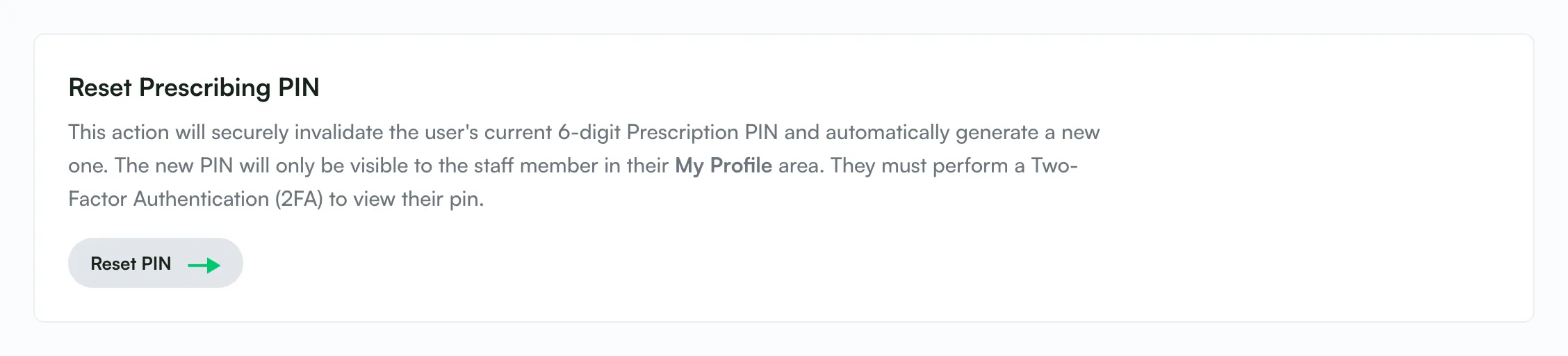
Staff > Edit > Reset Prescribing PIN -
Confirm the Action: Confirm the pop-up: “Are you sure you want to reset this user’s PIN? This action cannot be undone.” The system will immediately invalidate the old pin and generate a new 6-digit code for the user.
-
Check the confirmation: A success message confirms that the previous pin has been invalidated and a new one generated.
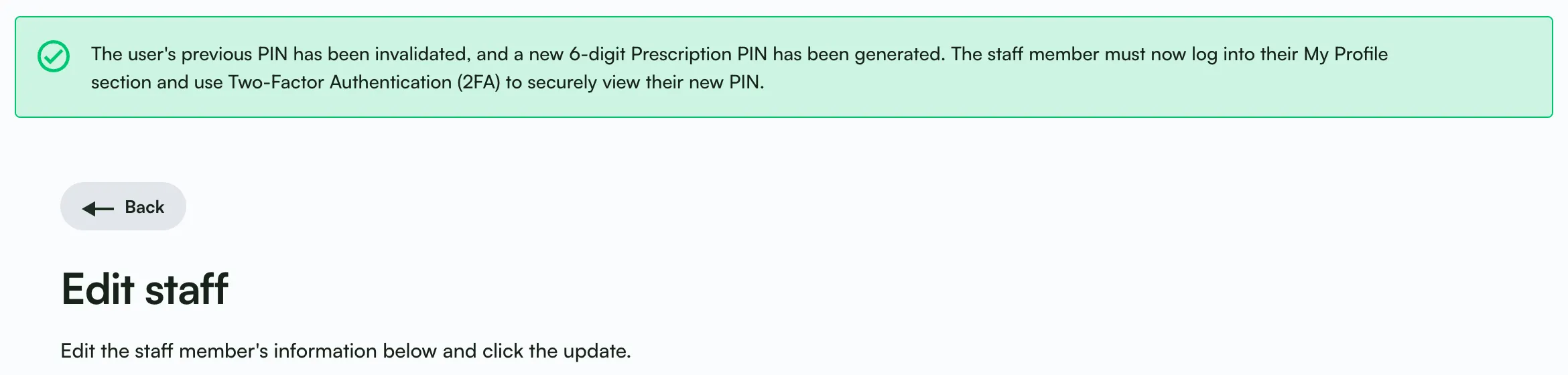
PIN reset confirmation message -
Tell the staff member their new pin is ready. Their old pin stops working straight away.
Next Steps for the Staff Member
Section titled “Next Steps for the Staff Member”Once you have reset the pin, the staff member must log in to their own account to retrieve the new one. They should:
- Go to My Profile.
- Click ‘Reveal Pin’.
- Complete the 2FA verification to see their new 6-digit code.
For more details on how they retrieve this, please refer them to the Accessing Your Prescribe Pin page. IPs who only use the IP Bridge can follow Your Prescription PIN.