Pre-screens - Overview
A pre-screen is a digital questionnaire designed to capture essential patient information before the clinical interaction begins. This ensures you have the necessary data at your fingertips, significantly reducing the time spent on administrative data entry during the formal consultation.
How Pre-screens are Completed
Section titled “How Pre-screens are Completed”Depending on how the patient has booked their appointment, there are several ways the pre-screen can be fulfilled:
1. Online Bookings (Patient Self-Service)
Section titled “1. Online Bookings (Patient Self-Service)”When a patient books an appointment online or via a booking link, the system automates the process:
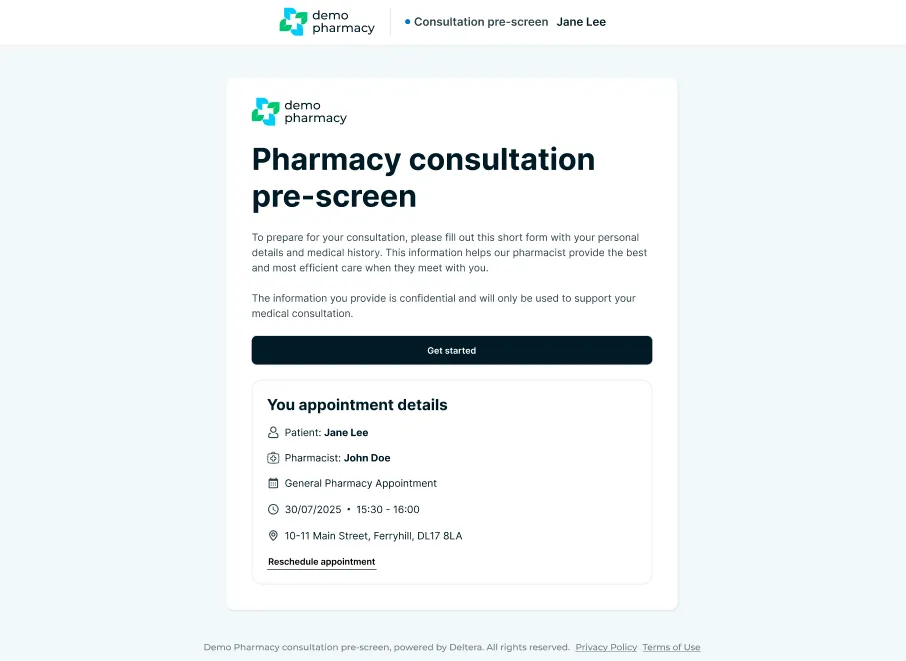
- Automated Email: The patient is immediately emailed a unique link to complete their pre-screen.
- Reminders: If the pre-screen is not completed within a set timeframe, the system sends automated reminders to the patient.
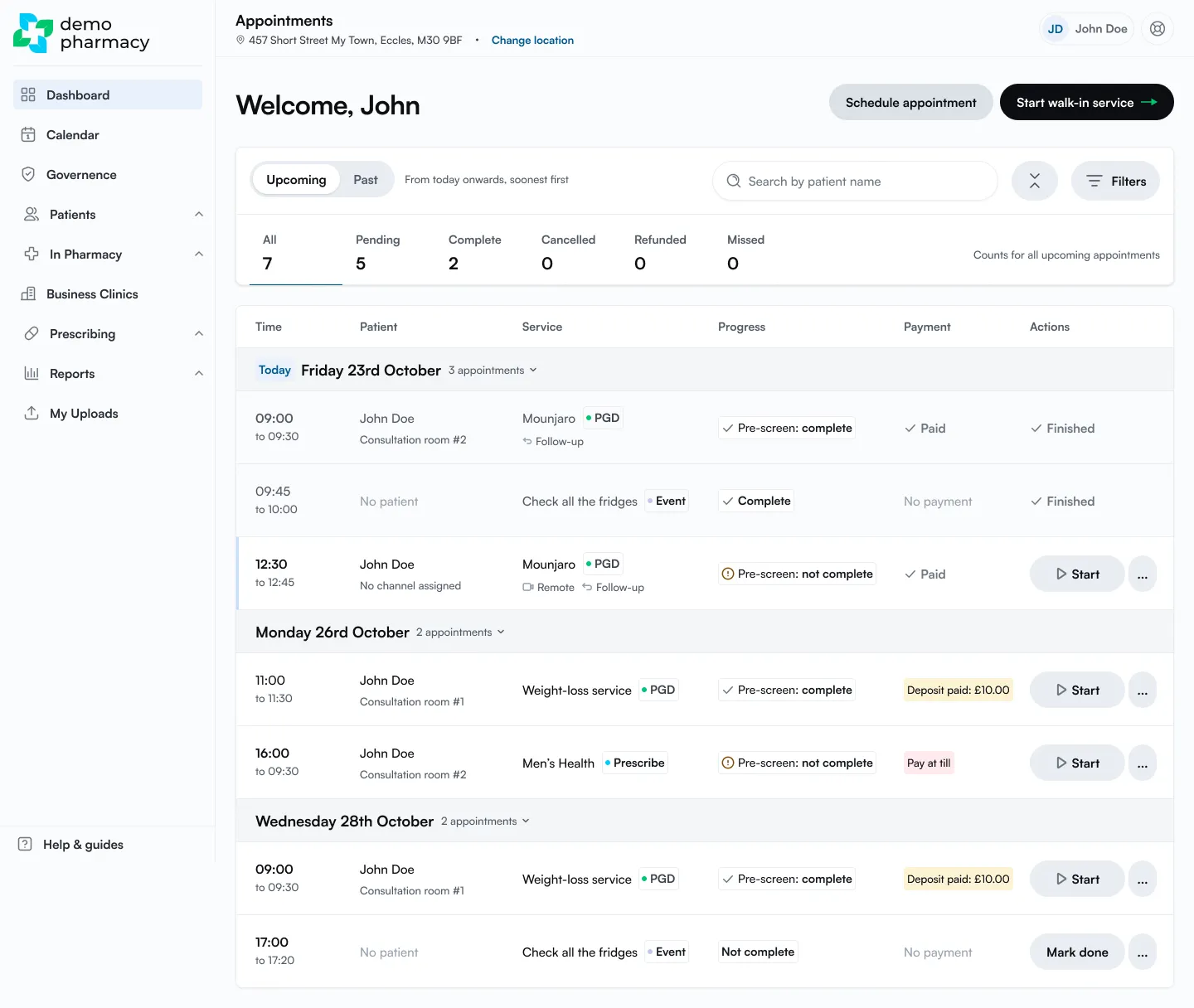
- Status Tracking: On your Dashboard (the Progress column) and Calendar, you can see at a glance whether the pre-screen has been completed.
2. Walk-in Appointments
Section titled “2. Walk-in Appointments”For patients who arrive without a prior booking:
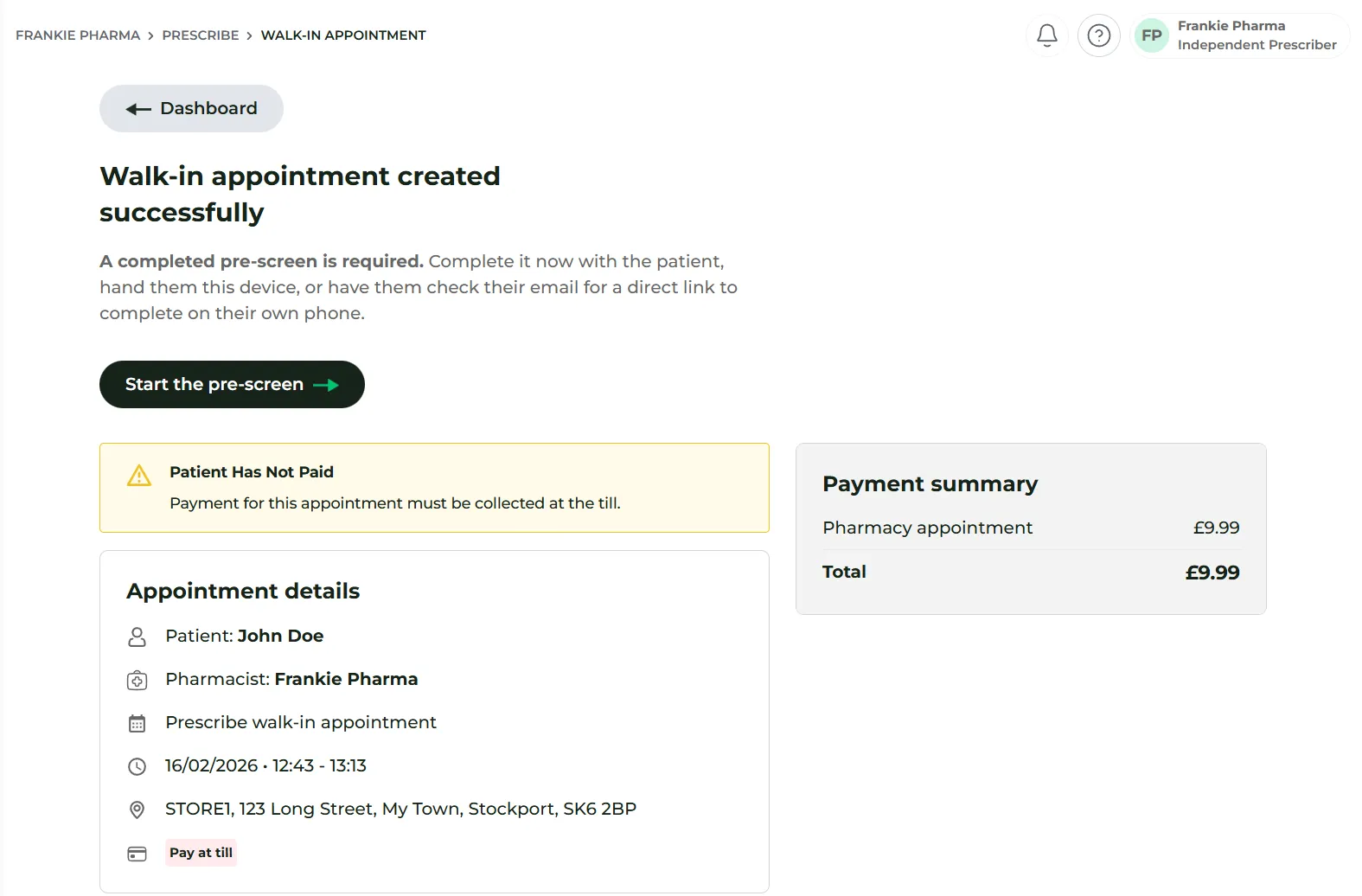
- Immediate Prompt: When you start a walk-in appointment via the Walk-in Menu, the system will immediately prompt you to begin the pre-screen.
- Flexible Completion: You can either run through the questions with the patient yourself or hand the device to the patient for them to complete. (If the patient completes it themselves, the system will prompt them to confirm their identity for security).
3. Arriving Without Completion
Section titled “3. Arriving Without Completion”If a patient arrives for a scheduled appointment but has neglected to complete their pre-screen beforehand:
- In-Pharmacy Completion: You can follow the same logic as a walk-in. Find the appointment on the Dashboard, click … > Start pre-screen, and either complete it with them or hand them a device.
Viewing Pre-screen Status
Section titled “Viewing Pre-screen Status”Always check your Dashboard or Calendar before calling a patient into the consultation room.
- Pre-screen: complete: You are ready to start the consultation.
- Pre-screen: not complete: You must ensure the pre-screen is finished before the Prescribe session can be launched.