

View and download past consultations and prescriptions
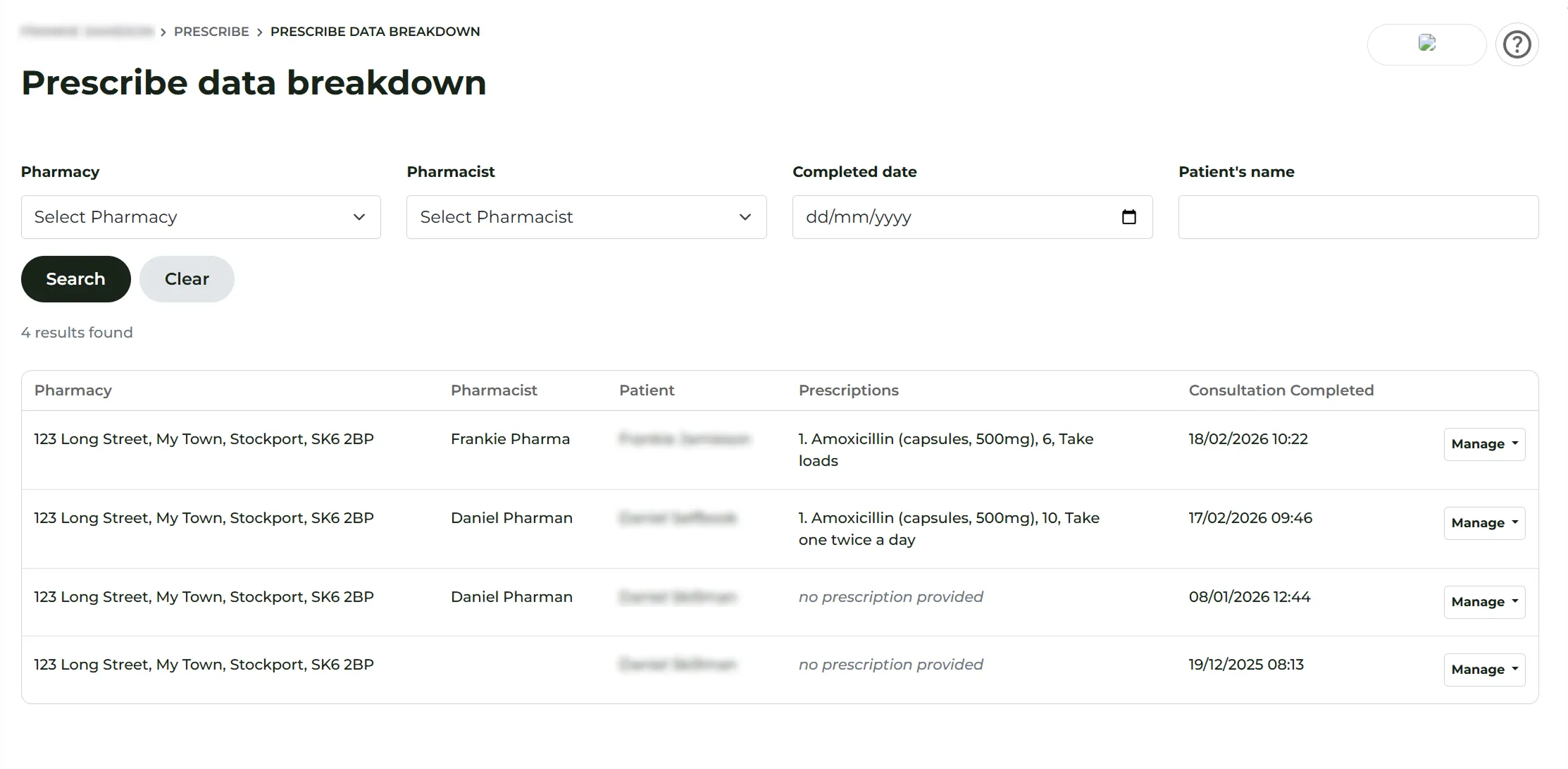
The Prescribe Data section provides Head Office with a comprehensive audit trail of every clinical interaction across the entire organisation. This area is essential for clinical governance, patient safety reviews, and financial reconciliation.
Accessing Clinical Records
Section titled “Accessing Clinical Records”To view and export historical data, navigate to:
Patient Data > Prescribe Data
This screen displays a master list of all Prescribe appointments, ordered from most recent to least recent. To help you find specific records quickly, you can filter the list by:
- Pharmacy: View activity for a specific branch.
- Pharmacist: Review the clinical output of a specific prescriber.
- Date Range: Audit activity within a specific week, month, or quarter.
- Patient Name: Quickly locate the records for a specific individual.
Downloading Documents
Section titled “Downloading Documents”Each entry in the list allows you to access the two most important documents associated with a consultation:
1. The Full Consultation Record
Section titled “1. The Full Consultation Record”To see the complete clinical history, including the pre-screen, clinical observations, and diagnosis:
- Click Manage > Download Consultation.
- This will generate a PDF summary of the entire session, including the audit-stamped answers and safety-netting advice.
2. The Prescription Document (Rx)
Section titled “2. The Prescription Document (Rx)”If a prescription was issued during the session, you can download the legal prescribing document separately:
- Click Manage > Download Rx.
- This provides the digitised prescription form, which includes the prescriber’s details, the medication instructions, and the secure authorisation signature.