

Managing A Profile
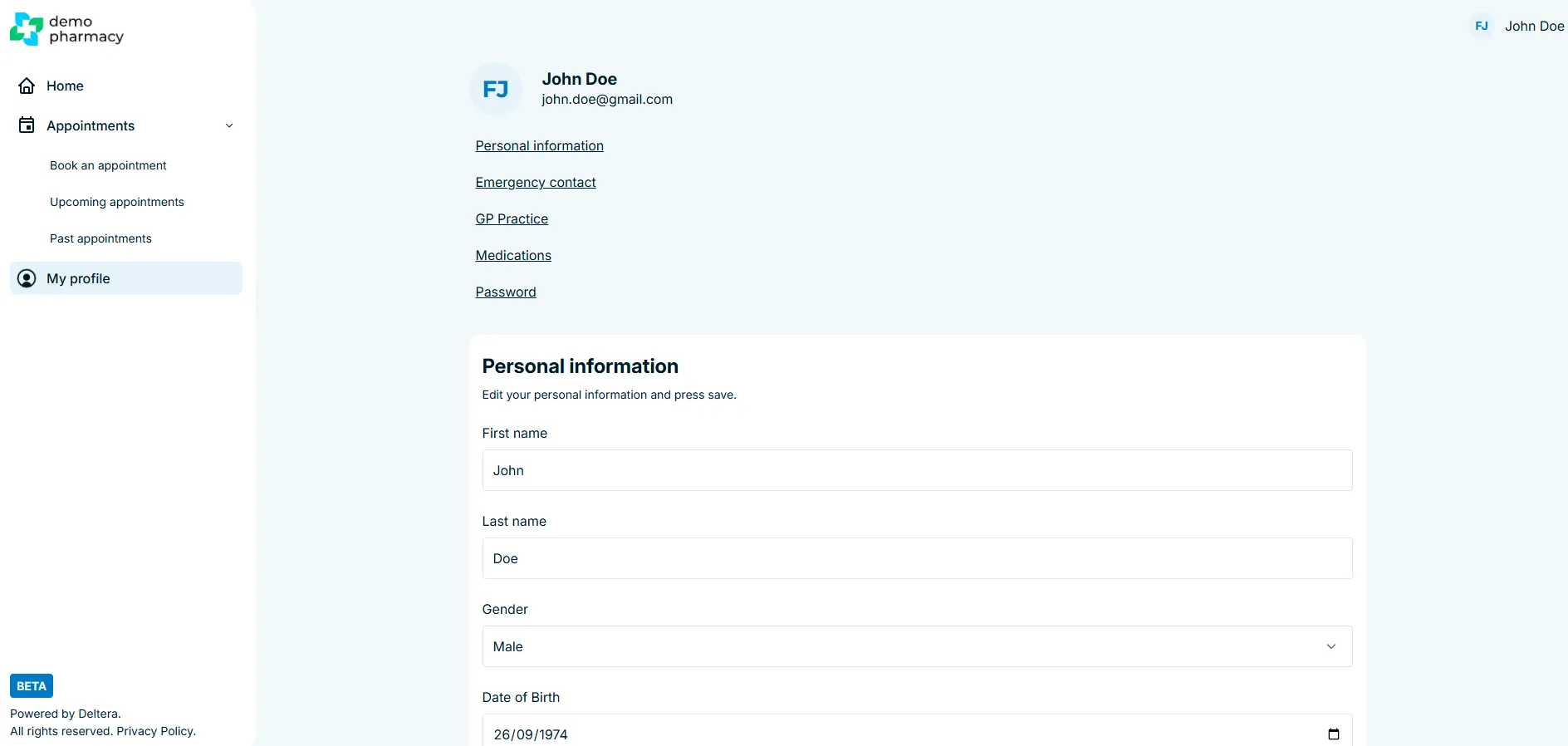
The My Profile section is the central hub where patients can manage their personal data, medical history, and account security. Keeping this information up to date ensures that every booking made through the portal is accurate and that the pharmacist has the most current clinical picture.
How to Access Your Profile
Section titled “How to Access Your Profile”There are two quick ways to navigate to your profile settings:
- Top Navigation: Click on your Name in the top right-hand corner of the portal and select My Profile.
- Sidebar: Click the My Profile tab located in the left-hand navigation menu.
Updating Personal & Medical Information
Section titled “Updating Personal & Medical Information”The profile page is divided into clear sections (such as Personal Details, Contact Information, and Medical History). Patients can use the navigation links to skip directly to the area they wish to update.
- Managing Medications: This is the most common use for the profile. Patients can easily add or remove medications they are currently using.
- Why this matters: By keeping the medication list current in the profile, this data will automatically pre-populate in the clinical pre-screen during any future bookings, saving time for both the patient and the clinician.
- Saving Changes: It is important to note that information is not updated automatically as you type. Once a change has been made—such as updating an address or adding a new medication—the patient must click the ‘Save’ button at the bottom of the section to confirm the update.
Account Security
Section titled “Account Security”Patients can also manage their portal access directly from this area:
- Password Resets: If a patient wishes to update their security credentials, they can trigger a password reset within the profile settings.
- Secure Access: A patient cannot change their email address. This ensures that MFA (Multi-Factor Authentication) codes and appointment reminders are always sent to the correct destination.