Custom Redirects
The Custom Redirects feature allows you to automatically send patients back to your own website immediately after they finish booking an appointment. This is an incredibly powerful tool for maintaining brand continuity, keeping traffic on your site, and measuring the financial return on your marketing campaigns.
Why Use Custom Redirects?
Section titled “Why Use Custom Redirects?”When a patient completes a booking, they traditionally land on the Deltera confirmation page. By configuring a custom redirect, you can choose to send them to a dedicated “Thank You” or success page hosted on your own website instead.
This is highly beneficial for:
- Conversion Tracking: It allows your web team to accurately track successful bookings using marketing tools like Google Analytics, Meta (Facebook) Pixels, or Google Ads conversion tags.
- Traffic Retention: Instead of leaving patients on a dead-end confirmation page, you can guide them back to your site to explore other services, read your health blog, or browse your online shop.
How to Set Up a Custom Redirect
Section titled “How to Set Up a Custom Redirect”Because booking links are managed at a group level, custom redirects must be configured from a Head Office account on a service-by-service basis.
- Log in to your Head Office account.
- Navigate to Service Builder > Services.
- Find the specific service you wish to configure and click Edit.
- Scroll down to the Service Information section.
- Locate the input field labelled ‘Post booking success URL’.
- Paste the full web address of the page you want the patient to land on (e.g.
https://www.yourpharmacy.co.uk/booking-success). - Click Update at the bottom of the page to save your changes.
The Patient Experience: The 5-Second Countdown
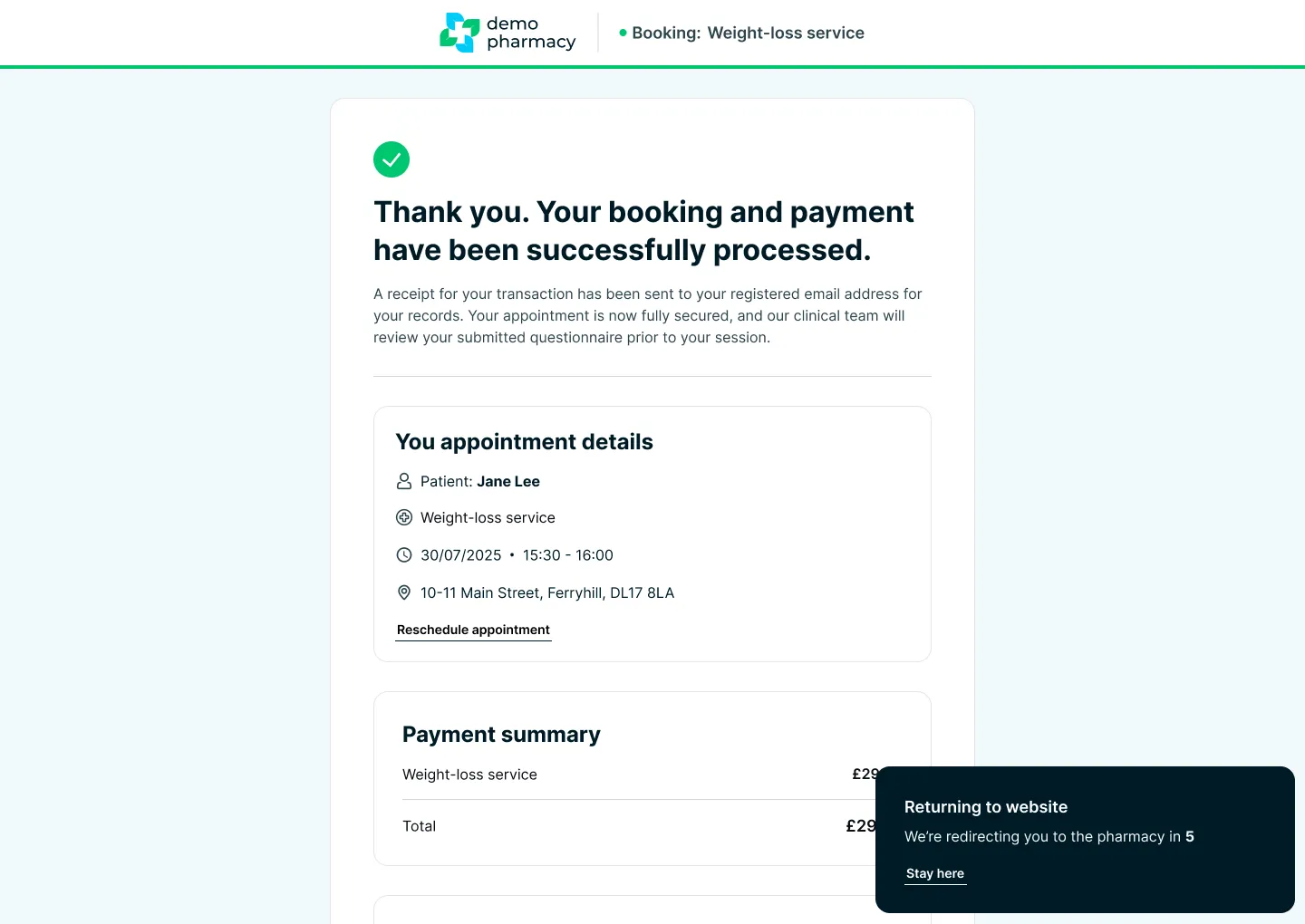
Section titled “The Patient Experience: The 5-Second Countdown”To ensure the patient has enough time to read their initial confirmation details, the redirect does not happen instantly.
Once the patient completes their booking, they will land on the standard success screen displaying their appointment date and time. A visible 5-second countdown will appear on the screen, letting the patient know they are about to be redirected. Once the countdown reaches zero, the browser will automatically load your specified website URL.