

Editing and building services
The Service Builder is the engine room of your clinical operations. It allows you to manage existing PGD services, customise clinical workflows, and even create your own bespoke service frameworks for non-PGD offerings.
Overview of Services
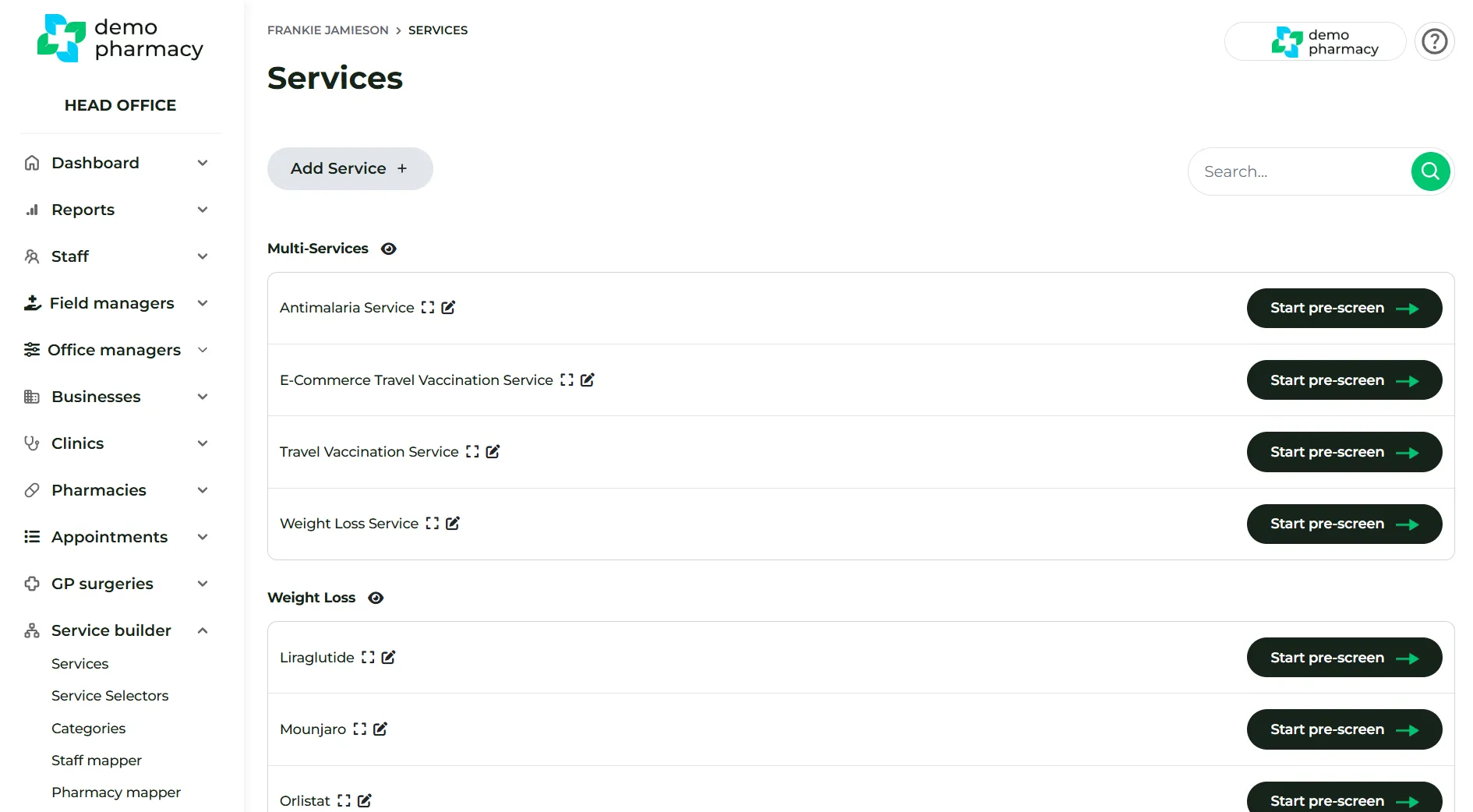
Section titled “Overview of Services”All PGD-supported services (such as Travel Clinic, Weight Management, or Minor Ailments) come pre-built and ready to use. You do not need to build these from scratch.
To view your current library:
- Navigate to Service Builder > Services.
- Here you will see a list of all services currently available to your organisation.
Customising Clinical Questions
Section titled “Customising Clinical Questions”Every pharmacy group has slightly different requirements. You can tailor the specific questions asked during a patient journey:
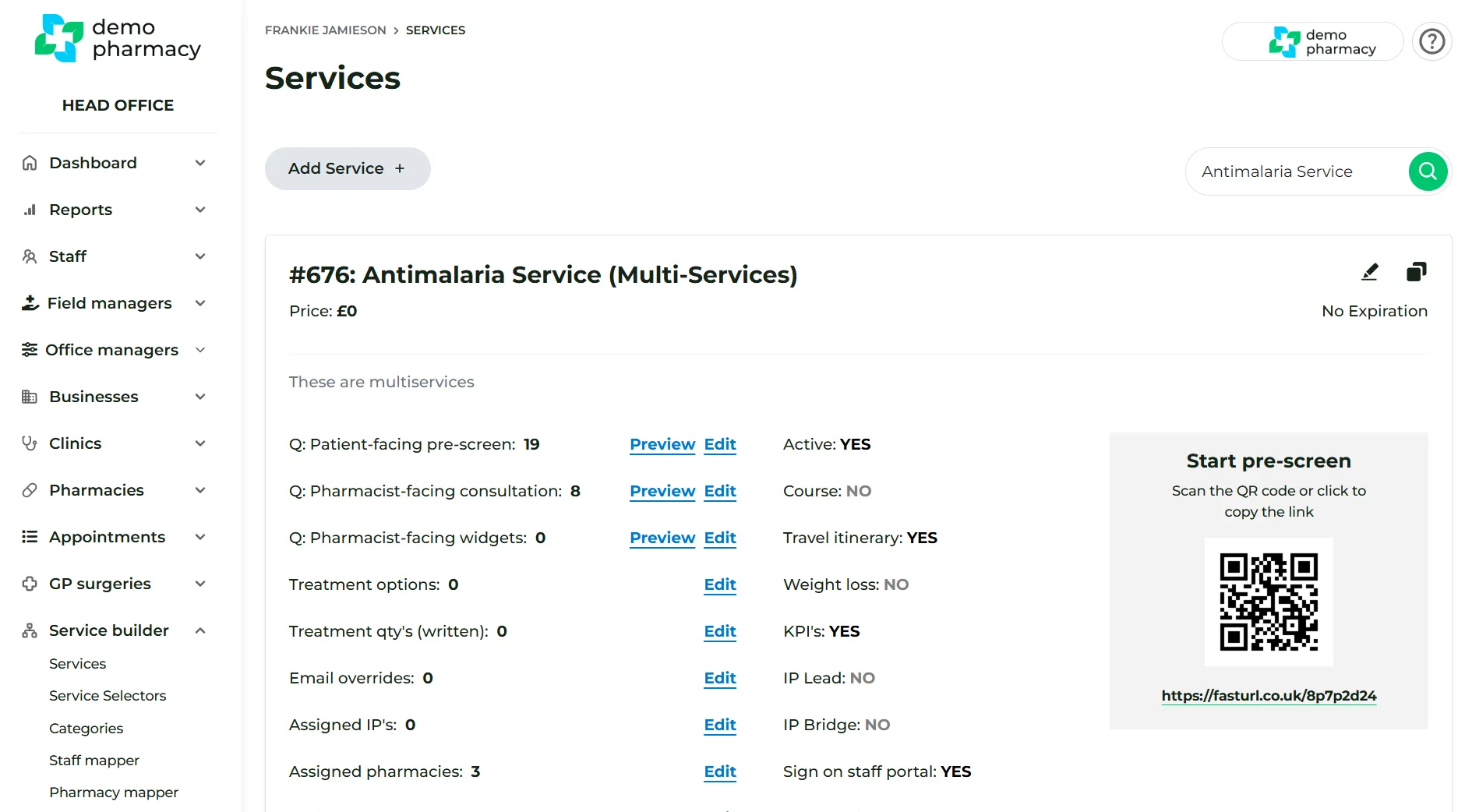
- Expanding a Service: Click the ‘Expand view’ icon next to any service.
- Tailoring Content: Within this expanded view, you can view or edit every question that forms part of the Pre-screen and the Consultation.
- Mapping: This is also where you can quickly assign Independent Prescribers (IPs), specific Pharmacies, and Staff members to that individual service.
Editing Service Parameters
Section titled “Editing Service Parameters”To change the high-level rules and messaging for a service:
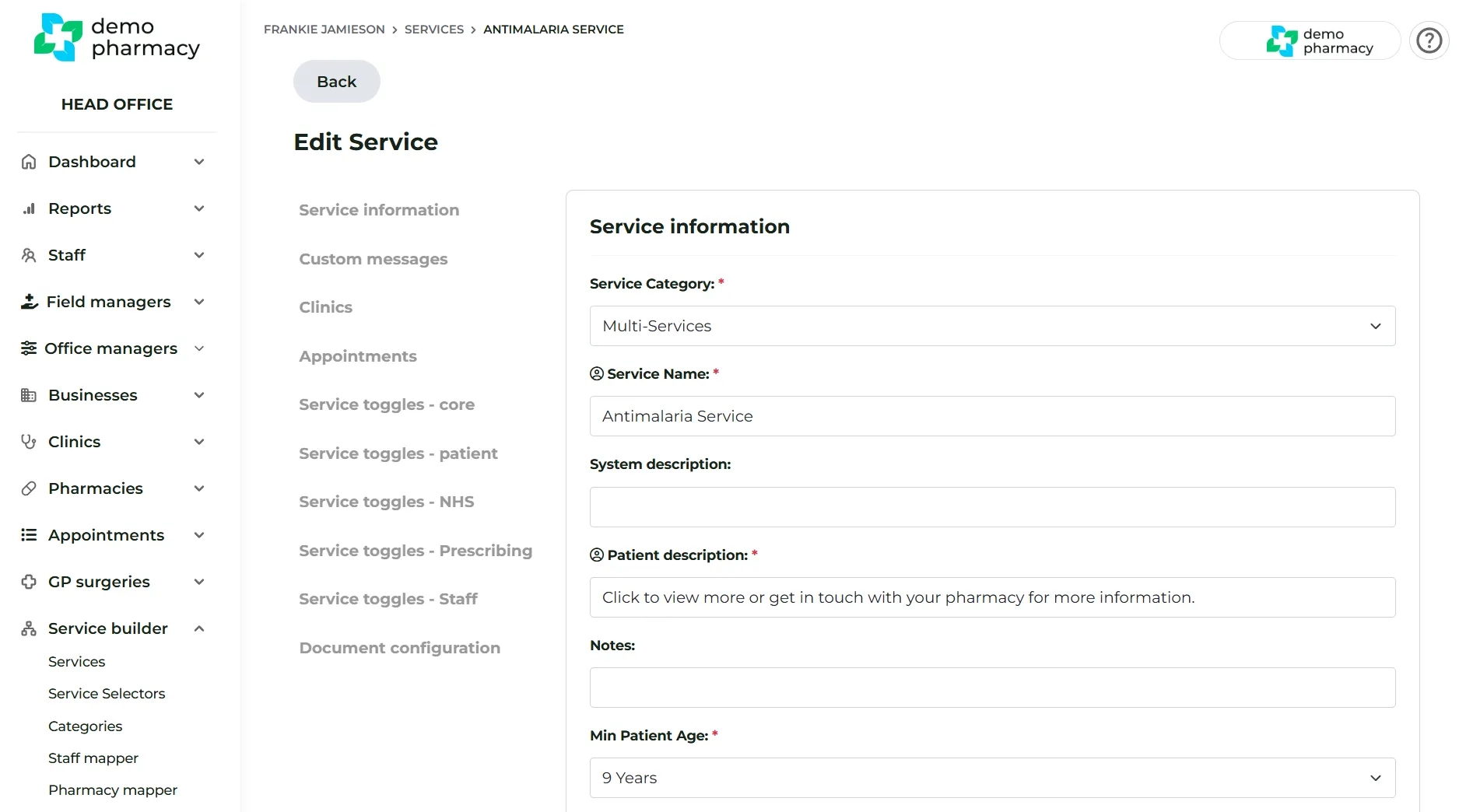
- Click ‘Edit’ on the service in the main list.
- From here, you can modify essential details, including:
-
Age Restrictions: Change the minimum or maximum age for the service.
-
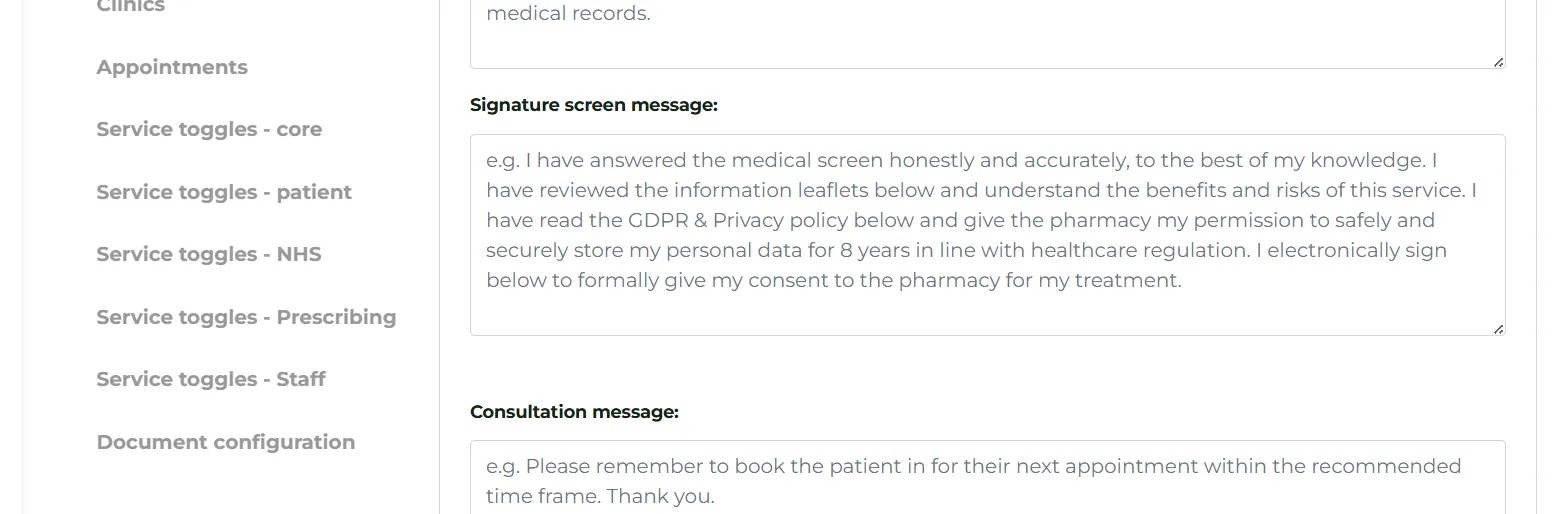
Custom Messaging: Update the text that appears on the Signature Screen or in patient emails.
-
Booking Rules: Enable or disable features like Same Day Bookings.
-
Pre-screen sections: Turn off the pre-screen questions for online bookings, or make individual sections skippable. See Pre-screen sections.
-
Building Bespoke (Non-PGD) Services
Section titled “Building Bespoke (Non-PGD) Services”If you offer a service for which Deltera does not currently provide a PGD (e.g. Ear Wax Removal or Aesthetics), you can still use the platform to manage the logistics, bookings, and patient data.
- Add Service: Click the ‘Add Service’ button in the Service Builder.
- Configuration: Build a custom pre-screen to capture essential patient data and eligibility criteria before they arrive.
- Workflow: The patient books via your website and completes your bespoke questions. You can then use this data to perform the consultation on your required external platform or paper record.
- Tip: Creating your own services is an excellent way to consolidate all your pharmacy bookings into one central calendar.
Creating Event Types (Non-Service Calendar Entries)
Section titled “Creating Event Types (Non-Service Calendar Entries)”Events are calendar entries that aren’t a clinical service, such as “Clean the fridges”, “Team meeting” or “Business admin”. They have no pre-screen, no consultation and no service document, and they don’t block patient booking slots.
Creating event types is optional, because staff can add an event that isn’t linked to any type. Adding them gives your pharmacies a ready-made list to pick from in the Booking Menu.
How to create an event type:
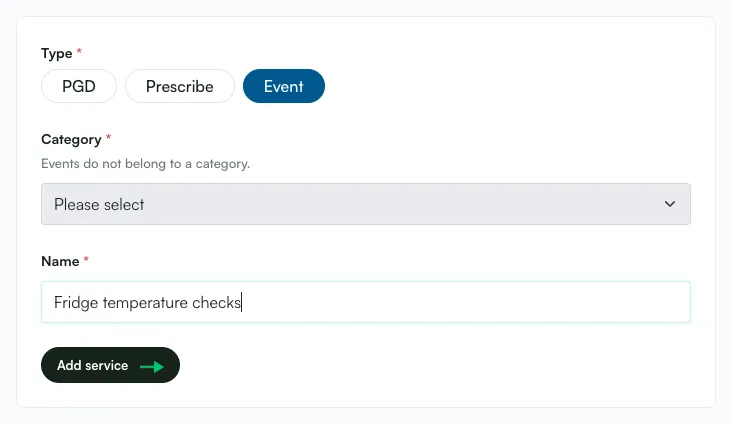
- Navigate to Service Builder and click Add New Service.
- Under Type, choose Event. The Category picker greys out (“Events do not belong to a category.”), so only a Name is needed.
- Click Add service.
Editing an event type:
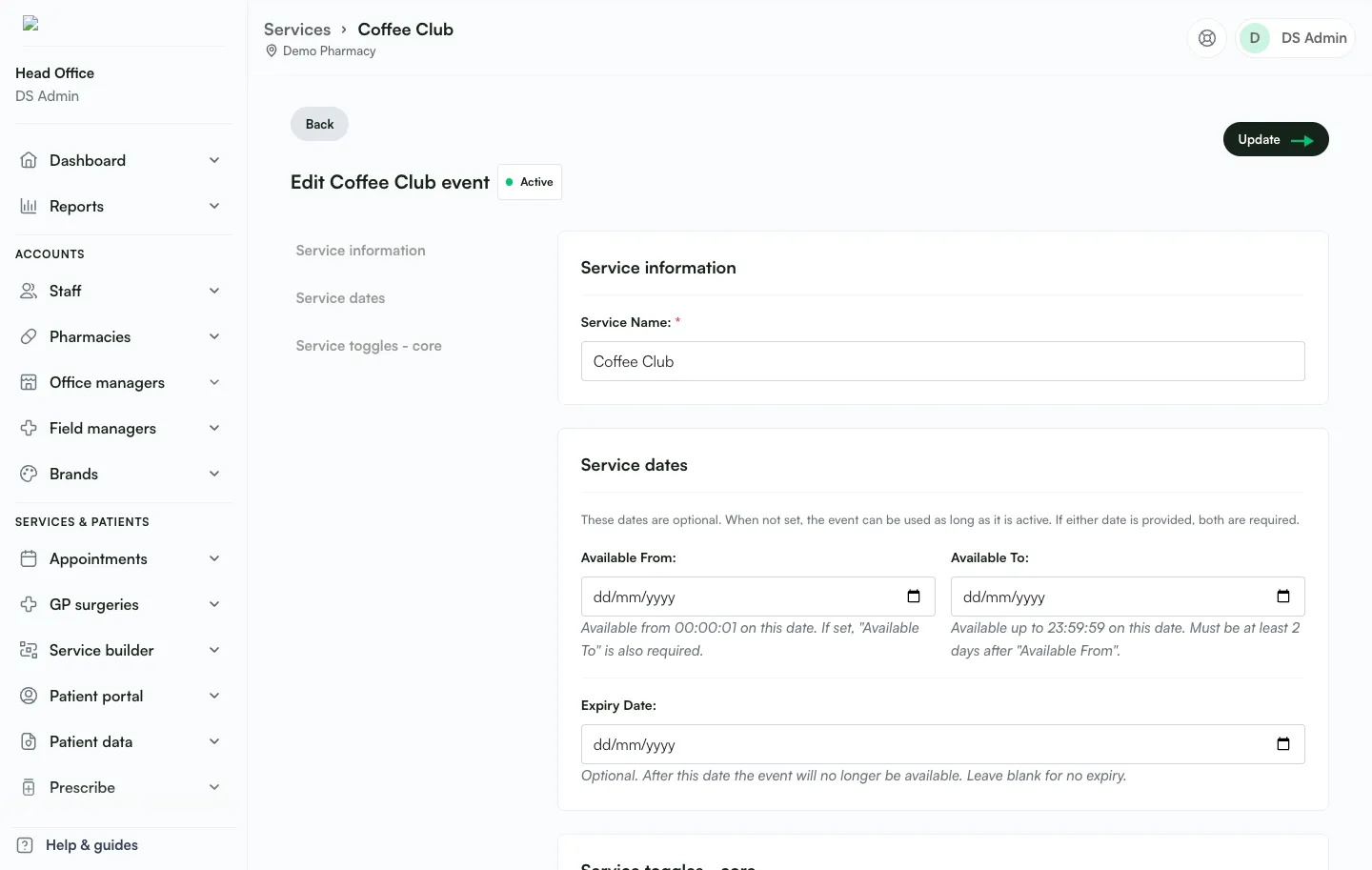
The Event edit form is deliberately short. Click Edit service on the event to change:
- Service Name
- The Service dates card: Available From, Available To and Expiry Date. These dates are optional. When they aren’t set, the event can be used for as long as it is active.
- “Service is active”
Click Update to save your changes.
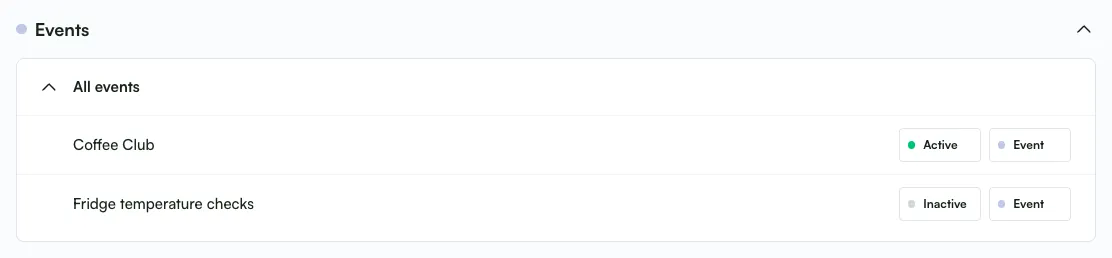
Event services never appear in the patient portal and have no price, booking link or clone option. In the services list they appear under Events as one-line rows with a grey Event label and their Active or Inactive status.
For how staff add events to the calendar, see Adding calendar events.
Customising Pre-screen Questions
Section titled “Customising Pre-screen Questions”You have the flexibility to adjust the questions a patient sees during their booking journey. This is particularly useful for “heavy” services—like Ear Wax Removal—where you might prefer a “lighter touch” pre-screen by removing non-essential questions.
How to edit pre-screen questions:
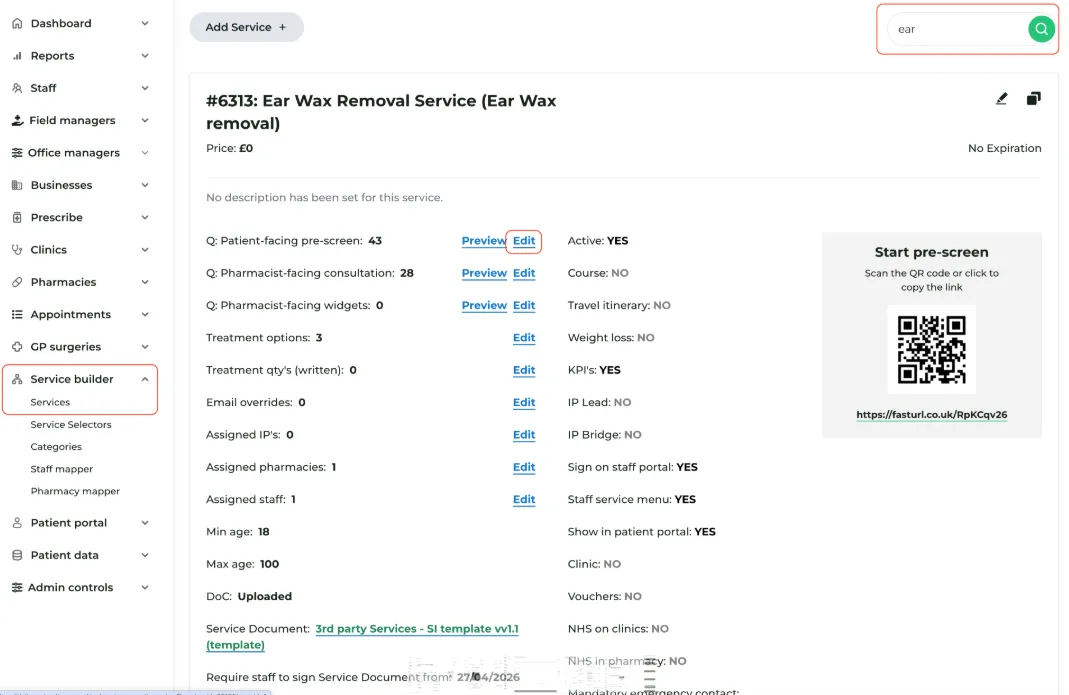
- Navigate to Service Builder > Services in your Head Office account.
- Find the specific service you wish to modify (e.g. Ear Wax) using the search field.
- Click the ‘Expand View’ icon on the service row.
- Click ‘Edit’ next to Patient-facing pre-screen.
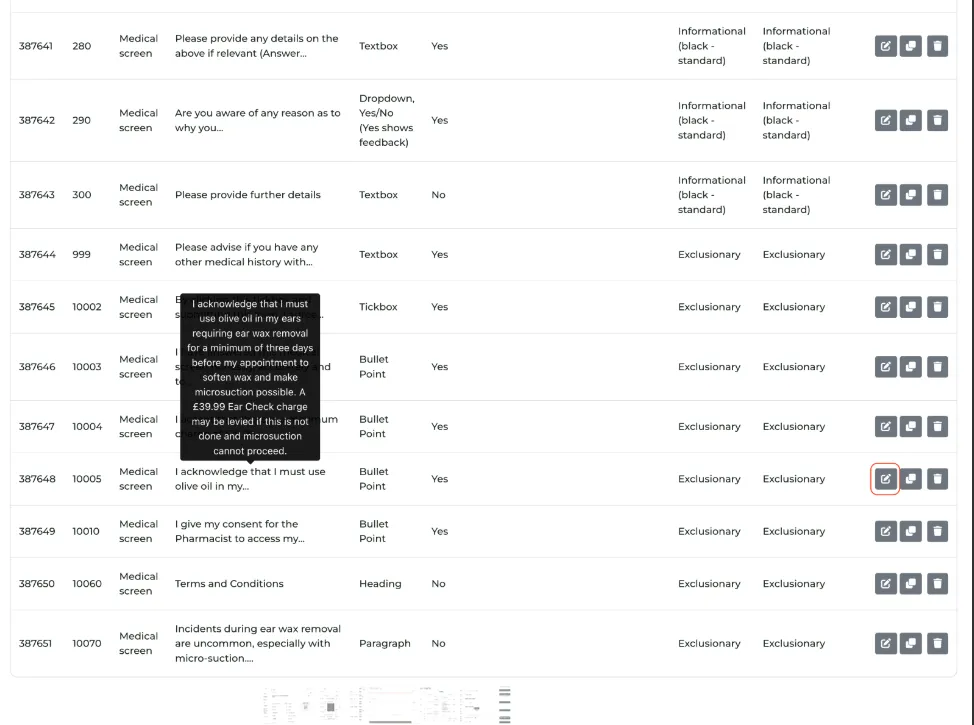
- Identify Questions: Use the Preview function to walk through the journey and identify which questions you wish to change or delete.
- Modify: Click the ‘Edit’ button next to the specific question.
- Update: Change the wording as required and click ‘Update’.
- Verify: Refresh your preview tab to ensure the changes appear correctly to the patient.
Adjusting Service Logistics & Capacity Controls
Section titled “Adjusting Service Logistics & Capacity Controls”Beyond pre-screen questions, you can customise how services are scheduled and capped across your pharmacy network to align with branch staffing levels, clinical complexity, and daily capacity.
Service-Level Configuration (Service Builder)
Section titled “Service-Level Configuration (Service Builder)”To update service-level logistics, navigate to Service Builder > Services, locate your service, and click Edit.
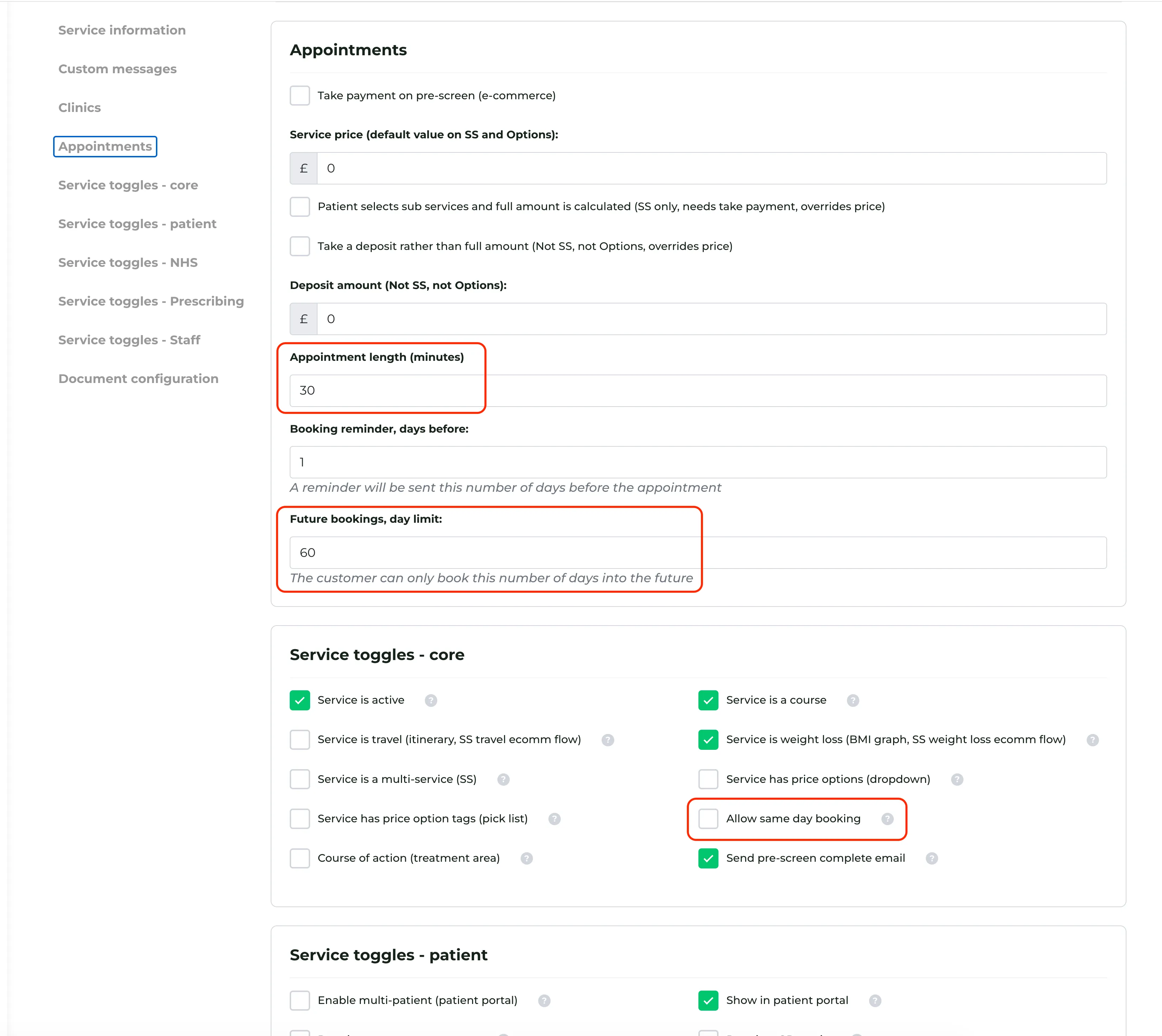
- Appointment Length: Defines the clinical time slot reserved for the patient (e.g. 15 or 20 minutes). Extend slot lengths for complex consultations or shorten them for rapid services like seasonal flu vaccinations.
- Provisioning Interval: Controls the spacing of available start times displayed to patients on the booking calendar, independent of the total appointment duration.
- Options: 5, 10, 15, 20, 30, 45, or 60 minutes.
- Example: A service with a 30-minute appointment length and a 15-minute provisioning interval offers start times at 10:00, 10:15, 10:30, and so on (provided the full appointment length fits before closing times or staff breaks).
- Default: Existing services default to a 5-minute interval unless modified.
- Future Bookings Day Limit: Defines the maximum number of days in advance a patient can schedule an appointment for that specific service, keeping your clinical diary manageable.
- Enabling Same-Day Bookings: Disabled by default to prevent unexpected diary additions. Tick the Allow same day bookings box if your branch can accommodate last-minute online bookings or rapid walk-in arrivals.
Once you have made any adjustments, remember to click Update at the bottom of the page for the changes to take effect across your group’s booking links.
Branch-Level Daily Capacity Caps (Pharmacy Options)
Section titled “Branch-Level Daily Capacity Caps (Pharmacy Options)”Head Office can cap the number of daily bookings a specific branch accepts for any given service—allowing you to manage high demand without turning off the service entirely.
- Navigate to Pharmacies in the Manager Portal and select Options for the target branch.
- Locate Appointment booking limits.
- Click Add limit, select the service from the dropdown, and enter the maximum daily booking allowance.
- Click Add limit again to add rules for additional services, or click Remove to clear a cap.
💡 How Capacity Caps Work
- Per Pharmacy, Per Day: Limits apply independently to each branch. For example, a cap of 20 allows up to 20 bookings per day at that specific location.
- Unlimited by Default: Any service without an assigned row (or set to
0) remains uncapped. - Patient Calendar View: Once a service hits its daily maximum, the booking calendar automatically hides availability for that date. A final safeguard check at checkout prevents last-second concurrent overbookings, prompting patients to choose an alternative date.
Managing Treatment Costs
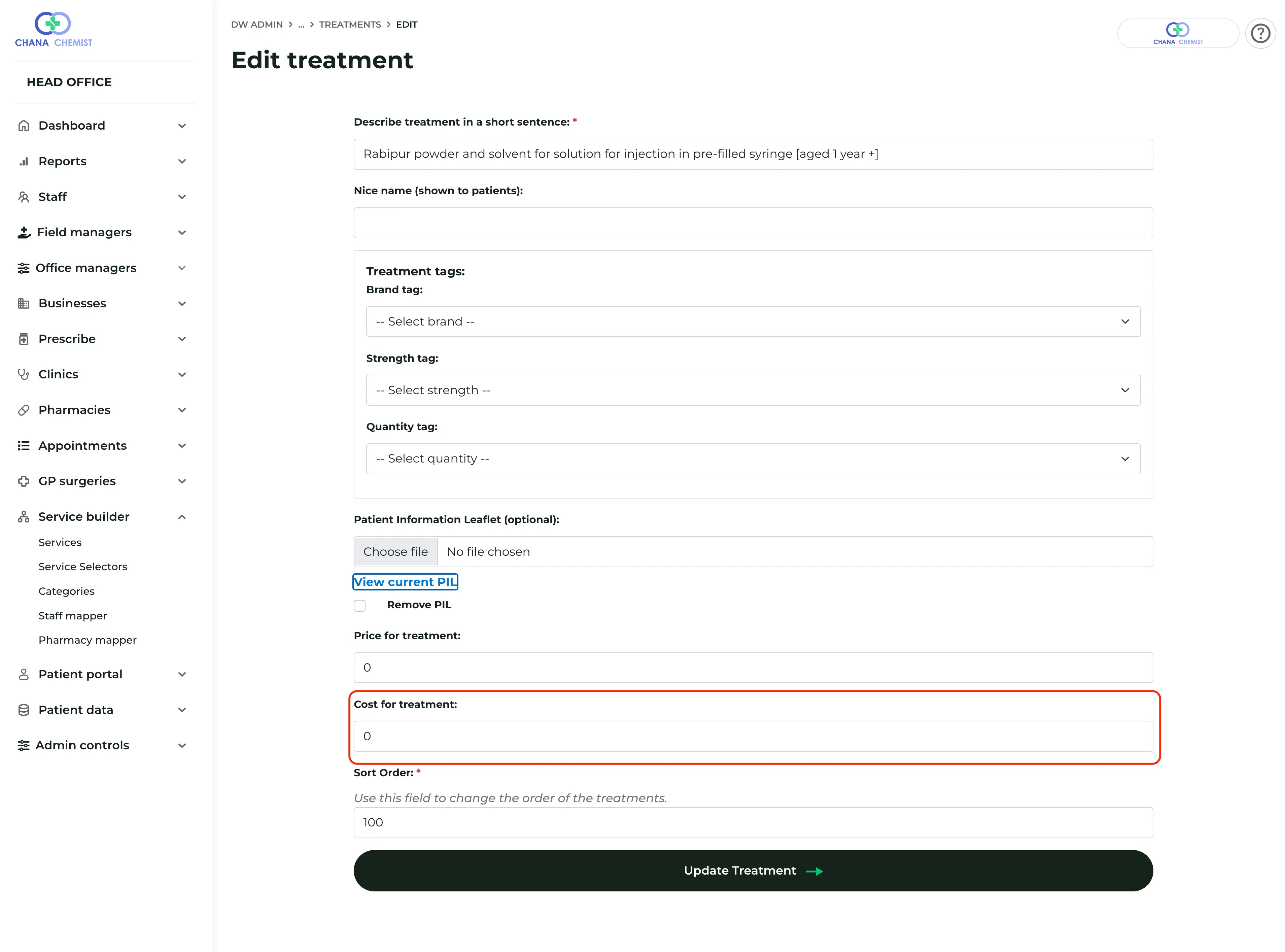
Section titled “Managing Treatment Costs”While a service may have a general consultation fee, you can also assign specific pricing to the individual medications or items provided within that service. This ensures that the patient is charged correctly based on the specific outcome of the consultation.
How to add a cost to a treatment:
- Navigate to Service Builder > Services and find the relevant service.
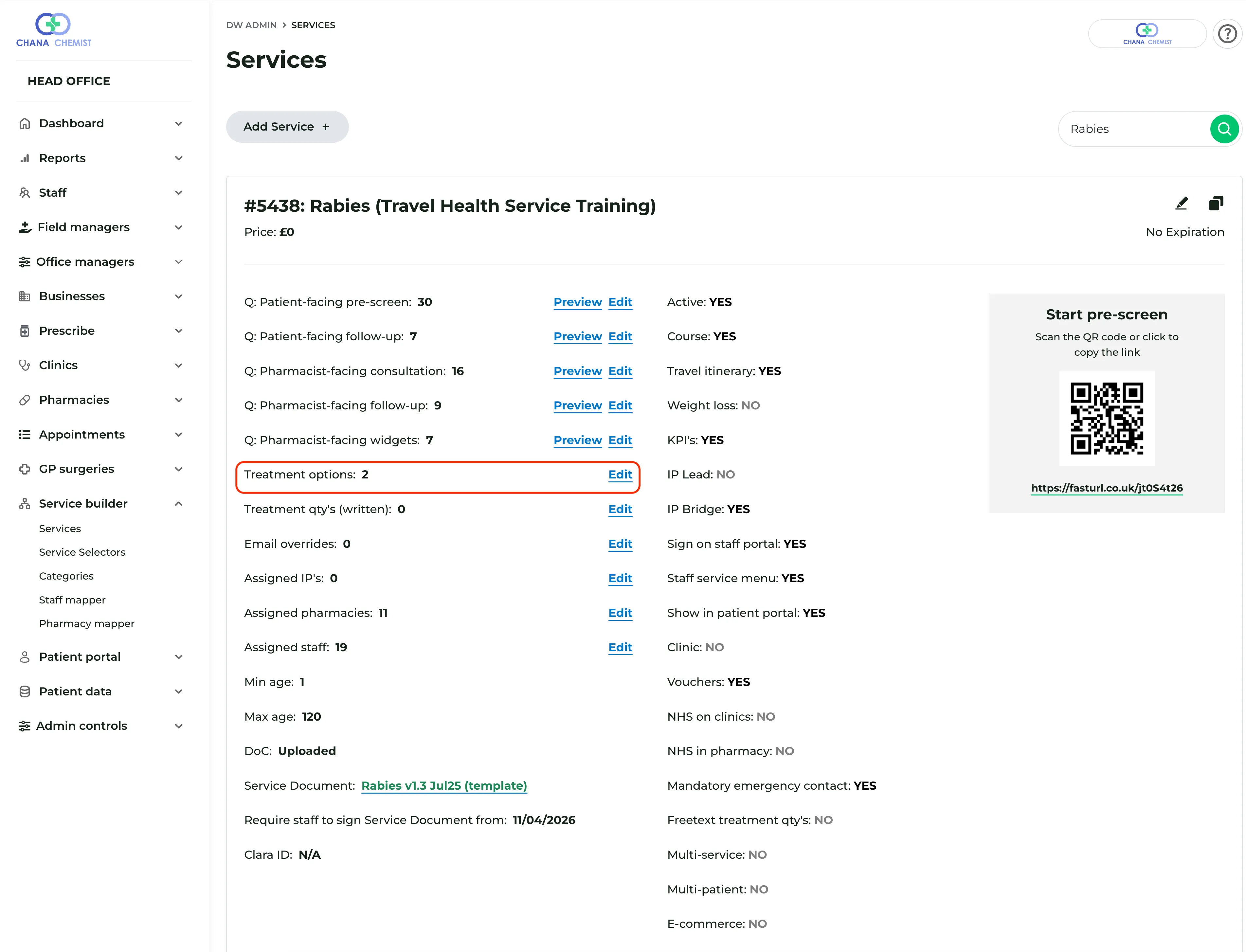
- Click the ‘Expand View’ icon to reveal the service’s full configuration.
- Locate the Treatment Options section and click the ‘Edit’ button next to it.
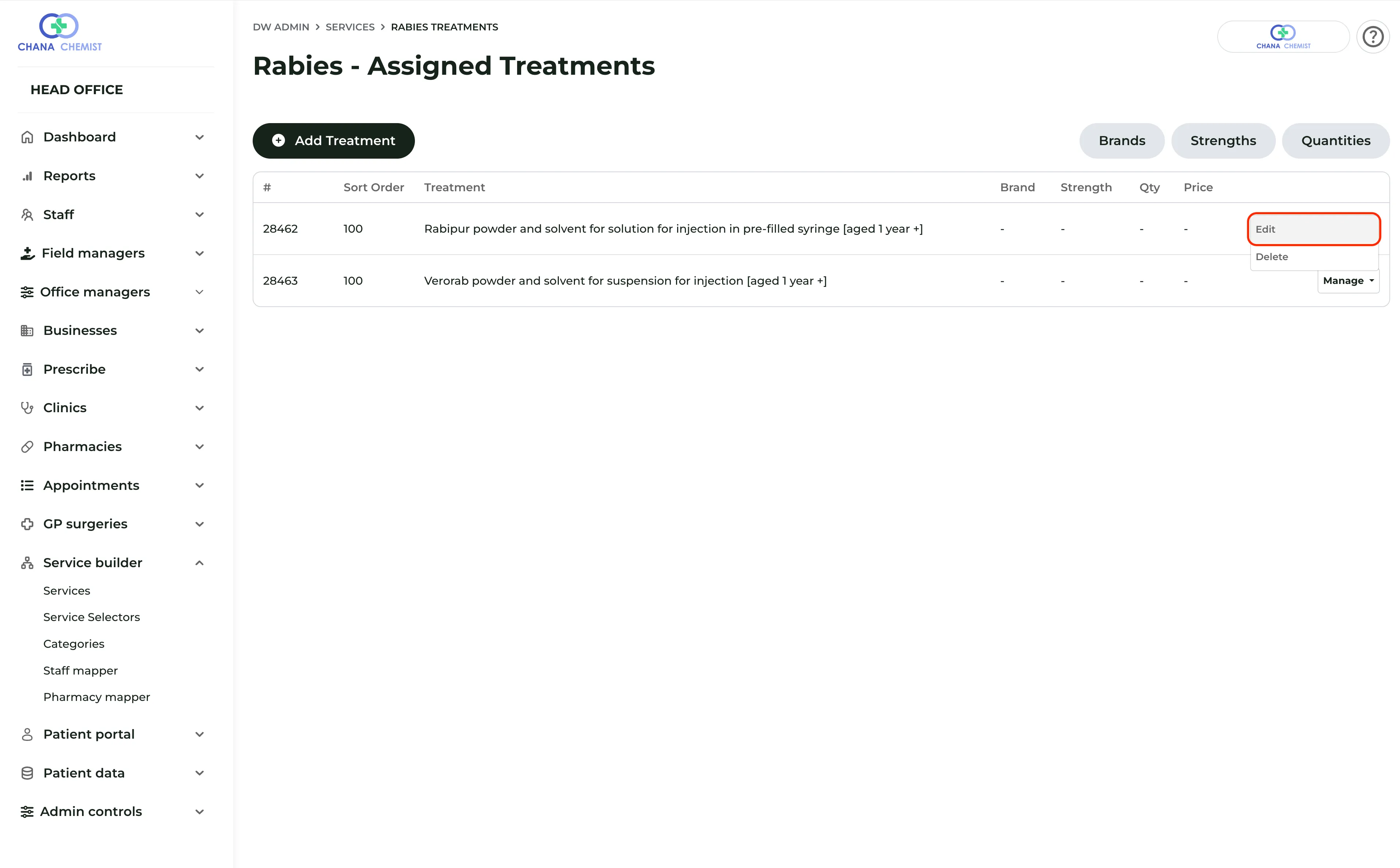
- This will display a list of all treatments currently associated with that service. Find the specific treatment you wish to price and click ‘Edit’.
- Enter the required amount in the Cost field.
- Click ‘Update’ to save your changes.
Once updated, this cost will be factored into the final transaction when that specific treatment is selected during a consultation.
⚠️ Critical Safety Rule: PGD vs. Bespoke
Section titled “⚠️ Critical Safety Rule: PGD vs. Bespoke”When customising your services, please adhere to the following clinical governance rules:
Deltera PGD Services: You must not remove any questions from a pre-screen linked to an official Deltera PGD. These questions are legally required to ensure patient safety and PGD compliance. You are, however, welcome to add additional questions if you require more data.
Bespoke Services: For services you have built yourself (not linked to a Deltera PGD), you are free to add or remove questions as you see fit to streamline your workflow.