Sign in to your Deltera account
Access your Deltera account at the staff portal.
Step 1: Access the Portal and Log In
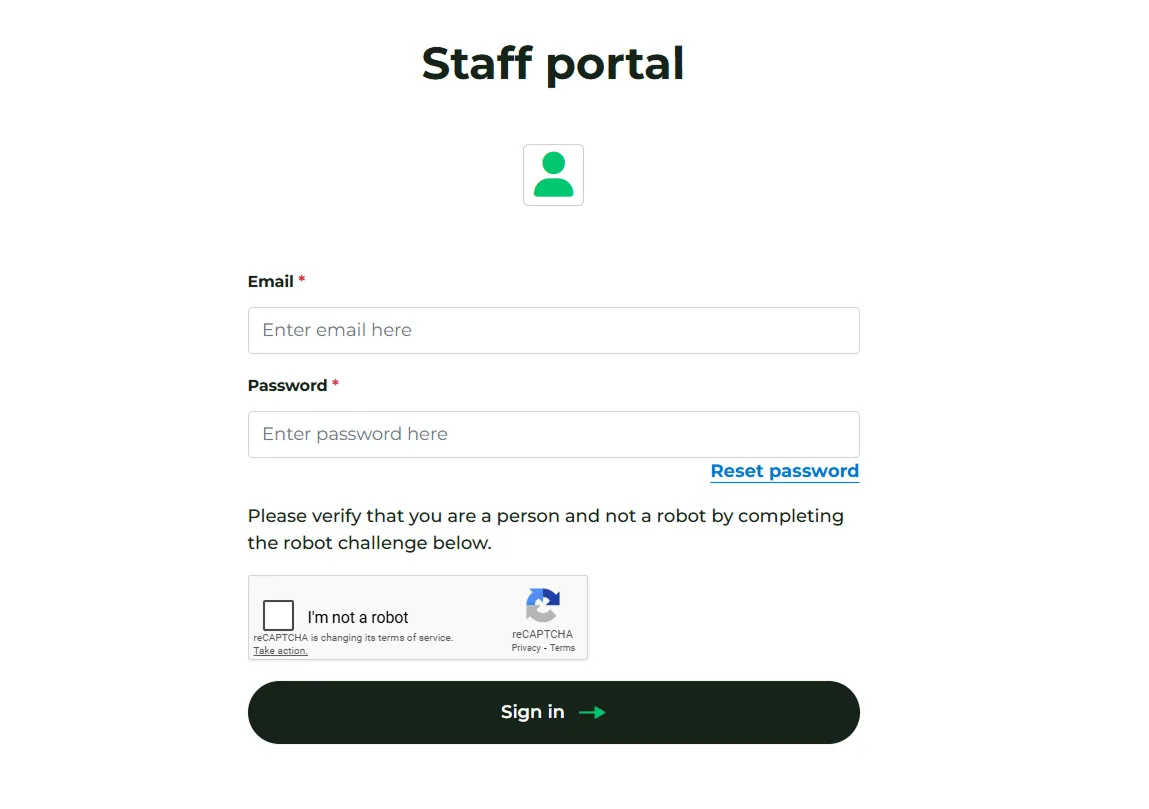
Section titled “Step 1: Access the Portal and Log In”Once your registered account has been approved by Head Office, navigate to the staff portal at the following link:
Sign in using the email address and password you created during registration.
Step 2: Complete Multi-Factor Authentication (MFA)
Section titled “Step 2: Complete Multi-Factor Authentication (MFA)”The staff portal is protected by Multi-Factor Authentication (MFA) to secure patient data.
- If the system detects a change in your IP address or device, you will be asked to verify your identity.
- Check your email for a verification code and enter it into the prompt.
- This verification is saved, so you only need to complete this extra step once per device or location change.
Ensuring You Receive MFA Codes
Section titled “Ensuring You Receive MFA Codes”To keep your account secure, the Deltera platform uses Multi-Factor Authentication (MFA). This means that every time you sign in, a unique 6-digit code is sent to your registered email address.
To ensure these vital security codes reach your inbox and are not accidentally filtered into your ‘Junk’ or ‘Spam’ folders, we strongly recommend whitelisting our communications email address.
If you are using NHSmail (Outlook on the Web), please follow these steps to add us to your Safe Senders list:
- Sign in to your NHSmail account.
- Click the Settings cog in the top right-hand corner.
- Select View all Outlook settings at the bottom of the pane.
- Navigate to Mail > Junk email.
- Under the Safe senders and domains section, click + Add.
- Type in the email address:
comms@deltera.cloudand press Enter. - Click Save at the bottom of the page to apply the changes.
Why is this necessary?
Section titled “Why is this necessary?”NHSmail filters are notoriously strict. By whitelisting this address, you ensure that:
- Your login process is never delayed by a missing code.
- Automated notifications regarding consultations or prescriptions are delivered reliably.
- System alerts from the Deltera platform reach the intended staff members immediately.
Step 3: Review Your Dashboard and Services
Section titled “Step 3: Review Your Dashboard and Services”After signing in you land on your Dashboard, which lists your pharmacy’s appointments (see Your Appointments Dashboard).
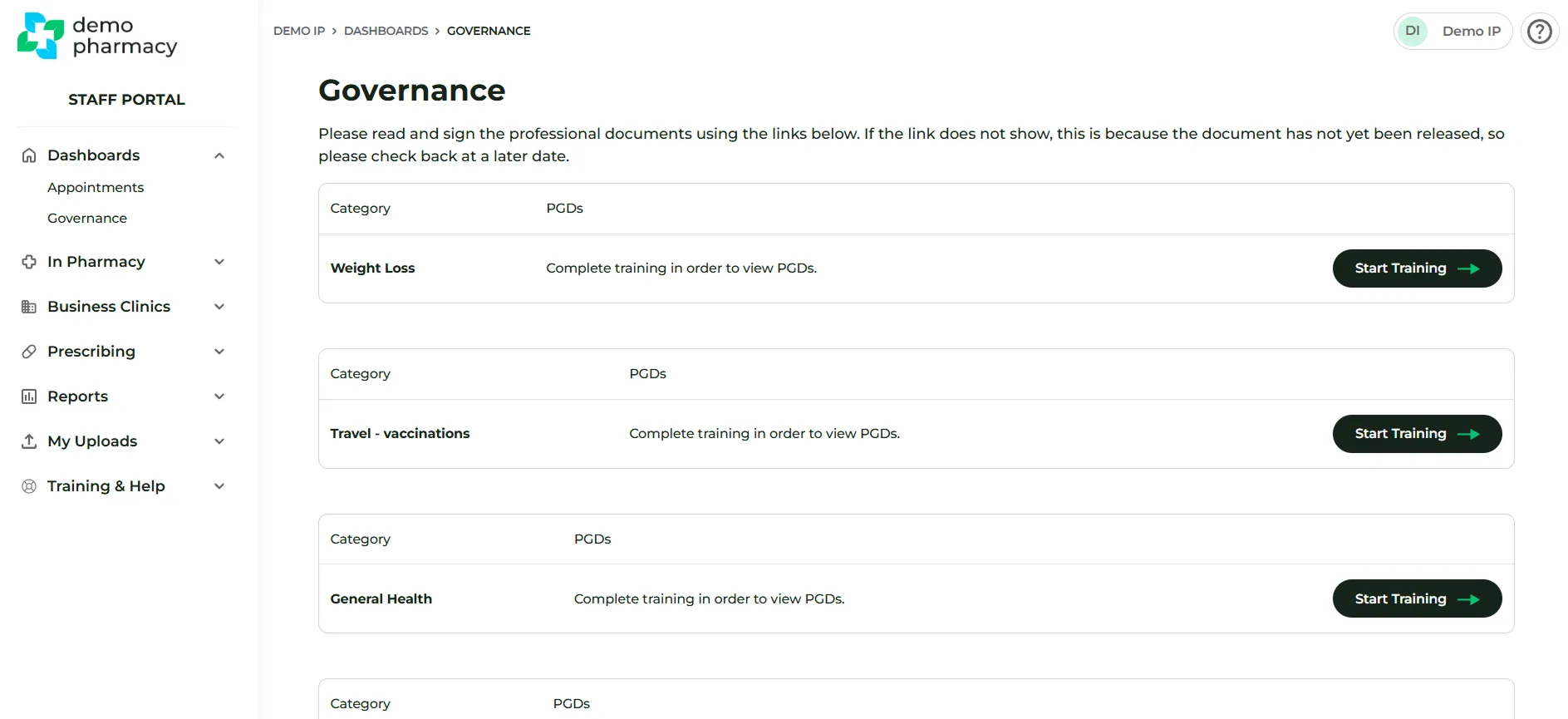
To check which services you can offer, click Governence in the left-hand menu. It displays a table of services (shown below).
- This view is customized based on the services your organisation is subscribed to and those that have been mapped to your user account.
- If you recently registered and do not see any services listed, please contact your Head Office. They are responsible for mapping your account to the available services.
Mandatory Action Before Administering Services
Section titled “Mandatory Action Before Administering Services”Before you attempt to administer any services to a patient, you must first sign all required PGDs and Declaration of Competence documents. Learn how to do this in PGD training & signature.