

Ordering & Assigning Business Vouchers
The Voucher workflow allows corporate clients to subsidise vaccinations for employees who prefer to visit a local pharmacy branch on their own schedule.
Ordering Vouchers (Head Office Portal Preview)
Section titled “Ordering Vouchers (Head Office Portal Preview)”Voucher orders are managed via the Business Portal. Head Office can place orders on behalf of a client using the Portal Preview feature.
Head Office > Business > Business & Contacts
- Navigate to Business & Contacts.
- Find the relevant client profile and click Manage > View Portal
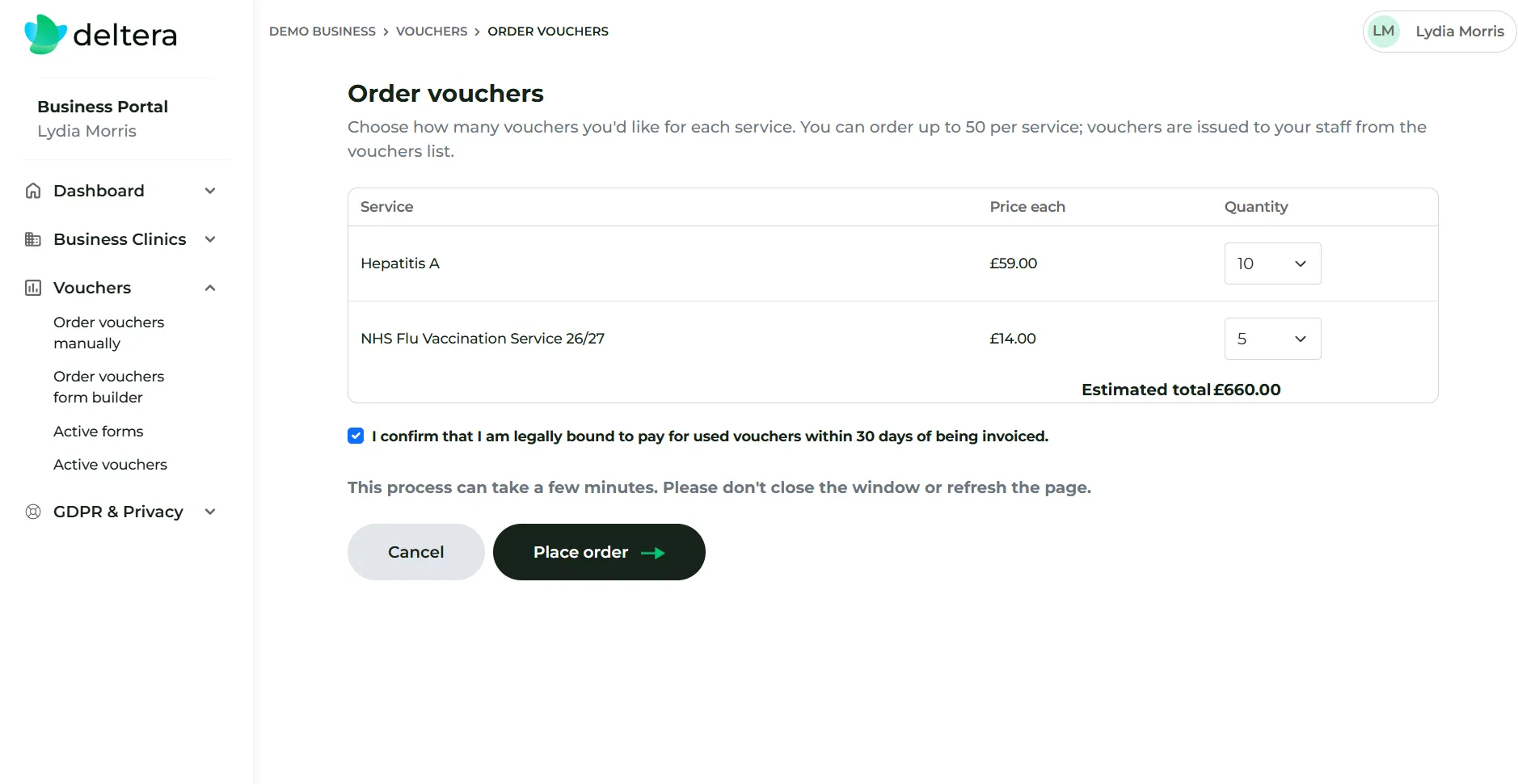
- Go to Order Vouchers Manually.
- Select the vaccination service and quantity required. The system displays the per-unit price and total order cost.
- Click Confirm Order.
Assigning Vouchers to Employees
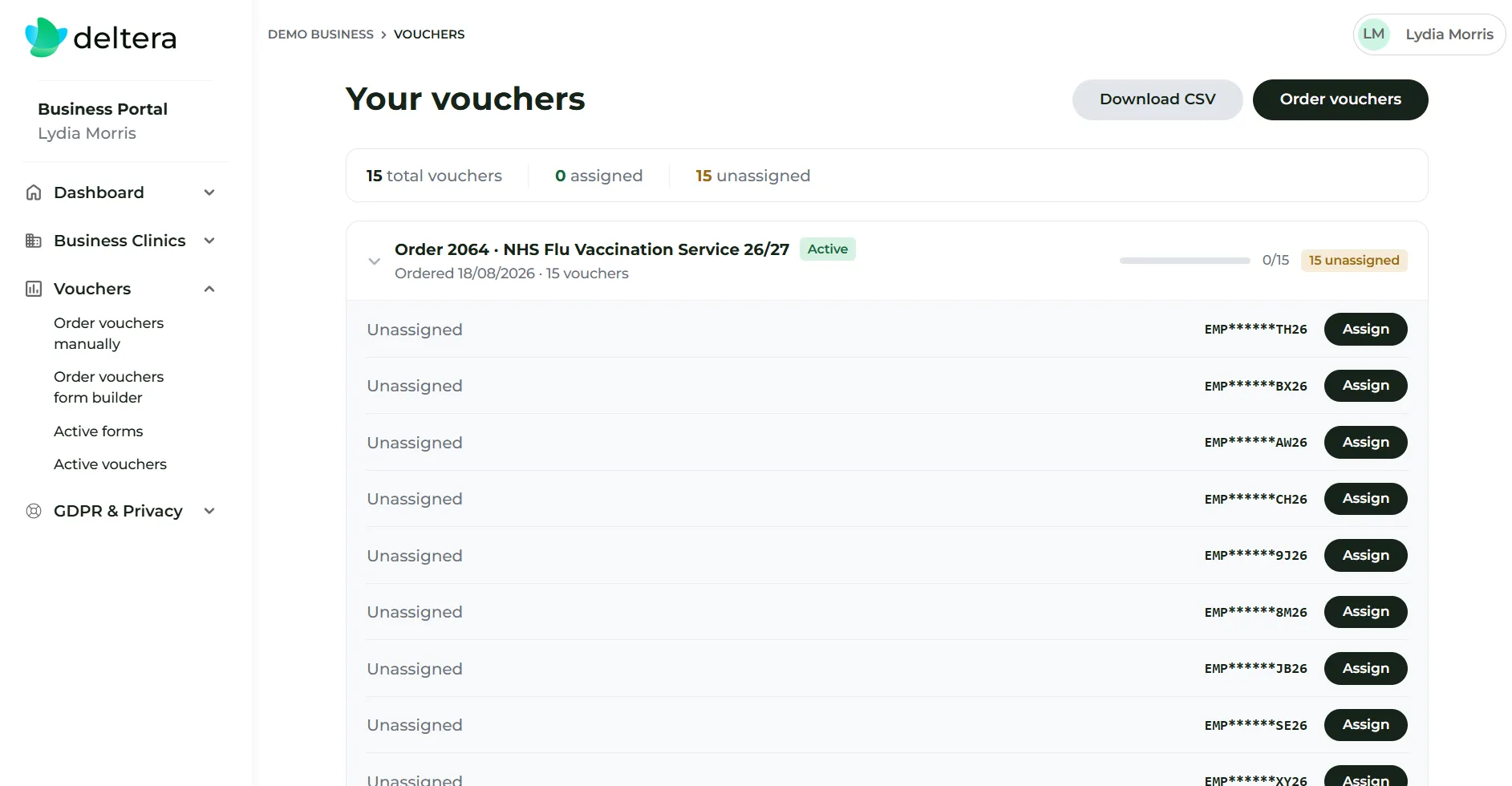
Section titled “Assigning Vouchers to Employees”Once ordered, vouchers must be allocated to individual recipients:
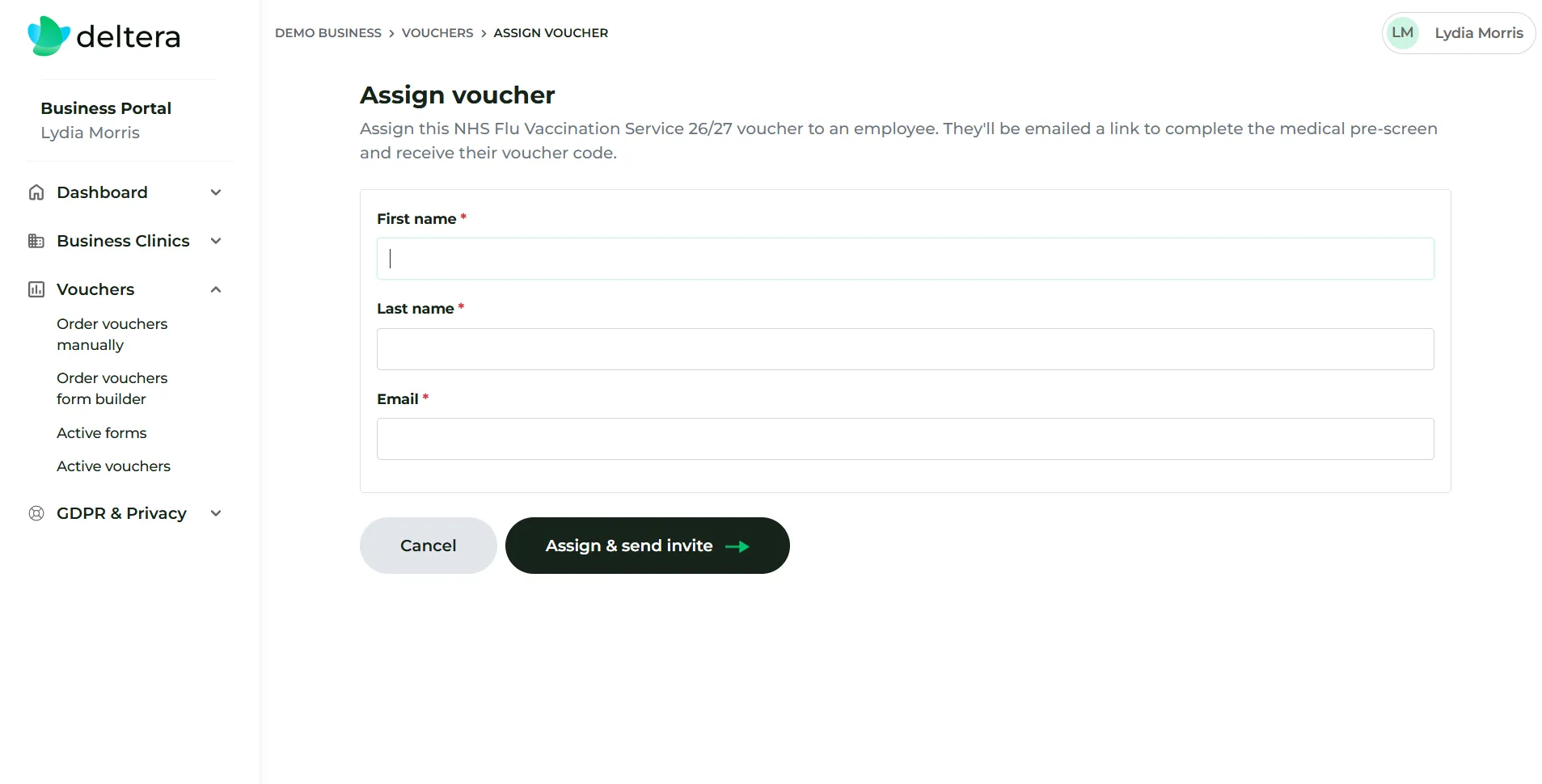
- In the portal voucher overview, click Assign next to an unassigned voucher.
- Enter the employee’s Full Name and Email Address.
- Click Send Voucher.
The Employee Journey & Tracking
Section titled “The Employee Journey & Tracking”- Email Notification: The employee receives an email containing a secure pre-screen link.
- Pre-screen Completion: The employee completes their medical questionnaire online.
- Voucher Code Issued: Upon passing the pre-screen, the system generates a unique Voucher Code on-screen and emails it to the employee.
- Status Tracking: Within the Business Portal, client admins can monitor progress via real-time timestamps:
- Pre-screen Completed Date
- Consultation Completed Date