Managing Businesses & Contacts
Before you can set up clinics or issue vouchers, you must register the corporate client in your system and configure their designated account contacts.
Adding a New Business & Contact Profile
Section titled “Adding a New Business & Contact Profile”Head Office > Business > Add a business
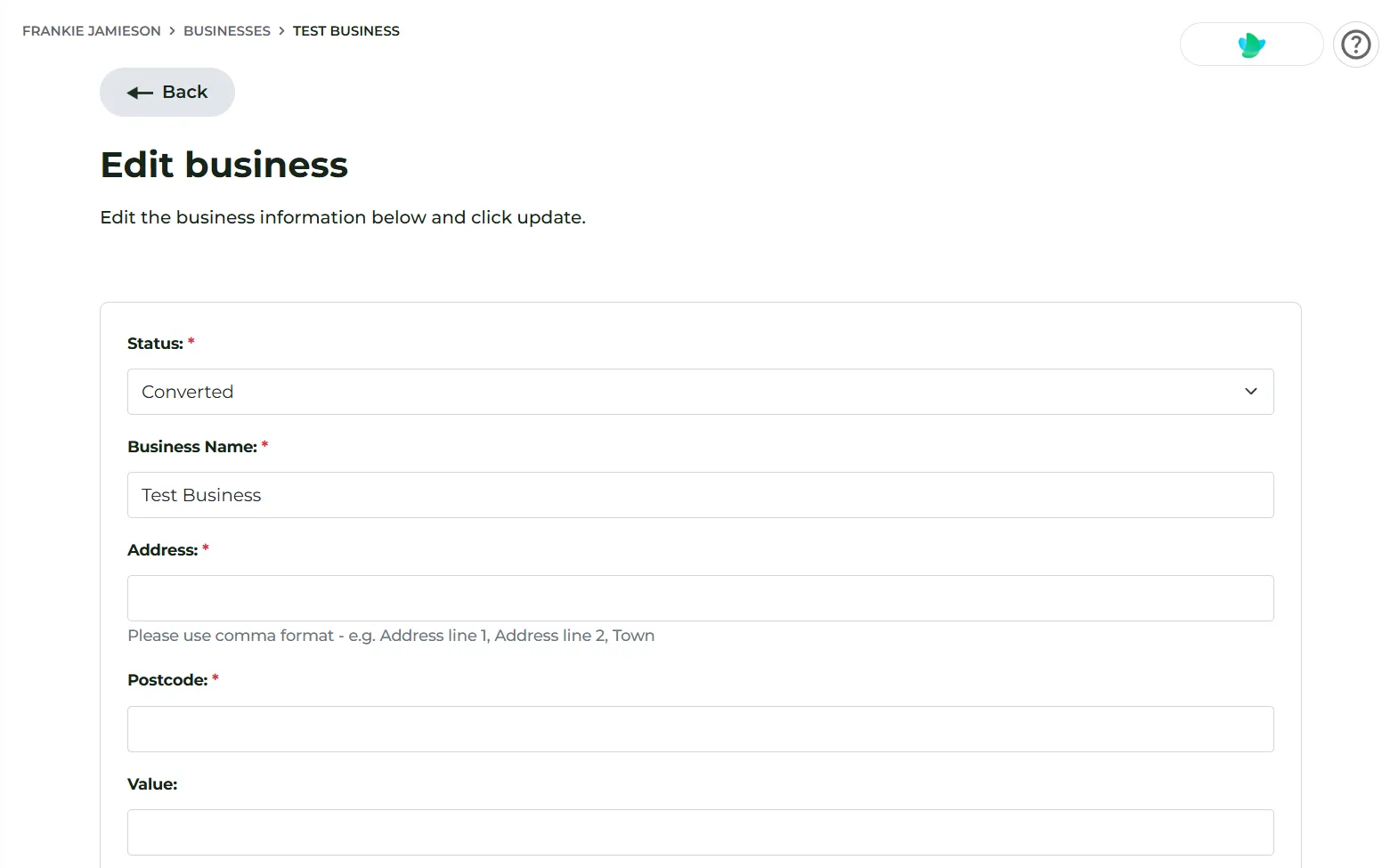
- Navigate to your business management section in Head Office.
- Click Add New Business.
- Enter the corporate entity details, including legal business name, address, and primary contact information.
- Add individual Contacts under the business profile (e.g. HR Managers, Occupational Health Leads, or Site Administrators).
You can add, edit, or delete contacts within a business profile at any time as staffing changes within their organisation.
Inviting Clients to the Business Portal
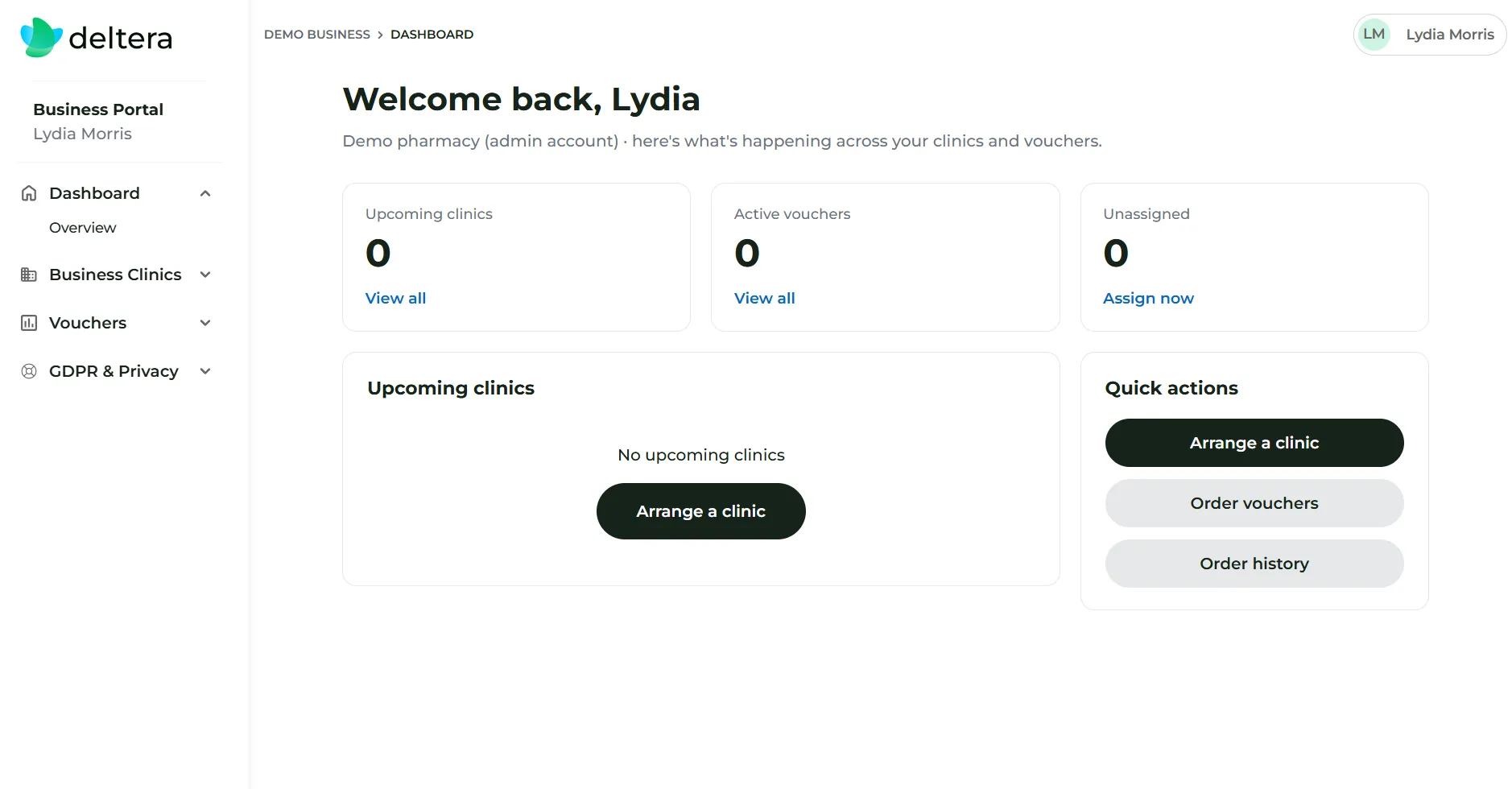
Section titled “Inviting Clients to the Business Portal”Each contact can be granted access to their own self-service portal, allowing them to monitor clinic bookings, track voucher redemptions, and view order histories.
Note: Inviting a business to the portal is optional. You can generate vouchers on their behalf without them needing to login.
To sign them up:
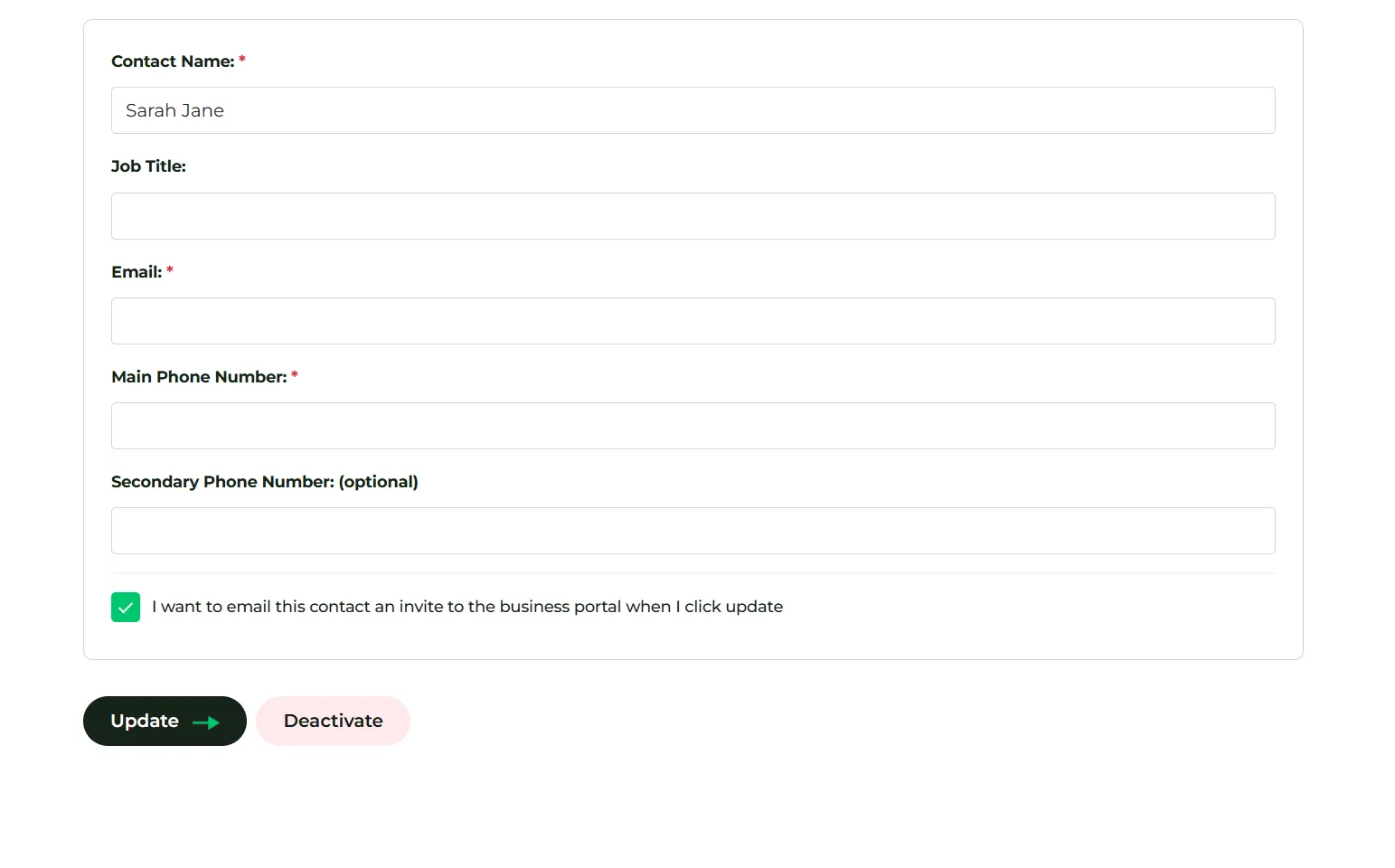
- Navigate to Business & Contacts > Select the business and click Manage > Contacts.
- Next to the Contact, click Edit.
- Scroll to the bottom, check ‘I want to email this contact a business portal invite’
- Click Update
- The contact will receive an automated onboarding email containing a secure registration link.
- The client clicks the link, sets their account password, and completes their registration.
Once registered, corporate clients can log in directly to their dedicated dashboard at: deltera.cloud/business