

Ordering & Assigning Business Vouchers as a Pharmacy Customer
The Business Portal allows your organization to purchase, distribute, and track vaccination vouchers for your workforce directly online.
Once invited by your pharmacy provider, you will receive an onboarding email to create your password and set up your account. After registering, you can log in to your dashboard at any time at: deltera.cloud/business
1. Ordering Vouchers
Section titled “1. Ordering Vouchers”[Navigation: Business Portal > Order Vouchers Manually]
- Log in to your account at
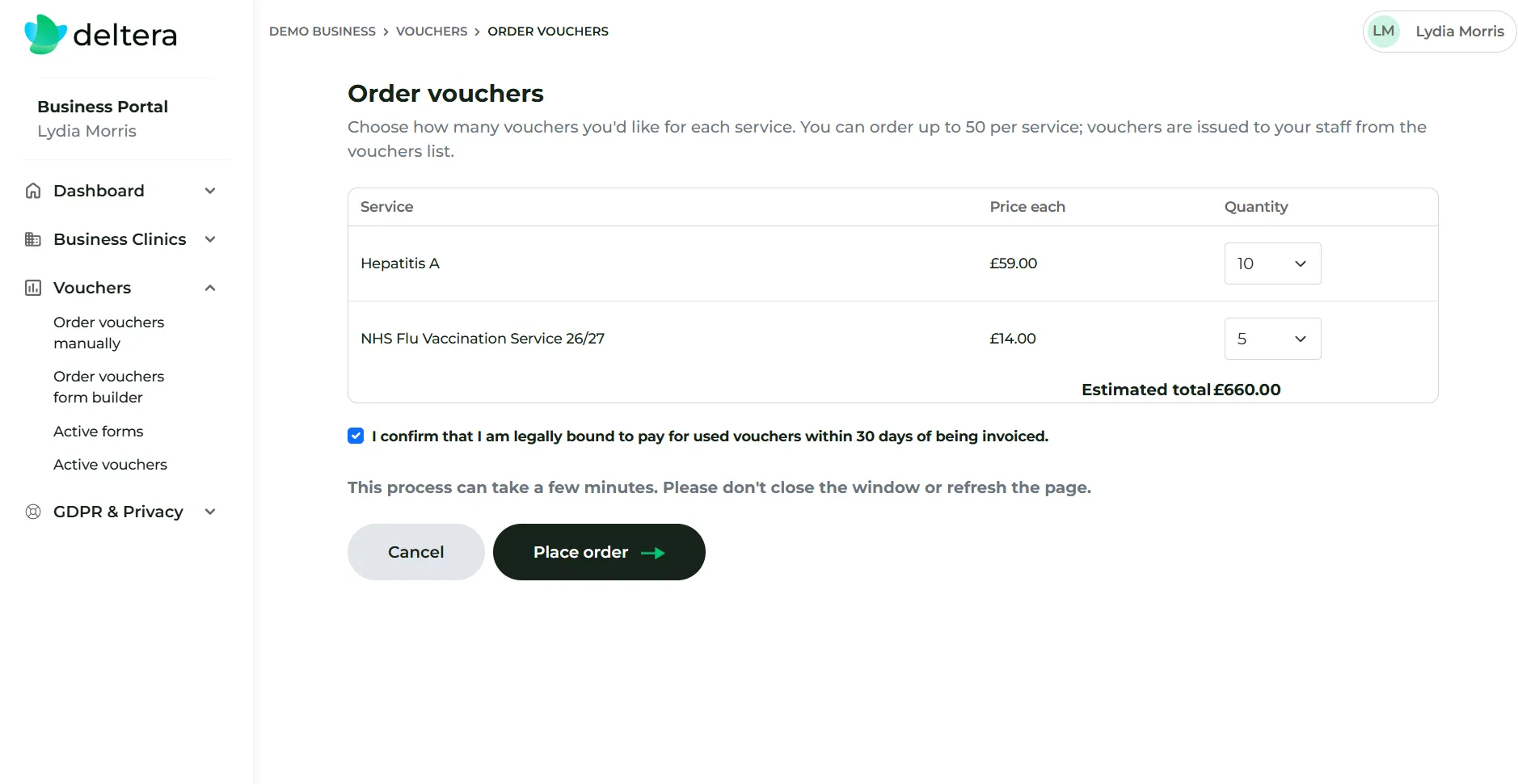
deltera.cloud/business. - Go to Order Vouchers Manually in the portal navigation.
- Select the vaccination service required (e.g. Corporate Flu Vaccination) and enter the number of vouchers you wish to purchase.
- The system will display the per-unit price alongside your total order cost.
- Click Confirm Order to generate your voucher batch.
2. Assigning Vouchers to Employees
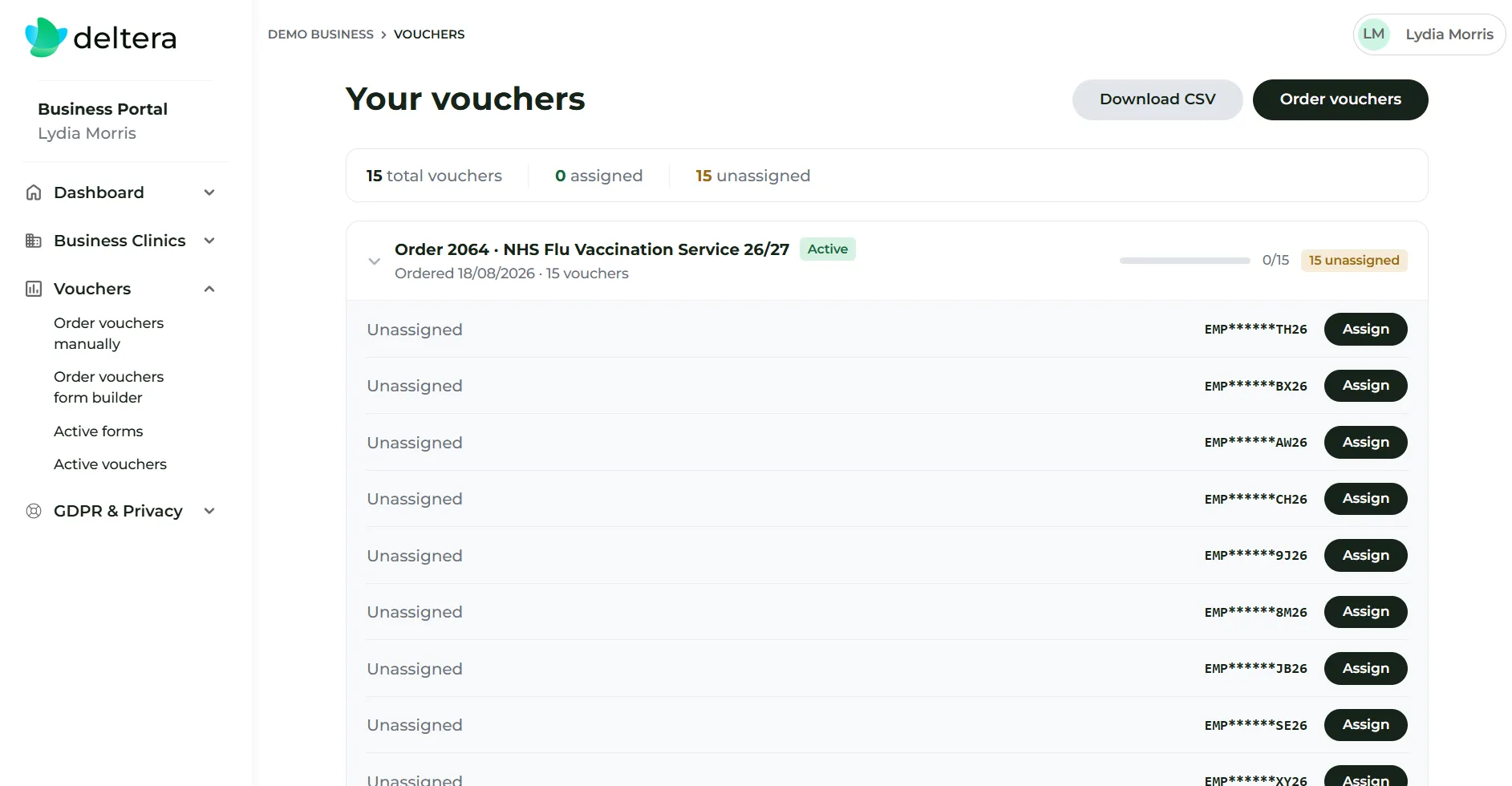
Section titled “2. Assigning Vouchers to Employees”Once your order is confirmed, vouchers must be allocated to individual employees.
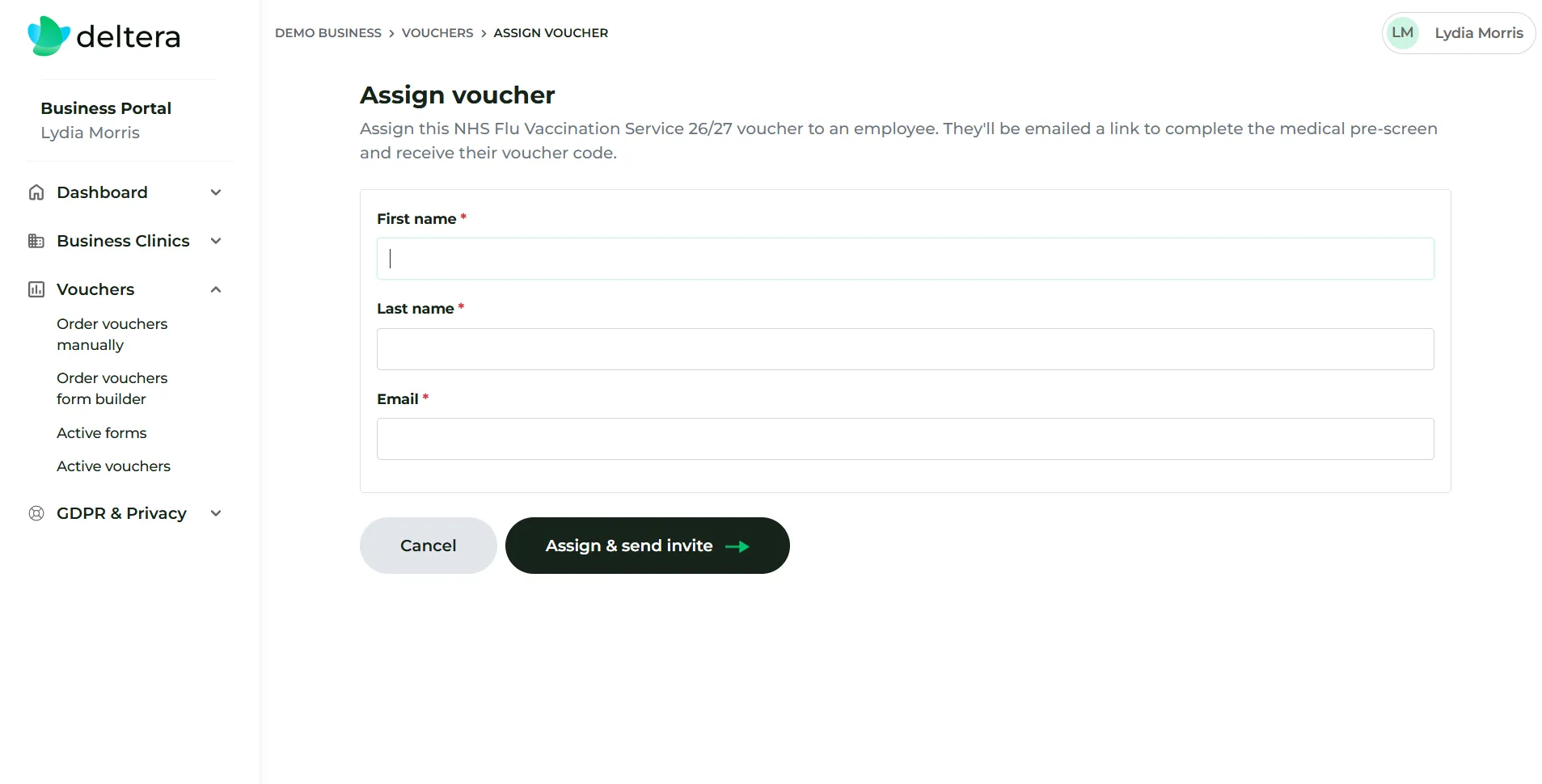
- In the portal voucher overview, click Assign next to an unassigned voucher.
- Enter the employee’s Full Name and Email Address.
- Click Send Voucher.
The Employee Journey
Section titled “The Employee Journey”- Email Notification: The employee receives an email containing a secure pre-screen link.
- Pre-screen Completion: The employee completes their medical questionnaire online.
- Voucher Code Issued: Upon passing the pre-screen, the system generates a unique Voucher Code on-screen and emails it to the employee.
Real-Time Progress Tracking
Section titled “Real-Time Progress Tracking”You can monitor the status of all staff vouchers in real time directly from your dashboard.
The portal records two key timestamps for full visibility:
- Pre-screen Completed Date: Confirms the employee has completed their questionnaire and received their voucher code.
- Consultation Completed Date: Confirms the employee has attended the pharmacy and received their treatment.