Adding calendar events
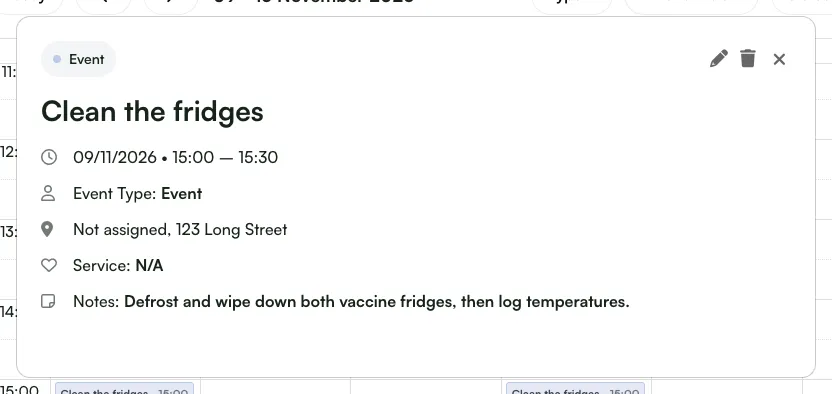
Events are calendar entries that aren't a clinical service, such as "Clean the fridges", "Team meeting", "Business admin" or an informal chat with a patient. Pharmacists and pharmacy/reception staff can add them to the calendar.
What an event is
Section titled “What an event is”An event has no pre-screen, no consultation and no service document. It is there to show what is happening in the pharmacy’s diary.
- Display only: events don’t block patient online booking slots. To stop patients booking a time, use a Break instead.
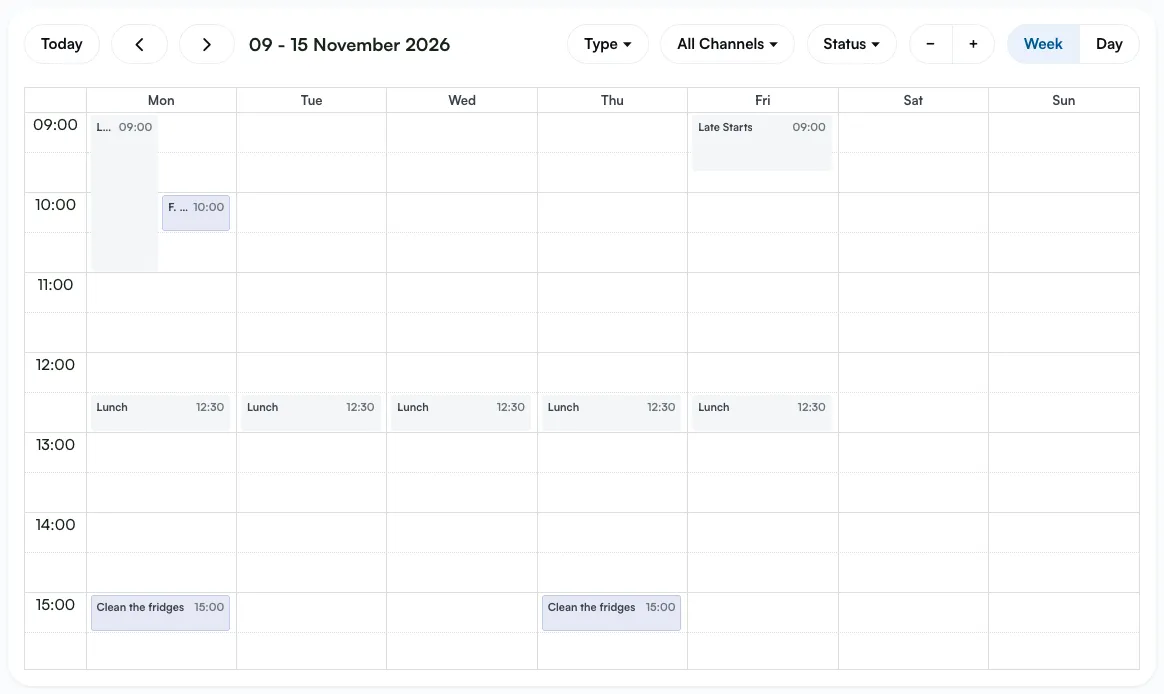
- Colour: events show on the calendar as a pale grey-blue block.
- On the Dashboard: events appear in the Dashboard list with an Event tag. Click Mark done when the event is finished.
- Kept out of other areas: events don’t appear in the Microsoft calendar sync or in appointment reminders. No emails are sent to a patient attached to an event.
Events can be added in both the pharmacist and the pharmacy/reception portals.
Adding an event
Section titled “Adding an event”There are two ways to add an event.
Method 1: From the calendar
Section titled “Method 1: From the calendar”- Click Calendar in the left-hand menu.
- Click the time slot where you want the event.
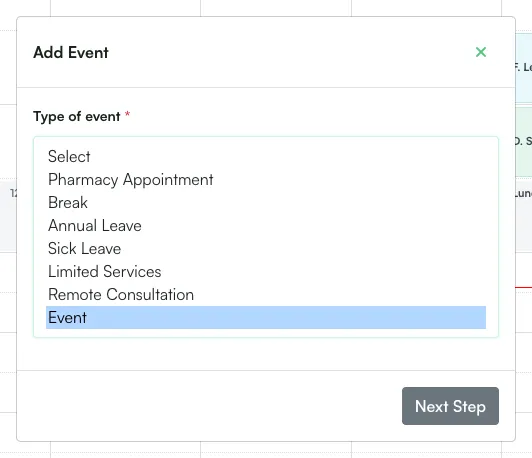
- In the Add Event dialog, choose Event under Type of event, then click Next Step.
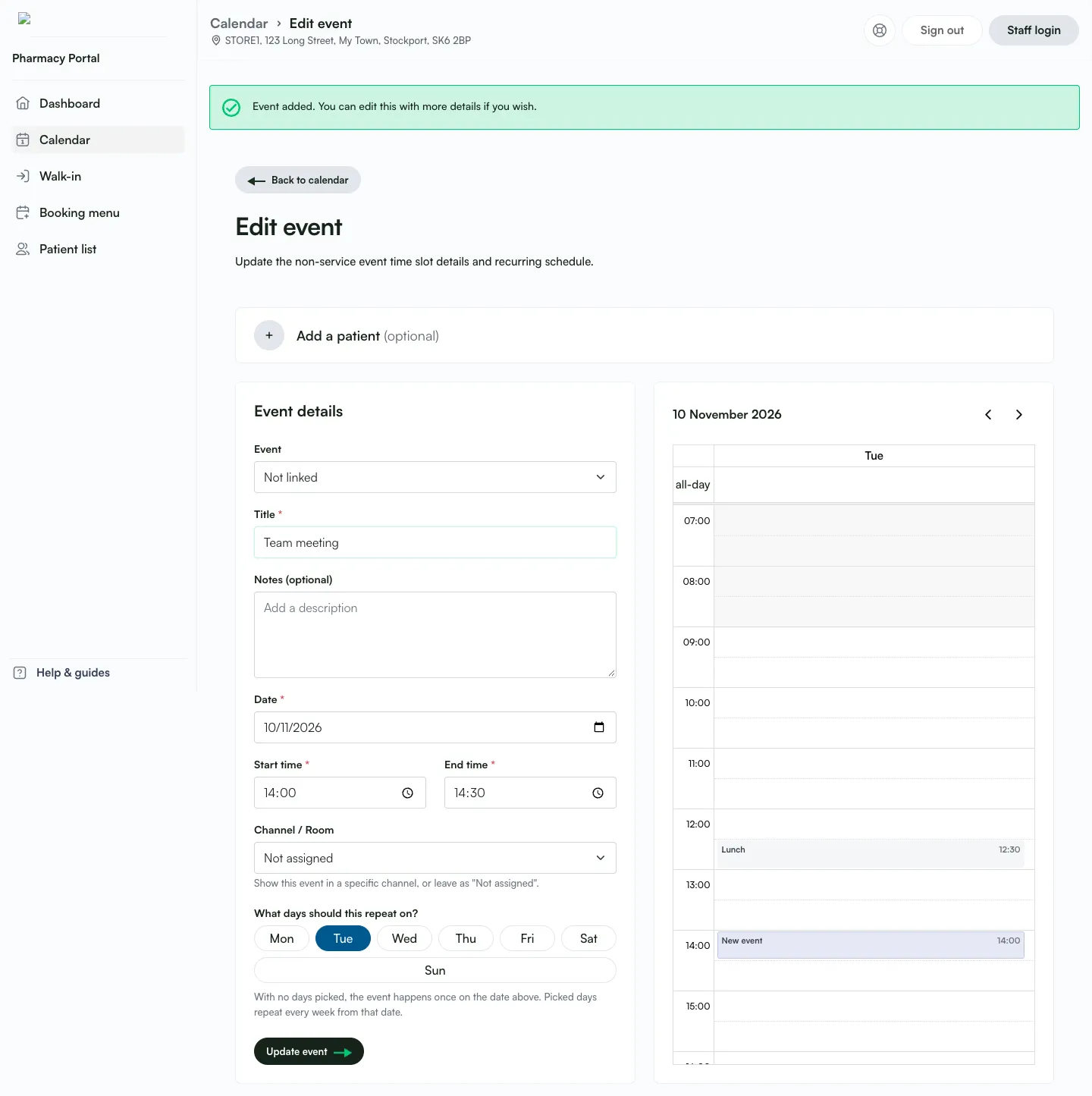
This creates a 30-minute event called “New Event” at the slot you clicked and opens the Edit event page with the message “Event added. You can edit this with more details if you wish.” Fill in the details and click Update event.
Method 2: From the Booking Menu
Section titled “Method 2: From the Booking Menu”- Navigate to In Pharmacy > Booking Menu (Booking menu in the pharmacy portal).
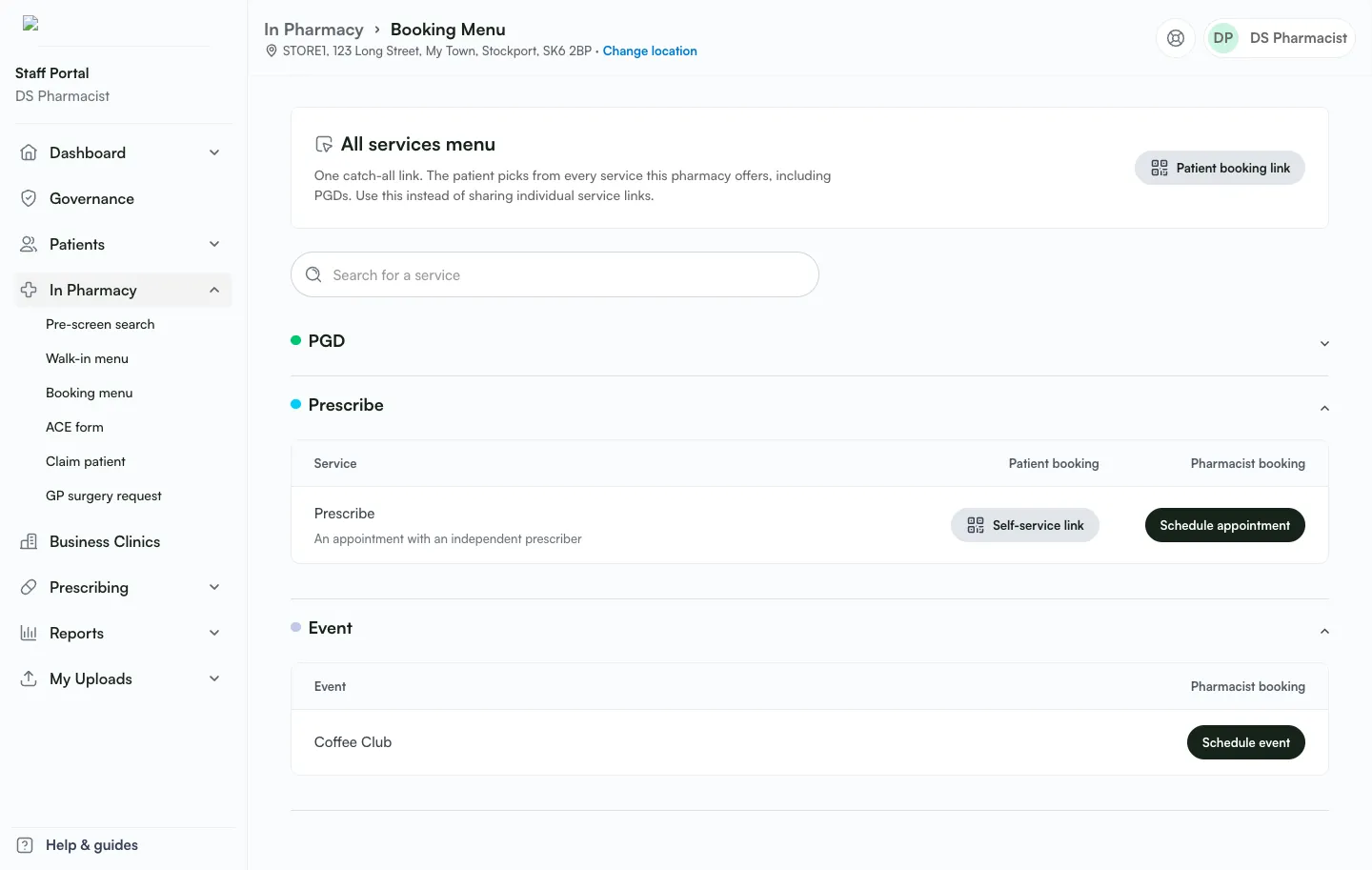
- Open the Event section. It lists your group’s active event types.
- Click Schedule event next to the event you need.
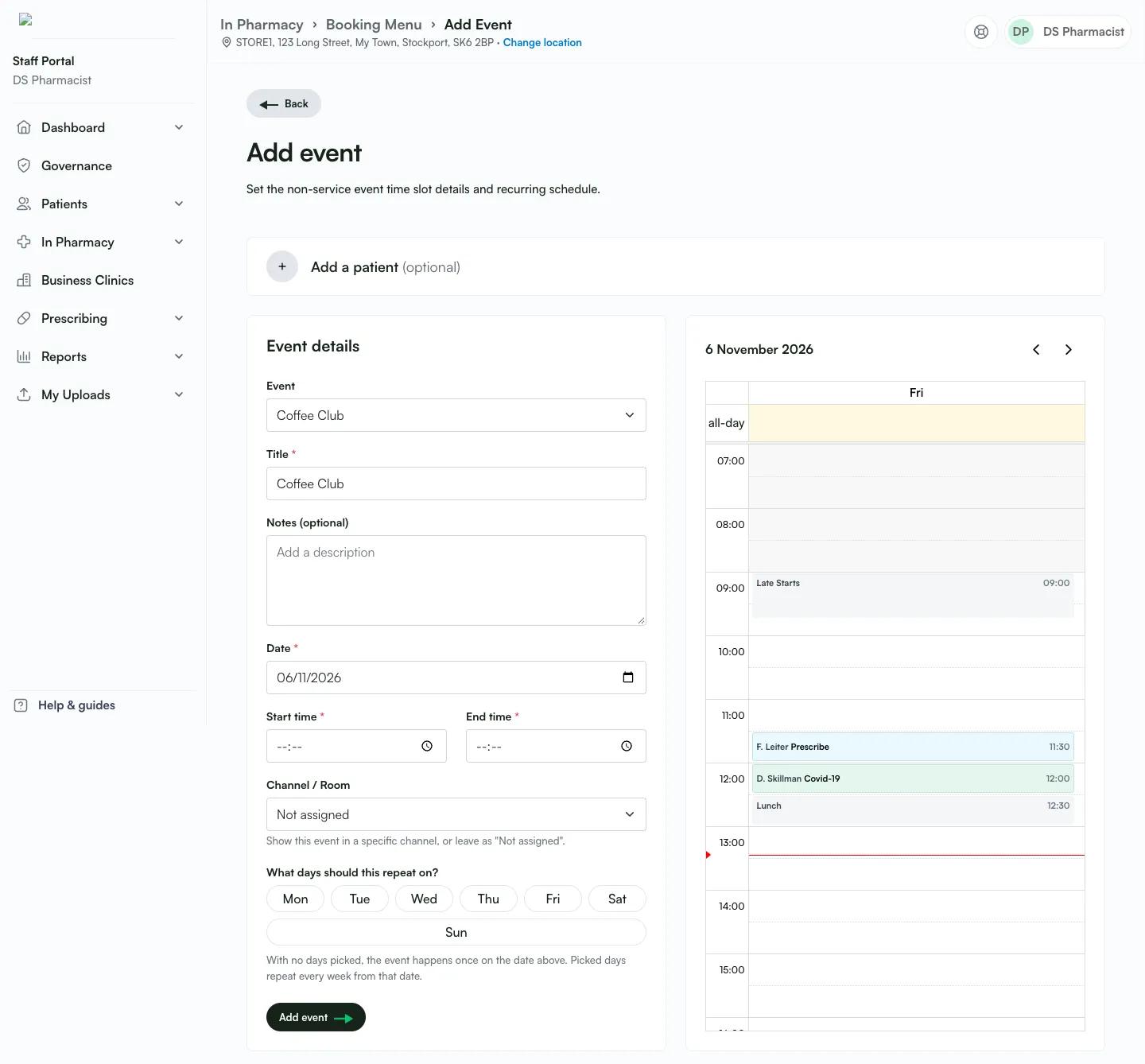
This opens the Add event page with that event type and its name already filled in. Complete the date and time and click Add event.
If Head Office hasn’t added any event types, the section shows “No events added yet”. Head Office can add them via Service Builder > Add New Service > Event (see Editing and building services). You can still add an event from the calendar without one.
Filling in the event details
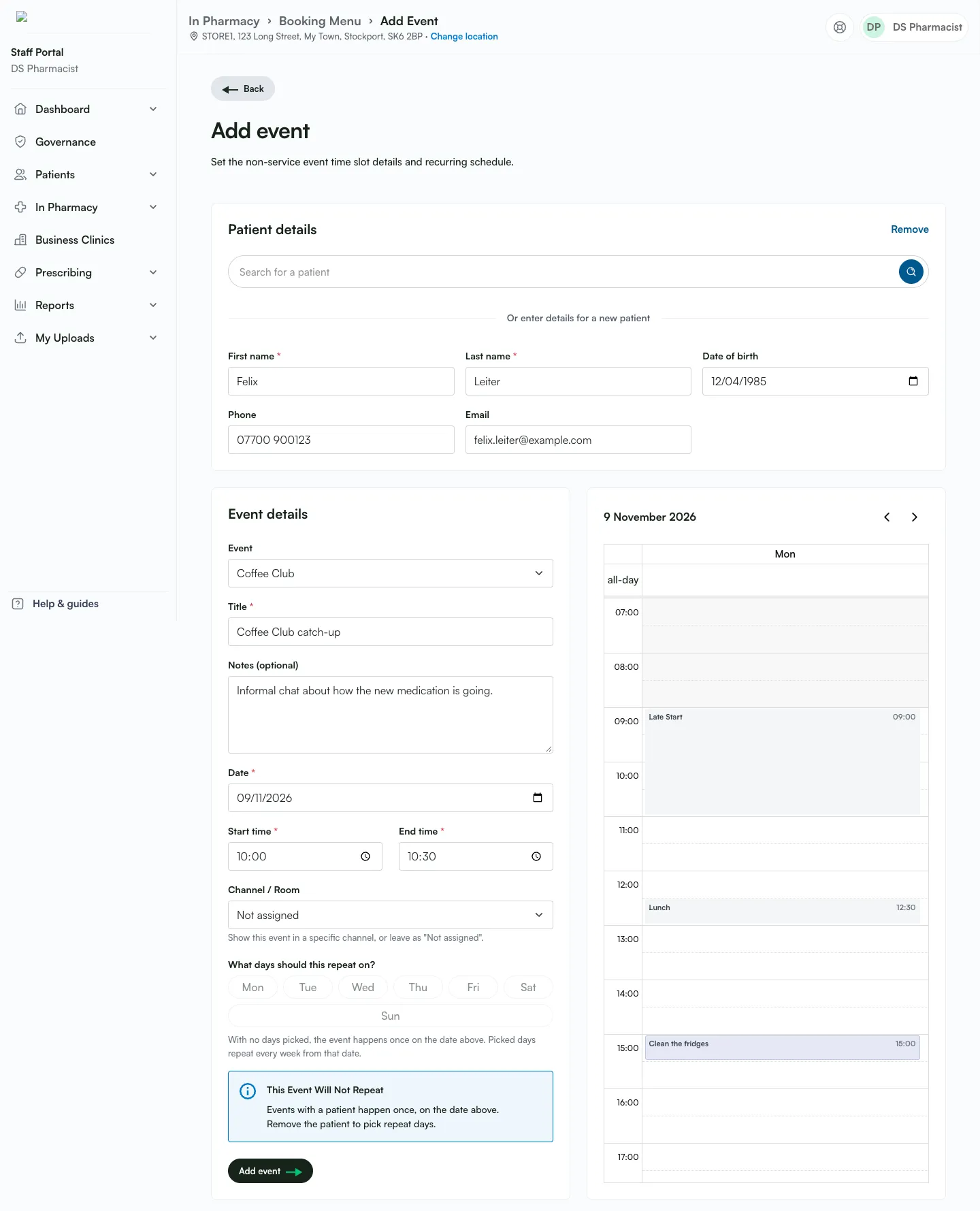
Section titled “Filling in the event details”The Event details form has these fields:
| Field | Notes |
|---|---|
| Event | Optional. Links the event to one of Head Office’s event types, or Not linked. Picking one fills the Title with its name, unless you’ve already typed your own. |
| Title | Required. |
| Notes (optional) | |
| Date, Start time, End time | The end time must be after the start time. Clicking or dragging on the day calendar beside the form fills these in. |
| Channel / Room | Show the event in a specific channel, or leave it as “Not assigned”. |
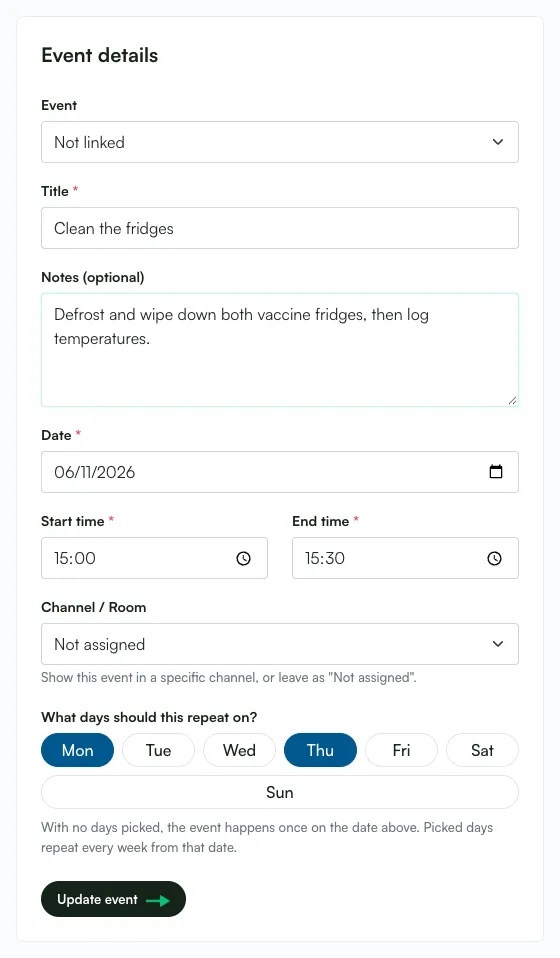
| What days should this repeat on? | Day buttons (Mon–Sun). Pick one or more to make the event recur. |
| Add a patient (optional) | A collapsed card above the form. Search for an existing patient or enter details for a new one. |
Recurring events
Section titled “Recurring events”- With no days picked, the event happens once, on the date you entered.
- Picked days repeat every week from that date.
- Fortnightly and monthly repeats aren’t available for events.
- There is no end date. A recurring event repeats until it is edited or deleted.
Adding a patient to an event
Section titled “Adding a patient to an event”Click Add a patient (optional) to attach a patient, for example for an informal chat. The card becomes Patient details.
- Fields: First name and Last name (required), Date of birth, Phone and Email. Use Search for a patient to fill these in from an existing patient, or enter them under Or enter details for a new patient.
- Removing the patient: click Remove on the card.
- Saved on the event only: adding a patient to an event does not create or change a patient record.
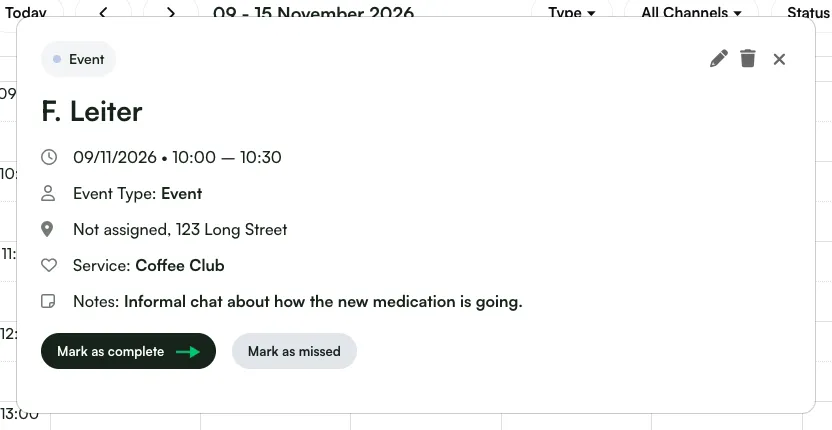
- On the calendar: the block is titled with the patient’s name (for example “F. Leiter”), followed by the event type’s name if one is linked.
Marking an outcome
Section titled “Marking an outcome”For a one-off event with a patient that is still pending, clicking it on the calendar shows Mark as complete and Mark as missed.
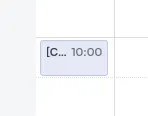
- The block then gets a [Complete] or [Missed] prefix and stays grey-blue. Its edit and delete icons go away.
- Recurring events and events without a patient don’t have these buttons.
- Marking an event as missed does not send the patient a “please rebook” email.
Finding, editing and removing events
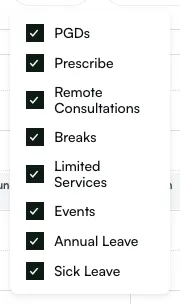
Section titled “Finding, editing and removing events”- Filtering: use the calendar’s Type filter. Untick Events to hide them, or leave only Events ticked to show just your events.
- Editing and deleting: click the event on the calendar and use the edit (pencil) or delete (bin) icon in the popup, as you would for other calendar blocks.