Starting a Walk-In Service
A walk-in service is used when a patient arrives at the pharmacy counter requesting a service immediately on the spot, rather than booking a slot in advance (assuming the pharmacy has the clinical capacity to see them).
Sign in to your Pharmacy Account at:
Section titled “Sign in to your Pharmacy Account at:”https://deltera.cloud/pharmacy/v2/login/
(Copy and paste in your browser)
1. Initiating the Walk-In
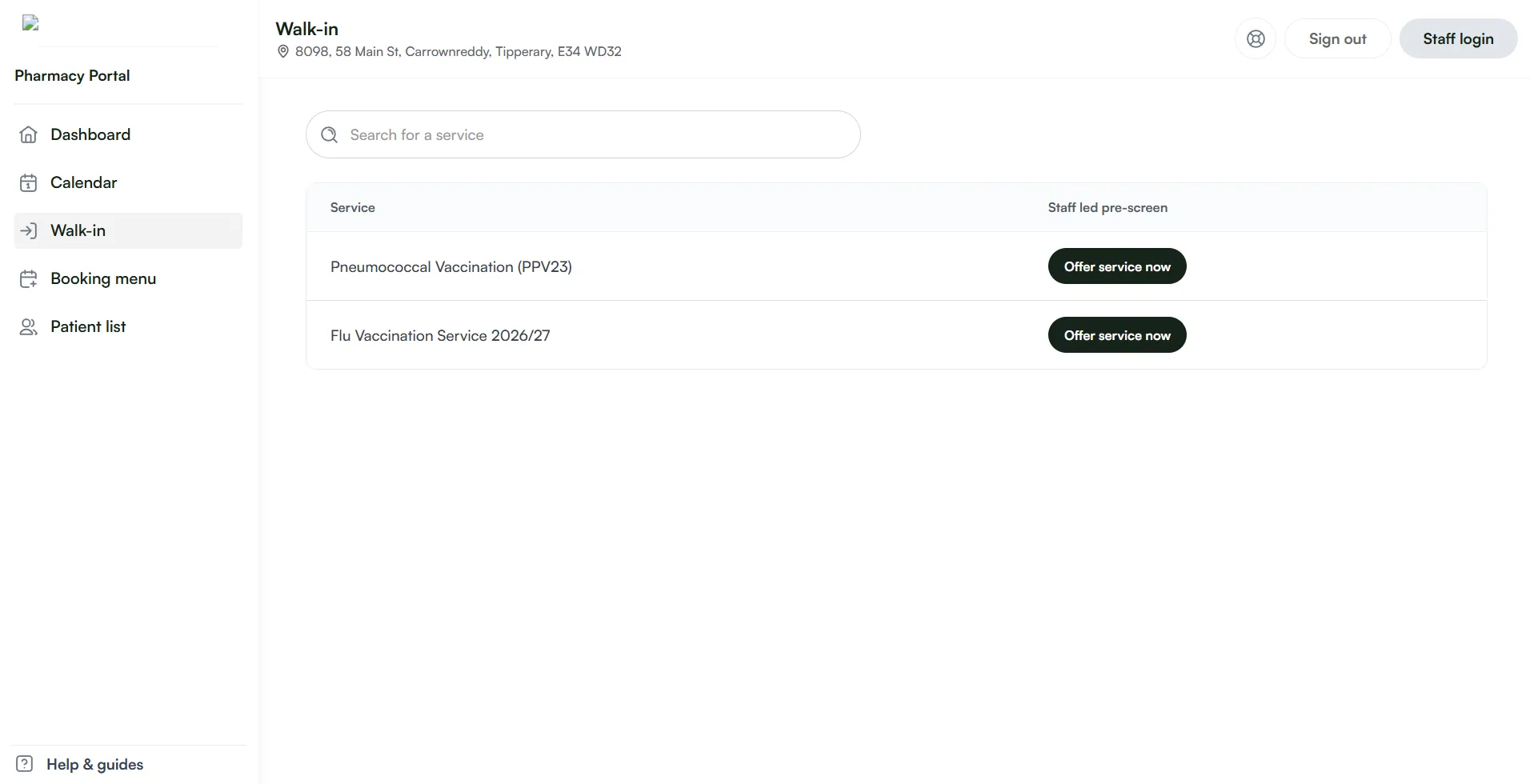
Section titled “1. Initiating the Walk-In”- Go to the Walk-in menu located in the left-hand navigation bar.
- Scroll through your branch’s available service list, or use the search bar to locate the requested service.
- Click Offer service now next to the service.
2. Patient Details & Consent
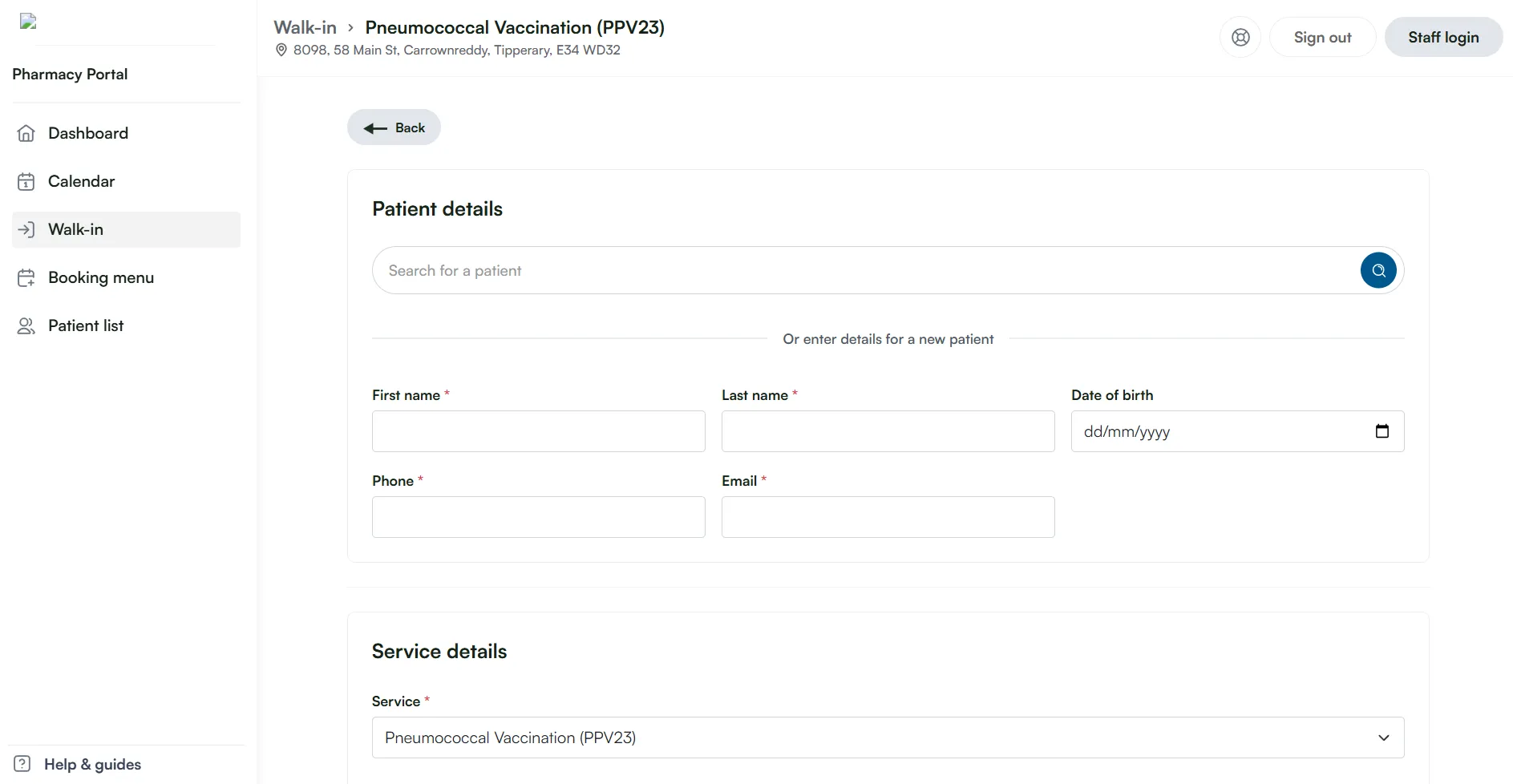
Section titled “2. Patient Details & Consent”Before starting the service, enter the patient’s basic demographic information:
- Full Name
- Date of Birth
- Phone Number
- Email Address
Tick the consent checkbox on screen to confirm you have obtained the patient’s permission to process their details for this service.
3. Choosing a Pre-Screen Workflow
Section titled “3. Choosing a Pre-Screen Workflow”At this stage, store colleagues have two equally valid options depending on your branch’s preference and counter busyness:
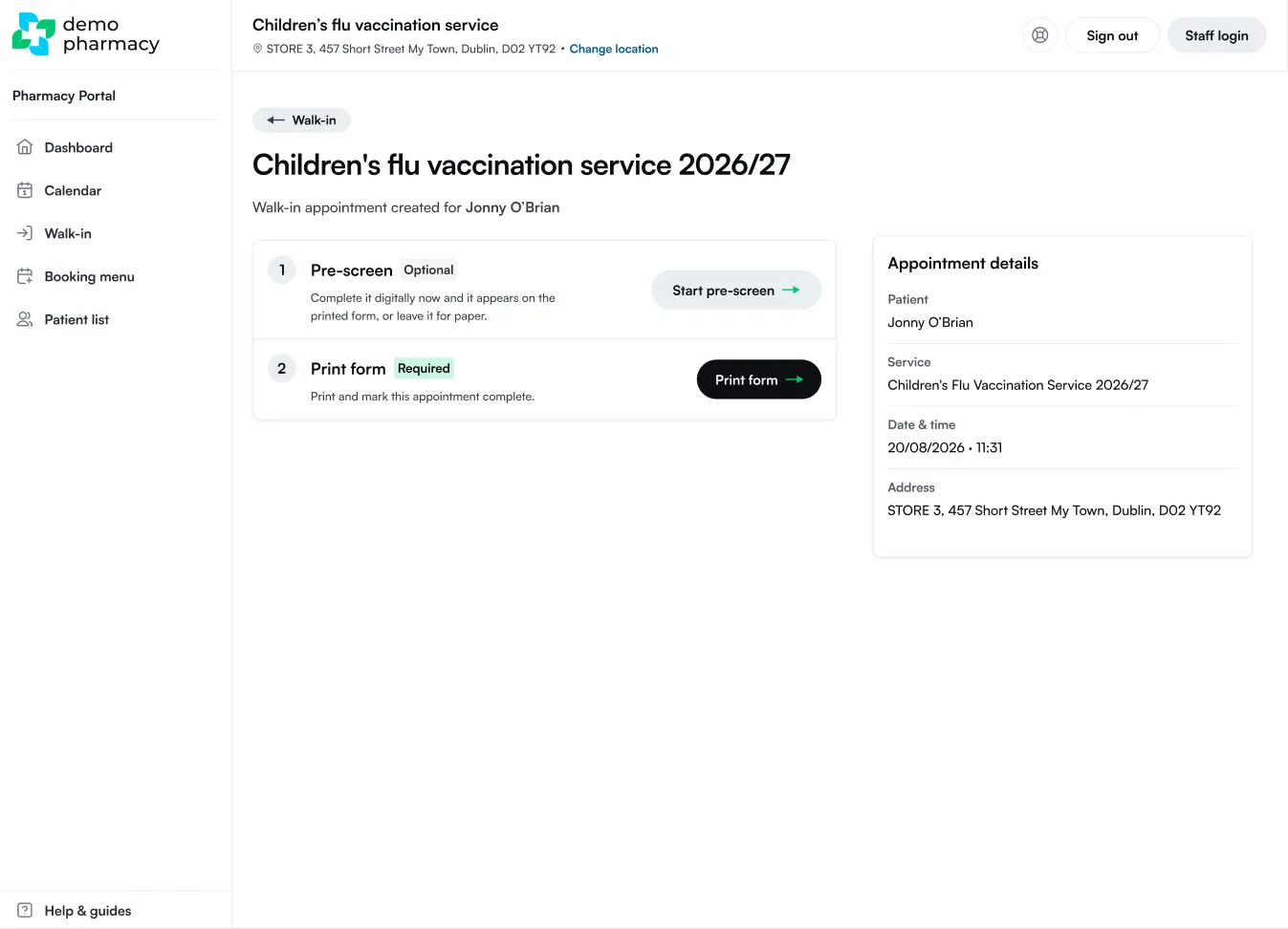
Option 1: Complete the Pre-screen Digitally at the Counter
Section titled “Option 1: Complete the Pre-screen Digitally at the Counter”- How it works: Store colleagues run through the medical pre-screen questions on screen with the patient at the counter before printing the form.
- The Result: The system captures all clinical eligibility answers digitally first. When you proceed to print, the physical consultation form will print out with all pre-screen answers already pre-filled for the pharmacist.
Option 2: Print the Form Immediately
Section titled “Option 2: Print the Form Immediately”- How it works: Skip the digital questionnaire at the counter and proceed straight to printing the physical consultation form.
- The Result: The form prints with the patient’s basic details, leaving the medical pre-screen sections blank for the pharmacist to run through and complete on paper during the consultation.