

Cancelling a day's appointments
If your branch can't run appointments on a particular day, for example because the pharmacist is off sick or a vaccine is out of stock, you can cancel every upcoming appointment on that day at once from the Dashboard.
Sign in to your Pharmacy Account at:
Section titled “Sign in to your Pharmacy Account at:”https://deltera.cloud/pharmacy/v2/login/
(Copy and paste in your browser)
What gets cancelled
Section titled “What gets cancelled”- You can only cancel today or a future day.
- Only pending appointments that haven’t started yet are cancelled. Appointments that have already started, finished or been cancelled are left alone.
- Events such as “Check all the fridges” are not cancelled.
- If you’ve applied any filters (for example a service or a room), only the appointments that match them are cancelled. Clear the filters first if you want to cancel the whole day.
Before you cancel
Section titled “Before you cancel”Check each of these first:
- Is it the right day? Check the date shown on the confirmation before you click the final button.
- Does the whole day need cancelling? If only some appointments are affected, for example one service is out of stock, cancel or move those appointments individually instead (… > Cancel or … > Edit on the Dashboard).
- Has anyone paid online? Cancelling a day doesn’t refund anything. Cancel any paid appointment on its own first with … > Cancel, and leave Issue full refund ticked. Then cancel the rest of the day.
- Can anyone cover? See whether another pharmacist or a nearby branch can see the patients.
- Have you agreed it with your manager? Follow your branch’s usual process before cancelling patients’ appointments.
How to cancel all appointments on a day
Section titled “How to cancel all appointments on a day”- On the Dashboard, make sure Upcoming is selected and find the day.
- Click the arrow next to the number of appointments (for example 3 appointments) to open the menu. If the arrow is greyed out, there’s nothing left to cancel on that day.
- Select Cancel all appointments.
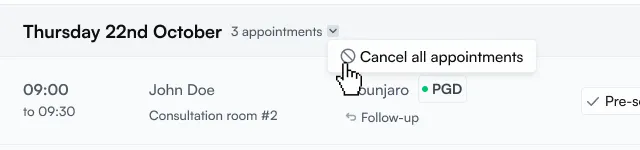
- Under Message to patients, choose a cancellation reason from the list, or type your own message. If no cancellation reasons have been set up, there’s just the message box. You need one or the other.
- Tick I understand these appointments will be cancelled and the patients notified.
- Click Cancel appointments.
If you’ve changed your mind, click Go back or close the window. Nothing is cancelled.
Writing the message to patients
Section titled “Writing the message to patients”Every patient whose appointment is cancelled receives this message, so keep it clear and polite:
- Say sorry and give a short reason.
- Tell patients how to rebook, online or by phone.
What happens next
Section titled “What happens next”- You’ll see a confirmation saying how many appointments were cancelled and how many patients were emailed. If any email couldn’t be sent, it tells you, so you can contact those patients yourself.
- Patients are emailed: each patient gets an email with the appointment’s date, time and pharmacy address, your reason or message, and a link to book again. Patients are contacted by email only, not by SMS. Patients with no email address on their booking aren’t contacted, so phone them yourself.
- Payments aren’t refunded: see Has anyone paid online? above.
- Events stay on the calendar: only patient appointments are cancelled.