

Running a consultation using the Paper-Based Delivery model
Under the Paper-Based Delivery model, clinical consultations are conducted entirely on physical paper forms. This ensures patient data privacy while providing pharmacists with a comprehensive document to guide the appointment, record treatment details, and log governance sign-offs.
Sign in to your Pharmacy Account at:
Section titled “Sign in to your Pharmacy Account at:”https://deltera.cloud/pharmacy/v2/login/
(Copy and paste in your browser)
1. Printing the Consultation Form
Section titled “1. Printing the Consultation Form”Because consultation forms contain sensitive patient medical information, they are not surfaced directly within the Pharmacy Portal interface. Instead, forms should be routed directly to your designated consultation room printer.
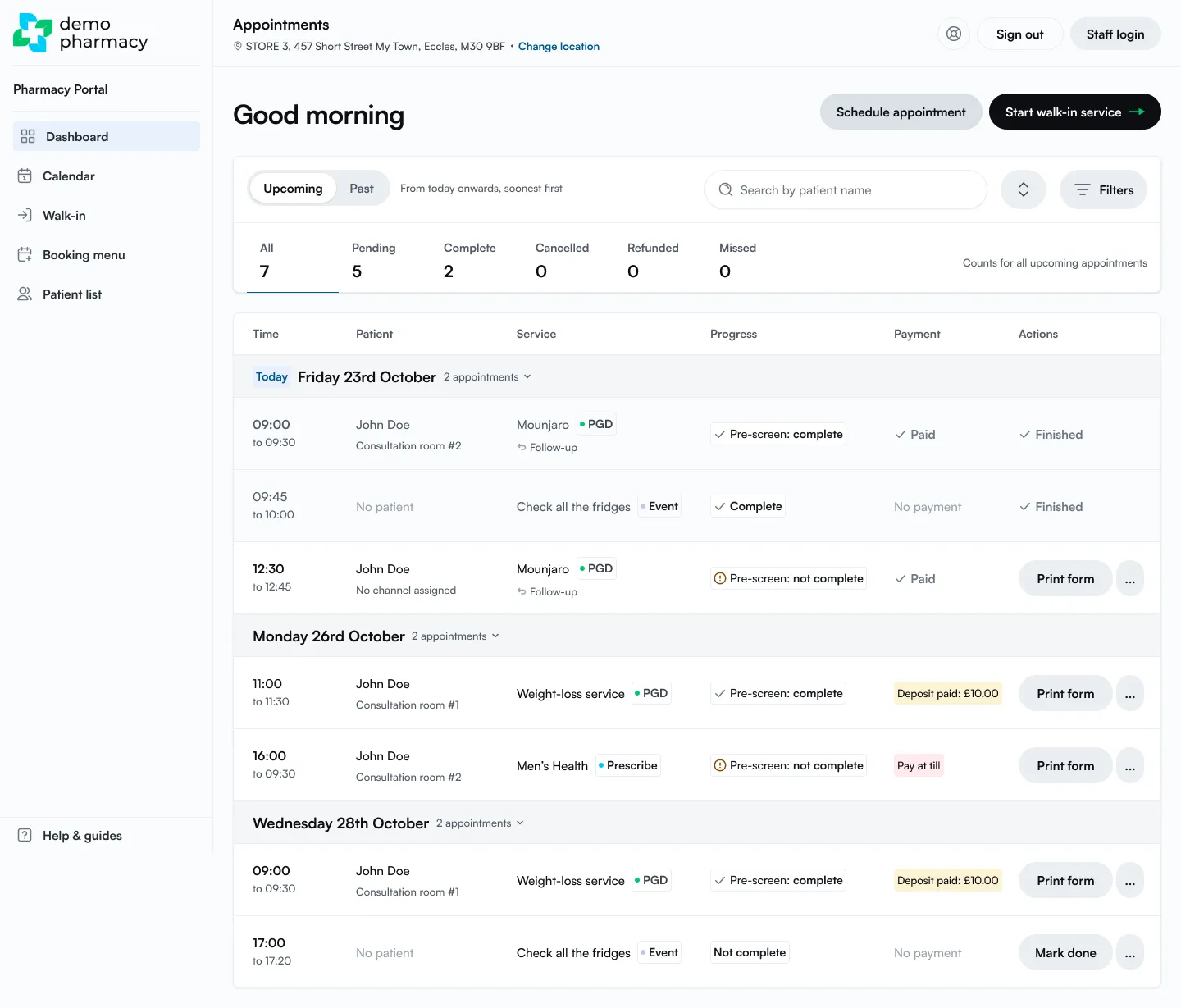
- Locate the appointment on the Dashboard.
- Click Print form next to the patient’s appointment.
The form is sent to the printer and the Consultation form page shows Sent to printer. Click Print again if you need another copy.
2. Anatomy of the Consultation Form
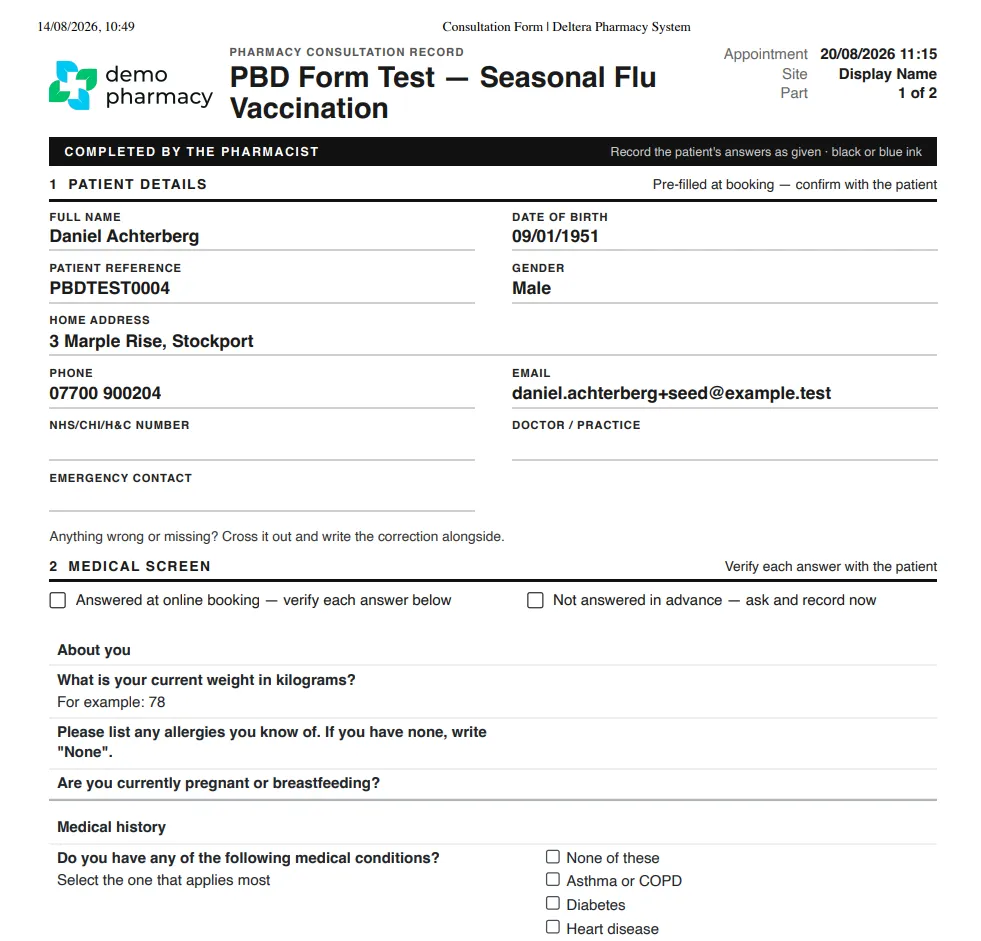
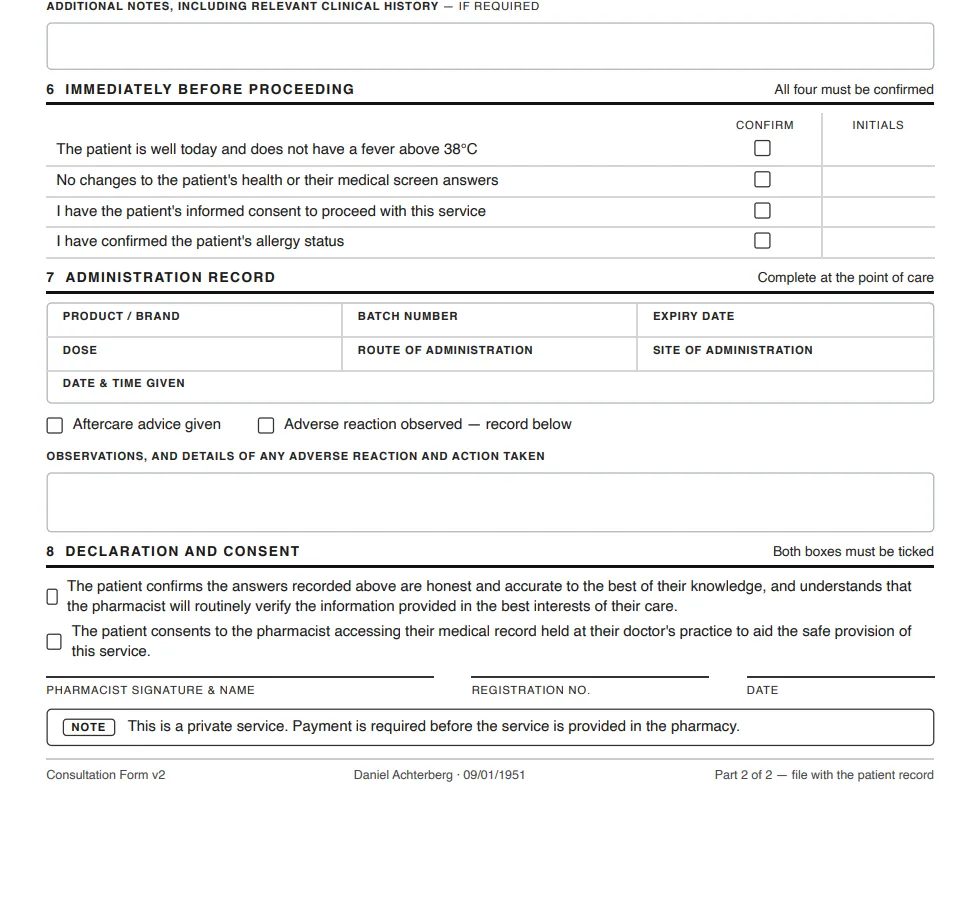
Section titled “2. Anatomy of the Consultation Form”The printed form serves as the complete clinical and legal record for the consultation. Depending on how the patient booked, certain sections may already be pre-filled:
- Patient Details: Name, Date of Birth, contact information, and GP details.
- Medical Screen: Service-specific screening questions (pre-populated if the patient booked online or completed their questionnaire at the OTC counter).
- Consultation Questions: Clinical checks tailored specifically to the selected service.
- Patient Advice: Details of advice, advice leaflets, or guidance provided to the patient.
- Eligibility & Declarations: Checklist confirming the patient meets SOP requirements.
- Administration Record: Fields to record treatment details manually, including product brand, batch number, expiry date, dose, and route of administration.
- Pharmacist Consent & Signature: Final clinical declaration and signature block for the treating pharmacist.
3. Conducting the Session
Section titled “3. Conducting the Session”- The pharmacist takes the printed form into the consultation room.
- The pharmacist reviews any pre-filled answers, completes the remaining clinical questions with the patient, and verifies eligibility.
- The vaccine or treatment is administered (or recorded as declined/not administered based on clinical judgment and criteria).
- The pharmacist fills out the administration details, signs the physical form, and files it securely in-branch according to your standard operating procedures.
4. Marking the Consultation as Complete
Section titled “4. Marking the Consultation as Complete”Once the physical paperwork is finished and the patient has left, store colleagues or clinical staff must update the appointment status in the system to close out the booking.
- Go to the Dashboard.
- Click Print form next to the completed appointment to open its Consultation form page.
- Click Mark as complete.
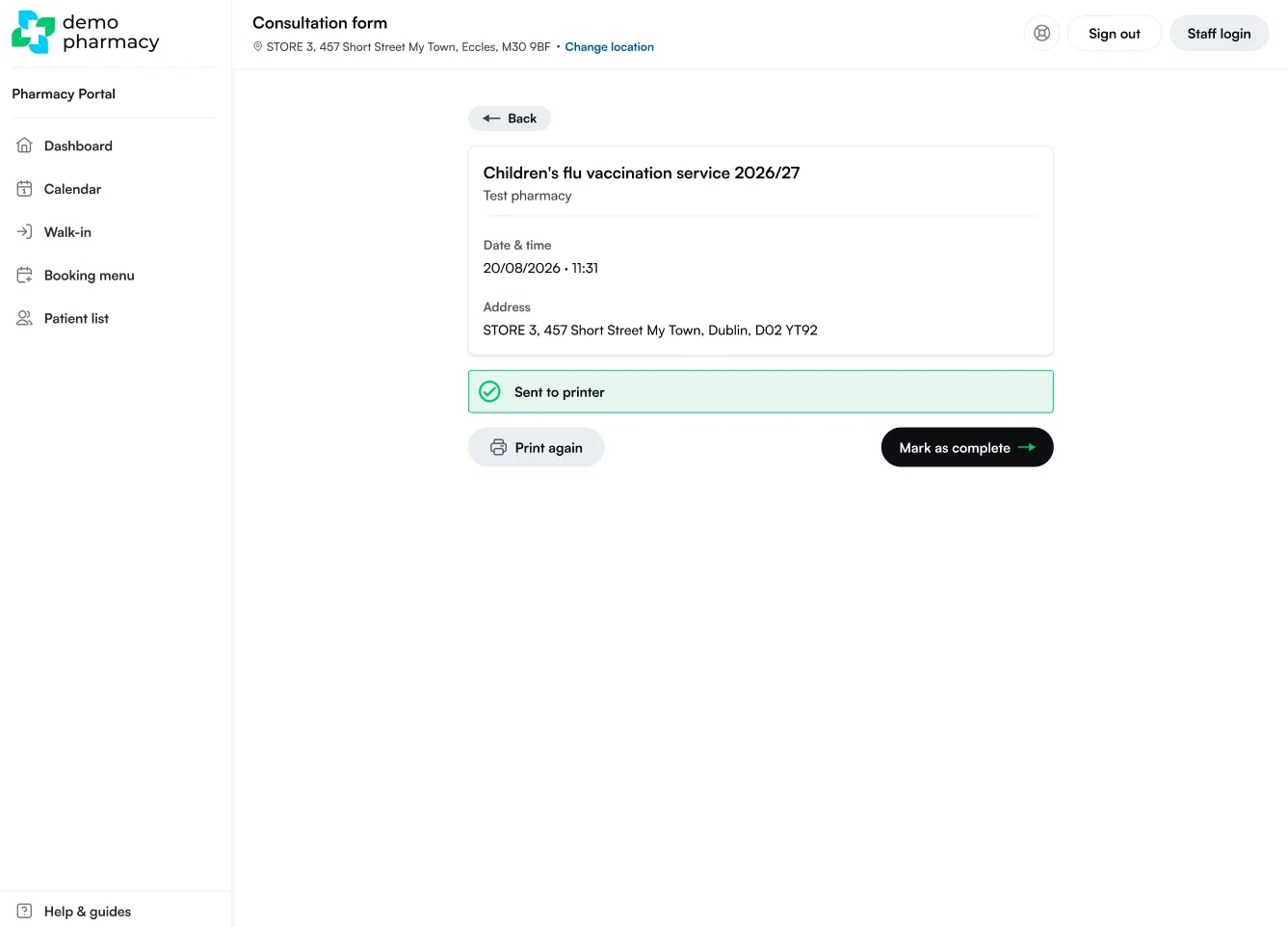
The appointment status will update to Completed, finalising the daily diary and maintaining accurate branch reporting.