

First Time Sign-In for Pharmacists
Before you can begin offering clinical services within the pharmacy, you must complete your initial account setup and sign your mandatory governance documents. Pharmacist accounts are used specifically for clinical compliance, training, and SOP declarations.
Sign in to your Pharmacist Account at:
Section titled “Sign in to your Pharmacist Account at:”https://deltera.cloud/pharmacist/v2/login/
(Copy and paste in your browser)
1. Account Creation & Username Conventions
Section titled “1. Account Creation & Username Conventions”Pharmacist accounts are generated centrally via Head Office in one of two ways:
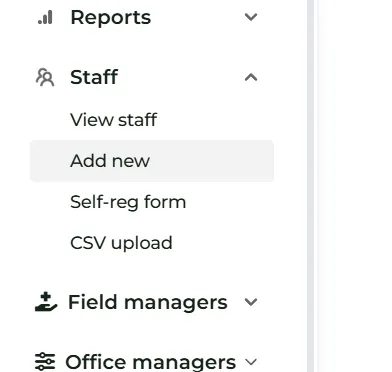
- Direct Addition: Head Office navigates to Pharmacists > Add New and inputs your details directly.
- Self-Registration Link: Head Office navigates to Pharmacists > Self Reg and sends you a self-registration link to complete your profile setup.
Your Username
Section titled “Your Username”Your username depends on whether an email address was provided during setup:
- With Email: Your username is your full email address (e.g.
john.doe@pharmacy.co.uk). - Without Email: Your username is your Initials + PSI Number (e.g. John Doe with PSI number 123456 will have the username
JD123456).
2. Initial Login & Password Reset
Section titled “2. Initial Login & Password Reset”- Go to the login page and enter your assigned username.
- Enter the default initial password provided to you by your pharmacy manager.
⚠️ Password Requirements Your new password must be secure and contain a combination of:
- An uppercase letter
- A lowercase letter
- A number
- A special character (e.g.
!,@,#,$)
3. Setting Up Multi-Factor Authentication (MFA)
Section titled “3. Setting Up Multi-Factor Authentication (MFA)”To ensure strict clinical data security, every pharmacist account must be paired with an authenticator application on a personal mobile device.
- Download an authenticator app on your smartphone if you do not already have one (such as Google Authenticator, Microsoft Authenticator, or Twilio Authy).
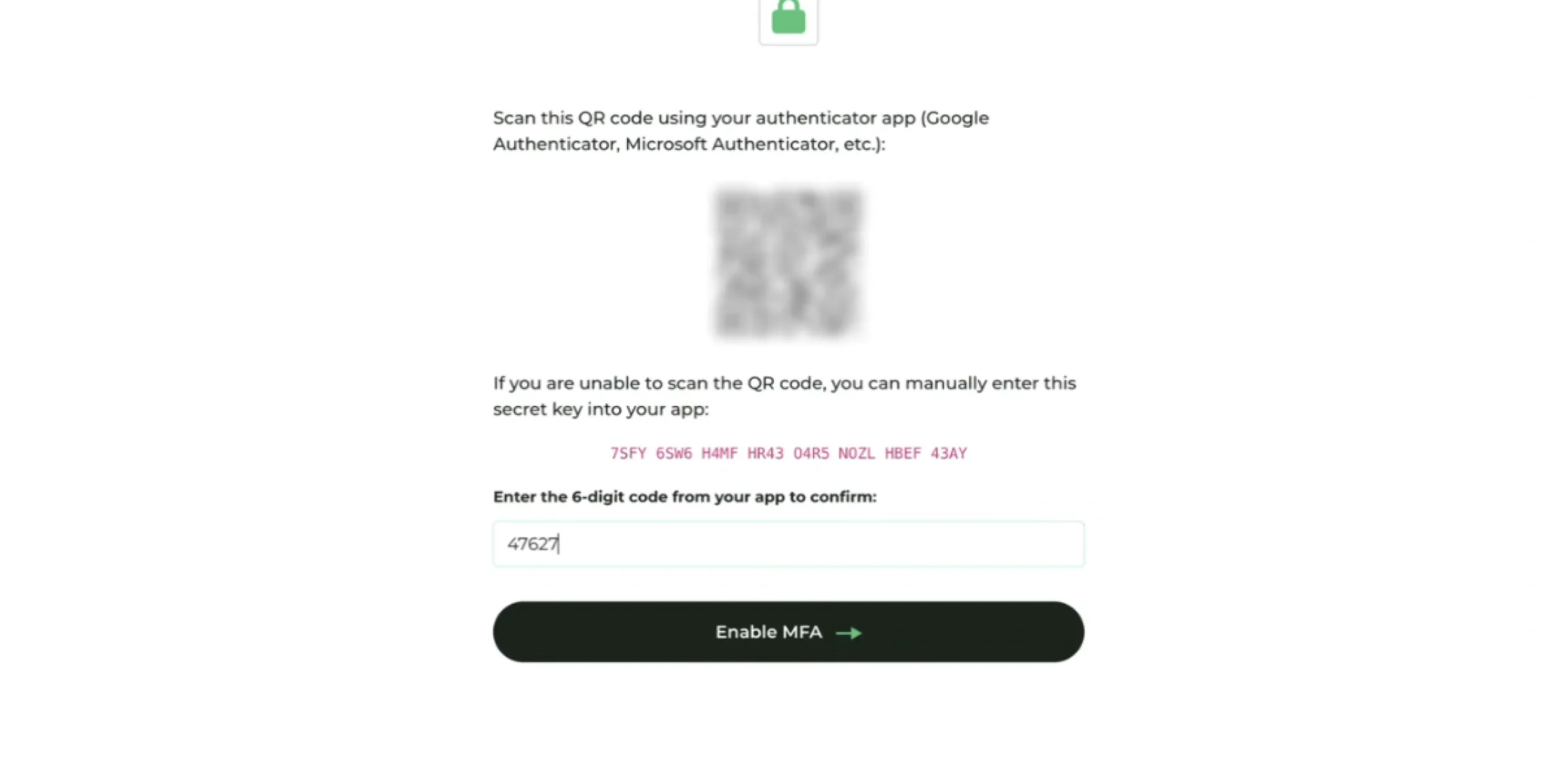
- On your computer screen, an MFA configuration page will appear displaying a unique QR Code.
- Open your smartphone’s authenticator app, choose Add Account / Scan QR Code, and scan the code shown on your computer screen.
- Enter the generated 6-digit security code into the portal prompt to finalize linking your device.
4. Completing Governance & Signing Declarations
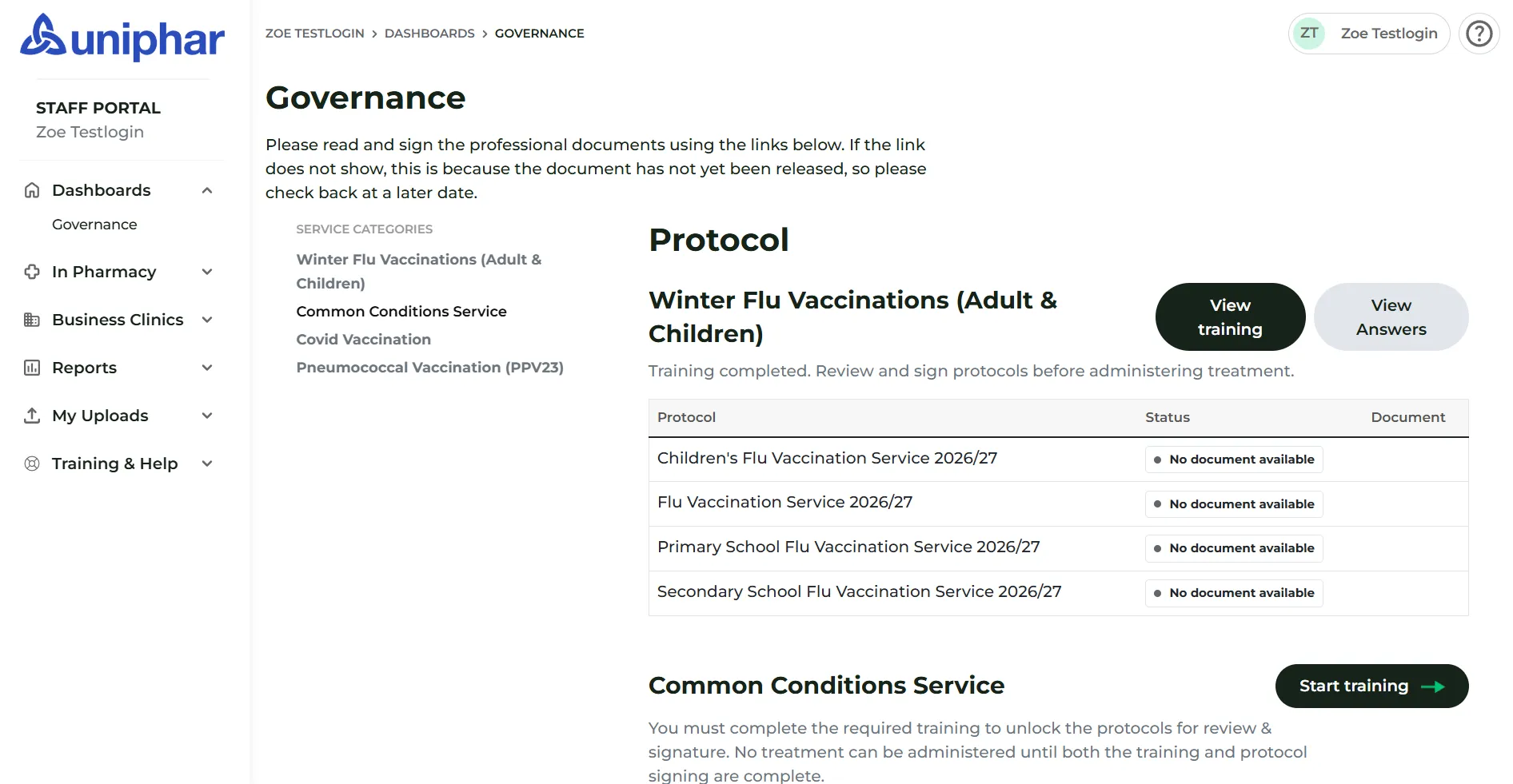
Section titled “4. Completing Governance & Signing Declarations”Once MFA is configured, you will land directly on your Governance Dashboard. You cannot offer clinical services until these steps are completed.
- Click Start Training next to your assigned clinical modules.
- Read through the training materials and Standard Operating Procedures (SOPs) carefully.
- Once reviewed, complete the digital signature prompt to sign your clinical declaration.
5. Moving to Daily Operations
Section titled “5. Moving to Daily Operations”Your individual pharmacist login is used strictly for reviewing documents and maintaining your clinical compliance.
When you are ready to begin receiving patients, printing consultation forms, and managing daily clinic queues, you must log in to the main Pharmacy Portal on the OTC counter computer.