

First Time Sign-In for the Pharmacy Portal
The Pharmacy Portal account is the primary hub used at the OTC counter to manage daily clinic schedules, check in walk-in patients, and print paper consultation forms. Unlike individual pharmacist accounts, this account is created centrally by Head Office and shared across the branch team.
Sign in to your Pharmacy Account at:
Section titled “Sign in to your Pharmacy Account at:”https://deltera.cloud/pharmacy/v2/login/
(Copy and paste in your browser)
1. Creating & Managing Logins (Head Office / Managers)
Section titled “1. Creating & Managing Logins (Head Office / Managers)”Pharmacy Portal credentials are not self-registered by branch staff and do not require a password reset on first sign-in. Instead, Head Office or Manager accounts create and maintain these credentials directly within the platform.
To set up or update branch credentials:
Section titled “To set up or update branch credentials:”- Log in to your Head Office account.
- Navigate to Pharmacies.
- Locate the branch you want to create a portal account for, click Manage, and select Edit.
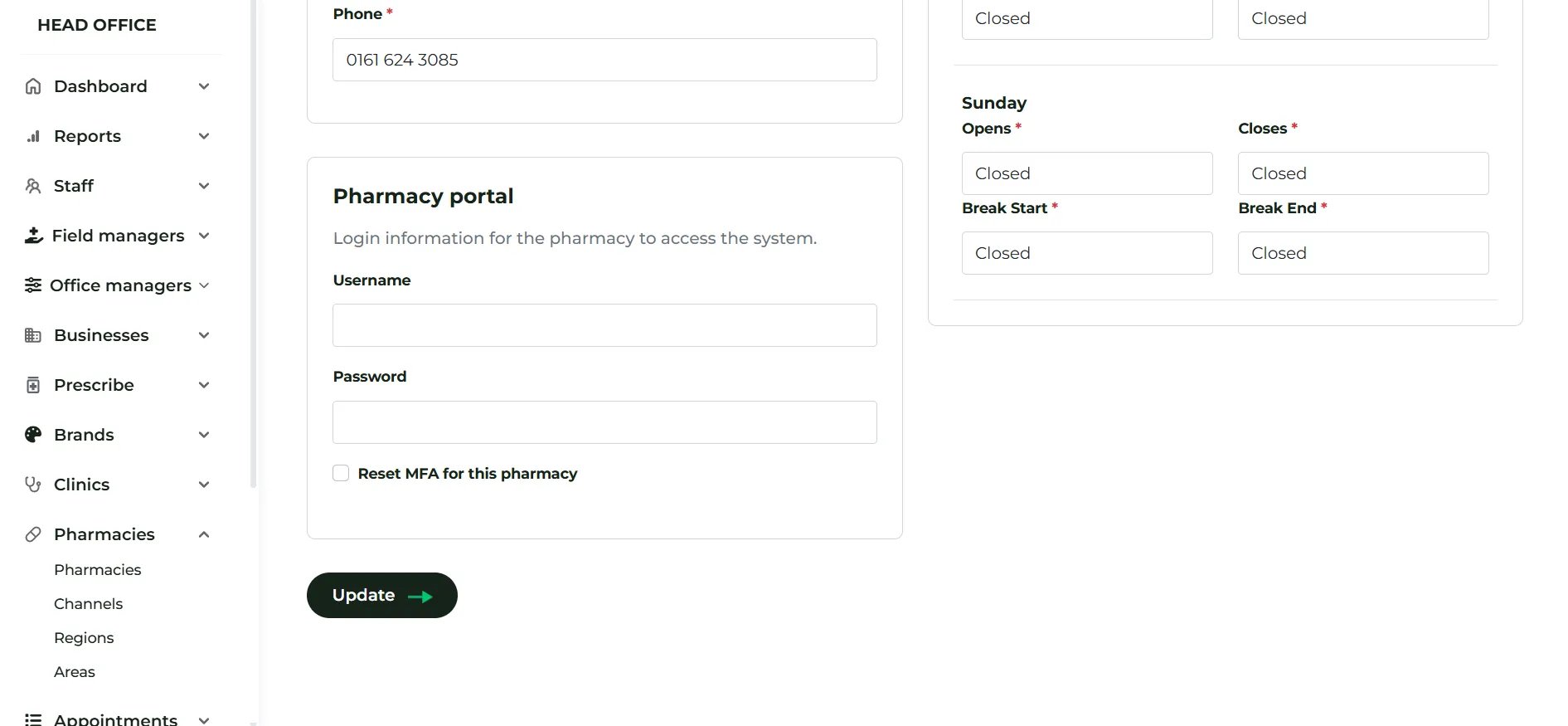
- Scroll down to the Pharmacy Portal login information section.
- Enter the desired Username and Password for the branch.
- Click Update to save the credentials.
2. Branch Sign-In Process
Section titled “2. Branch Sign-In Process”Once Head Office has issued the branch credentials, reception staff can log in straight away.
- Go to the Pharmacy Portal login page on the reception computer.
- Enter the Username and Password provided by Head Office.
- Click Sign In. (Staff will be taken straight to the MFA setup screen without needing to change the password).
3. Multi-Factor Authentication (MFA) Setup
Section titled “3. Multi-Factor Authentication (MFA) Setup”To maintain account security across shift changes, the Pharmacy Portal requires Multi-Factor Authentication (MFA) at every sign-in.
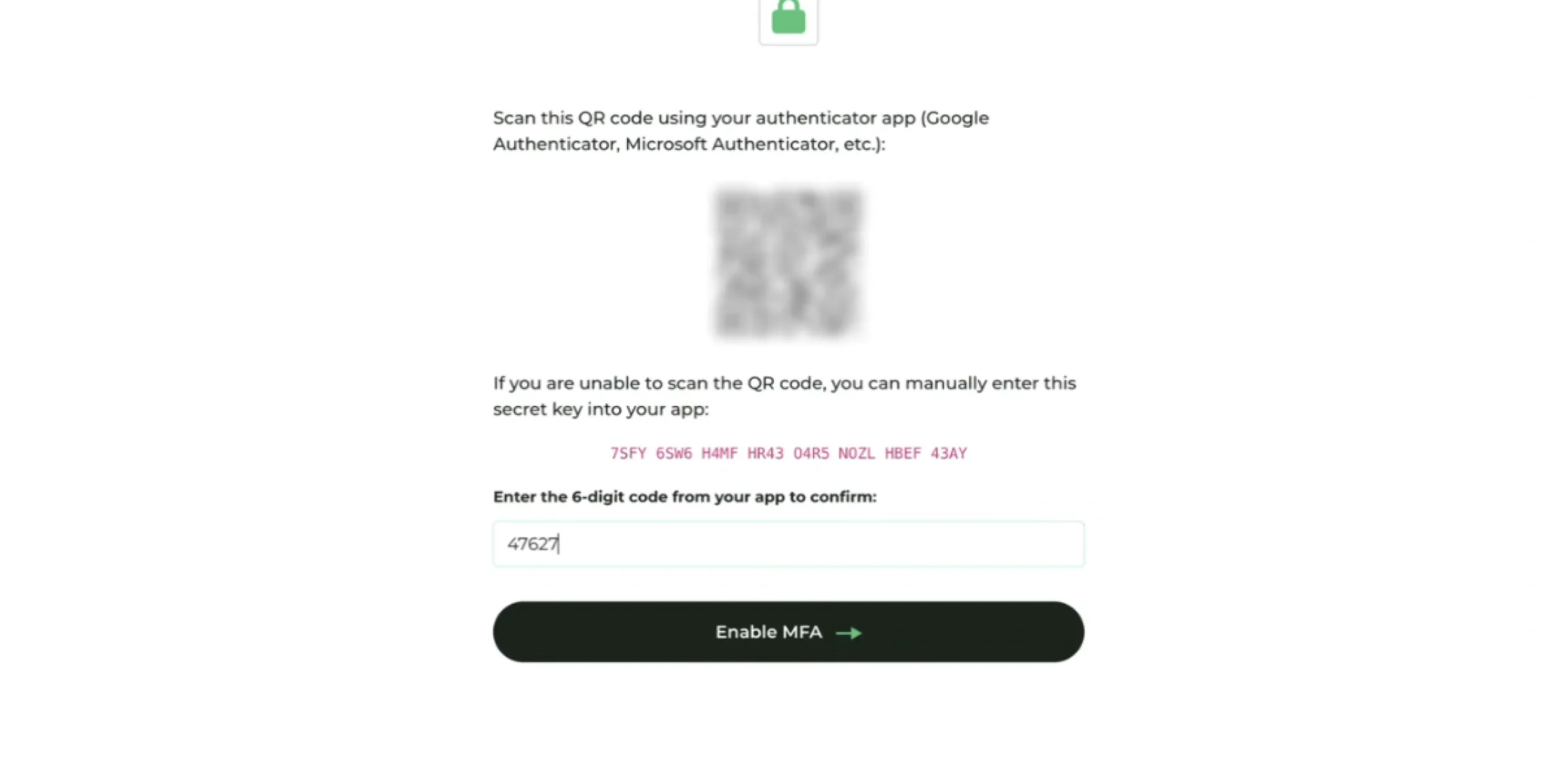
- Open an authenticator app (such as Google Authenticator or Microsoft Authenticator) on the Pharmacy smart phone.
- Scan the QR Code displayed on the OTC counter computer screen.
- Enter the generated 6-digit verification code to complete the pairing process.
⚠️ Critical Requirement: Use the Branch Phone
Do not pair the Pharmacy Portal account with a personal mobile device. Because store colleagues will need an MFA code for every sign-in, the authenticator app must be installed on the designated Pharmacy smart phone, kept in the dispensary.
4. Scope & Portal Purpose
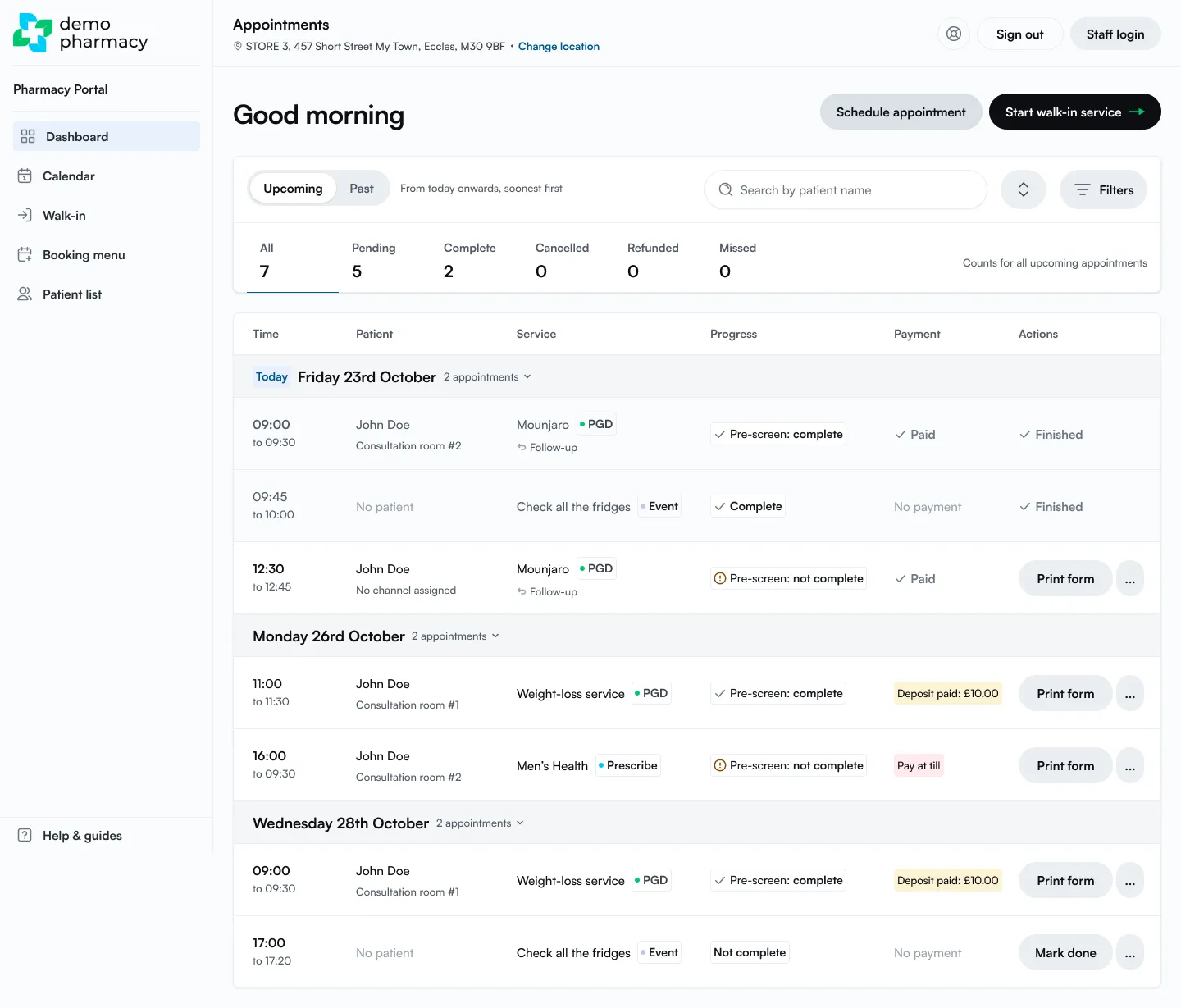
Section titled “4. Scope & Portal Purpose”Once signed in, the Pharmacy Portal provides immediate access to your branch’s appointments dashboard and calendar. See Using your dashboard for a tour.
It is important to understand what is—and isn’t—managed within this account:
- What it is for: Booking new appointments, registering walk-in patients, managing the daily schedule, and printing physical consultation forms for the pharmacist.
- No Governance Required: There are no training modules, SOPs, or declarations to complete within the Pharmacy Portal (these are handled exclusively inside individual pharmacist accounts).
- No Patient Clinical Data: Full patient medical histories and clinical notes are not surfaced within this portal, ensuring patient privacy is protected at the OTC counter.